How to Change from a Microsoft Account to a Local Account in Windows 11

Switching from a Microsoft account to a local account in Windows 11 disconnects your PC from Microsoft services. A local account uses a username and password specific to your computer, unlike a Microsoft account which syncs settings and files across devices.
This change can offer more privacy or simplify your setup. For instance, you might prefer a local account if you don’t want Windows automatically backing up your data to the cloud.
The process involves a few steps within the Windows Settings app. You can complete the switch without needing to reinstall Windows.
Go to Settings > Accounts > Your info, then click “Sign in with a local account instead.” Enter your Microsoft account password, then create a username, password, and hint for your local account. Finally, sign out and back in with your new local account credentials.
Why Change to a Local Account?
Changing to a local account means your Windows 11 login is only for your computer, not tied to Microsoft’s online services, giving you more privacy.
- More privacy: Your settings and files are not linked to your Microsoft account online.
- No syncing: Your settings won’t automatically copy to other devices.
- Simpler login: You use a username and password specific to your computer.
How to Change to a Local Account
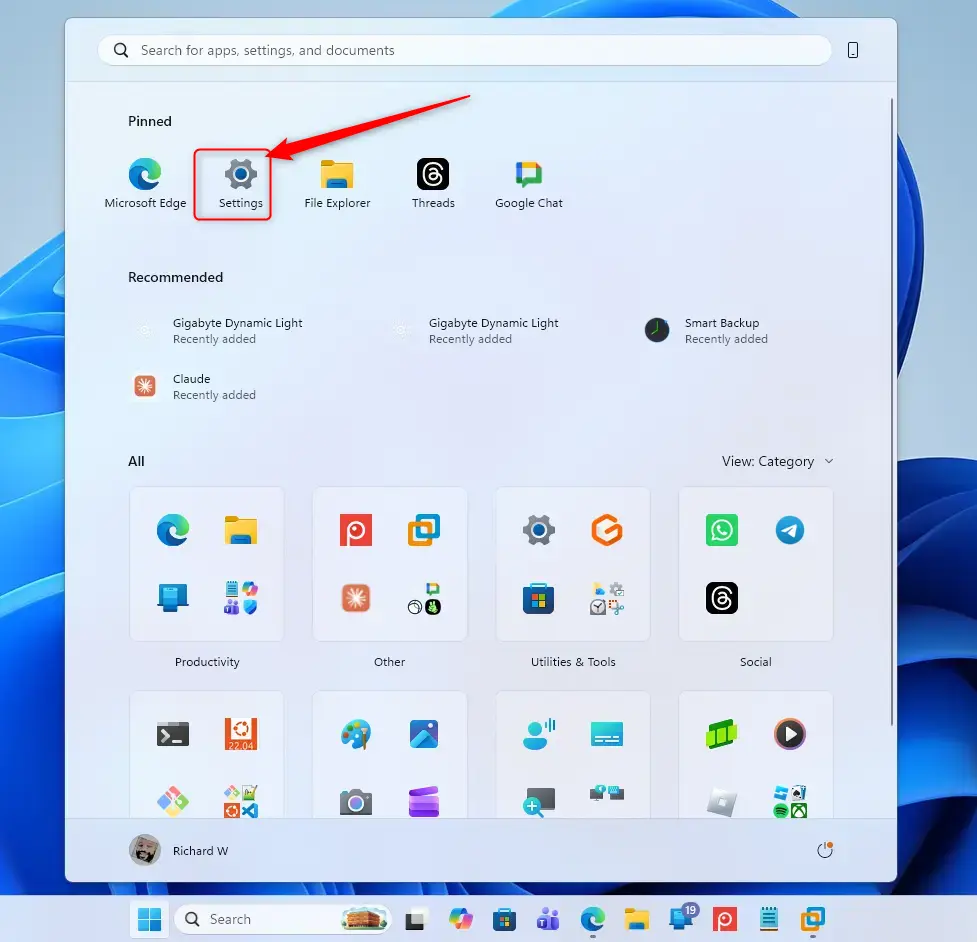
Step 1 Open Settings
Press Windows key + I on your keyboard, or click the Start button and then the gear icon for Settings.
Step 2Go to Your Account Settings
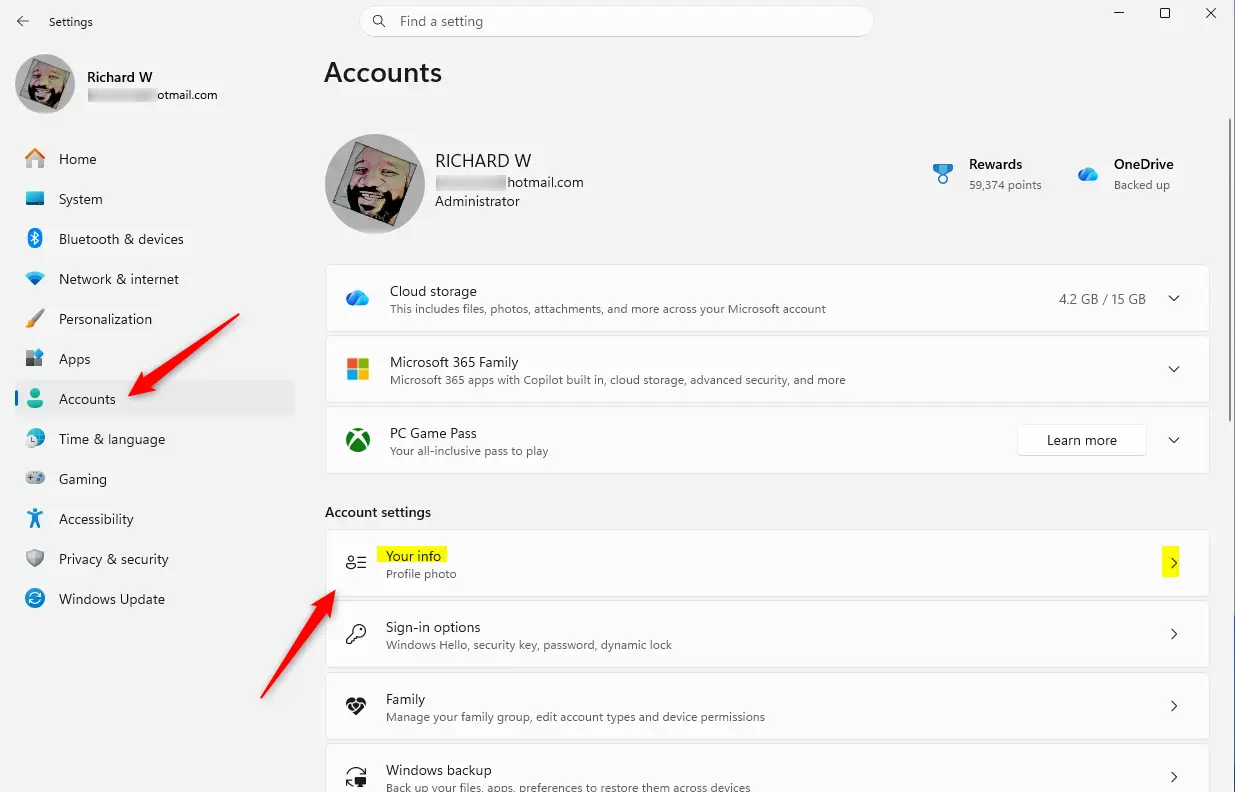
Within the Settings window, select Accounts from the left sidebar. Then, click on Your info.
Step 3Start the Switch
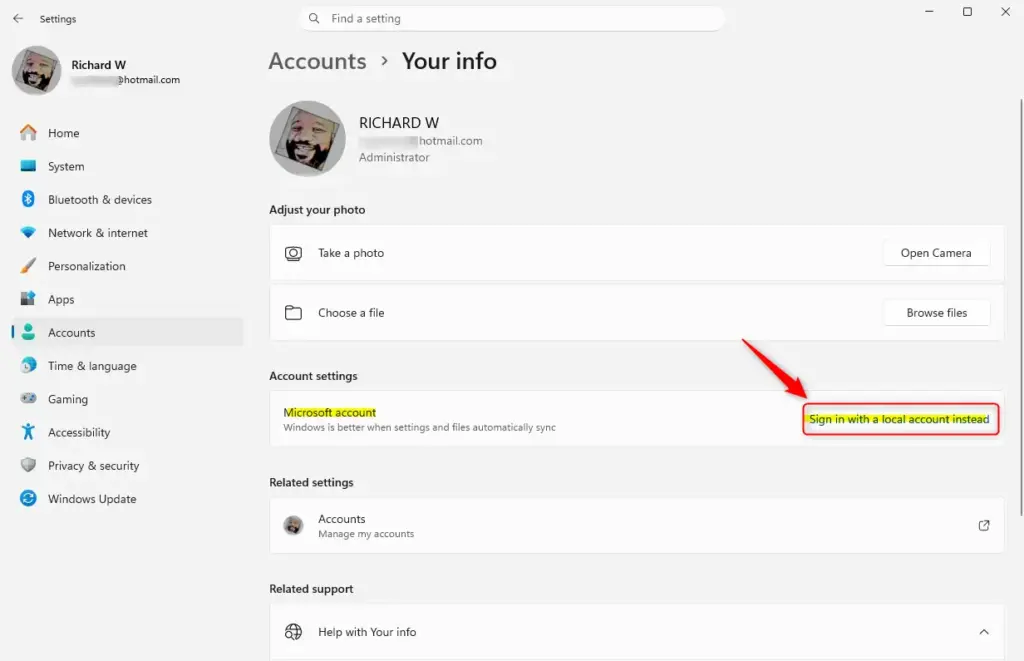
Locate and click the link that reads Sign in with a local account instead. This option appears only when you’re signed in with a Microsoft account. If you don’t see it, your account is already local.
Step 4Enter Your Microsoft Account Password
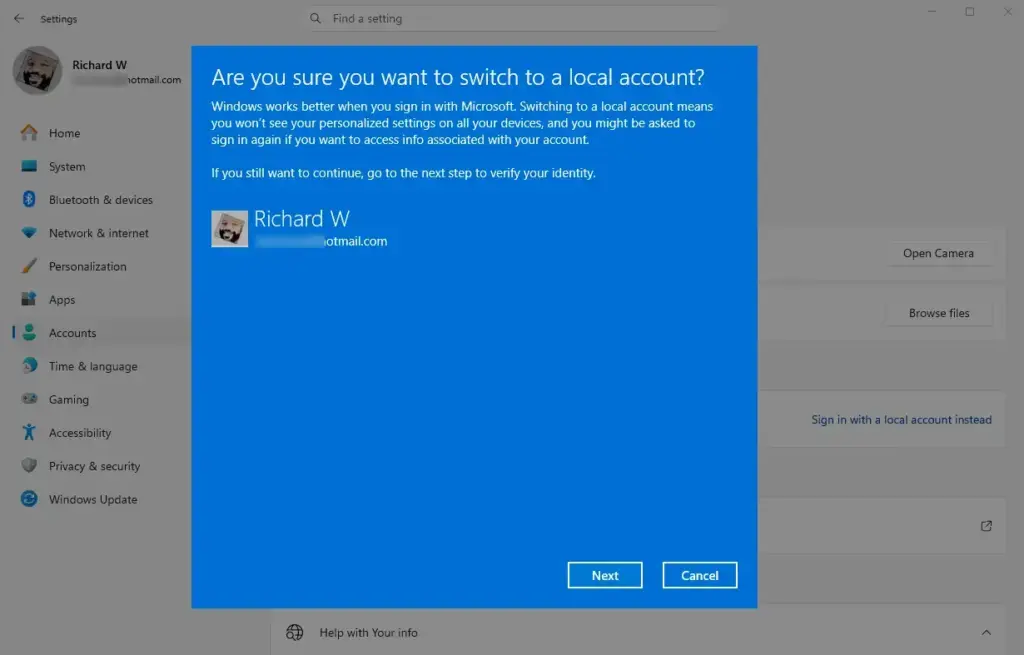
Windows needs to confirm your identity. Provide the password for your current Microsoft account and click Next.
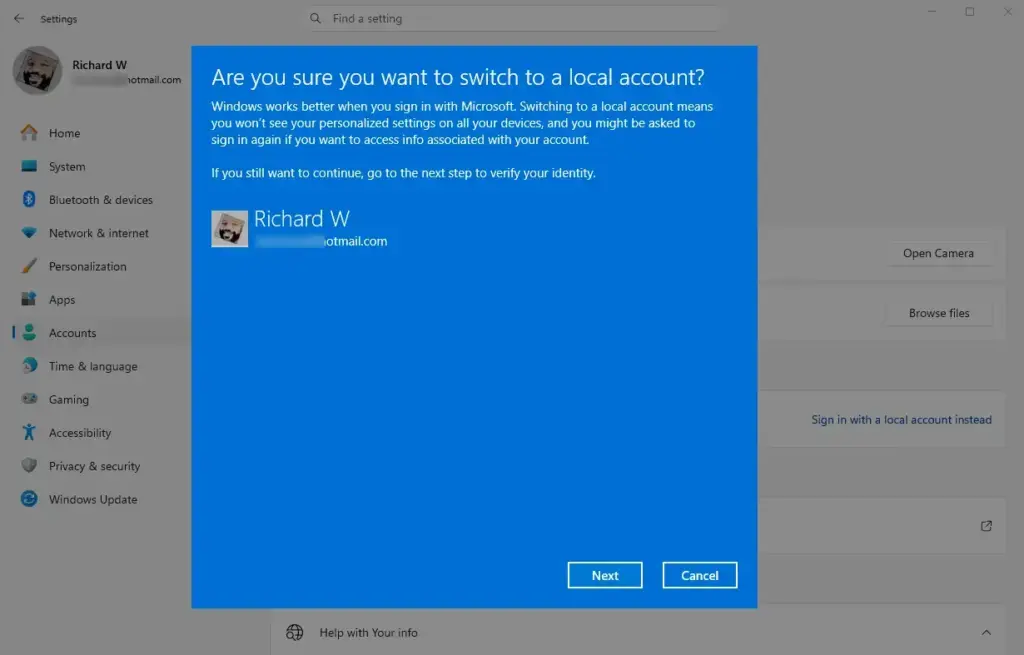
Step 5Create Your Local Account Details
Next, you’ll set up your new local account by choosing a username, a strong password you won’t forget, and a password hint.
- Username: This is the name you’ll use to log in. Make it something you like. It must be different from other usernames on your PC.
- Password: Choose a strong password. You can’t easily reset this online like a Microsoft account password.
- Password Hint: This helps you remember your password. Make it a clue, but not too obvious.
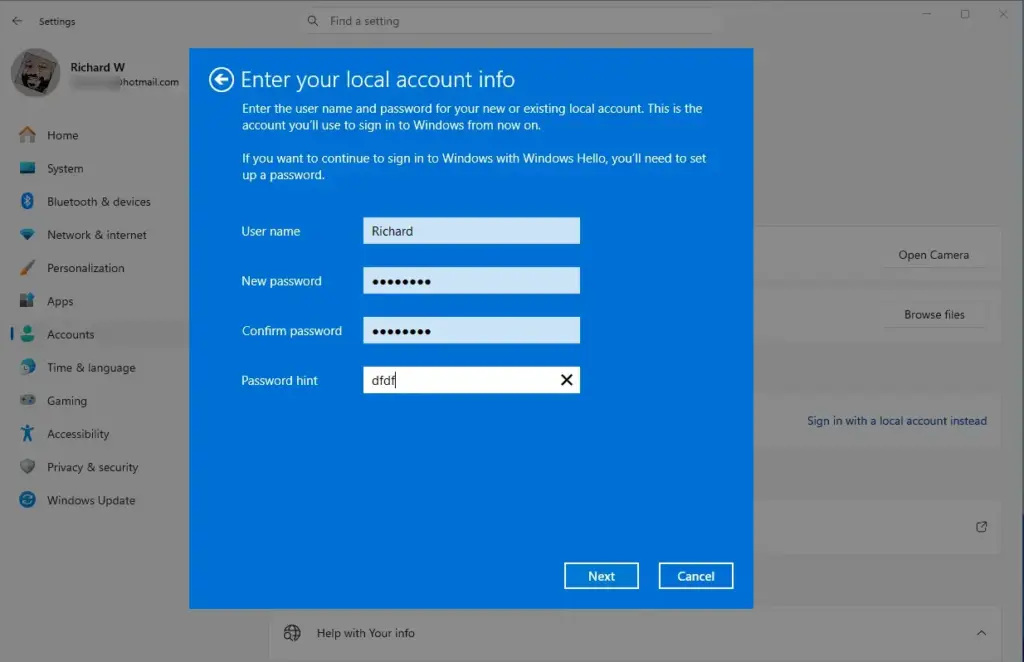
Step 6Finish the Sign-Out
Once your new local account details are entered, click Next. A confirmation screen will appear. Click Sign out and finish.
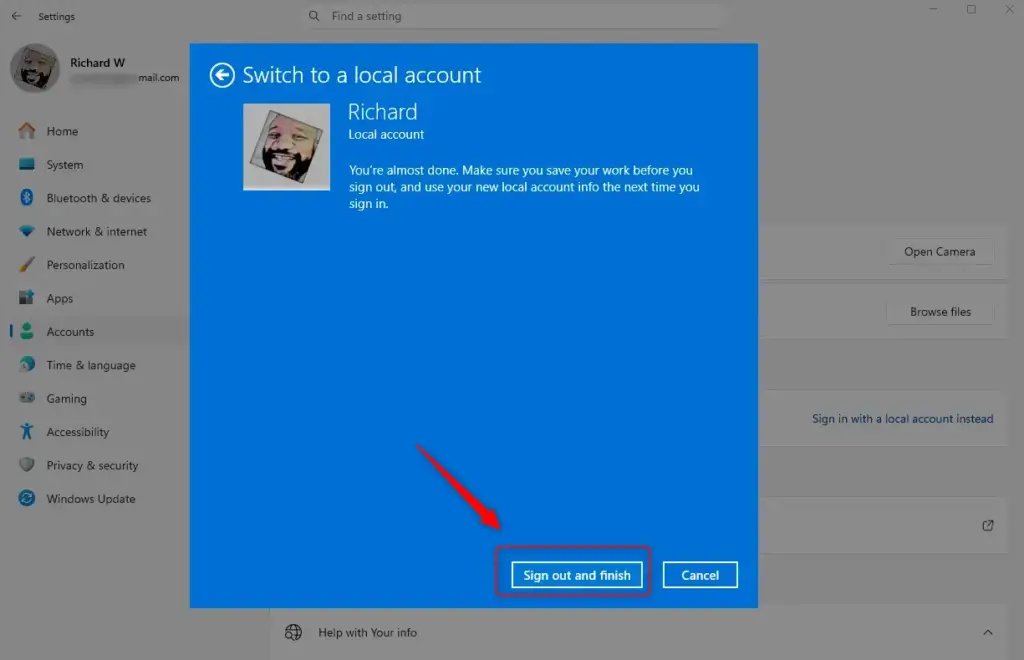
Your computer will sign you out.
Step 7Sign Back In
At the login screen, your new local account username will be visible. Enter the password you just created. You are now logged into your Windows session using your local account.
Reference:
Summary
Switching from a Microsoft account to a local account in Windows 11 involves using the Settings app to enter your current password and then creating a new username, password, and hint for your computer.
Was this guide helpful?

About the Author
Richard
Tech Writer, IT Professional
Richard, a writer for Geek Rewind, is a tech enthusiast who loves breaking down complex IT topics into simple, easy-to-understand ideas. With years of hands-on experience in system administration and enterprise IT operations, he’s developed a knack for offering practical tips and solutions. Richard aims to make technology more accessible and actionable. He's deeply committed to the Geek Rewind community, always ready to answer questions and engage in discussions.
No comments yet — be the first to share your thoughts!