

This post describes steps one can take to change their desktop background in Ubuntu Linux.
Using your desktop background in Ubuntu Linux, you can display photos of your family, pet, or other important people and places in your life.
Ubuntu Linux allows you to change the desktop background with any photo you like. You don’t have to settle for images that come with your computer. Go and personalize your desktop to suit your taste.
There are multiple ways one can change their background wallpaper in Ubuntu Linux. For example, you can use images already included in Ubuntu Linux or set your own.
One way to set one of your photos as the background is to right-click on the image file in File Manager and select Set as Wallpaper, or open the image file in Image Viewer, click the menu button in the title bar and select Set as Wallpaper.
How to set background wallpaper in Ubuntu Linux
As described above, Ubuntu Linux allows users to use their desktop background in Ubuntu Linux to display photos of family, pets, or other important people and places in their lives.
Below is how to change your background desktop in Ubuntu Linux.
Ubuntu Linux has a centralized location for the majority of its settings. From system configurations to creating new users and updating, all can be done from the System Settings panel.

Alternatively, click on the System menu at the top-right corner of the top bar on your desktop.
On the System menu, select Settings, as highlighted below.

In the Settings app, click on the Background tile to open the panel.
The currently selected wallpaper is shown at the top of the screen.
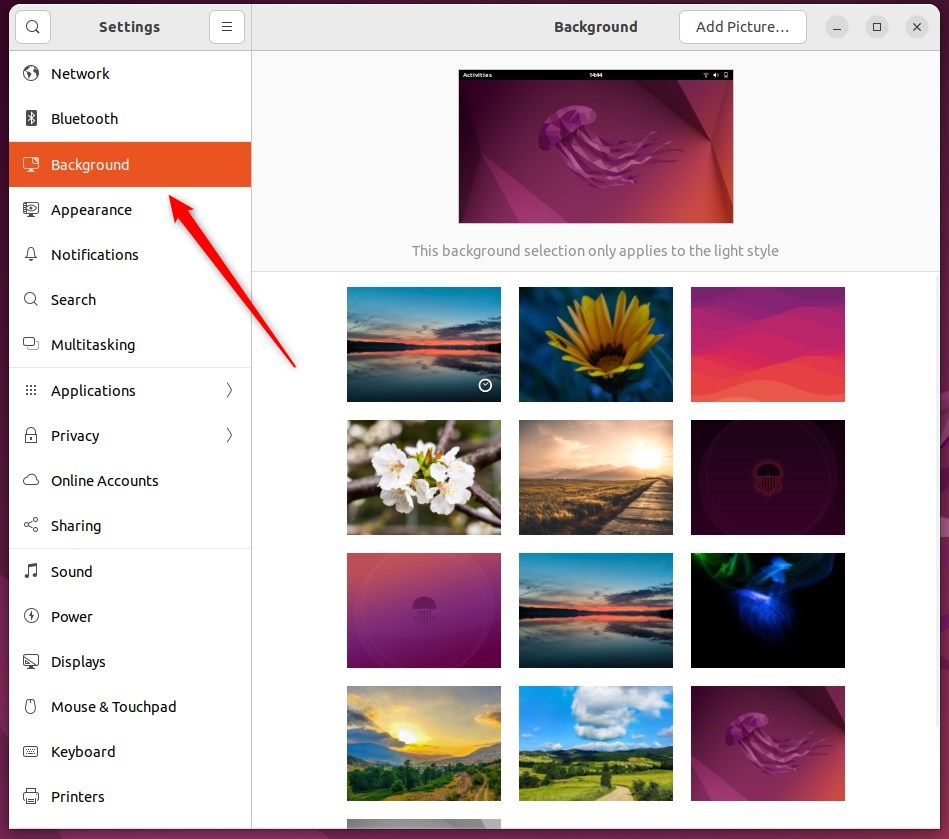
To change the desktop background, click one of the background images shipped with the system.
The image you select will immediately apply, and the background will change right before your eyes.
The wallpapers you see with the small clock at the bottom right corner are dynamic. These wallpapers change throughout the day.
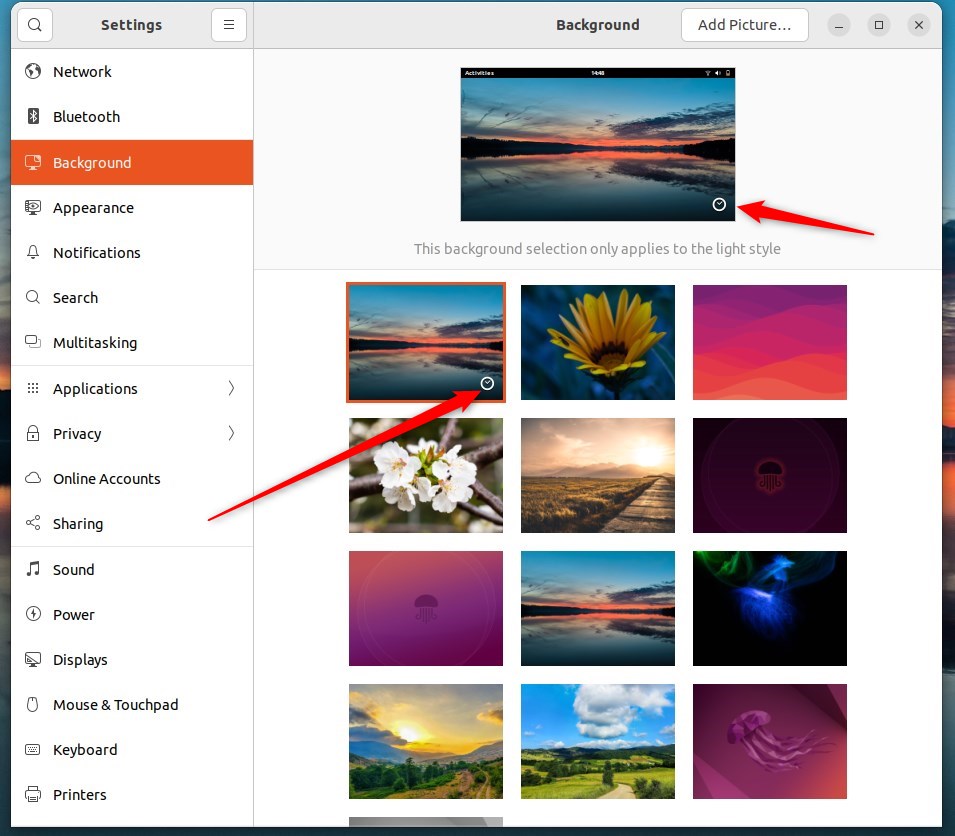
You can add your own if you do not want to choose wallpapers with Ubuntu Linux.
Click Add Picture… to use one of your photos. The Pictures folder will be opened by default since most photo management applications store photos there.
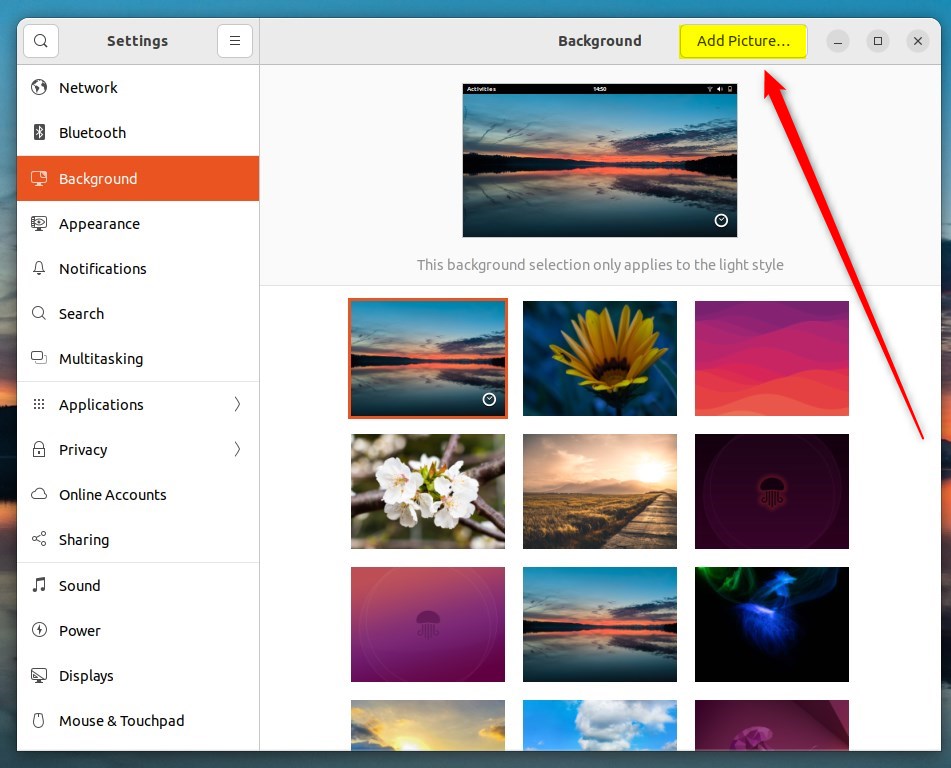
Choose a folder from the Pictures folder or where you saved it and make it your background.
That should do it! You can now close the Settings app.
Conclusion:
- Changing your desktop background in Ubuntu Linux is a simple way to personalize your computer and display meaningful images.
- Whether it’s photos of family, pets, or memorable places, Ubuntu Linux allows you to set your images as the desktop background easily.
- With the centralized System Settings panel, users can quickly navigate to the Background tile and choose from system images or add their pictures.
- Additionally, users can opt for dynamic wallpapers that change throughout the day or select personal photos to customize their desktop experience further.


Leave a Reply