
You can block Microsoft Edge from sharing your location with websites by adjusting its privacy settings.
Microsoft Edge, the default browser for Windows 10 and 11, allows websites to request your geographical position for services like local search results. You can easily prevent this data from being sent to any website you visit.
This guide focuses on disabling location sharing for all websites within Microsoft Edge, ensuring your privacy. It’s a straightforward process that takes just a few moments.
To block Microsoft Edge from sharing your location, open Edge settings, go to Privacy, search, and services, then Site permissions, click Location, and turn off “Ask before accessing.” This prevents all websites from requesting your location.
Taking Control: Managing Website Location Access in Edge
Microsoft Edge lets you control which websites can see your location, making sure you’re asked first before any site gets your exact spot.
However, some websites might try to guess your location without asking directly. They might look at your IP address, which is like your computer’s online address. It’s a good idea to know how to change Edge’s settings to control this more broadly.
How to Block Websites from Knowing Your Location in Edge
You can easily block all websites from knowing your location in Microsoft Edge by changing a simple setting.
- Open Microsoft Edge. Start the browser like you normally do.
- Go to Settings. Look for the three dots (
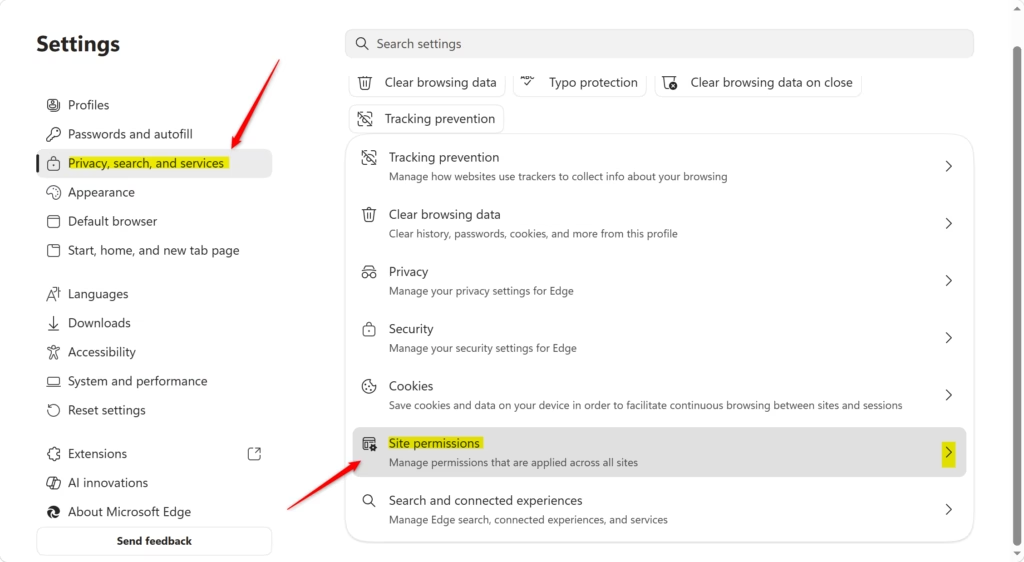
...) in the top right corner of the Edge window. Click them, then choose Settings from the menu. - Find Privacy settings. On the left side of the Settings menu, click on Privacy, search, and services.
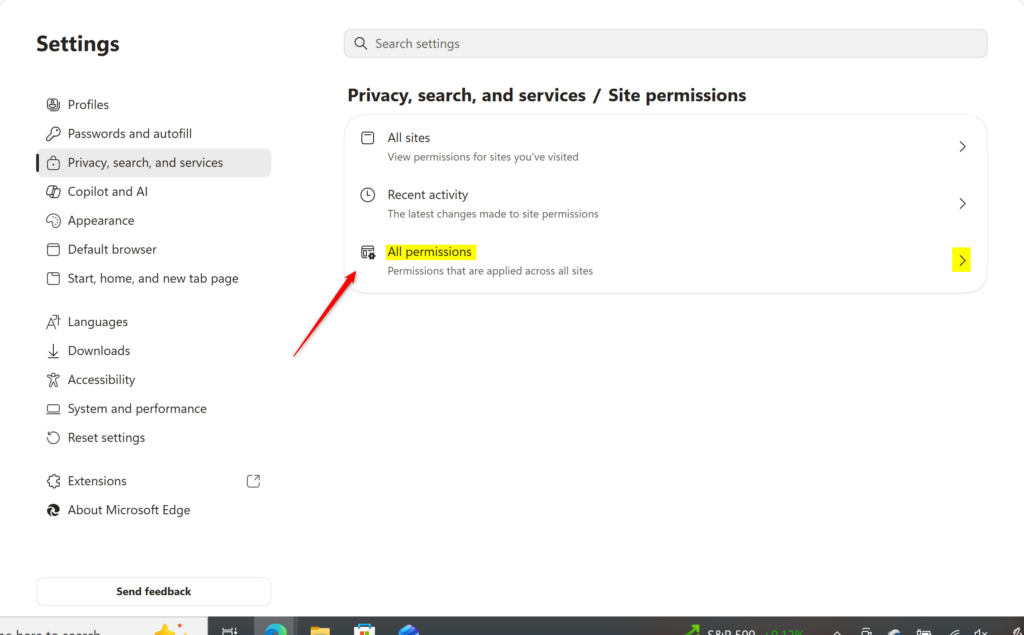
- Find Site Permissions. Scroll down the Privacy, search, and services page until you see Site permissions. Click on All permissions.
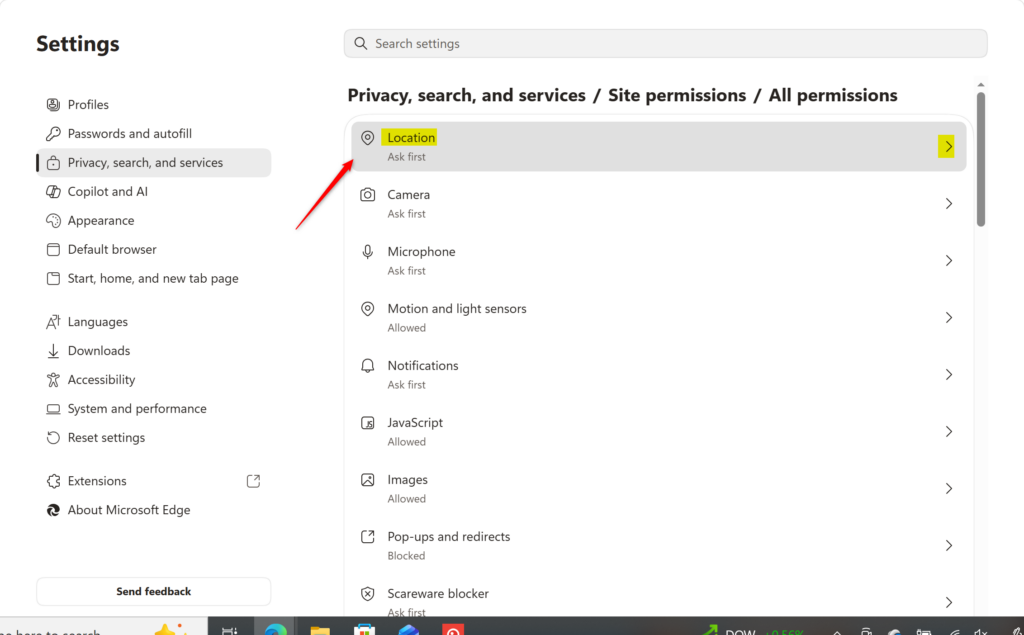
- Find the Location setting. You will see a list of all the permissions you can manage for websites. Scroll until you find Location and click on it.
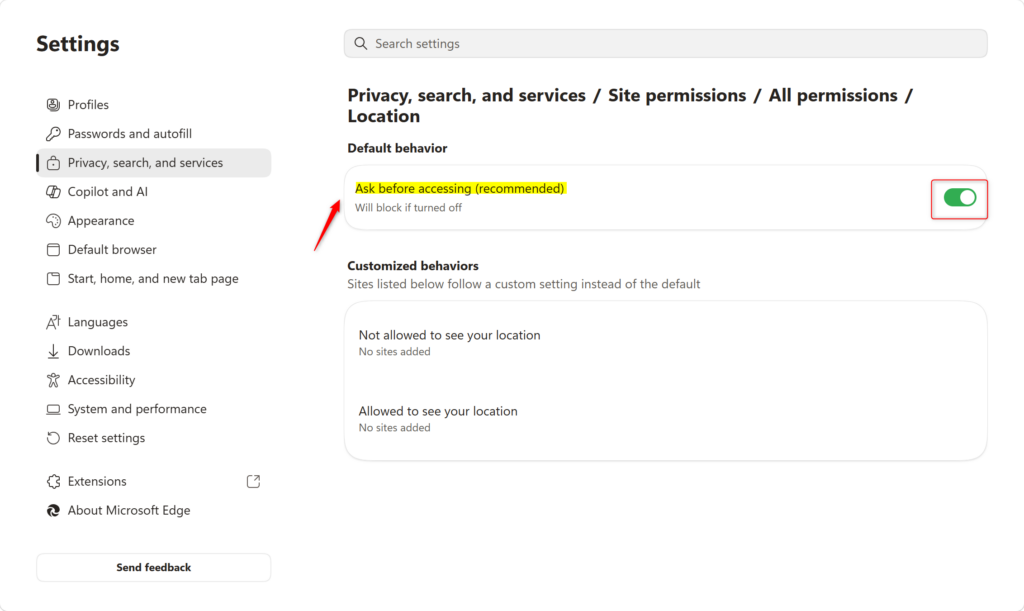
- Make your choice. You will see a switch that says Ask before accessing (recommended). This is your main control.
- Turn this switch OFF : If you turn this off, Microsoft Edge will stop sharing your exact location with any website. Websites won’t be able to ask, and Edge won’t ask you. This is the strictest option.
Warning: If you turn this off, you will miss out on useful location features, like getting directions or finding local services. You will need to turn it back on if you want to allow any site access.
- Turn this switch ON : Leaving this on is the default and recommended setting. When it’s on, Microsoft Edge will ask you every time a website wants to access your exact location. You can then choose to Allow or Block that specific request.
- Turn this switch OFF : If you turn this off, Microsoft Edge will stop sharing your exact location with any website. Websites won’t be able to ask, and Edge won’t ask you. This is the strictest option.

Edge then uses this information from Windows and shares it with the website, but only if you have allowed it.
Windows Location Settings Also Matter!
Your Windows location settings have a big impact on whether Microsoft Edge can share your location with websites.
To check your Windows location settings:
- On Windows 10 or 11, go to Settings > Privacy & security (or Privacy) > Location.
- Make sure Location services is turned On and that Allow apps to access your location is also enabled if you want apps and browsers to use location data.
Reference:
https://support.microsoft.com/en-US/edge/location-and-privacy-in-microsoft-edge
Summary
You can control if Microsoft Edge shares your location with websites by blocking it entirely or by having Edge ask each time.
How do I stop Microsoft Edge from tracking my location?
In Microsoft Edge, select Settings > Privacy, search, and services . Select Site permissions > All permissions, then select Location. Turn off the Ask before accessing (recommended) toggle to websites from accessing your precise location. Microsoft Edge won't share your precise location with any website.
How do I stop sharing my location with a website?
To stop sharing your location with all apps and services for even a short period of time, go to Settings > Privacy > Location Services and turn off location sharing. This stops all apps on your device, even Maps, from using your location.
Can you block Microsoft from sharing your location?
Go to the Microsoft privacy dashboard, sign in with your personal or home Microsoft account (MSA), select My activity, and then under Filter by data type, select Locations. You'll see all the location information associated with your account and how to stop providing your location.
Was this guide helpful?

About the Author
Richard
Tech Writer, IT Professional
Richard, a writer for Geek Rewind, is a tech enthusiast who loves breaking down complex IT topics into simple, easy-to-understand ideas. With years of hands-on experience in system administration and enterprise IT operations, he’s developed a knack for offering practical tips and solutions. Richard aims to make technology more accessible and actionable. He's deeply committed to the Geek Rewind community, always ready to answer questions and engage in discussions.


No comments yet — be the first to share your thoughts!