
This article explains enabling or disabling the Retail Demo Experience Mode (RDX) in Windows 11.
Retail Demo Experience Mode is a feature that allows retailers to provide an interactive and personalized demo experience with specific configurations of preloaded apps, settings, and content, providing a consistent and controlled experience to potential customers.
When you visit most local computer stores, you might observe that the Windows devices on display often have very generic users (“Darrin DeYoung“) and default settings across PCs.
The Windows RDX mode is typically enabled on these devices.
Enabling or disabling Retail Demo Experience Mode (RDX) in Windows 11 is useful for retail stores or computer shops that want to provide customers with a personalized and interactive demo experience.
However, enabling RDX may not be necessary if you’re not in a retail environment.
Enable or disable the Retail Demo Experience Mode on Windows
As mentioned, users can enable or disable RDX mode on Windows to provide a personalized and interactive demo experience.
Here’s how to do it.
First, open the Windows Settings app.
You can do that by clicking on the Start menu and selecting Settings. Or press the keyboard shortcut (Windows key + I) to launch the Settings app.
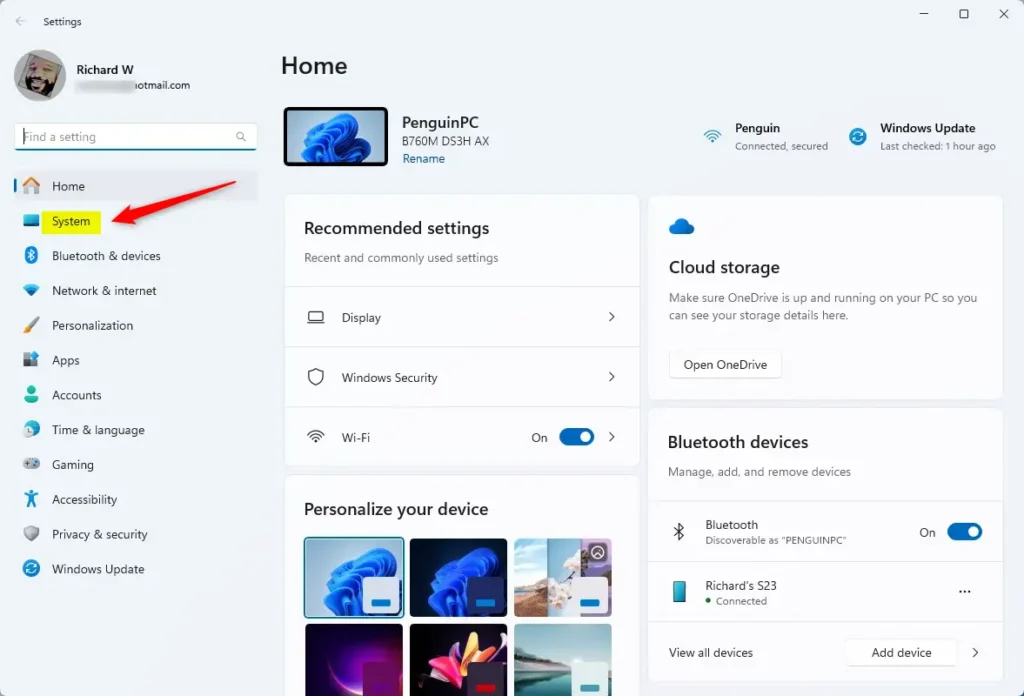
When the Setting app opens, click the System button on the left.
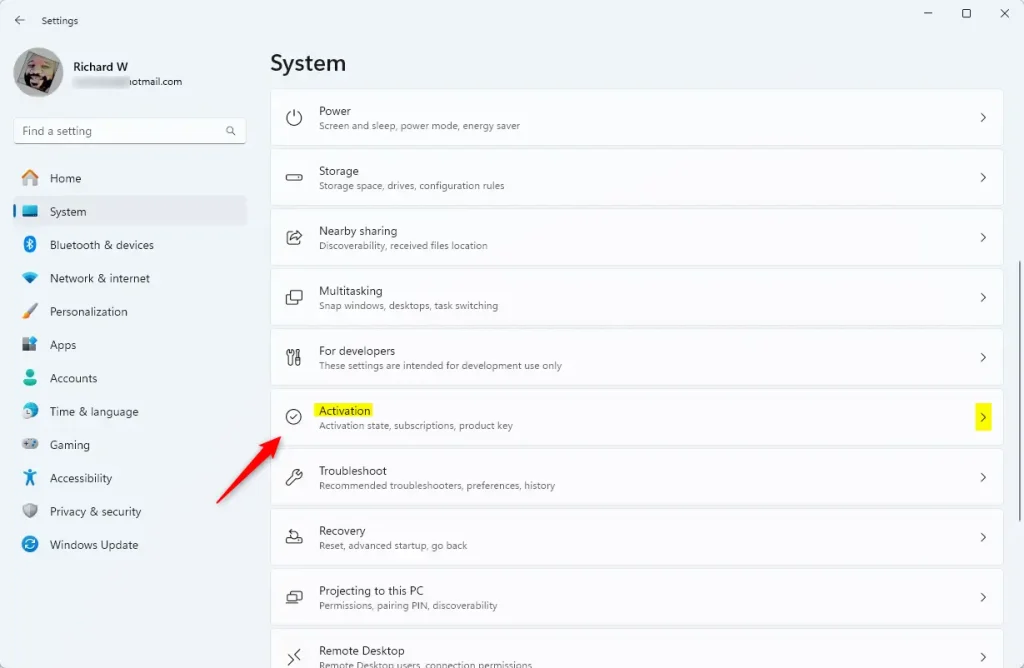
Select the “Activation” tile on the System on the right to expand it.
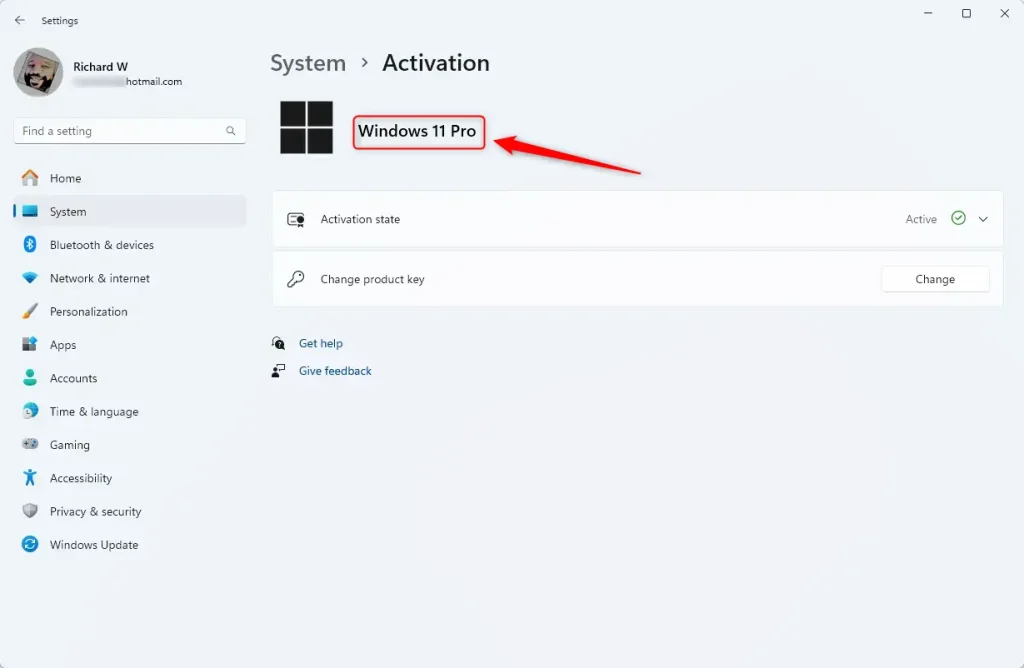
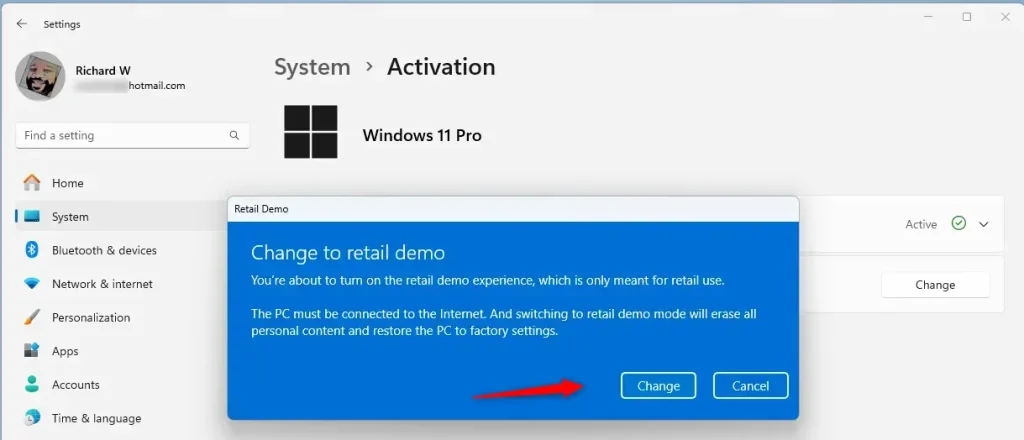
On the System > Activation settings pane, click on the Windows edition name five times ( 5X).
When prompted, click the Change button to confirm.
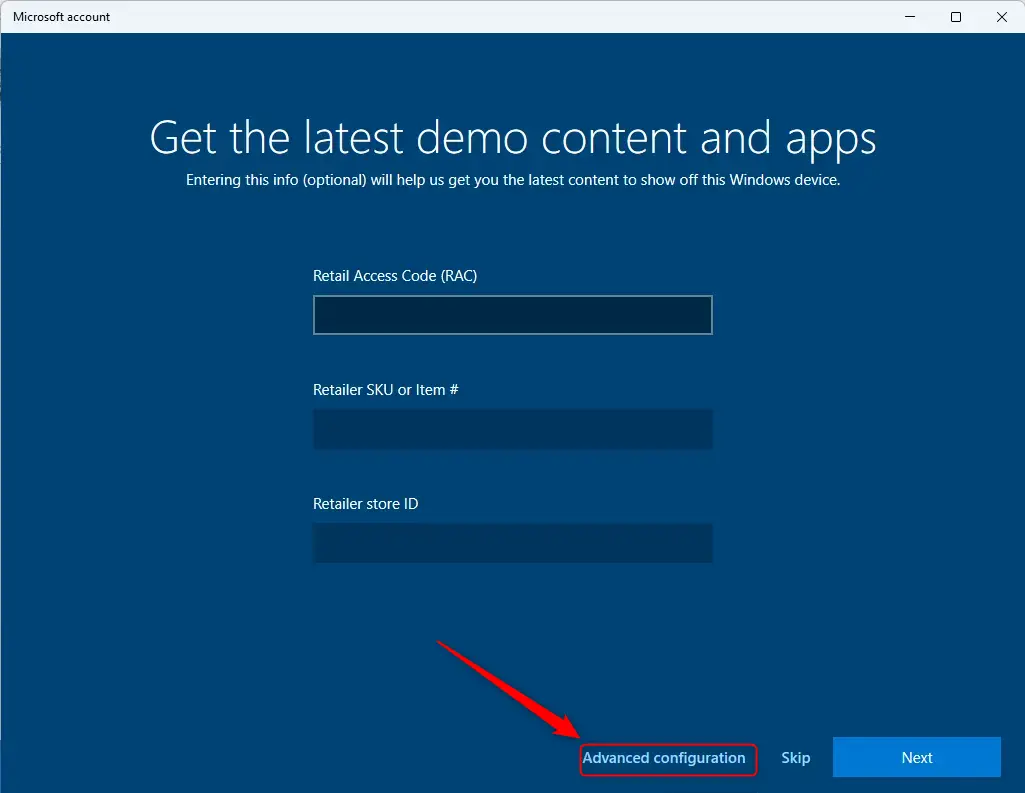
Next, click the “Advanced configuration” link.
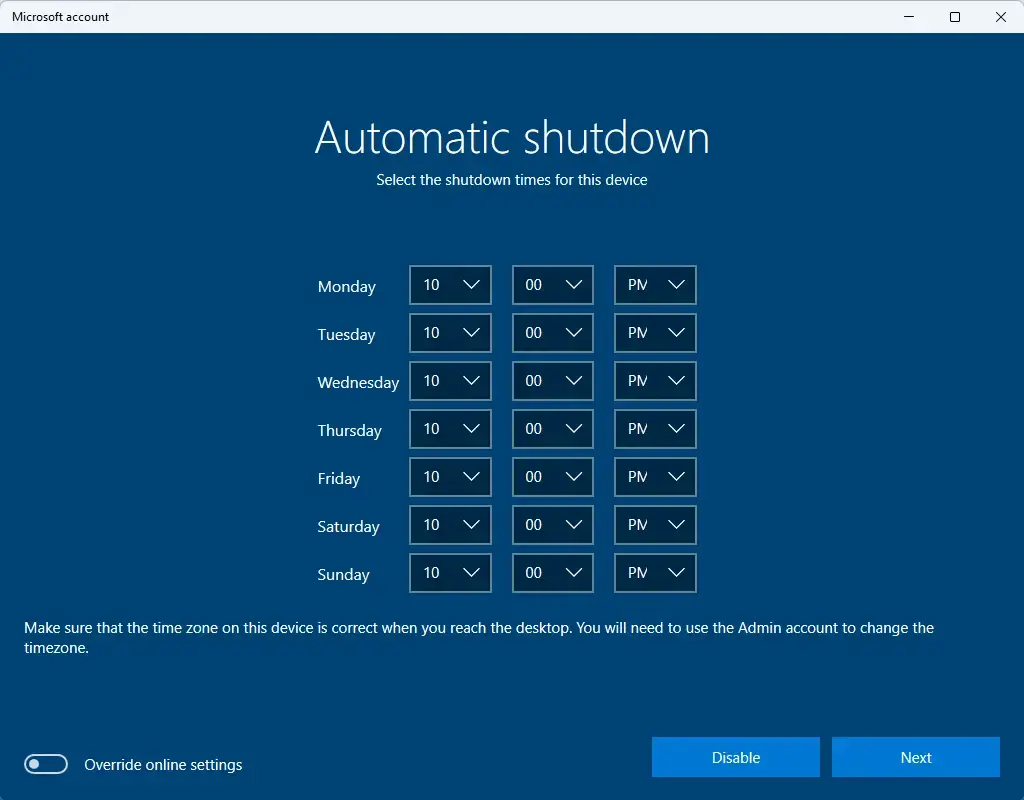
Select to shut down automatically if you want and click Next.
Next, choose how long you want RDX to run before the admin account is removed. Toggle the button to Off if you don’t want the admin account removed.
Once you turn it off, you’ll be prompted to provide a password for the admin account.
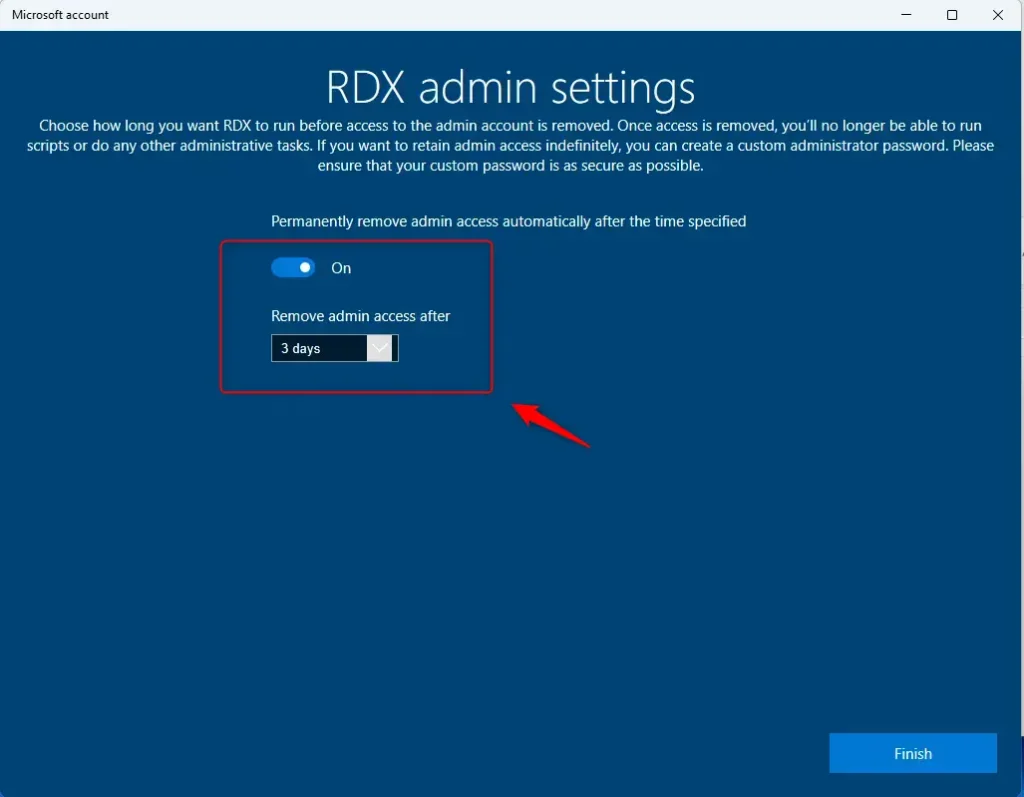
Click the Finish button when you’re done.
Remove the RDX mode on Windows
If you want to remove the RDX mode on Windows 11, return to the System Settings > System > Activate settings page.
Then, click the edition name five times (5X) again.
When prompted, click the “Advanced configuration” link.
Then, click the “Remove” button and confirm to finish.
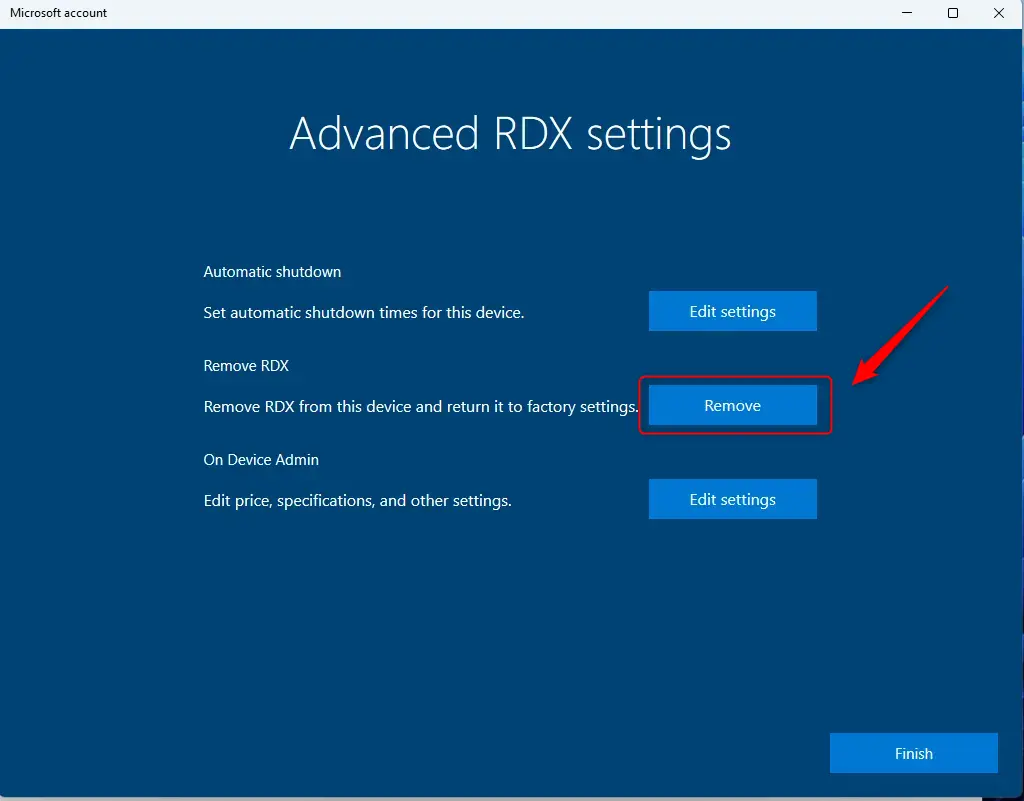
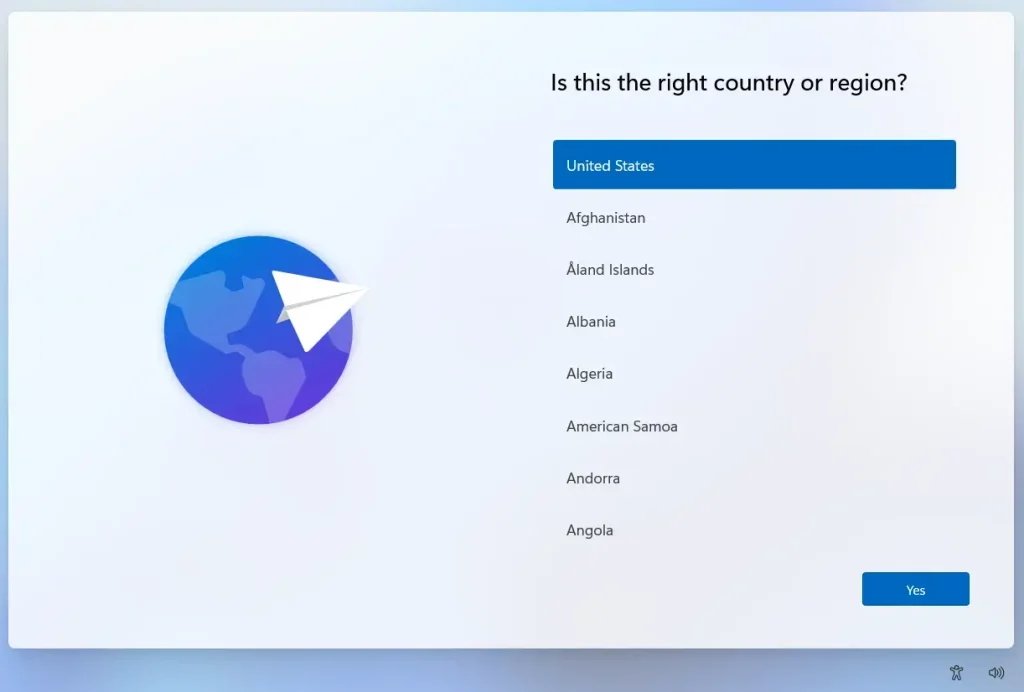
Windows will remove the RDX mode and restore the machine to its default settings. You will need to reconfigure Windows to your liking.
That should do it!
Conclusion:
- Enabling or disabling Retail Demo Experience Mode (RDX) in Windows 11 is crucial for providing customers with a personalized and interactive demo experience in retail environments.
- For retail stores or computer shops, enabling RDX can offer potential customers a consistent and controlled experience.
- Disabling RDX is recommended if the device is not intended for display in a retail environment. This restores the machine to its default settings, allowing for reconfiguration according to preferences.



Leave a Reply to rich Cancel reply