How to Access Your Phone’s Files Directly in Windows 11 File Explorer

You can access your Android phone’s files directly within Windows 11 File Explorer, treating it like another drive on your PC.
This integration allows you to browse photos, download documents, and manage your phone’s storage without needing cables or cloud services.
For this to work, your Android phone must be running Android 11 or a later version, and you’ll utilize the “Link to Windows” app. You can easily view your phone’s content alongside your C: drive, simplifying file management between devices.
What You Need to Get Started
Before we set things up, let’s make sure your devices are ready. This feature needs a few specific things to work correctly.
Your Android Phone
- Operating System: Your phone needs Android 11 or newer. This is important so your computer can talk to your phone’s storage.
- Link to Windows App: You need the “Link to Windows” app on your phone. Make sure it’s updated to version 1.24072.258.0 or newer. You can check for updates in your phone’s app store.
Your Windows PC
- Operating System: This feature only works with Windows 11. If you have an older version of Windows, you won’t be able to use this.
Step-by-Step: Connecting Your Phone in File Explorer
Getting your phone to show up in File Explorer takes a few clicks on your computer.
- Open Windows Settings
Click the Start button (the Windows logo) on your taskbar. Then click the ‘Settings’ gear icon. You can also press
Windows key + Ion your keyboard. This will open the Windows Settings app. - Go to Bluetooth & devices
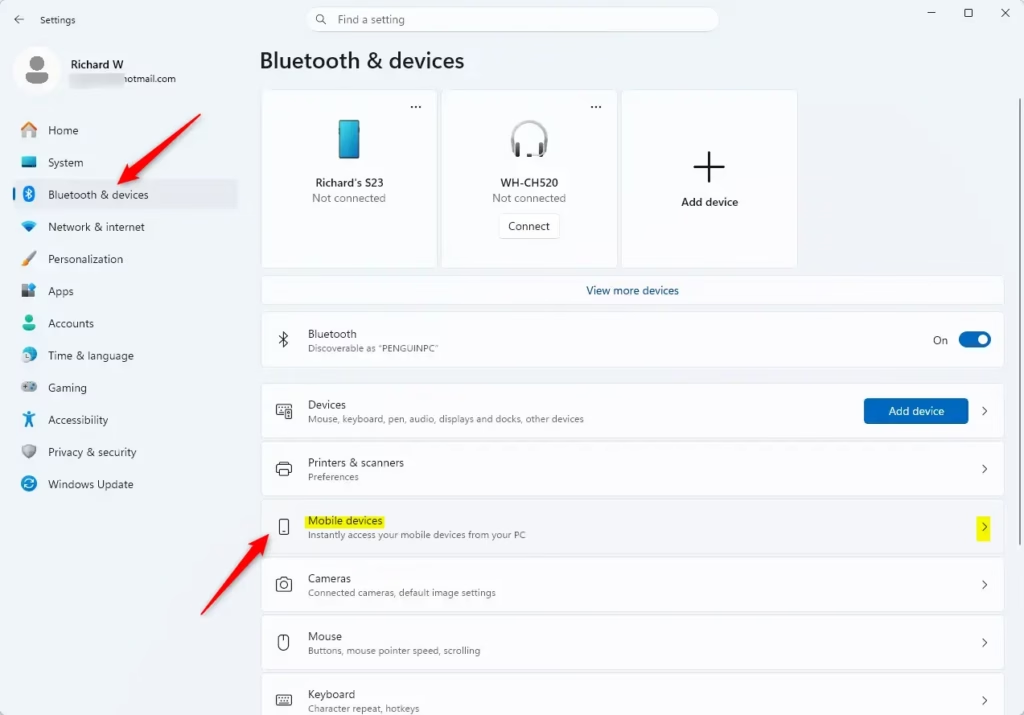
In the Settings window, click ‘Bluetooth & devices’ on the left side. This is where you manage all the devices connected to your PC.
- Find Mobile devices
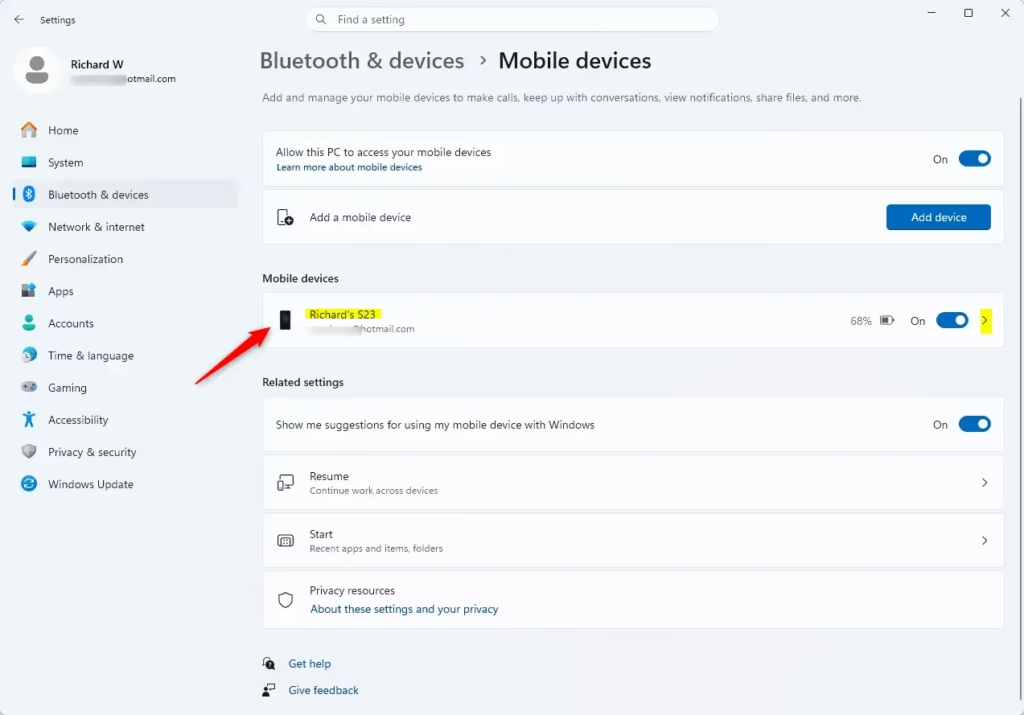
Scroll down on the right side of the ‘Bluetooth & devices’ window. Find ‘Mobile devices’ and click on it.
- Manage Your Paired Devices
Under ‘My Devices,’ you should see your paired Android phone listed. If you have more than one phone paired, they will all be listed here.
- Turn on the File Explorer Option
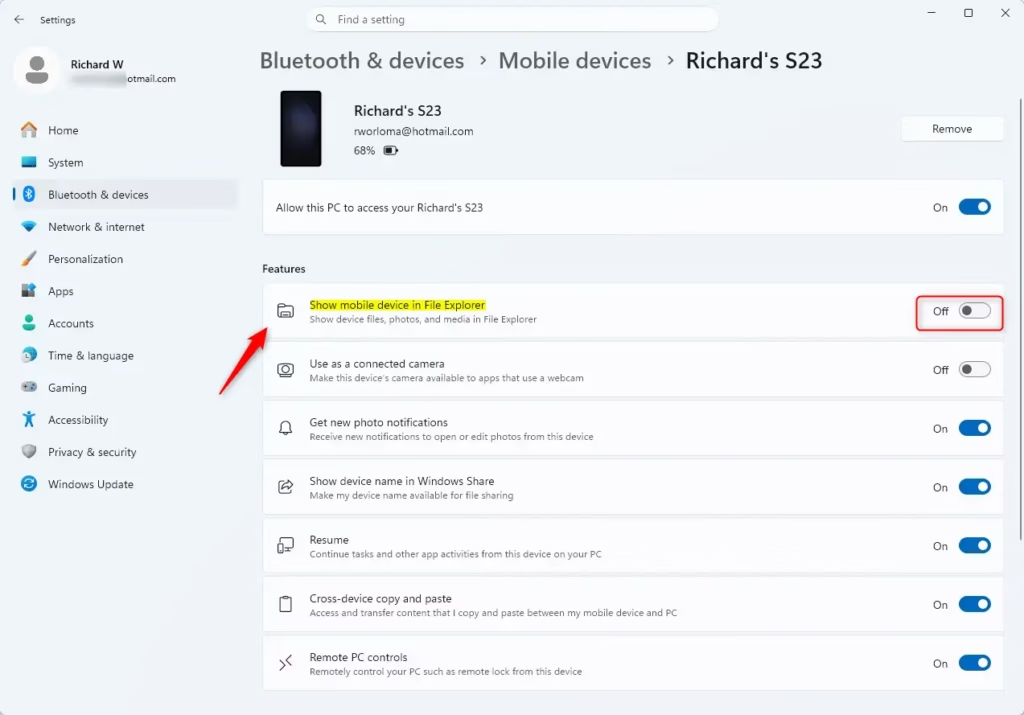
Next to your phone’s name, there is a switch labeled ‘Show mobile device in File Explorer.’ Turn this switch to the ‘On’ position. Your phone’s storage will now be available in File Explorer.
What Can You Do Once Your Phone is in File Explorer?
Now for the exciting part! With your phone showing up in File Explorer, managing your files becomes much easier. This is like having a direct connection to your phone’s internal storage and its SD card (if you’ve installed one).
Browse Folders and Files Easily
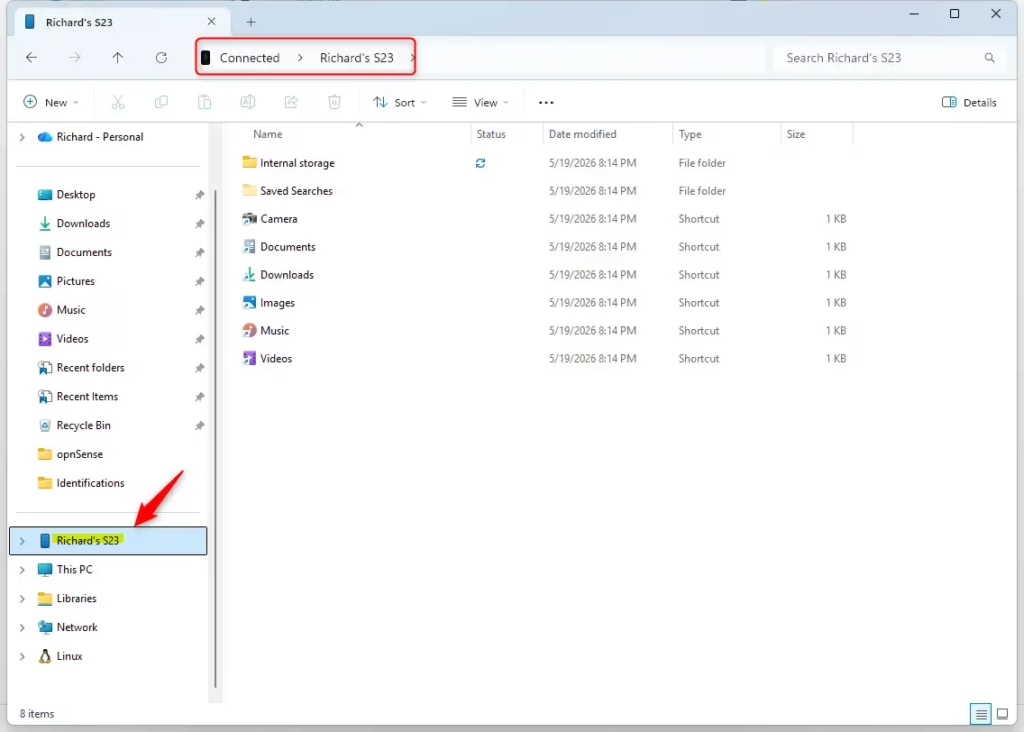
Open File Explorer (press Windows key + E). Look under ‘This PC’ on the left-hand side. You should see your mobile device listed there, just like a new drive. Click on it to see the internal storage and any SD card. You can then navigate through folders exactly as you would on your computer. You can look at photos, download folders, find documents, and much more.
Manage Your Files Like Never Before
You can do more than just look at your files! You can perform all the usual file actions directly from File Explorer:
- Open Files: Double-click any file (like pictures, videos, documents, or audio files) to open it with its default app on your PC.
- Copy and Move: Drag and drop files from your phone to your PC, or from your PC to your phone. You can also use the standard copy (
Ctrl + C) and paste (Ctrl + V) commands. - Rename Files: Right-click on a file on your phone within File Explorer and choose ‘Rename.’
- Delete Files: Need to free up space? Select the files or folders you no longer need and press the
Deletekey on your keyboard, or right-click and choose ‘Delete.’
Practical Tip: This is incredibly useful for moving large video files or many photos without needing a USB cable or uploading them to the cloud. It’s a much faster way to move files locally.
Reference:
Summary
This guide showed you how to make your Android phone’s files appear directly in Windows 11 File Explorer. To do this, your phone needs Android 11 or newer and the “Link to Windows” app. Your PC must be running Windows 11. The process involves going to Windows Settings, then selecting ‘Bluetooth & devices,’ then ‘Mobile devices,’ and finally turning on the ‘Show mobile device in File Explorer’ option for your paired phone. Once connected, you can browse, open, copy, move, rename, and delete files wirelessly, much like you would with any other drive on your PC. Remember, only one phone can be displayed in File Explorer at a time. This feature greatly simplifies transferring files between your phone and computer, eliminating the need for cables or cloud services.
How to see phone in File Explorer?
To see your phone in File Explorer, ensure your Android phone (version 11+) and Windows 11 PC have the 'Link to Windows' app installed and updated. Once connected via the app, your phone will appear as a drive within Windows 11 File Explorer, allowing direct access to its files.
How do I access my phone files on my computer?
Access your phone files on your computer by using the 'Link to Windows' app on both your Android phone (version 11+) and Windows 11 PC. After pairing, your phone's storage will be accessible directly within Windows File Explorer, just like any other drive on your PC.
How do I access my phone files on my PC without USB?
Access phone files on your PC without USB by utilizing the 'Link to Windows' app. This feature, available on Android 11+ and Windows 11, allows wireless connection. Once linked, your phone appears in File Explorer, enabling direct file management without needing a physical USB cable.
How to fix phone not showing in File Explorer?
If your phone isn't showing in File Explorer, verify both devices have the latest 'Link to Windows' app version and are running Android 11+ and Windows 11. Ensure both devices are on the same Wi-Fi network and that the app permissions are correctly set. Re-pairing devices often resolves this.
Was this guide helpful?

About the Author
Richard
Tech Writer, IT Professional
Richard, a writer for Geek Rewind, is a tech enthusiast who loves breaking down complex IT topics into simple, easy-to-understand ideas. With years of hands-on experience in system administration and enterprise IT operations, he’s developed a knack for offering practical tips and solutions. Richard aims to make technology more accessible and actionable. He's deeply committed to the Geek Rewind community, always ready to answer questions and engage in discussions.


No comments yet — be the first to share your thoughts!