
If you use Windows 11 but also work with Linux, there’s a simple way to open and use Linux files right from Windows without needing complicated setups. This is done using a feature called Windows Subsystem for Linux (WSL).
What is WSL? It lets you run Linux inside Windows, so you can use Linux tools and files without installing a separate Linux system or using a virtual machine.
With WSL ready, you can even connect and open Linux drives (or parts of those drives) directly in Windows File Explorer, just like you open your normal Windows folders.
Steps to Mount Linux File System on Windows 11
Step 1: Open PowerShell as Administrator
First, you need to open PowerShell with special permissions:
- Click Start, type PowerShell.
- Right-click Windows PowerShell and select Run as administrator.
Step 2: See Your Drives
In the PowerShell window, type this command to see all your drives and disks:
wmic diskdrive list brief
You should see a list like this:
Caption                     DeviceID            Model                   Partitions  Size
SAMSUNG MZVKW512HMJP-000H1  \.PHYSICALDRIVE0  SAMSUNG MZVKW512HMJP-000H1  3         512105932800
ST1000LM035-1RK172          \.PHYSICALDRIVE1  ST1000LM035-1RK172          1         1000202273280
Look at the DeviceID column — this tells you the name of the physical drives.
Step 3: Mount the Linux Drive
Now, to open a Linux drive, type this command in PowerShell, replacing <DISKPATH> with the DeviceID you want to access:
wsl --mount <DISKPATH>
For example, to mount the first drive shown above:
wsl --mount \.PHYSICALDRIVE0
If you want to open just one partition (part of the drive), add --partition and the partition number. For example, to mount partition 1 on the same drive:
wsl --mount \.PHYSICALDRIVE0 --partition 1
By default, WSL tries to mount the drive as an ext4 Linux file system. If your drive uses a different format, like FAT, you can specify it with -t. For example:
wsl --mount <DISKPATH> -t vfat
Step 4: Access Linux Files in Windows File Explorer
After mounting, open File Explorer (the folder icon on your taskbar or press Windows key + E).
In the address bar at the top, type:
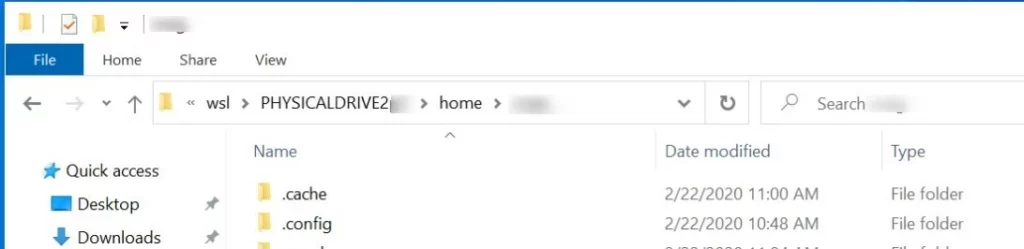
\wsl$
You’ll see your Linux distributions listed here. Click on your Linux distro (for example, Ubuntu) and then open the mount folder to find your mounted drive’s files.
Step 5: Unmount the Linux Drive (When Done)
When you want to safely disconnect the Linux drive, go back to PowerShell and run:
wsl --unmount <DISKPATH>
Example:
wsl --unmount \.PHYSICALDRIVE0
Summary
- WSL lets you run Linux inside Windows 11 easily.
- You can mount and open Linux drives or partitions directly in Windows via PowerShell commands.
- Once mounted, Linux files are available inside Windows File Explorer under
\wsl$. - Remember to unmount your drives safely when done.
Want to learn more about setting up WSL or using File Explorer? Check these guides:
- How to Install WSL on Windows 11
- How to Use File Explorer on Windows 11
- How to Run PowerShell as Administrator
If you have questions or want to share your experience, please leave a comment below!



Leave a Reply Cancel reply