
This guide will help you turn the mobile hotspot feature on or off on your Windows 11 PC. A mobile hotspot lets you share your PC’s internet connection with other devices like phones, tablets, or other computers using Wi-Fi.
You can share your internet whether your PC is connected through Wi-Fi, Ethernet (a cable), or cellular data (like a SIM card). But remember, if you share a cellular connection, it will use your mobile data plan.
Note: You need to be signed in as an administrator on your PC to change these settings.
Option 1: Use Local Group Policy Editor (Windows 11 Pro, Enterprise, or Education)
The Local Group Policy Editor is a tool available only in some Windows versions (Pro, Enterprise, Education). If you have one of these, follow these steps:
- Press Win + R on your keyboard to open the Run box.
- Type
gpedit.mscand press Enter. This opens the Local Group Policy Editor. - In the left sidebar, go to:
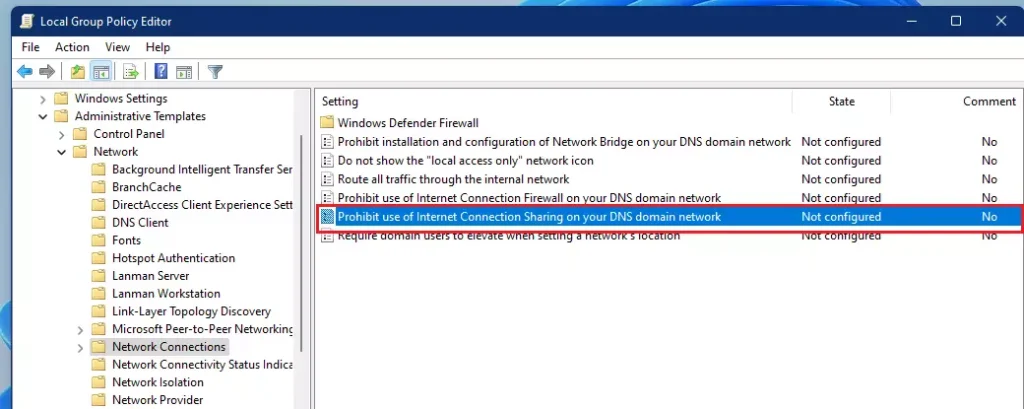
Computer Configuration > Administrative Templates > Windows Components > Network > Network Connections
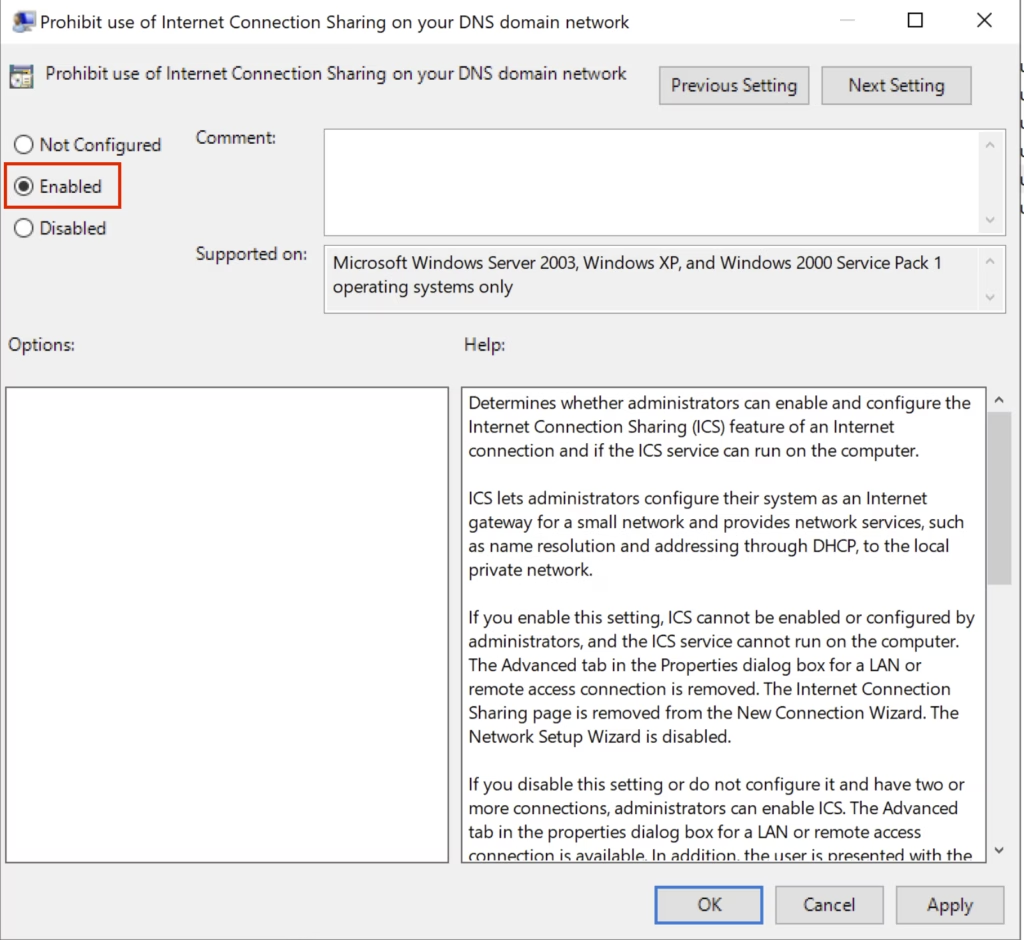
- In the right pane, find and double-click Prohibit use of Internet Connection Sharing on your DNS domain network.
To Enable Mobile Hotspot (Default Setting):
- Select Not Configured.
- Click OK.
To Disable Mobile Hotspot:
- Select Enabled.
- Click OK.
You can now close the Local Group Policy Editor.
Example screenshot:
Option 2: Use Registry Editor (All Windows Versions)
If your Windows edition does not have the Local Group Policy Editor, or if you prefer, you can change the mobile hotspot settings by editing the Windows Registry.
Important: Editing the Registry can cause problems if done incorrectly. Please back up your Registry before making changes.
To Enable Mobile Hotspot (Default Setting)
reg delete "HKLMS\OFTWARE\Policies\Microsoft\Windows\Network Connections" /v NC_ShowSharedAccessUI /f
To Disable Mobile Hotspot
reg add "HKLM\SOFTWARE\Policies\Microsoft\Windows\Network Connections" /v NC_ShowSharedAccessUI /t REG_DWORD /d 0 /f
How to apply these Registry changes:
- Open Notepad.
- Copy and paste the code for enabling or disabling above into Notepad.
- Save the file with a
.regextension, for example,mobile_hotspot_enable.regormobile_hotspot_disable.reg. - Double-click the saved file and confirm any prompts to add the information to your Registry.
- Restart your PC to apply the changes.
Summary
- You can turn on or off the mobile hotspot feature in Windows 11 using two main ways: the Local Group Policy Editor or the Registry Editor.
- The Local Group Policy Editor method works only on Windows 11 Pro, Enterprise, or Education.
- The Registry Editor method works on all Windows 11 editions.
- Make sure you’re an administrator to make these changes.
- Always back up your Registry before making any changes to avoid problems.
- Sharing your internet is useful, but be careful if you use cellular data since it can use up your data plan quickly.
If you’d like to learn more about managing your Windows 11 settings, visit the official Microsoft support page: https://support.microsoft.com/en-us/windows



Leave a Reply Cancel reply