How to Turn On or Off Mobile Hotspot Power Saving in Windows 11

You can choose to turn the mobile hotspot power saving feature on or off in Windows 11 to better manage your PC’s battery and data usage.
This power saving mode automatically turns off your mobile hotspot after five minutes of inactivity, provided no devices are connected. It’s a smart way to prevent unnecessary battery drain.
Sharing your internet connection lets you create a Wi-Fi network from your PC, similar to a dedicated router, and you can share from Wi-Fi, Ethernet, or even cellular data. Just remember, using cellular data will tap into your mobile data plan.
Open Settings, click Network & internet, then Mobile hotspot. Find the Power saving option and toggle it On or Off.
How to Turn Mobile Hotspot Power Saving On or Off (Using Settings)
- Press ⊞ Win+I on your keyboard to open Settings.
- Click Network & internet on the left side.
- Click Mobile hotspot on the right side.
- Find the Power saving option and turn it On or Off depending on what you want.
- Close the Settings window when you’re done.
You can easily turn the Windows 11 mobile hotspot power saving feature on or off directly within the Settings app.
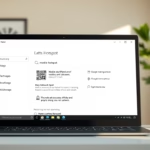
Step 3: Mobile hotspot settings in Windows 11

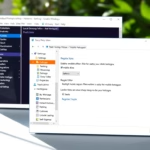
Step 4: Turn Power saving On or Off here
How to Turn Mobile Hotspot Power Saving On or Off (Using a BAT File)
If you’re comfortable working with command files (files that run commands when you double-click them) and have administrator access, you can also use a BAT file to quickly turn this feature on or off.
⚠️ Admin required: You must be signed in as an administrator to do this.
Turn ON Power Saving (default setting):
powershell -windowstyle hidden -command "Start-Process cmd -ArgumentList '/s,/c,net stop "icssvc" & REG ADD "HKLM\SYSTEM\CurrentControlSet\Services\icssvc\Settings" /V PeerlessTimeoutEnabled /T REG_DWORD /D 1 /F & net start "icssvc"' -Verb runAs"Turn OFF Power Saving:
powershell -windowstyle hidden -command "Start-Process cmd -ArgumentList '/s,/c,net stop "icssvc" & REG ADD "HKLM\SYSTEM\CurrentControlSet\Services\icssvc\Settings" /V PeerlessTimeoutEnabled /T REG_DWORD /D 0 /F & net start "icssvc"' -Verb runAs"Steps to use the BAT file:
For a quicker way to manage your Windows 11 mobile hotspot power saving, you can use a simple BAT file.- Open Notepad and copy the code you want (ON or OFF) into it.
- Save the file with a .bat extension, like PowerSavingOn.bat or PowerSavingOff.bat.
- ⚠️ Admin required: Right-click the saved file and choose Run as administrator.
- You will see a command window open briefly — it runs the commands and then closes automatically.
- You can delete the BAT file if you don’t need it anymore.
Summary
- Easy sharing: Mobile hotspot lets you share your internet quickly with other devices.
- Save battery: Power saving automatically turns off the hotspot when no one is connected, saving energy.
- Simple control: You can change the power saving setting in the Settings app or by running a quick script.
- Admin power: Advanced users with admin rights can use the BAT file method for faster changes.
The Windows 11 mobile hotspot feature makes sharing your internet connection simple, and its power saving option helps conserve battery life by automatically turning off when not in use.
Does 🪟 Windows 11 support mobile hotspot?
Windows 11 – Turn Mobile Hotspot On / Off Here's how to turn Mobile Hotspot for your Windows 11 device on or off. If your device isn't running Windows® 11, refer to the Windows 10 instructions.
Why can't I set up a mobile hotspot on my PC?
Update your network adapter driver If it's outdated, you may not be able to connect to a hotspot. On the taskbar, type Device Manager in the search box. Select Device Manager > Network adapters. Right-click your adapter (like Intel® Dual Band Wireless).
Was this guide helpful?

About the Author
Richard
Tech Writer, IT Professional
Richard, a writer for Geek Rewind, is a tech enthusiast who loves breaking down complex IT topics into simple, easy-to-understand ideas. With years of hands-on experience in system administration and enterprise IT operations, he’s developed a knack for offering practical tips and solutions. Richard aims to make technology more accessible and actionable. He's deeply committed to the Geek Rewind community, always ready to answer questions and engage in discussions.


No comments yet — be the first to share your thoughts!