
Windows 11 can automatically fix spelling mistakes as you type. This feature is called “autocorrect.” It helps by changing misspelled words to the correct spelling right away.
For many people, autocorrect is helpful, especially if you sometimes spell words wrong or if you use different languages. But if you find autocorrect fixing things incorrectly or you don’t need it, you can easily turn it off.
Below, you’ll find simple steps to turn autocorrect on or off in Windows 11.
How to Turn Autocorrect On or Off in Windows 11
Follow these easy steps:
- Open the Settings app: Click the Start menu (the Windows icon on the bottom left) and choose Settings. Or press the Windows key + I on your keyboard to open it quickly.

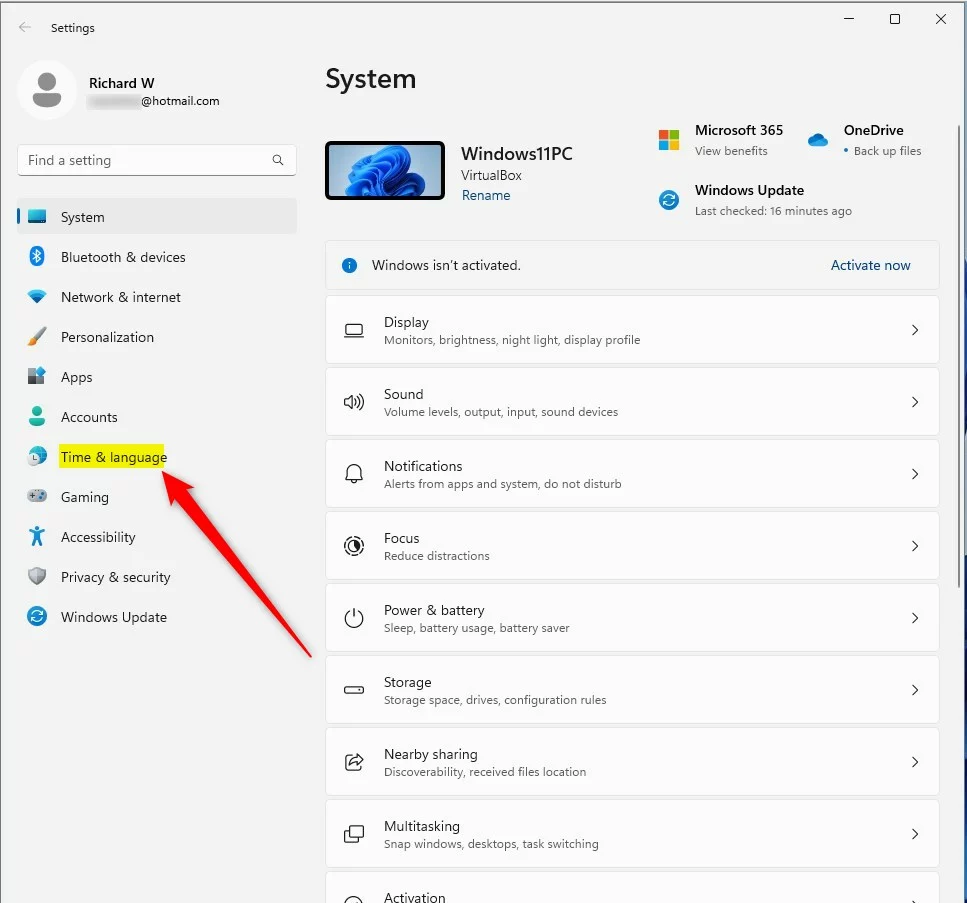
- In the Settings window, click on Time & language on the left side.
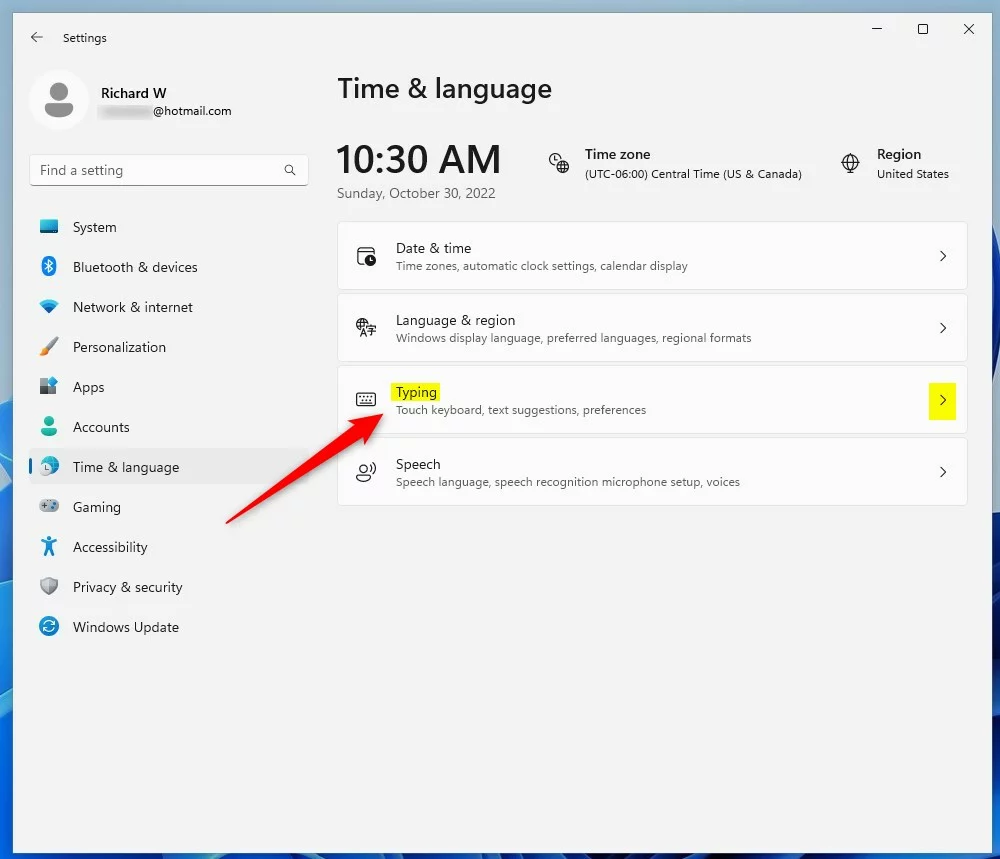
- On the right side, click the Typing section to open typing settings.
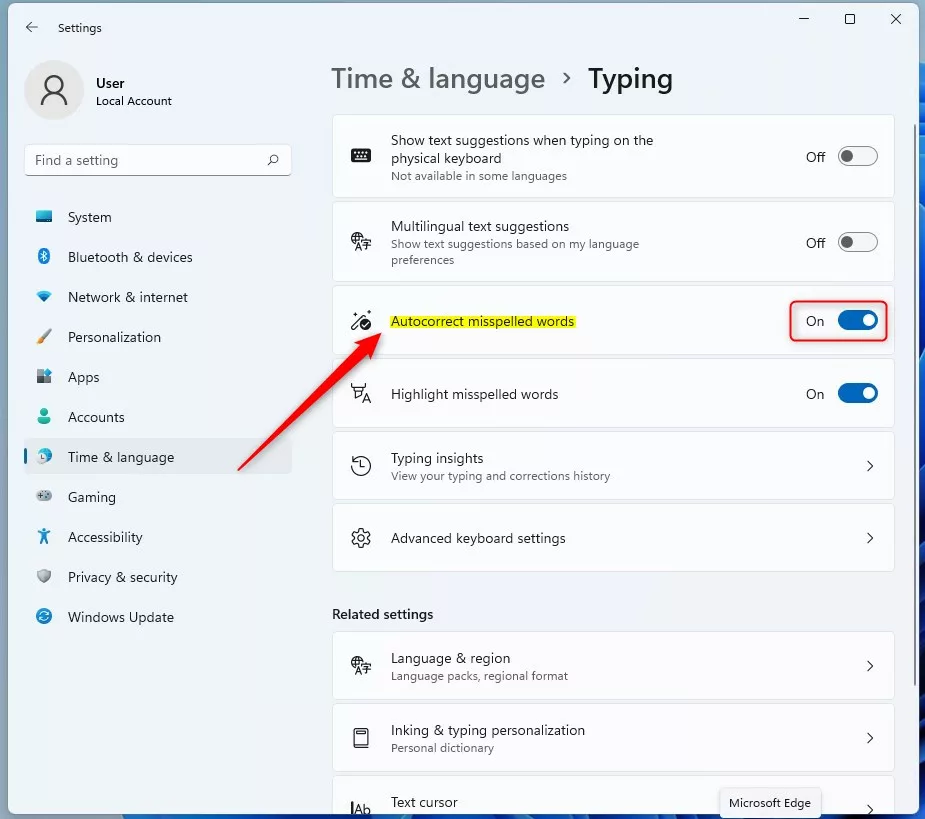
- Look for the option called Autocorrect misspelled words.
- Click the switch to turn it On if you want autocorrect enabled, or click it Off if you want to disable autocorrect.
Turn Autocorrect On or Off Using the Windows Registry (Advanced Users)
If you like, you can also change autocorrect settings using the Windows Registry, but this is for advanced users. Be careful when using the Registry Editor because changing the wrong settings can cause problems. Here’s how:
- Open the Registry Editor by typing
regeditin the Start menu search and pressing Enter. - Go to this folder path:
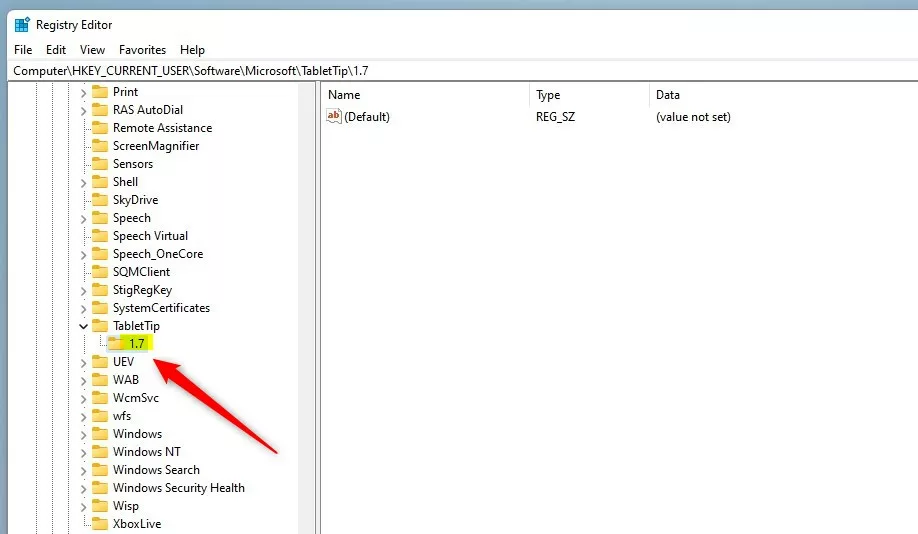
HKEY_CURRENT_USER\SOFTWARE\Microsoft\TabletTip\1.7
- If you don’t see the
1.7folder, right-click onTabletTip, choose New > Key, and name it1.7. - With
1.7selected, right-click on the right side, choose New > DWORD (32-bit) Value, and name itEnableAutocorrection. - Double-click on
EnableAutocorrectionand set the value to:1to turn autocorrect On0to turn autocorrect Off
- Close the Registry Editor and restart your computer for changes to take effect.
Summary
- Autocorrect helps fix spelling mistakes automatically while you type in Windows 11.
- Turn it on if you want help spelling or use multiple languages.
- Turn it off if it corrects words wrongly or bothers you.
- You can change this setting easily in the Windows Settings app or, if you prefer, through the Registry Editor (for advanced users).
If you want to learn more about Windows 11 settings, check out this guide to resetting the Settings app.


Leave a Reply Cancel reply