
This article shows you how to turn AI Actions on or off in the context menu in Windows 11.
With Windows 11 build 262100.6725 (24H2), Microsoft is rolling out AI actions in File Explorer.
App Actions on Windows are small tasks that apps can set up and register, letting you interact with your files more easily. Just right-click to quickly do things like edit images or summarize documents.
This feature isn’t available to all Windows users yet. It’s rolling out with Windows 11 build 26220.7344, and if there are no AI Actions available or enabled, this section will simply disappear from the context menu.
Add/remove AI Actions on the content menu in Windows
As mentioned, a new feature rolling out to Windows users in the latest builds will introduce the AI Actions feature.
Here’s how do enable or disable it.
First, open the Windows Settings app.
You can do that by clicking on the Start menu and selecting Settings. Or press the keyboard shortcut (Windows key + I) to launch the Settings app.
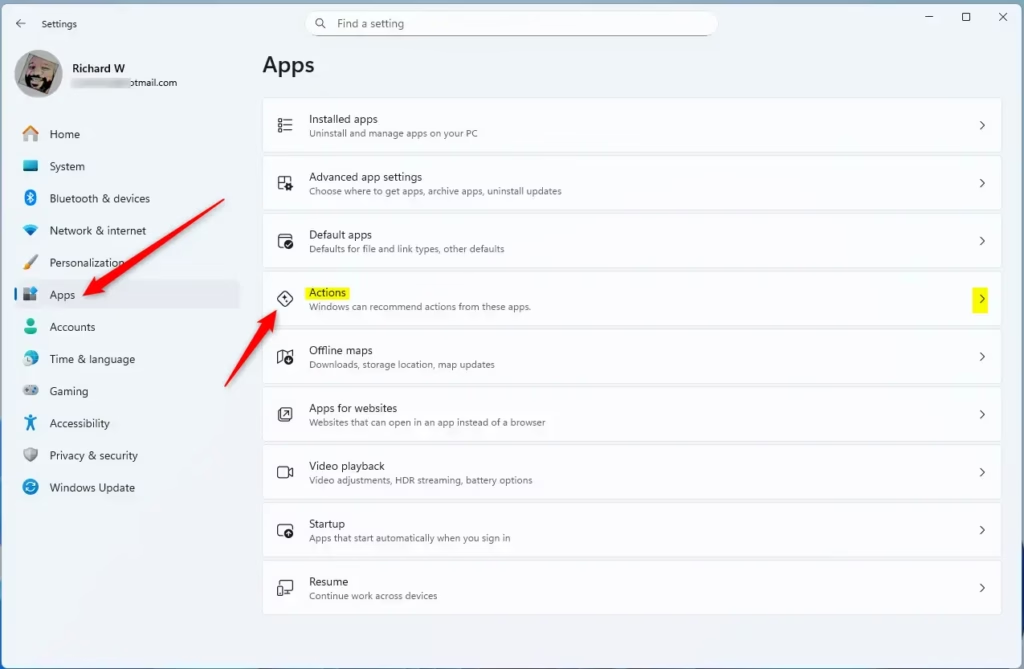
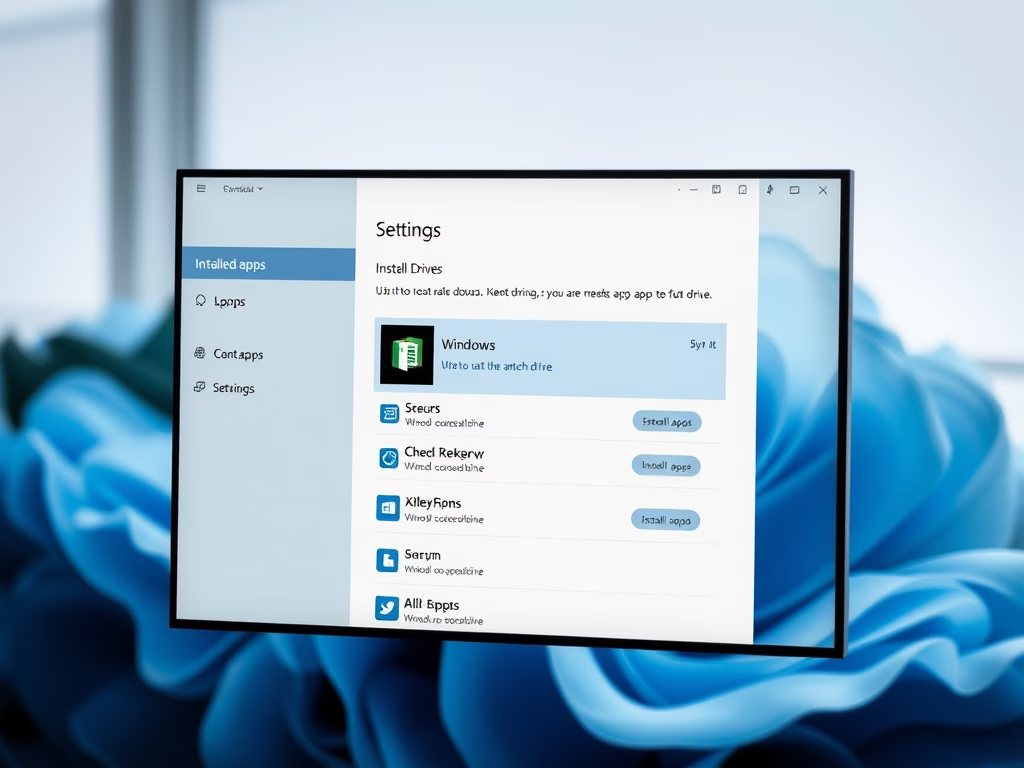
When the Setting app opens, click the Apps button on the left. On the right, select the Actions tile to expand it.
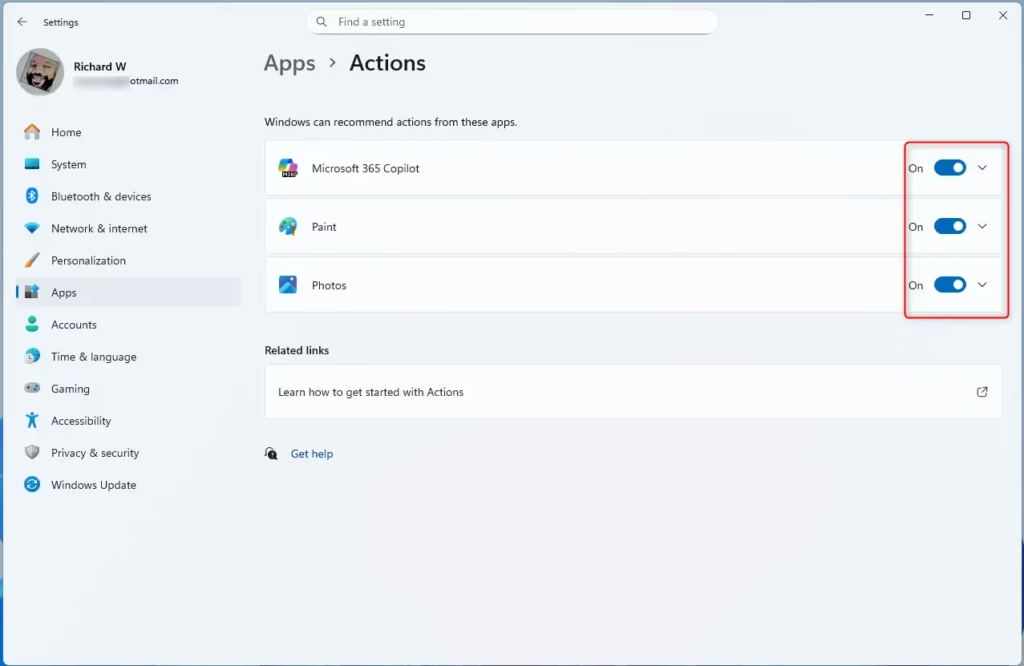
On the Apps > Actions settings pane, select the apps you want to enable or disable actions on. Then, toggle the button to enable or disable it.
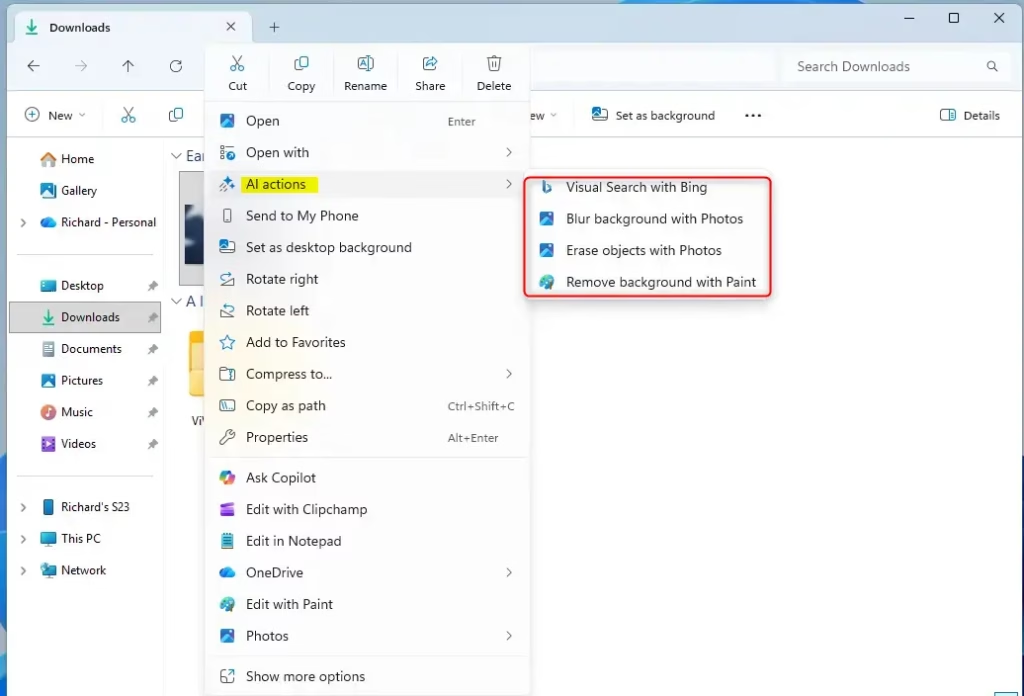
Here’s how it looks on the context menu.
That should do it!
Conclusion:
- AI Actions enhance user interaction with files in Windows 11, making tasks easier and more efficient.
- The feature is currently being rolled out and may not be available to all users immediately.
- Enabling or disabling these actions is straightforward through the Settings app, providing flexibility for user preferences.
- Users can manage which apps have AI Actions available, allowing for a tailored experience.
- Keep your Windows updated to access the latest features and enhancements related to AI Actions.

Leave a Reply Cancel reply