
Sometimes, when you try to turn off, restart, or sign out of your Windows 11 computer while an app is busy, Windows waits before it closes the app. This waiting time is controlled by something called HungAppTimeout.
What is HungAppTimeout?
It’s the time (in milliseconds) Windows waits after you tell it to close a program before showing a message asking if you want to force the app to close or cancel. By default, Windows waits about 5 seconds (5000 milliseconds).
If you don’t respond to this message within a minute, Windows will stop trying to shut down and bring you back to the desktop.
You can change this waiting time if you want Windows to wait longer or less before forcing an app to close.
How to Change HungAppTimeout for Everyone Using Your PC
Here’s a simple way to change this setting by editing the Windows Registry. Note: Be careful when editing the Registry because wrong changes can cause problems. It’s a good idea to back up your Registry first.
- Press Windows key + R to open the Run box.
- Type regedit and press Enter to open the Registry Editor. Click “Yes” if it asks for permission.
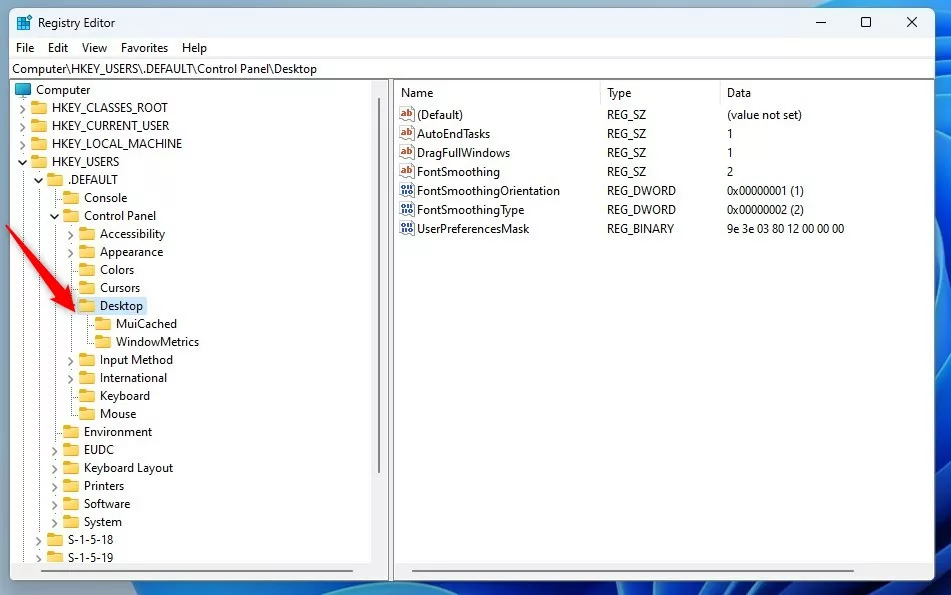
- In the Registry Editor, go to this folder path:
HKEY_USERS\.DEFAULT\Control Panel\Desktop
- If you don’t see a folder named Desktop under Control Panel, right-click Control Panel, choose New > Key, and name it Desktop.
- Now, right-click in the right side panel (inside Desktop) and choose New > String Value.
- Name this new string HungAppTimeout.
- Double-click HungAppTimeout and set the Value data to the number of milliseconds you want Windows to wait. For example:
- 5000 = 5 seconds (default)
- 10000 = 10 seconds
- Don’t use less than 1000 (1 second) to avoid issues.
- Click OK and close the Registry Editor.
- Restart your computer to apply the changes.
Change HungAppTimeout for Only Your User Account
If you want to change this setting just for your user account (and not all users), use this folder path instead:
HKEY_CURRENT_USER\Control Panel\Desktop
Then follow the same steps as above.

What Does the End Task Prompt Look Like?
When an app is slow to close, Windows shows a message like this:
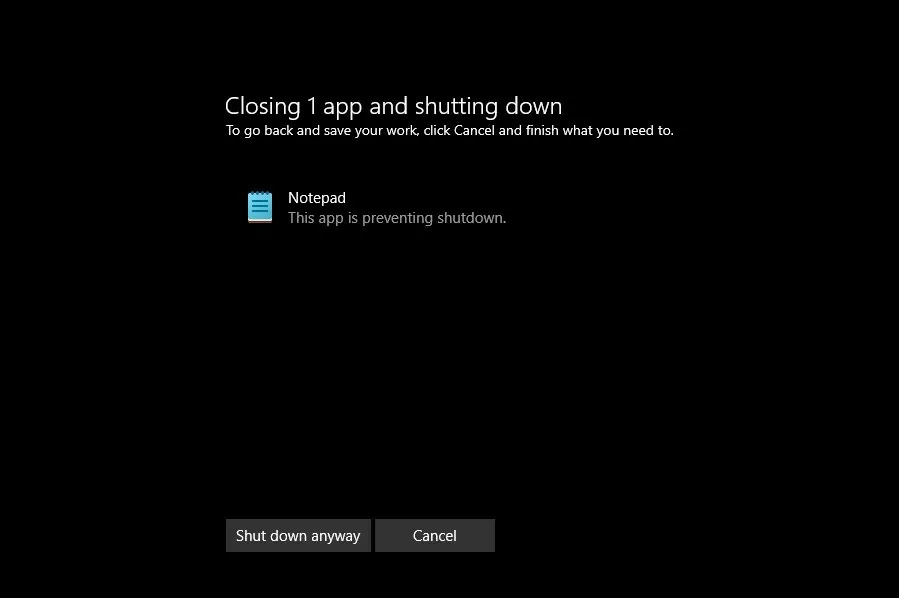
You can choose to wait, close the app, or shut down anyway.
Summary
- HungAppTimeout controls how long Windows waits before forcing an app to close.
- You can increase or decrease this time by editing the Windows Registry.
- Always back up the Registry before making changes.
- Changing this setting can help if apps take longer to close or if you want faster shutdowns.
- Follow the steps carefully to avoid any problems.
That’s all! You’ve now learned how to control the waiting time Windows uses before it forces apps to close during shutdown or restart.

Leave a Reply Cancel reply