

Task Manager is a tool in Windows that shows you what programs and processes are running on your computer. It also shows how your computer is performing.
In Windows 11, Task Manager has a new feature called “Real-time update speed”. This lets you control how often the information you see is refreshed or updated.
You can pick from these options:
- High – updates every 0.5 seconds
- Normal – updates every 1 second
- Low – updates every 4 seconds
- Pause – stops live updates
How to Change Real-Time Update Speed in Task Manager
Follow these easy steps to change how often Task Manager updates its data:
- Open Task Manager:
- Right-click the Start button and choose Task Manager, or
- Press Ctrl + Shift + Esc on your keyboard.
- Look at the bottom left corner of the Task Manager window and click on Settings.
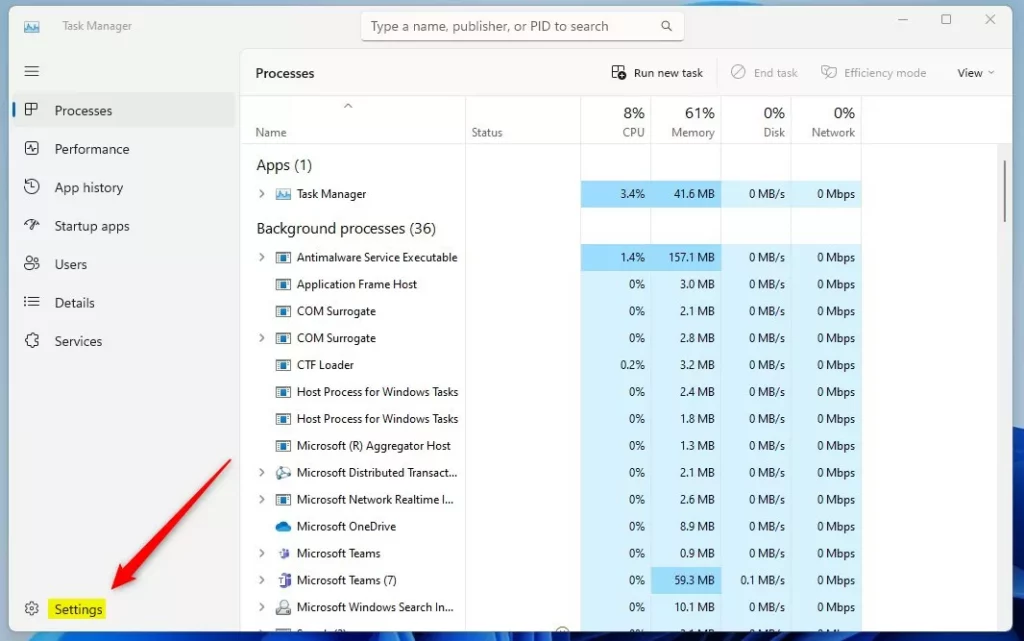
3. In the Settings panel, find the section called Real-time update speed.
4. Choose the update speed you want from the list:
- High
- Normal
- Low
- Pause
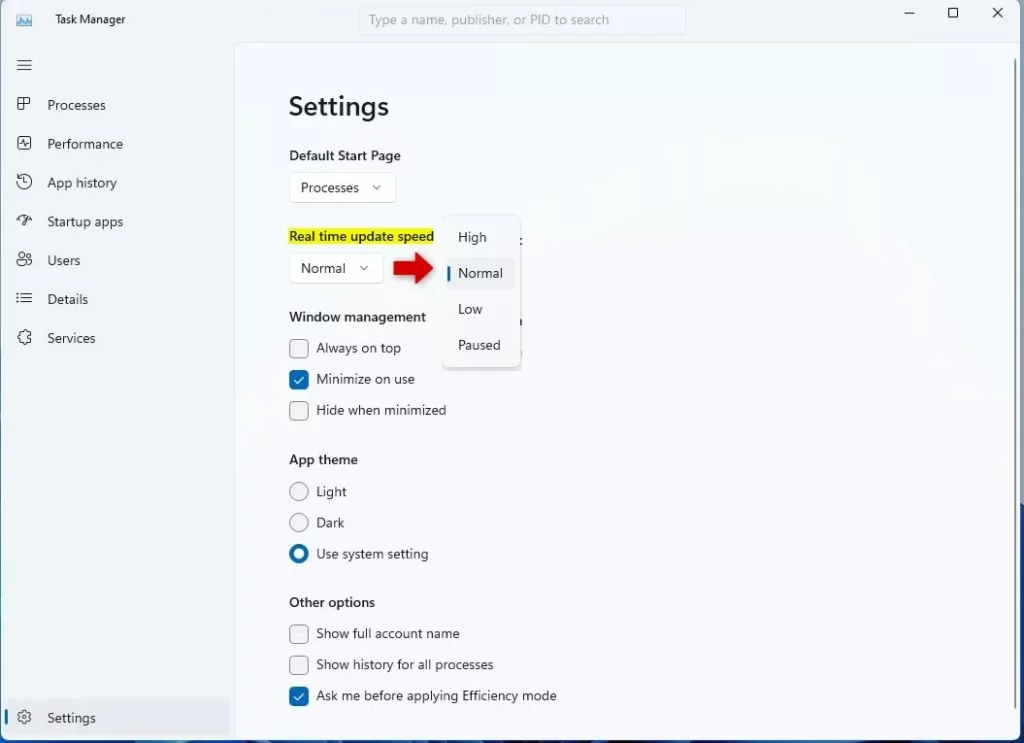
Tip: You can press Alt + U on your keyboard to open the Real-time update speed menu quickly.
That’s it! Task Manager will now update information at the speed you chose.
Summary
- Windows 11 Task Manager lets you control how often it refreshes data with the “Real-time update speed” feature.
- You can set it to update very fast, slower, or even pause updates.
- Changing this setting is easy and can help you see data at a comfortable pace.
If you want to learn more about using Task Manager, check out this simple guide to Task Manager in Windows 11.

Leave a Reply Cancel reply