How to Change Key Text Size on Touch Keyboard in Windows 11

If you use the touch keyboard on your Windows 11 PC, you can make the letters on the keys bigger or smaller. This can help you see the keys better when typing on a touchscreen.
The touch keyboard is useful if your computer has a touchscreen but no physical keyboard. You can choose from three sizes for the key letters: Small (the normal size), Medium, or Large.
How to Change Key Text Size Using Settings
- Press Windows + I on your keyboard to open Settings.
- On the left side, click Personalization.
- Then click Touch keyboard or Text input on the right side.
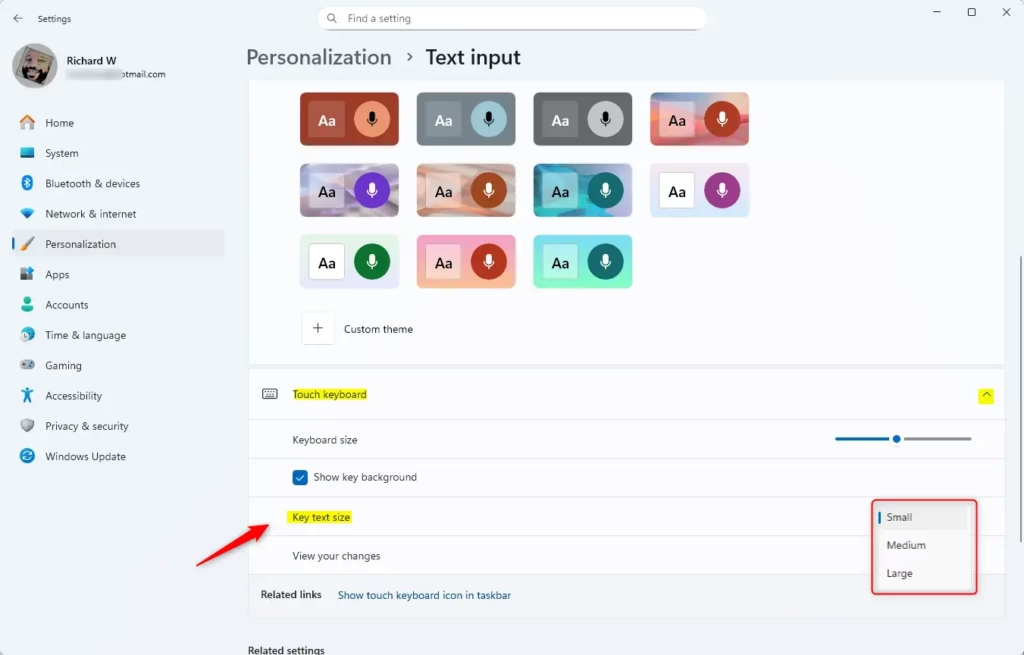
- Look for the Key text size dropdown menu under Keyboard theme.
- Choose Small, Medium, or Large for the size you want.
- Close Settings when you’re done.
You can also open the Text input settings directly by clicking this link (it opens Windows Settings):
Open Text input settings
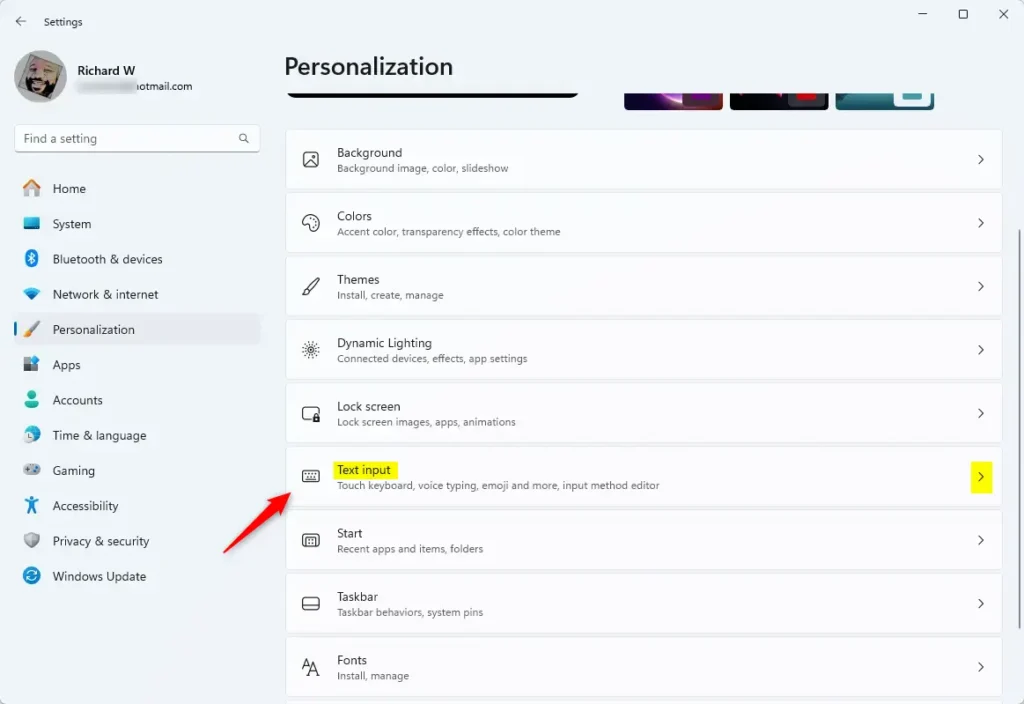
Note: If your Windows 11 version is build 22504 or newer, you might need to click on Touch keyboard to open more options first.
How to Change Key Text Size Using the Registry (For Advanced Users)
If you feel comfortable editing the Windows Registry, you can change the key text size by adding or changing a setting called KeyLabelSize. Here’s how:
Small (default size)
reg add "HKEY_CURRENT_USER\Software\Microsoft\TabletTip\1.7" /v KeyLabelSize /t REG_DWORD /d 0 /fMedium
reg add "HKEY_CURRENT_USER\Software\Microsoft\TabletTip\1.7" /v KeyLabelSize /t REG_DWORD /d 1 /f
Large
reg add "HKEY_CURRENT_USER\Software\Microsoft\TabletTip\1.7" /v KeyLabelSize /t REG_DWORD /d 2 /f
Important: After making changes in the Registry, you may need to close and reopen the touch keyboard or restart your computer for the changes to show up.
Summary
- It’s easy to change the size of the letters on the touch keyboard in Windows 11.
- The easiest way is to use the Settings app, where you can pick Small, Medium, or Large key text size.
- Advanced users can edit the Registry to change the text size directly.
- Picking the right key text size makes typing on touchscreens easier and more comfortable.
- Don’t forget to restart the touch keyboard if you use the Registry method for changes to take effect.
Was this guide helpful?

About the Author
Richard
Tech Writer, IT Professional
Richard, a writer for Geek Rewind, is a tech enthusiast who loves breaking down complex IT topics into simple, easy-to-understand ideas. With years of hands-on experience in system administration and enterprise IT operations, he’s developed a knack for offering practical tips and solutions. Richard aims to make technology more accessible and actionable. He's deeply committed to the Geek Rewind community, always ready to answer questions and engage in discussions.


No comments yet — be the first to share your thoughts!