Boost Windows 11 Performance: Delete Trash Automatically

You boost Windows 11 performance by automatically deleting old trash and temporary files using Storage Sense.
Storage Sense is a Windows 11 feature that automatically frees up disk space by deleting unnecessary files, such as temporary files and items in your Recycle Bin. This process helps your PC run faster by giving it more breathing room.
You can configure Storage Sense to run daily, weekly, or monthly, and even set how long files stay in your Recycle Bin before deletion. For instance, you can choose to have files deleted after 14 days.
This simple optimization prevents your hard drive from becoming cluttered and ensures your system operates more efficiently.
How to Automatically Delete Trash and Temporary Files with Storage Sense
Why use Storage Sense? It’s a built-in Windows 11 feature that cleans up unnecessary files on its own. You set it once, and then it works in the background without any effort from you.
Step 1 Open Settings
- Click the Start menu (the Windows icon in the bottom-left corner).
- Click on Settings. Or press Windows key + I on your keyboard as a shortcut.
Step 2Go to Storage Settings
- In Settings, click on System from the left menu.
- Click on Storage on the right side.
Step 3Turn On Storage Sense
- On the Storage page, find Storage Sense.
- Switch it to On.
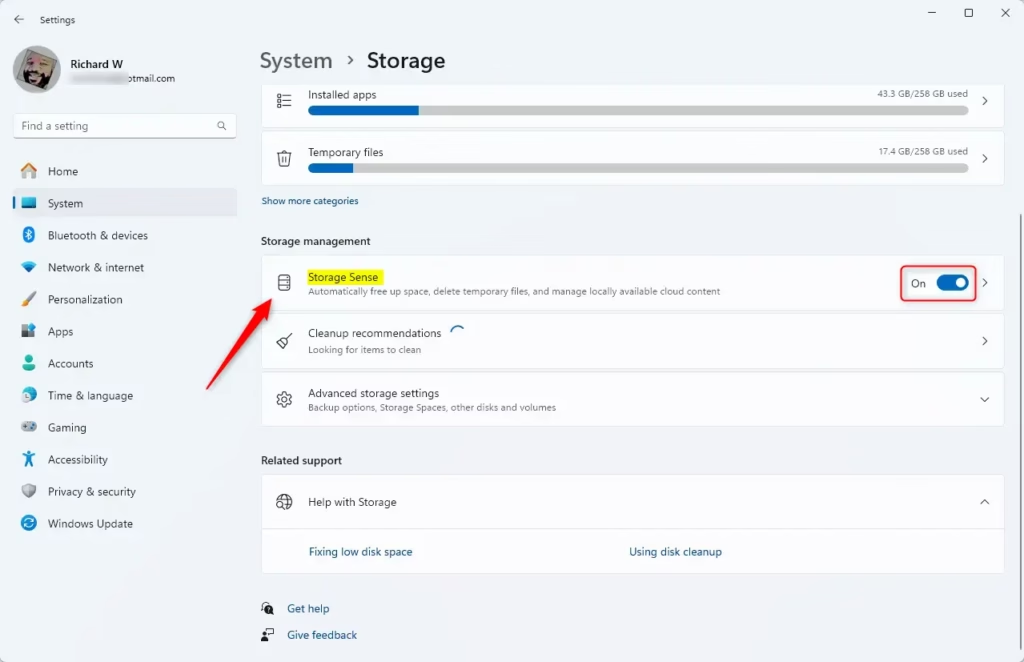
What happens next? Storage Sense will now automatically delete temporary files and empty your recycle bin whenever it thinks it’s needed. Your computer stays cleaner without you doing anything.
Step 4 (Optional): Delete Temporary Files Right Now
If you want to clean up files immediately instead of waiting for the automatic schedule, here’s how:
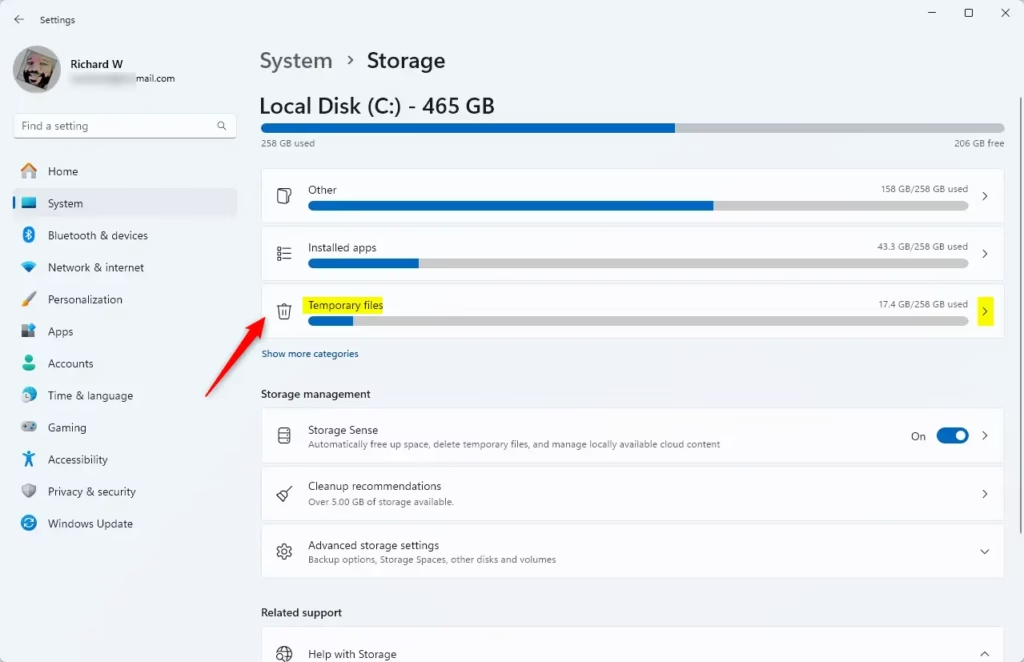
- Go back to the Storage page.
- Click on Temporary files under Storage.
- Check the boxes next to the types of files you want to delete.
- Click the Remove files button.
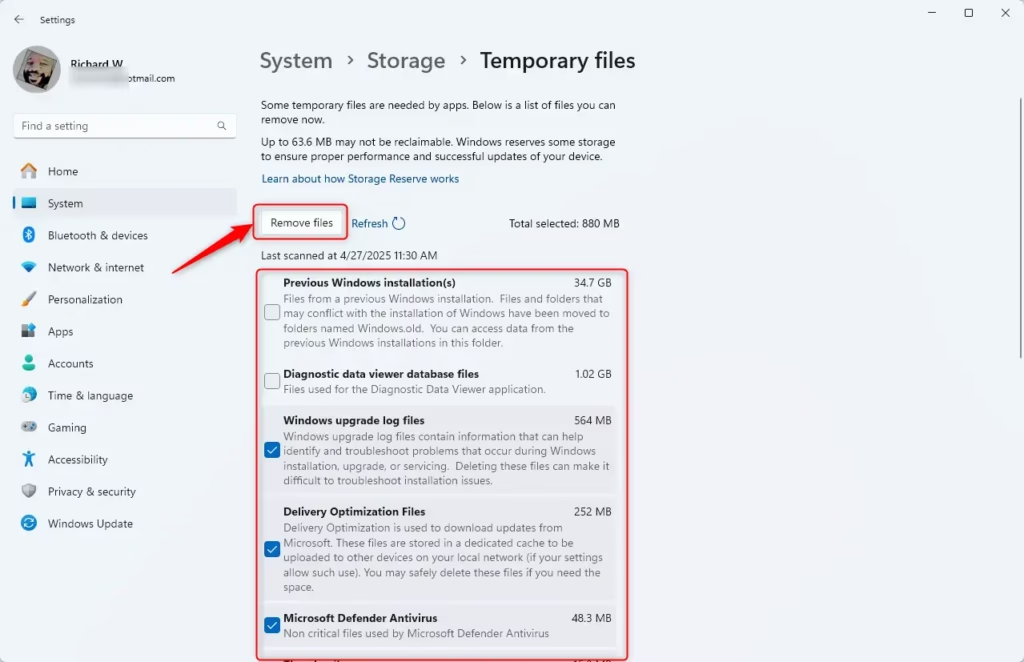
What happens when you click Remove files? Windows deletes those temporary files immediately. You’ll see your available storage space increase right away.
Summary
- Temporary files and trash use up hard drive space and slow down your PC.
- Storage Sense is a built-in Windows 11 tool that cleans your computer automatically.
- Turning on Storage Sense takes just a few clicks.
- You can also delete temporary files manually whenever you want.
- With these steps, your computer will stay cleaner and run faster without any extra work from you.
Want to learn more Windows 11 tips and tricks? Check out this Windows 11 Settings guide.
Was this guide helpful?

About the Author
Richard
Tech Writer, IT Professional
Richard, a writer for Geek Rewind, is a tech enthusiast who loves breaking down complex IT topics into simple, easy-to-understand ideas. With years of hands-on experience in system administration and enterprise IT operations, he’s developed a knack for offering practical tips and solutions. Richard aims to make technology more accessible and actionable. He's deeply committed to the Geek Rewind community, always ready to answer questions and engage in discussions.




No comments yet — be the first to share your thoughts!