
This simple guide will show you how to add the Recycle Bin to the side menu in Windows 11 File Explorer. This makes it easier to find your deleted files without searching on the desktop.
What is File Explorer?
File Explorer is the built-in app in Windows that helps you find and manage your files and folders on your computer.
What is the Recycle Bin?
The Recycle Bin is where Windows keeps deleted files temporarily. Usually, you find the Recycle Bin icon on your desktop.
Why add Recycle Bin to File Explorer’s side menu?
- Quickly open the Recycle Bin without minimizing or searching for the desktop icon.
- Easily restore deleted files right from File Explorer.
- Keep your desktop clean by removing the Recycle Bin icon from there.
How to add the Recycle Bin to File Explorer’s navigation pane
Follow these simple steps below. Don’t worry — just take your time.
Step 1: Open the Windows Registry Editor
The Registry Editor is a tool where you can change some hidden settings in Windows.
- Press Windows key + R on your keyboard.
- Type
regeditand press Enter. - ⚠️ Admin privileges required: If a message pops up asking for permission, click Yes.
For more details, you can check this guide on how to open the Registry in Windows 11.
Step 2: Find the right folder in the Registry
In the Registry Editor, go to this folder path (you can copy and paste it into the address bar at the top):
Computer\HKEY_CURRENT_USER\Software\Classes\CLSID\{645FF040-5081-101B-9F08-00AA002F954E}
Note: If you don’t see the folder {645FF040-5081-101B-9F08-00AA002F954E}, you can create it:
- Right-click on CLSID folder in the left panel.
- Select New > Key.
- Name the new key exactly:
{645FF040-5081-101B-9F08-00AA002F954E}.
Step 3: Add or change a value to show Recycle Bin
Now look to the right panel inside this folder.
Look for an item named System.IsPinnedToNameSpaceTree (this is a setting that controls showing the Recycle Bin).
- If it’s there, double-click it.
- If it’s NOT there, right-click on a blank space, then choose New > DWORD (32-bit) Value, and name it exactly
System.IsPinnedToNameSpaceTree. - Set the value data to 1 to turn this feature ON:
- Value data:
1
- Value data:
- Then click OK.
Step 4: Close Registry Editor and restart your PC
Save all your work, close everything, and restart your computer to apply the changes.
Step 5: Check File Explorer
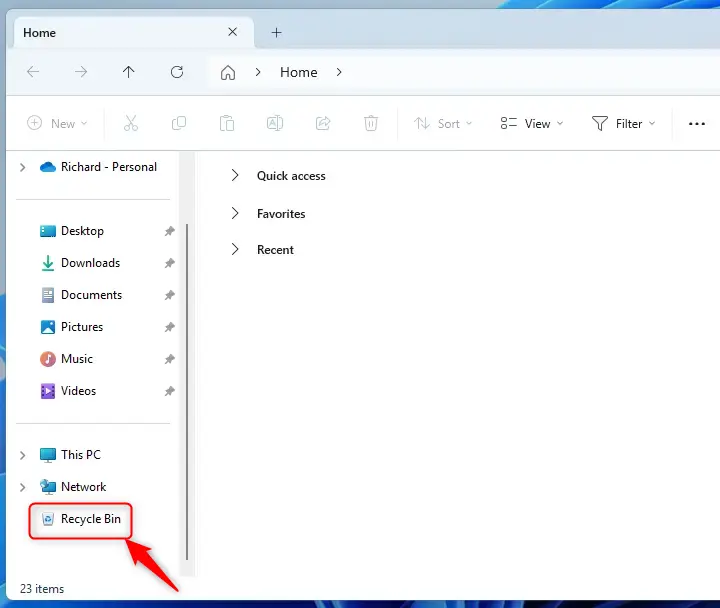
Open File Explorer (press Windows key + E) and look at the left side navigation pane. You should now see the Recycle Bin there for easy access!
Summary
- Adding Recycle Bin to File Explorer helps you open deleted files quickly.
- You need to carefully edit the Windows Registry and restart your PC.
- This keeps your desktop neat by removing the Recycle Bin icon from there.
- After this, the Recycle Bin icon is always ready in File Explorer’s side menu.
- If you want to put the Recycle Bin back on your desktop later, you can do that easily from Personalization > Themes > Desktop icon settings.



Leave a Reply Cancel reply