

This guide helps you easily add or remove the notification bell icon on your Windows 11 taskbar. The bell appears in the system tray, which is the bottom-right corner of your screen near the clock.
Why Does This Matter?
The notification bell shows you when new messages or alerts arrive. A lit-up bell means you have notifications. An empty bell means everything is quiet. Some people like seeing it. Others prefer to hide it. You can choose what works best for you.
Option 1: Use Settings (Easiest Method)
- Press Windows key + I to open Settings.
- Click System on the left side.
- Click Notifications on the right side.
- Or use this link to go straight there: Open Notifications Settings
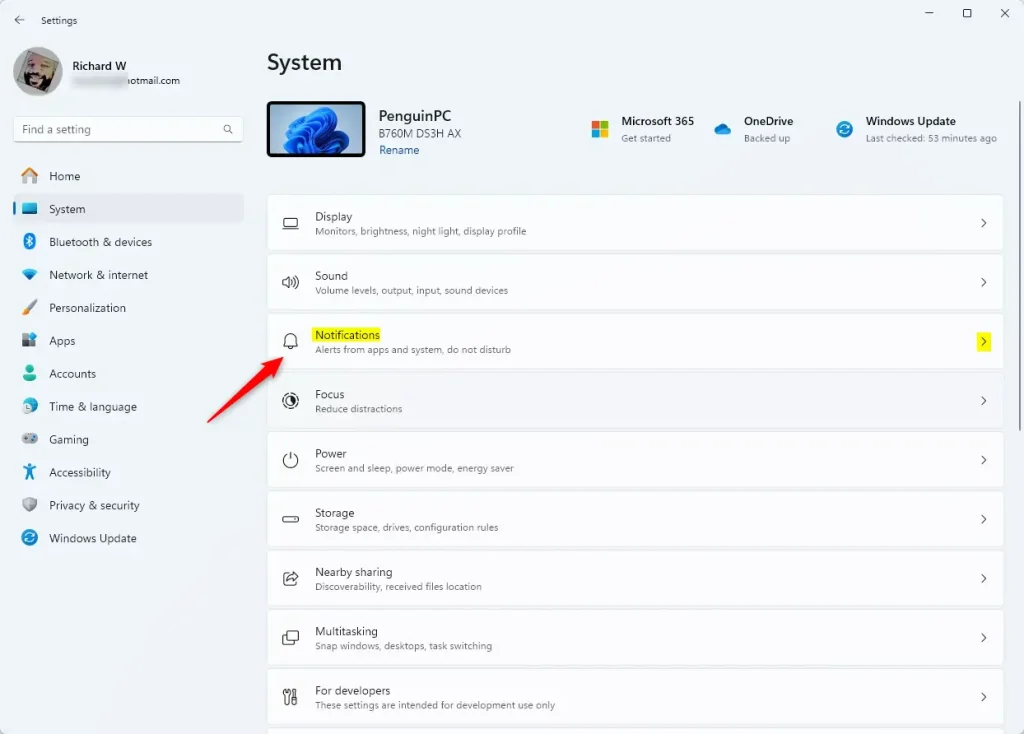
- Click the arrow next to Notifications to see all options.
- Check the box for Show notification bell icon to add the bell.
- Uncheck the box to remove the bell.
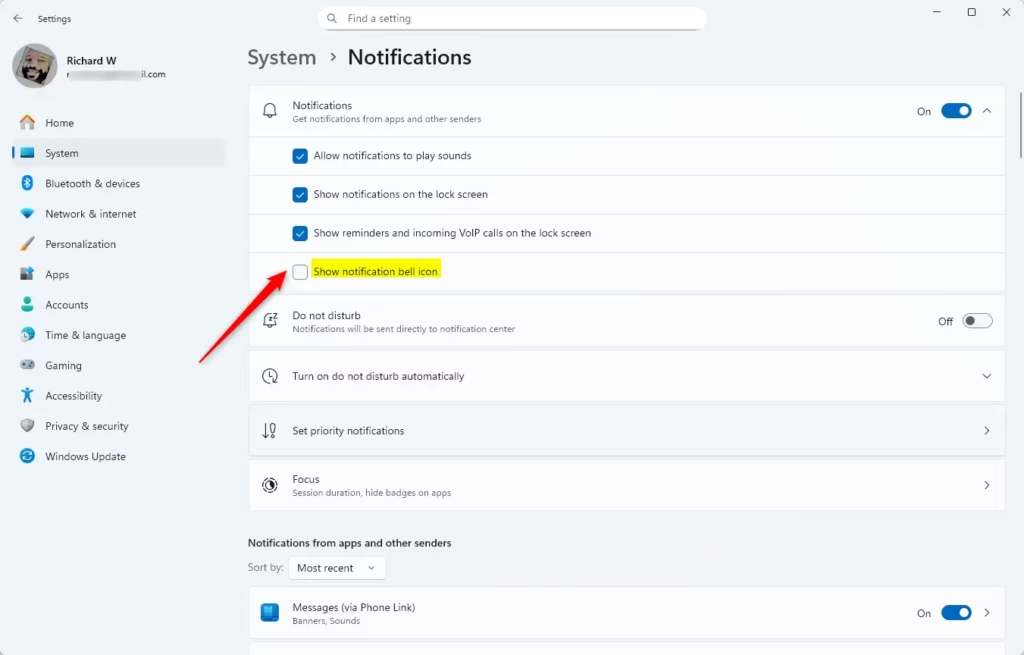
That’s it! Your changes happen right away. Close Settings when done.
Option 2: Use Registry Commands (Advanced Users)
⚠️ Admin privileges required. This method works best if you do not have Administrator protection blocking changes.
To add the notification bell:
reg add "HKEY_CURRENT_USER\Software\Microsoft\Windows\CurrentVersion\Explorer\Advanced" /v ShowNotificationIcon /t REG_DWORD /d 1 /fTo remove the notification bell:
reg add "HKEY_CURRENT_USER\Software\Microsoft\Windows\CurrentVersion\Explorer\Advanced" /v ShowNotificationIcon /t REG_DWORD /d 0 /fCopy the command you want. Open Command Prompt or PowerShell. Paste the command and press Enter.
Option 3: Edit the Registry Manually (For Advanced Users)
⚠️ Caution: Editing the registry can cause problems if you make mistakes. Consider backing up your registry first.
- Press Windows key + R.
- Type
regeditand press Enter. Registry Editor opens. - Find this location:
HKEY_CURRENT_USER\Software\Microsoft\Windows\CurrentVersion\Explorer\Advanced - In the right pane, double-click ShowNotificationIcon.
- Change the value to:
- 1 to show the bell
- 0 to hide the bell
- Click OK.
- Close Registry Editor.
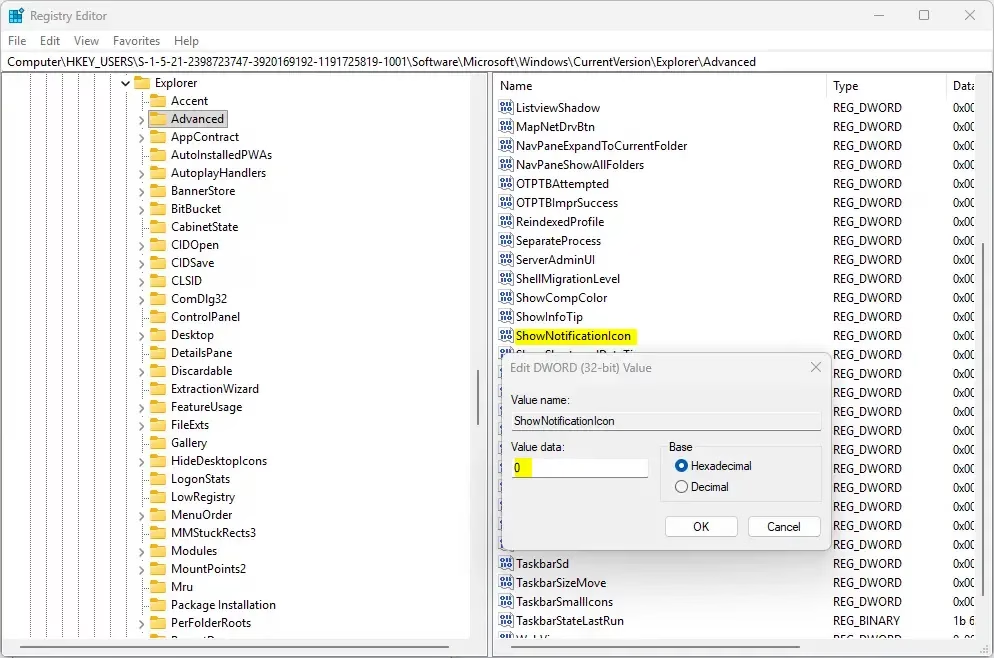
Your change takes effect right away.
Summary
You now know three ways to add or remove the notification bell on your Windows 11 taskbar:
- Settings Method: The easiest and fastest way. Just toggle one switch.
- Registry Commands: For advanced users. Requires admin rights. Fast and direct.
- Registry Editor: Manual control. Requires caution to avoid errors.
- Instant Results: All methods take effect immediately.
- Your Choice: Show or hide the bell based on what you prefer.
Pick the method that feels most comfortable for you. Your taskbar is now customized to match your style.


Leave a Reply Cancel reply