

This article explains how to use Display Color Calibration to improve the color of your display and ensure that color appears correctly in Windows 11.
The Display Color Calibration tool in Windows can help improve your display’s color accuracy and quality. This is important because inaccurate colors can negatively affect your viewing experience and even impact graphic design or photo editing tasks.
A built-in tool in Windows allows you to adjust and calibrate your display color, brightness, and contrast.
The steps below show you how to use it.
Use Display color calibration
As mentioned, Windows 11 has a built-in tool that allows you to adjust and calibrate your display color, brightness, and contrast.
Here’s how to use it.
First, open the Windows Settings app.
You can do that by clicking on the Start menu and selecting Settings. Or press the keyboard shortcut (Windows key + I) to launch the Settings app.
When the Setting app opens, click the System button on the left.
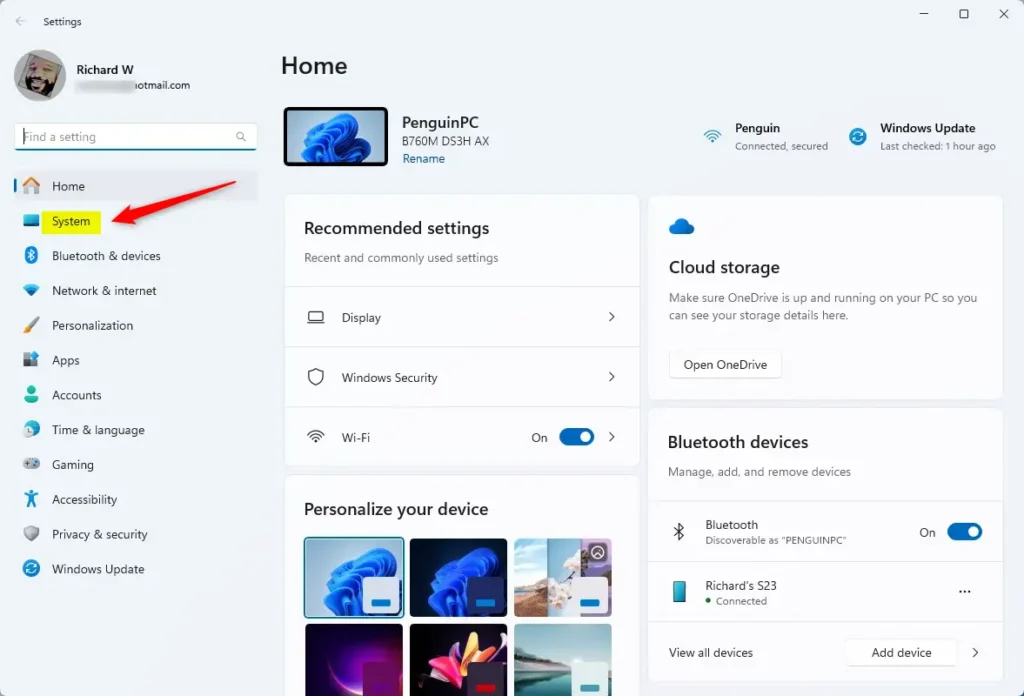
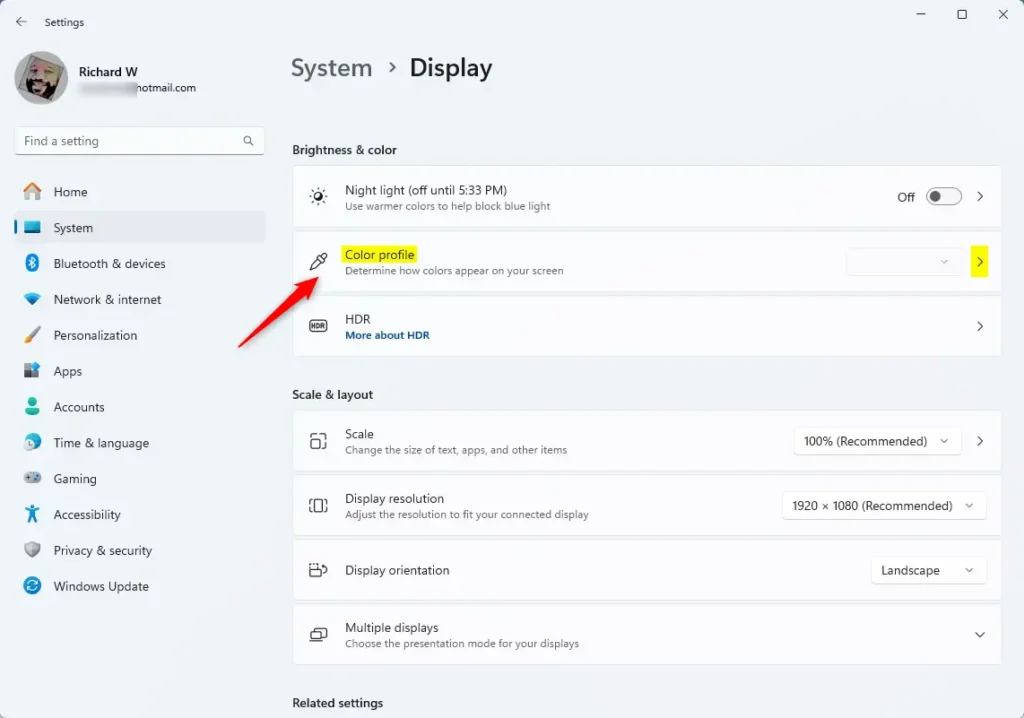
Select the “Display” tile under ‘System’ on the right to expand it.

Next, select the Color profile tile on the System settings page to expand it.
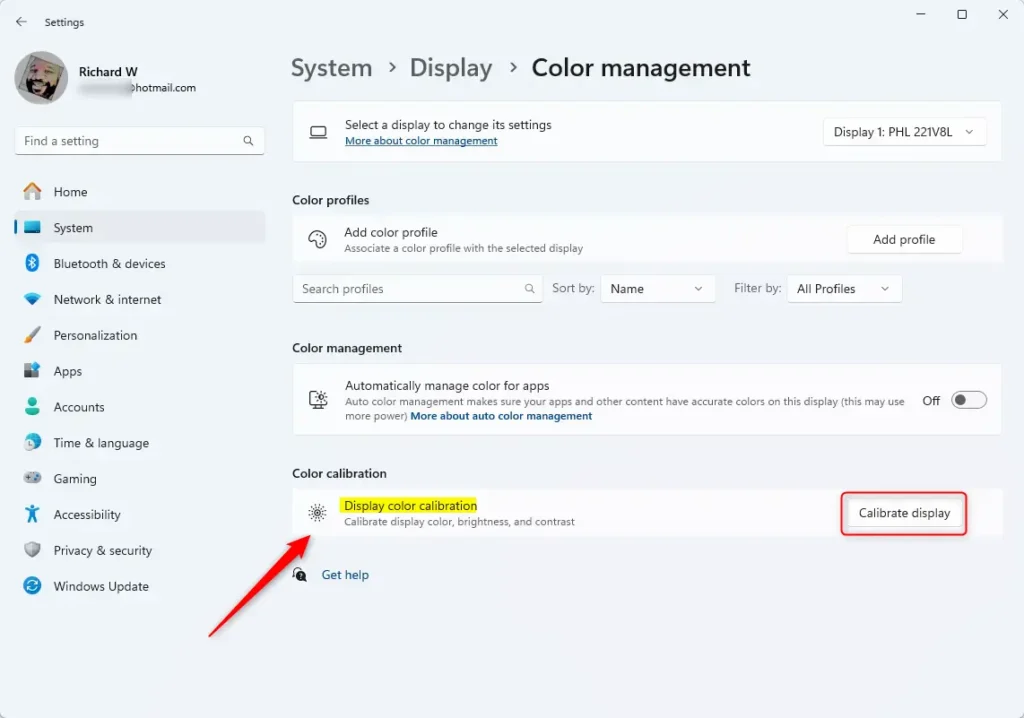
Then, click the “Calibrate display” button on the Display color calibration tile.
On the pop-up window, click the Next button to begin the calibration wizard.
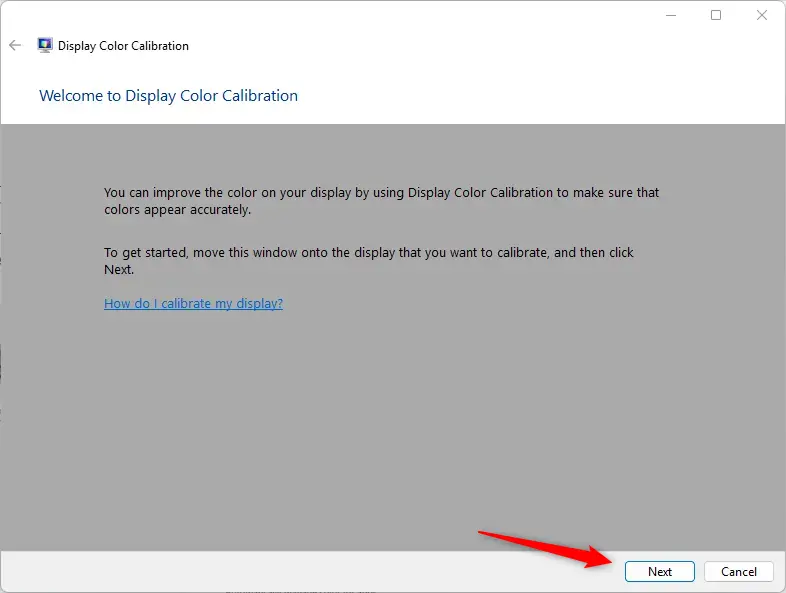
Follow the steps by clicking Next until you are done with the wizard.
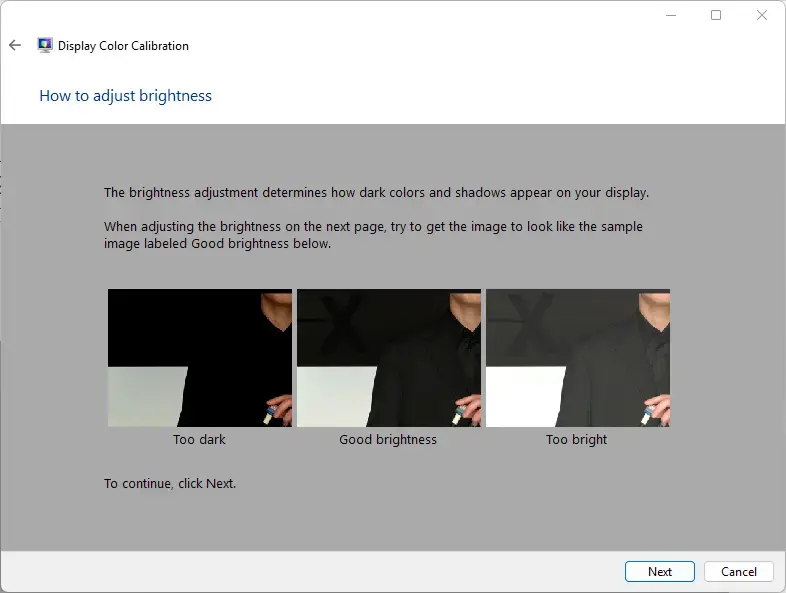
Click the Finish button to complete the calibration.
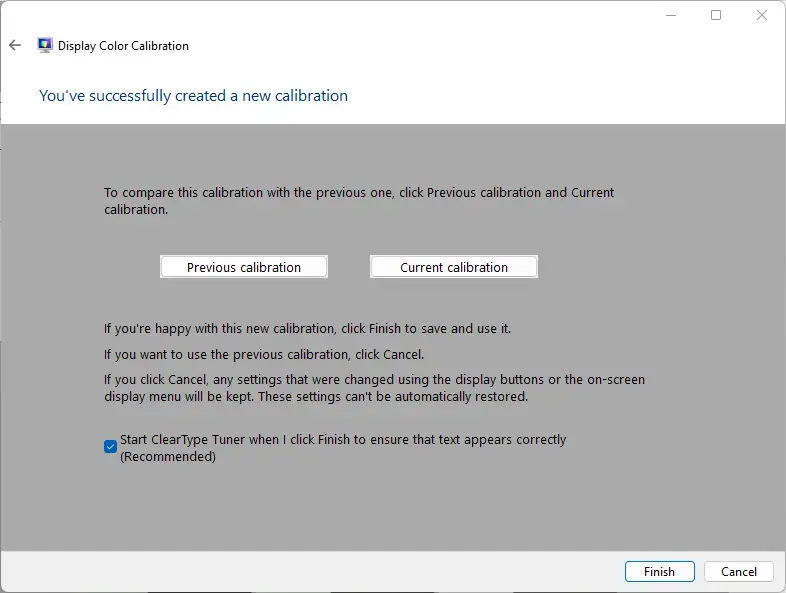
That should do it!
Conclusion:
- By following these simple steps, you can ensure improved display color accuracy and quality on your Windows 11 system.
- A well-calibrated display enhances the viewing experience and contributes to more accurate graphic design and photo editing tasks.
- Remember to revisit the calibration process if you change your display significantly or encounter color inconsistencies.

Leave a Reply Cancel reply