
This tutorial will show you how to enable or disable press and hold for right-clicking in Windows 11.
A touch screen (or touchscreen) is a screen you can touch with your finger to control your computer. It works instead of using a mouse or touchpad.
When you press and hold on a touchscreen, it’s the same as right-clicking with a mouse.
If your device (like a laptop or tablet) has a touchscreen, you can turn press and hold on or off for right-clicking.
Windows 11 now lets you control whether pressing and holding your finger performs a right-click action on your touchscreen.
Option One
Enable or Disable Press and Hold for Right-clicking in Settings
- Open Settings (press Win+I on your keyboard).
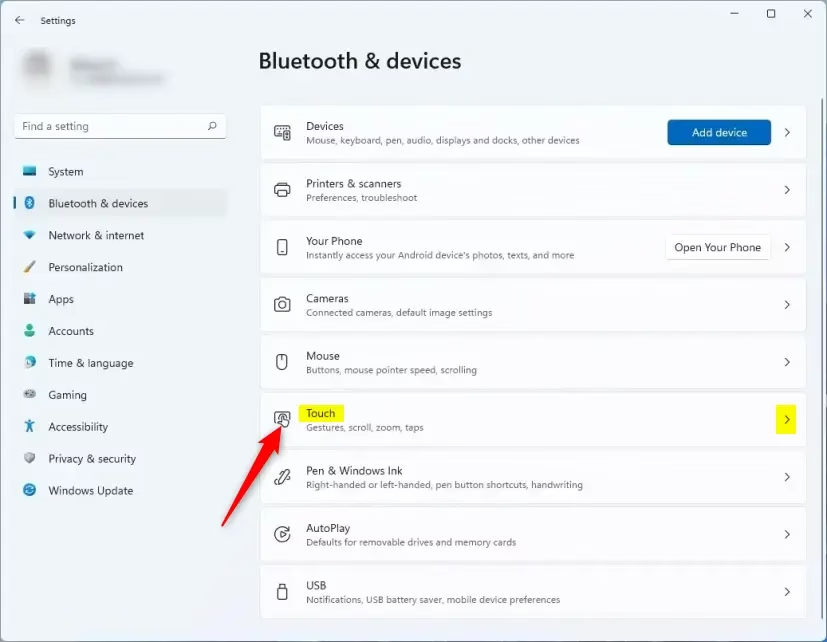
- Click on Bluetooth & devices on the left side. Then click on Touch on the right side.
- Click on Additional touch settings to expand it.
- Turn Enable press and hold to perform a right-click equivalent on (default) or off depending on what you want.
- You can now close Settings.
Option Two
Enable or Disable Press and Hold for Right-clicking in Control Panel
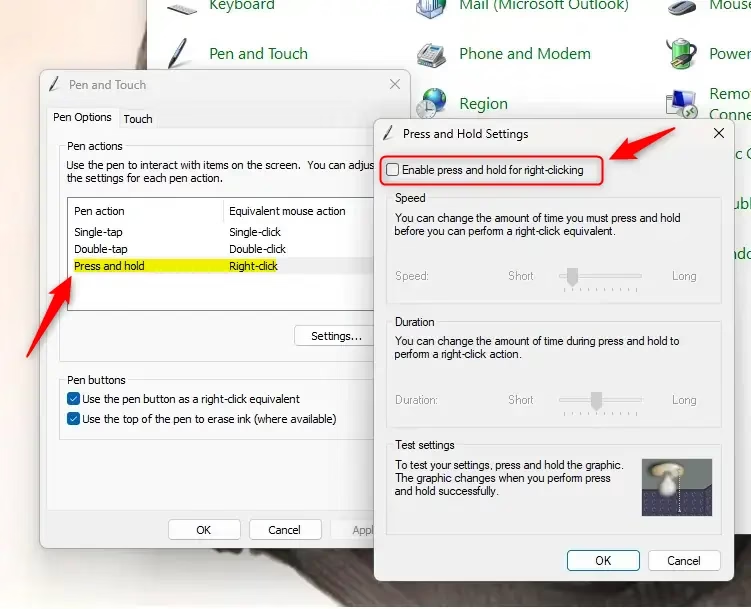
- Open Control Panel (icons view). Click on the Pen and Touch icon.
- Do these steps:
- Click on the Touch tab.
- Select Press and hold.
- Click on Settings.
- Check (to enable, which is the default) or uncheck Enable press and hold for right-clicking for what you want. Then click OK.
- Click OK again.
- You can now close Control Panel.
Option Three
Enable or Disable Press and Hold for Right-clicking using Registry
Enable Press and Hold for Right Clicking
This is the default setting.
reg add "HKEY_CURRENT_USERSoftwareMicrosoftWispTouch" /v TouchMode_hold /t REG_DWORD /d 1 /f
Disable Press and Hold for Right-clicking
reg add "HKEY_CURRENT_USERSoftwareMicrosoftWispTouch" /v TouchMode_hold /t REG_DWORD /d 0 /f
Summary
You now know three ways to control press and hold for right-clicking on your touchscreen in Windows 11. You can use Settings, Control Panel, or the Registry to turn this feature on or off based on your preference.

Leave a Reply