
If you use Windows 11, you might have noticed that when you try to shut down or restart your PC while an app is still busy, Windows waits a little before closing that app. This waiting time is controlled by a setting called HungAppTimeout.
Windows usually waits about 5 seconds (HungAppTimeout) before asking if you want to End Task and close the app or keep it open. If you don’t answer, Windows will stop trying and return you to your desktop without shutting down.
You can change this waiting time to make Windows wait longer or shorter before closing apps automatically. Here’s a simple guide on how to do that.
How to Change HungAppTimeout for All Users
Follow these easy steps to change how long Windows waits before closing apps when you shut down or restart:
- Open the Windows Registry Editor:
You can do this by pressing Win + R, typing
regedit, and pressing Enter. If you want more help opening the Registry, check this guide:
How to Open Registry in Windows 11
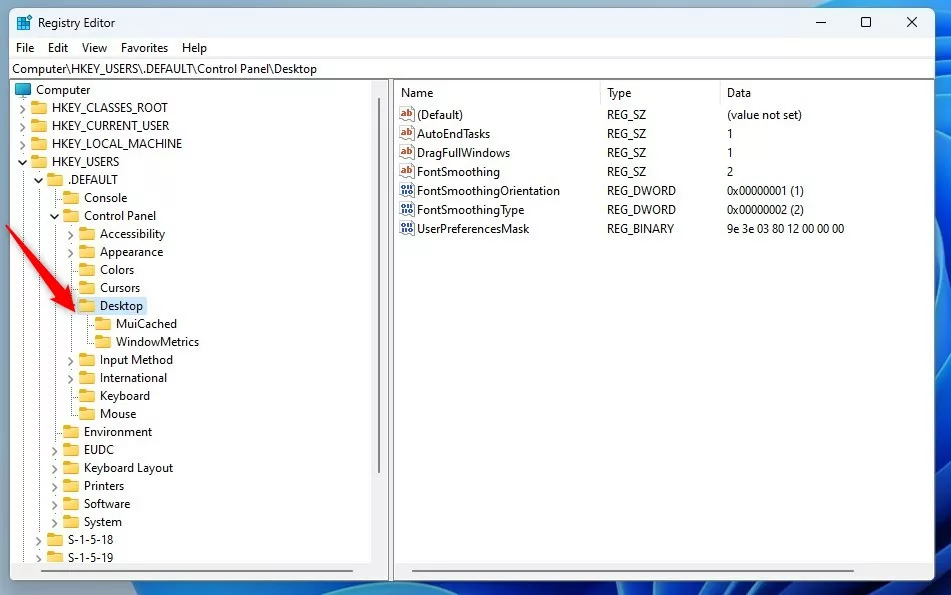
- Go to this folder path:
HKEY_USERS\.DEFAULT\Control Panel\Desktop
If you don’t see the Desktop folder, right-click on Control Panel, choose New > Key, and name it Desktop.
- Create a new string value:
Right-click on the right side of the Desktop key, choose New > String Value, and name it HungAppTimeout.
- Set the waiting time:
Double-click the new HungAppTimeout item and enter the time in milliseconds (1000 milliseconds = 1 second). The default is 5000 (5 seconds).
- Do not set less than 1000 (1 second) to avoid problems.
- You can increase it if you want Windows to wait longer before closing apps.
- Save and restart your PC.

Change HungAppTimeout for Just Your User Account
If you want to change this setting only for your user account (and not for everyone), use this path instead:
HKEY_CURRENT_USER\Control Panel\Desktop
Then follow the same steps as above.
What Happens When HungAppTimeout Works
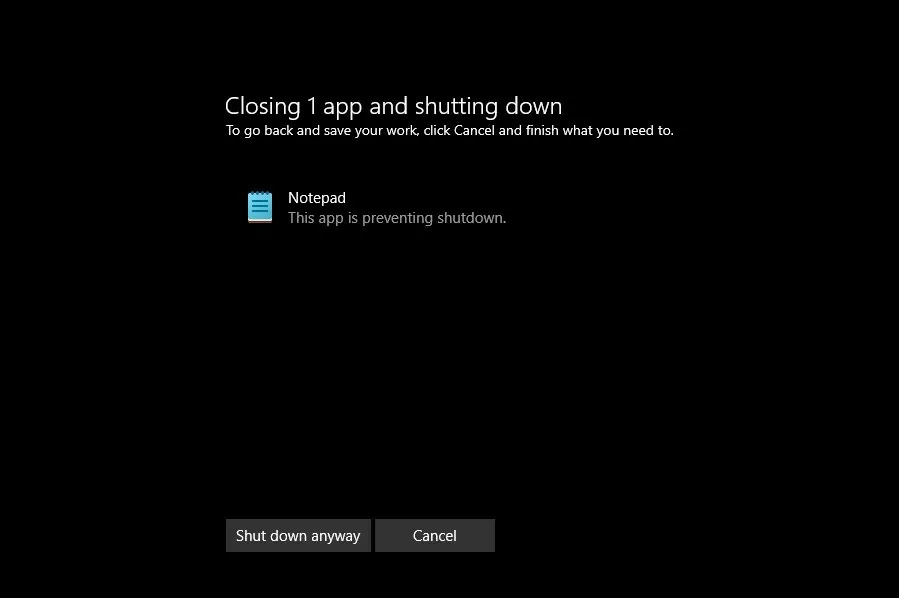
Here’s an example of the prompt you may see when Windows asks if you want to shut down anyway even if apps are still open:
Summary
- HungAppTimeout controls how long Windows waits before closing apps when shutting down or restarting.
- You can change this value to make Windows wait shorter or longer.
- Changing this requires using the Windows Registry Editor — be careful and follow the steps exactly.
- This tweak helps you control how Windows handles apps that don’t close right away.
That’s it! Now you know how to adjust HungAppTimeout to better fit how you use your Windows 11 PC.
Leave a Reply