

If you use the Narrator on Windows 11, you might want to change which keys you press to control it. This guide will show you easy steps to change the special keys (called modifier keys) that work with Narrator.
What is Narrator?
Narrator is a tool built into Windows that reads out loud what is on your screen. It helps people who have trouble seeing the screen by speaking text and describing what’s happening.
You can customize many things in Narrator, like how it reads punctuation, capital letters, function keys, and even connect it with a braille display. One useful setting is choosing which key you use as the “Narrator key” for commands.
What are Narrator Modifier Keys?
The Narrator modifier key is a special key you hold down while pressing other keys to make Narrator do things (like reading the screen or moving around). By default, these keys are Caps Lock and Insert. You can use either one, or change it to only one you like better.
How to Change the Narrator Modifier Key in Windows 11
Follow these simple steps:
- Open Settings: Click the Start menu (Windows icon) and choose Settings. Or press Windows key + I on your keyboard to open Settings quickly.
- In Settings, click on Accessibility on the left side.
- On the right side, find and click on Narrator to open its settings.
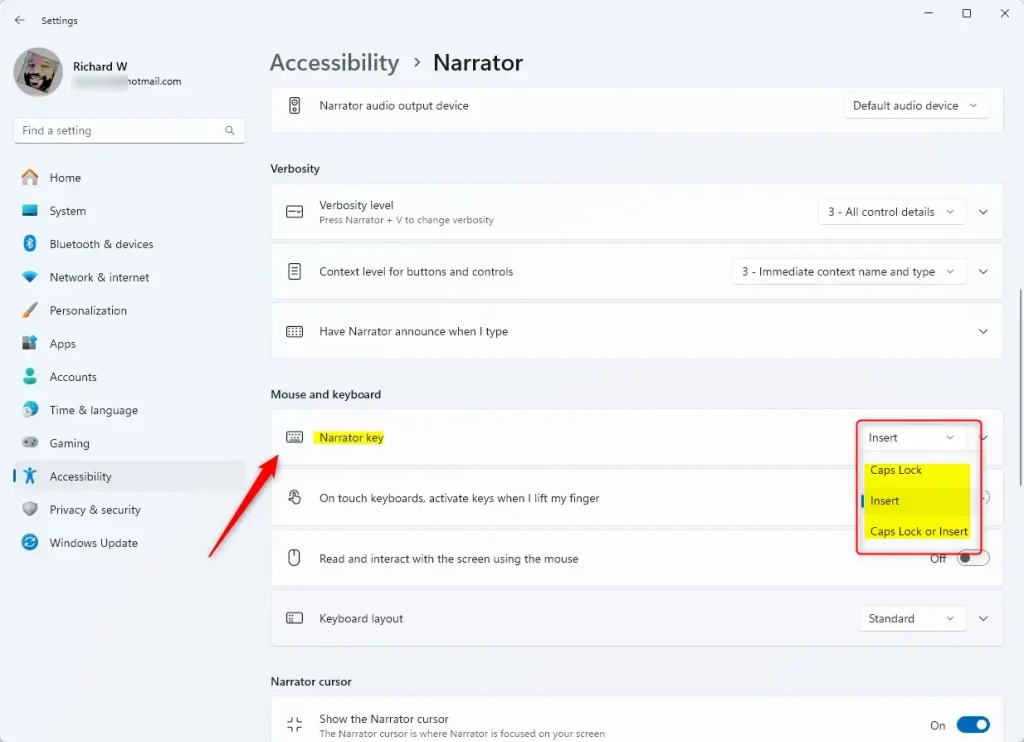
- Scroll down to the section called Mouse and keyboard.
- Click on the box or dropdown under Narrator key.
- Choose one of these options:
- Caps Lock
- Insert
- Caps Lock or Insert (both keys work)
- Close the Settings window when you are done.

Advanced: Change Narrator Modifier Keys Using Registry Editor (Optional)
If you want, you can also change the Narrator modifier key by editing the Windows Registry. This is for more advanced users. Be careful and back up your system first!
Here’s how:
- Open Registry Editor by typing
regeditin the Start menu search and pressing Enter. (More info on opening Registry Editor) - Go to this folder path:
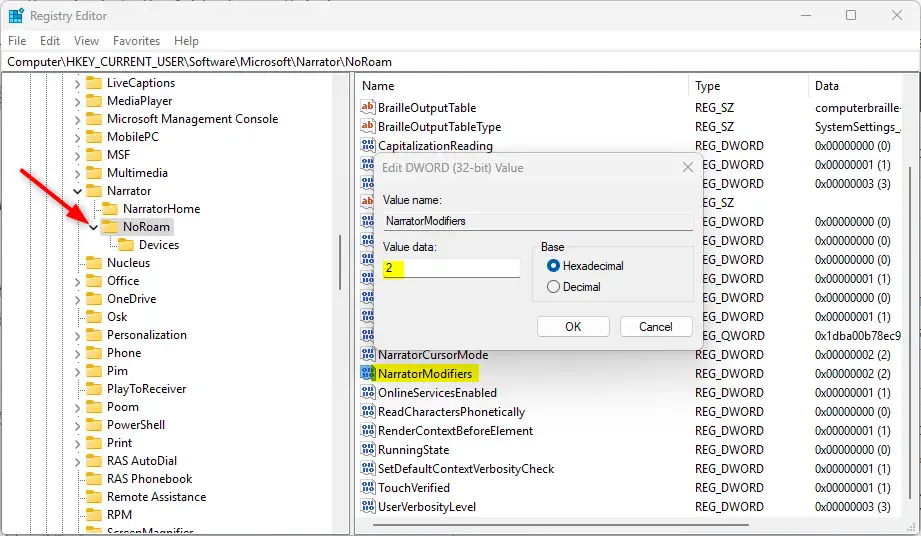
ComputerHKEY_CURRENT_USERSoftwareMicrosoftNarratorNoRoam
- Right-click on the NoRoam folder, select New > DWORD (32-bit) Value.
- Name the new value NarratorModifiers.
- Double-click on NarratorModifiers and set the value data to one of these numbers:
1= Use Caps Lock key2= Use Insert key3= Use Caps Lock or Insert keys
- Click OK, then close Registry Editor.
- Restart your computer to apply the changes.
Summary
- You can change which key works as the Narrator modifier key in Windows 11.
- Choose between Caps Lock, Insert, or both keys to find what’s easiest for you.
- This helps make using Narrator more comfortable and personal.
More help and tips from Microsoft: Narrator Keyboard Commands and Touch Gestures

Leave a Reply