
Did you know your Windows 11 computer shares and receives updates with other PCs to save internet data? This is called Delivery Optimization. It helps your PC get updates faster and uses less internet by sharing parts of updates with other computers on your home network or on the internet.
If you want to see how much internet data your computer is using for Windows Updates — both downloading updates and sharing updates with others — you can check this using the Activity Monitor in Windows.
How to Check Your Windows Update Data Usage
Follow these simple steps to find your update bandwidth info:
- Open Settings: Click the Start menu (Windows icon at the bottom-left), then click Settings. Or press Windows key + I on your keyboard to open Settings quickly.
- Go to Windows Update: In the Settings window, click Windows Update on the left side menu.
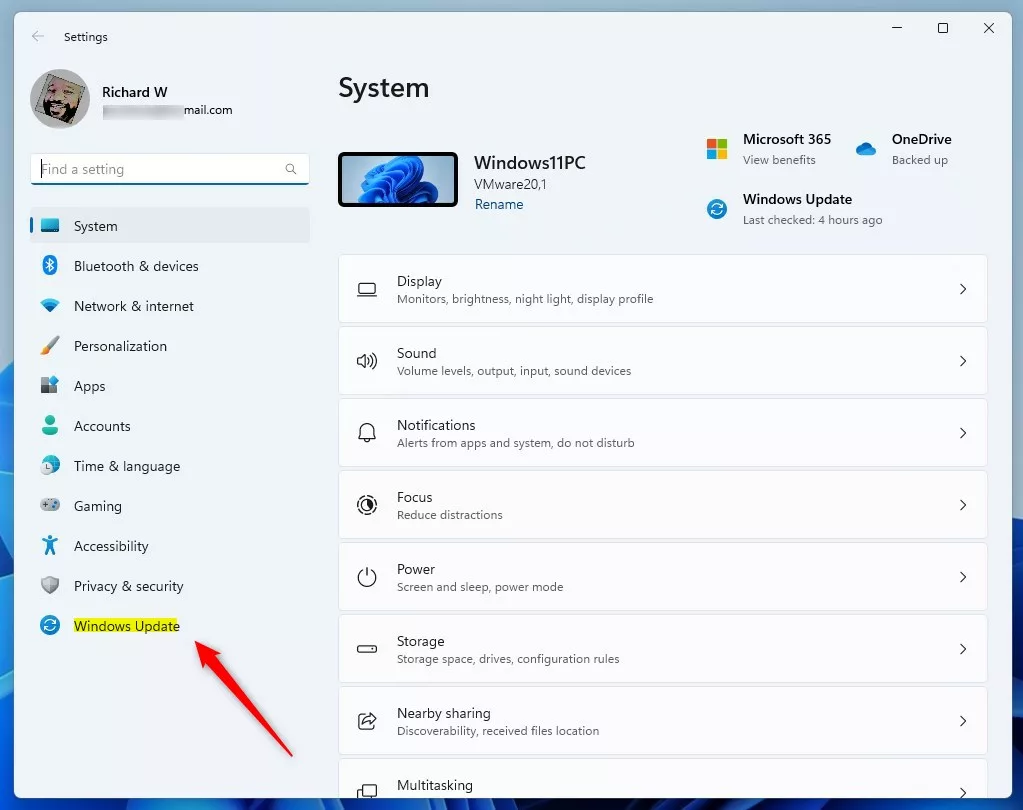 Click Windows Update in the Settings menu.
 - Open Advanced Options: On the right side, click the Advanced options button.
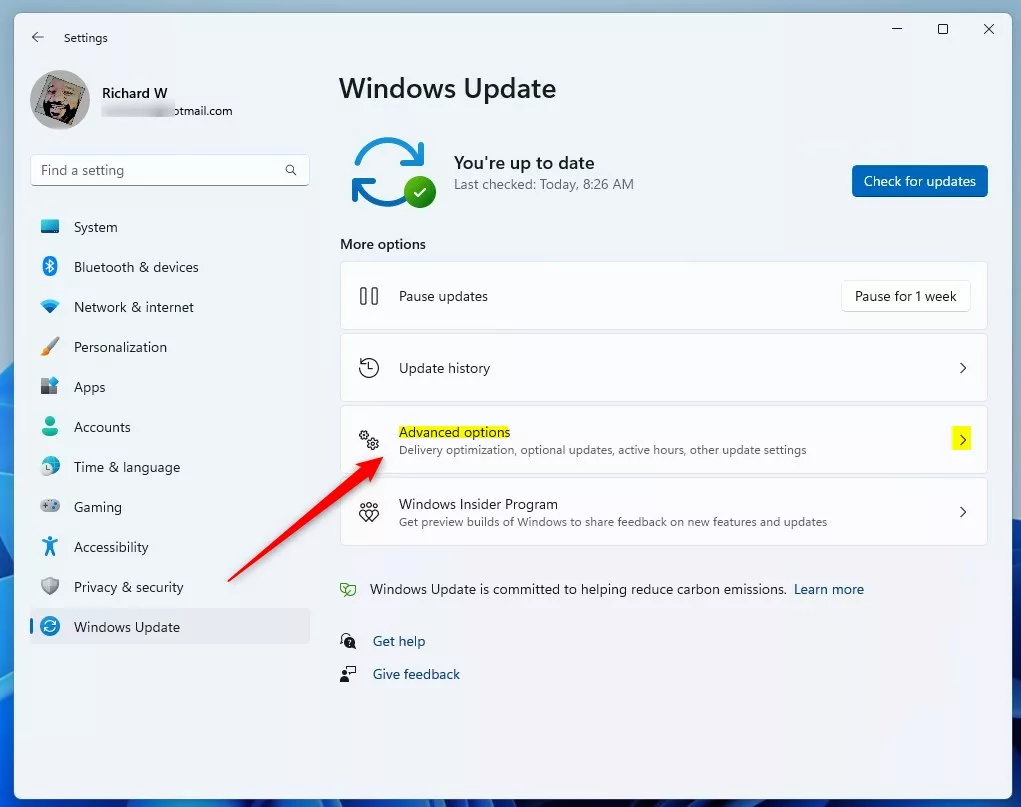
Click Advanced options under Windows Update. - Find Delivery Optimization: Scroll down and click on the Delivery Optimization section to open it.
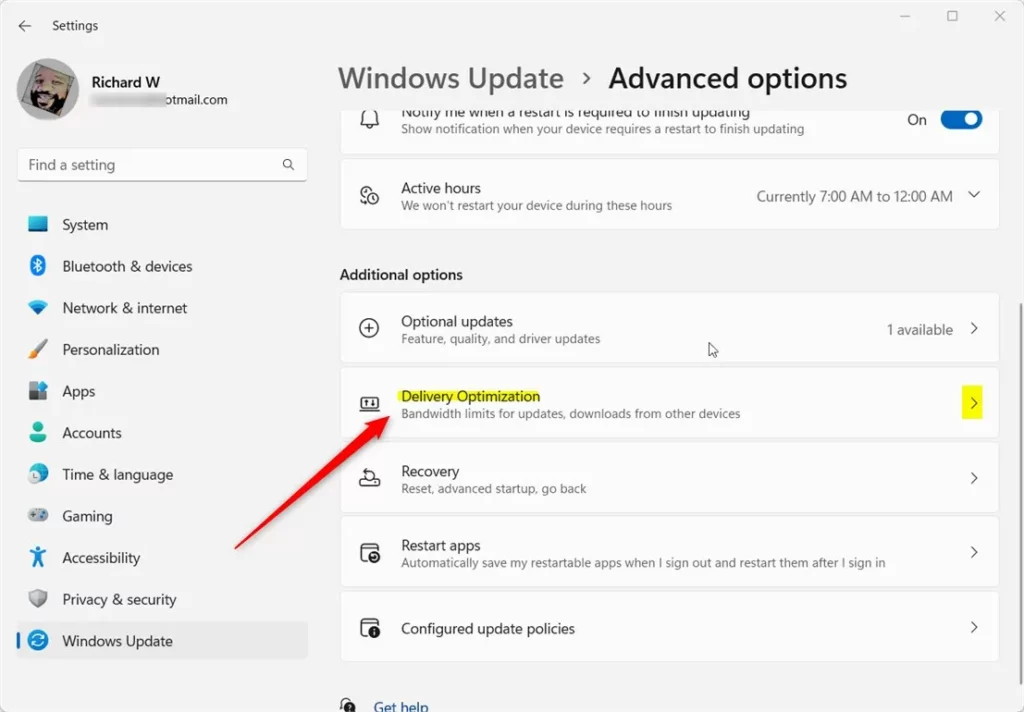
Open the Delivery Optimization settings. - Open Activity Monitor: Click on Activity monitor inside Delivery Optimization.
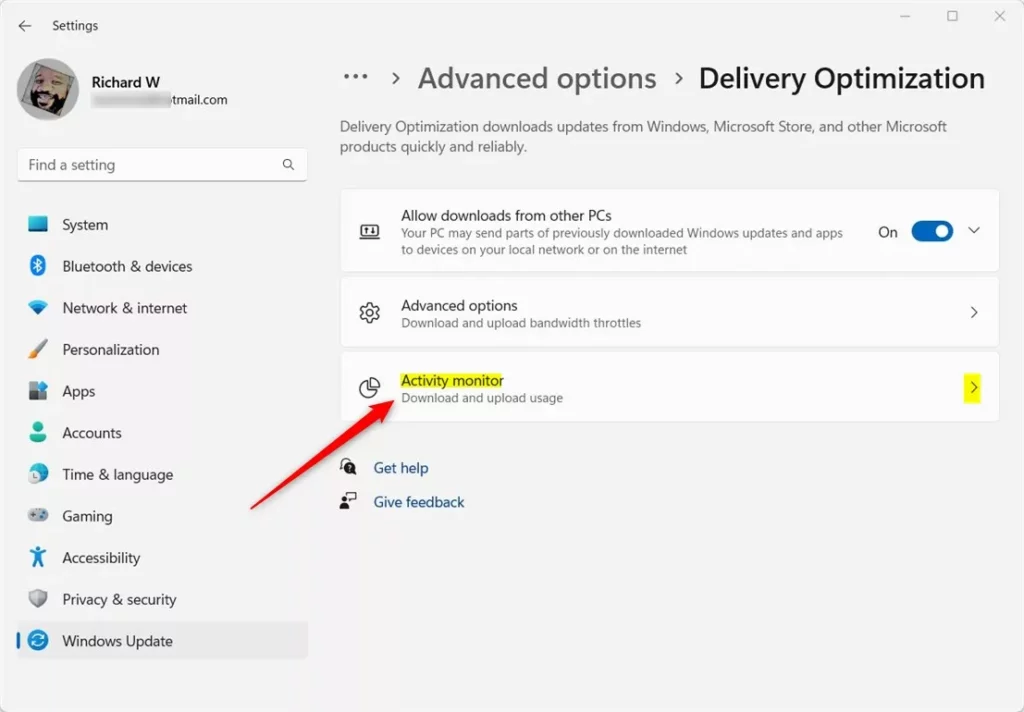
Click Activity monitor to see bandwidth details. - View Your Data Usage: Here you can see how much data your PC has downloaded and uploaded while updating Windows. It shows your internet speed and total data used.
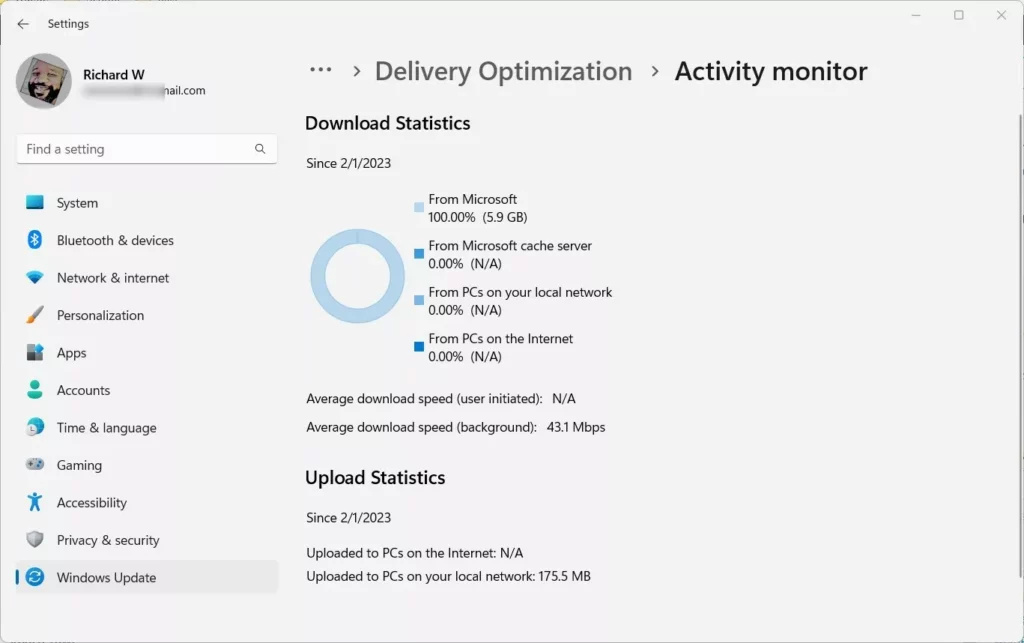
Update download and upload details shown in Activity Monitor.
That’s it! Now you know how to check the internet data your PC is using for Windows Updates.
Why This Matters
- Save internet data: Delivery Optimization helps reduce how much internet data you use by sharing updates locally.
- Keep an eye on bandwidth: You can see exactly how much data your PC downloads and uploads for updates.
- Adjust settings if needed: If you want, you can change update settings to only get updates from Microsoft servers (no sharing with other PCs).
- Better network use: If you have multiple Windows devices at home, sharing updates can speed things up and reduce internet use.
For more info about turning Delivery Optimization on or off, check out this guide: How to Turn Off or On Update Delivery Optimization in Windows 11.

Leave a Reply Cancel reply