This guide will help you easily turn Do Not Disturb mode on or off in Windows 11. When this mode is on, your computer won’t show notification pop-ups, so you can focus better without distractions.
What Are Notifications?
Notifications are little messages or alerts from your apps and Windows itself. They pop up to tell you about new emails, reminders, updates, or other important info.
What Is Do Not Disturb?
Starting with Windows 11 build 22557, Microsoft updated how you manage notifications. Now, Do Not Disturb mode lets you quickly silence notifications so they don’t interrupt you.
Windows also has a new Focus feature that helps you stay focused by combining Do Not Disturb with tools like timers and relaxing music.
Even when Do Not Disturb is on, you can still check missed notifications later in the Notification Center by pressing Win + N.
How to Turn On or Off Do Not Disturb
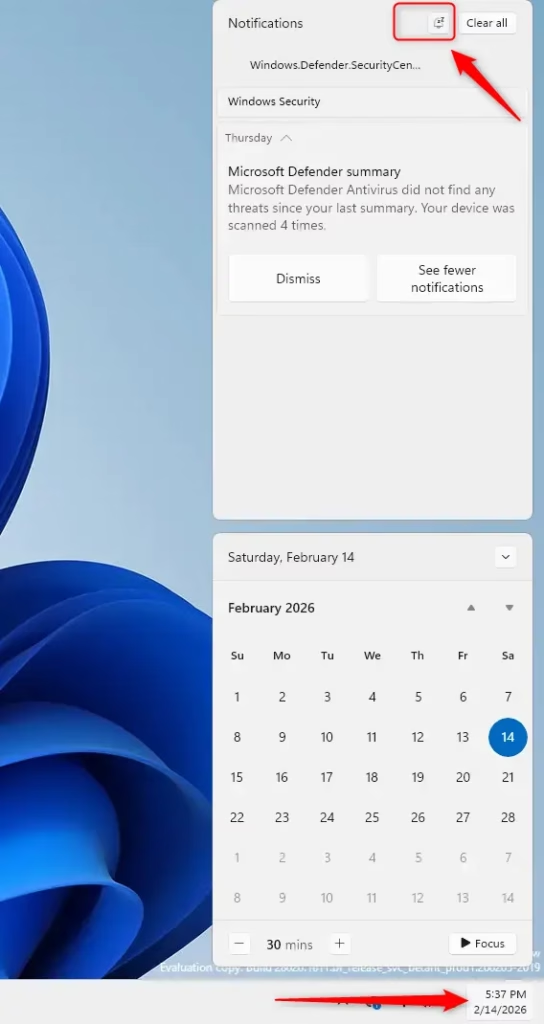
Option 1: Use the Notification Center
- Press Win + N to open the Notification Center.
- Click the Do Not Disturb button to turn it on or off.
Option 2: Use the Settings App
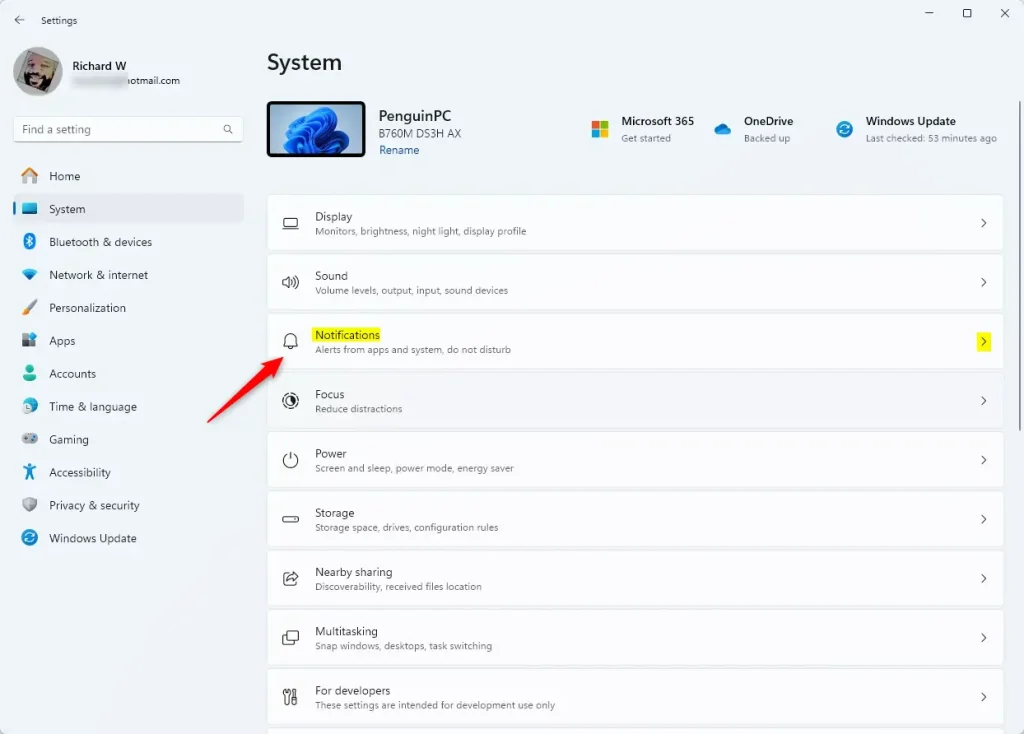
- Press Win + I to open Settings.
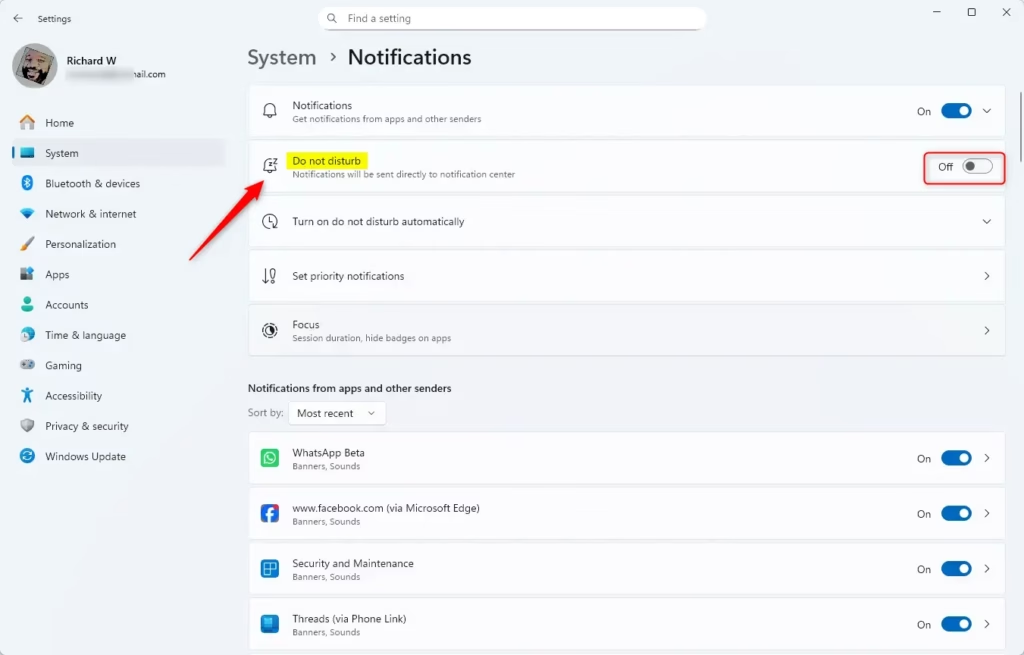
- Click System on the left, then click Notifications on the right.
- Turn Do Not Disturb on or off using the toggle switch.
You can also open Notifications settings directly by clicking this link.
Option 3: Set Up Automatic Rules for Do Not Disturb
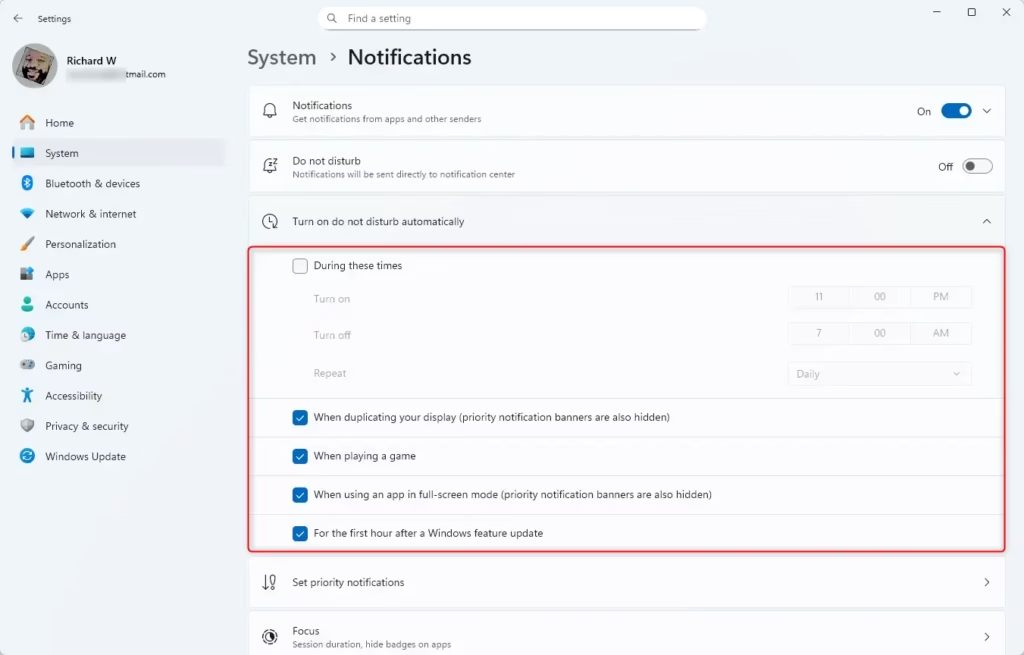
You can tell Windows to turn on Do Not Disturb automatically during certain times or activities.
- Open Settings (Win + I).
- Go to System > Notifications.
- Click to expand Turn on do not disturb automatically.
- Check the boxes for the automatic rules you want. For example:
| Rule | What It Does |
|---|---|
| During these times | Set specific hours when Do Not Disturb turns on and off automatically. |
| When duplicating your display | Hides notifications when sharing your screen on another monitor. |
| When playing a game | Stops notifications while you’re gaming in full screen. |
| When using an app in full-screen mode | Hides notifications when an app is full screen. |
| For the first hour after a Windows update | Stops notifications for one hour after a big Windows update. |
Summary
Here’s what you should remember about Do Not Disturb in Windows 11:
- Easy access: Turn it on or off quickly from the Notification Center or Settings.
- Automatic options: Set rules so Windows can turn Do Not Disturb on at certain times or during activities like gaming.
- Priority notifications: Choose which alerts can still come through even when Do Not Disturb is active.
- Privacy: Important notifications in full screen show a “view notification” button so your info stays private.
- Customizable: You control how and when notifications appear, helping you stay focused and productive.
Using Do Not Disturb correctly can help you work or play without distractions on your Windows 11 PC.

Leave a Reply Cancel reply