
This guide will help you easily turn AutoPlay on or off on your Windows 11 computer. AutoPlay is a feature that lets your PC automatically open photos, music, videos, or folders when you connect devices like USB drives, cameras, or phones.
What is AutoPlay?
AutoPlay helps you pick what happens when you plug in devices or insert media. For example, when you plug in a USB drive with photos, AutoPlay can open your Photos app automatically.
Here’s what AutoPlay can do when you connect a device:
- Play media automatically (like music or videos).
- Show a menu asking what you want to do.
- Show a list of apps you can use if the device has mixed files.
- Open the device folder so you can see all files.
- Do nothing, if you told it not to.
Note: If AutoPlay is off, or you select “Take no action” before, your PC won’t do anything automatically when you connect devices.
Tip: Holding the Shift key when you plug in a device will always bring up the AutoPlay menu, no matter your settings.
How to Turn On or Off AutoPlay in Windows 11
Option 1: Using Settings
- Press Win + I keys to open Settings.
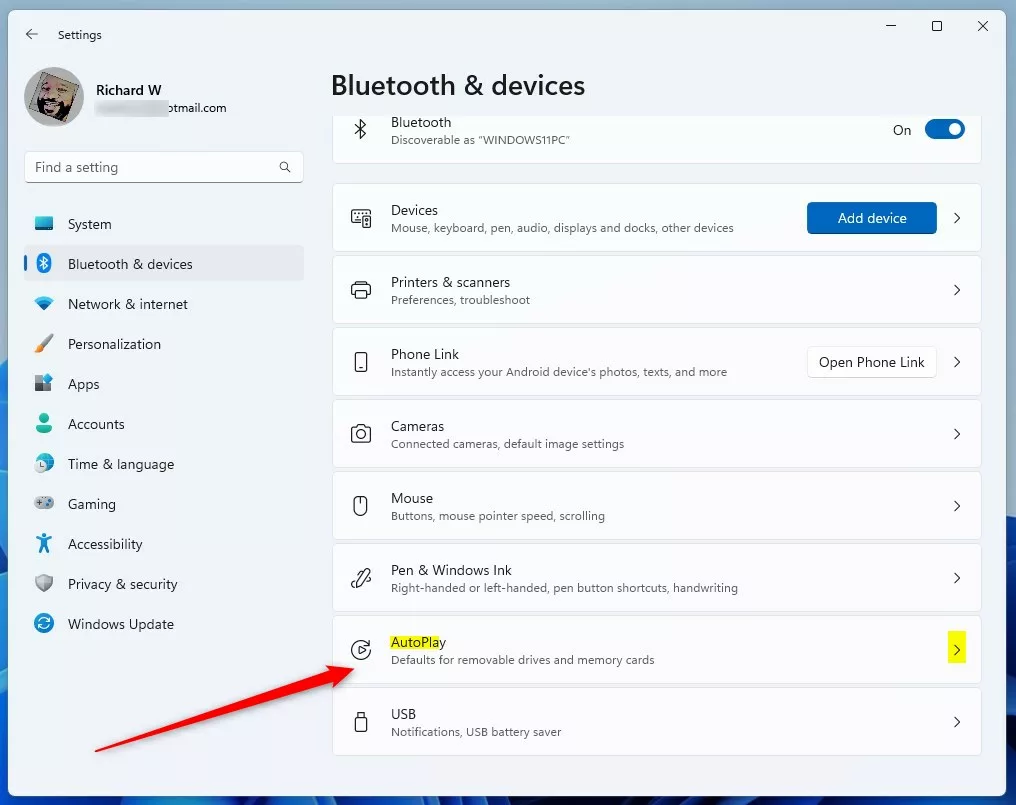
- Click Bluetooth & devices on the left menu.
- Click AutoPlay on the right side.
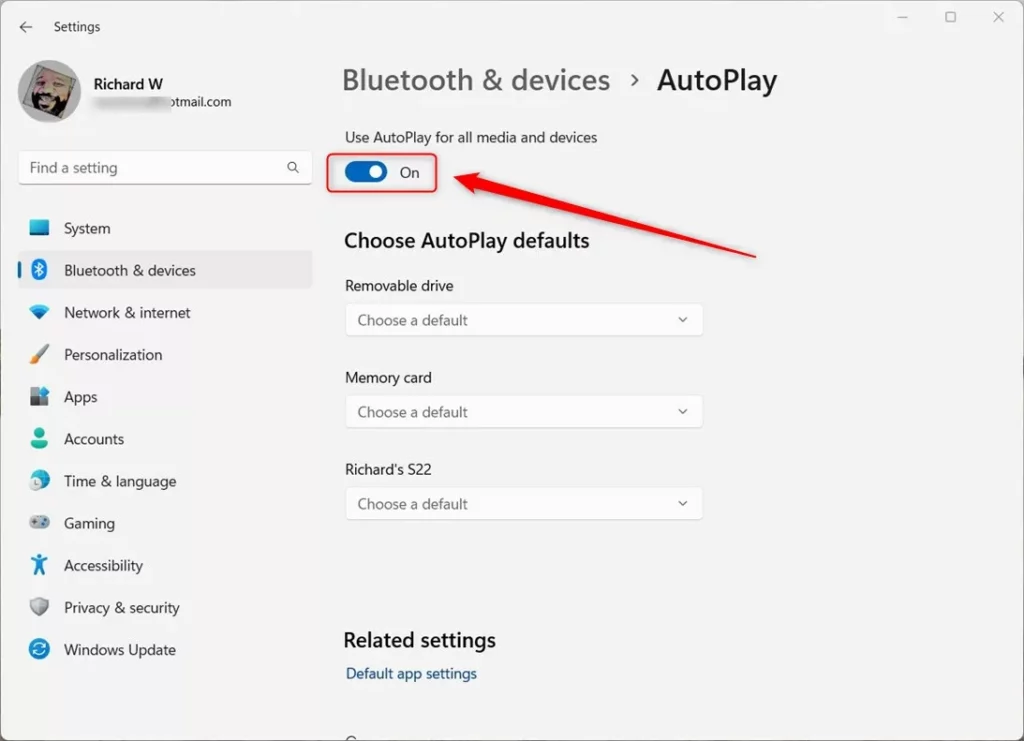
- Use the switch to turn Use AutoPlay for all media and devices On or Off.
- If you turn it on, you can choose what happens for different devices and media below.
Click here to open AutoPlay settings directly
Option 2: Using Control Panel
- Open the Control Panel. You can search for it in the Start menu.
- Make sure the view is set to Large icons or Small icons.
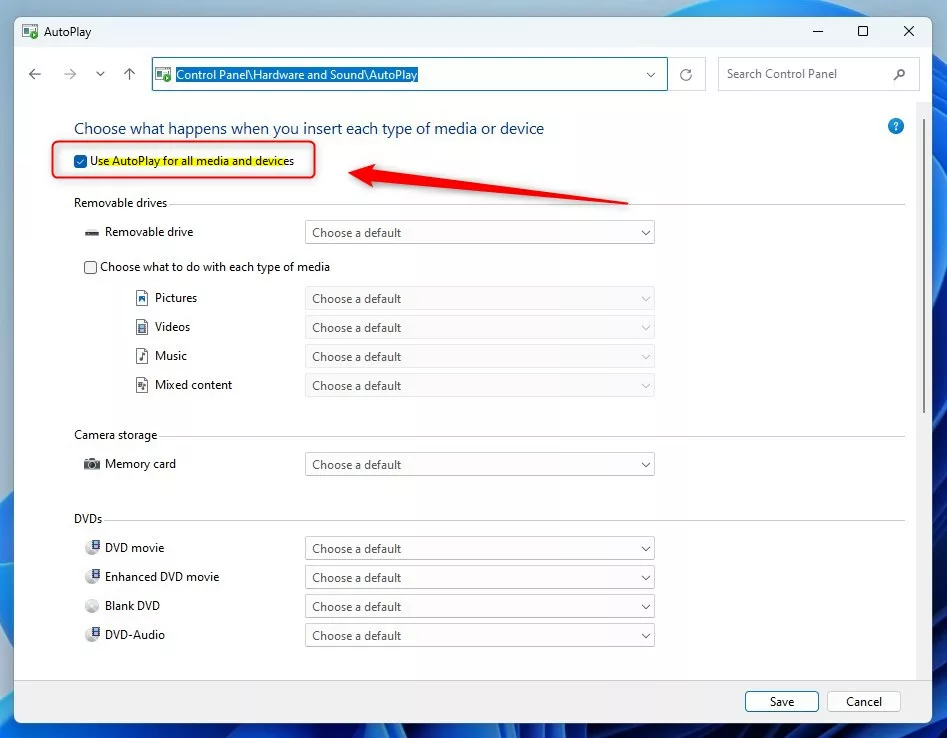
- Click on AutoPlay.
- Check the box for Use AutoPlay for all media and devices to turn it on, or uncheck it to turn it off.
- If turned on, you can select default actions for each device or media type below.
- Click Save when you finish.
Option 3: Using Registry (For Advanced Users)
Warning: Editing the registry can cause problems if done incorrectly. Be sure to follow steps carefully and back up your registry first.
Turn On AutoPlay (default):
reg delete "HKCU\Software\Microsoft\Windows\CurrentVersion\Explorer\AutoplayHandlers" /v DisableAutoplay /fTurn Off AutoPlay:
reg add "HKCU\Software\Microsoft\Windows\CurrentVersion\Explorer\AutoplayHandlers" /v DisableAutoplay /t REG_DWORD /d 1 /fAfter running these, you can delete the .reg file if you want.
Summary
- Easy to customize: Pick what happens when you connect different devices.
- Multiple ways to change settings: Use Settings, Control Panel, or the Registry.
- Full control: Turn AutoPlay on or off anytime to suit your needs.
- Save time: AutoPlay can open your favorite apps automatically.
By setting up AutoPlay the way you like, your Windows 11 PC will handle media and devices more smoothly and quickly.
Leave a Reply Cancel reply