
This guide will help you turn on or off the virtual touchpad icon that appears on your taskbar in Windows 11. The virtual touchpad is an on-screen tool you can use to move the mouse pointer with your finger if your device has a touchscreen.
What is the virtual touchpad?
It is like a small touchpad that shows up on your screen. You can move it anywhere and use it to control the mouse pointer just like a physical touchpad or mouse.
Here is a quick link to learn more about the virtual touchpad on Microsoft’s website: Microsoft: Open the on-screen virtual touchpad
How to Show or Hide the Virtual Touchpad Icon on the Taskbar Using Settings
Follow these simple steps:
- Open Settings: Press the Windows key + I on your keyboard to open the Settings window.
- Go to Personalization: On the left side panel, click Personalization.
- Open Taskbar settings: On the right, click Taskbar.
- Scroll down to find Taskbar corner icons (or System tray icons if your Windows version is newer).
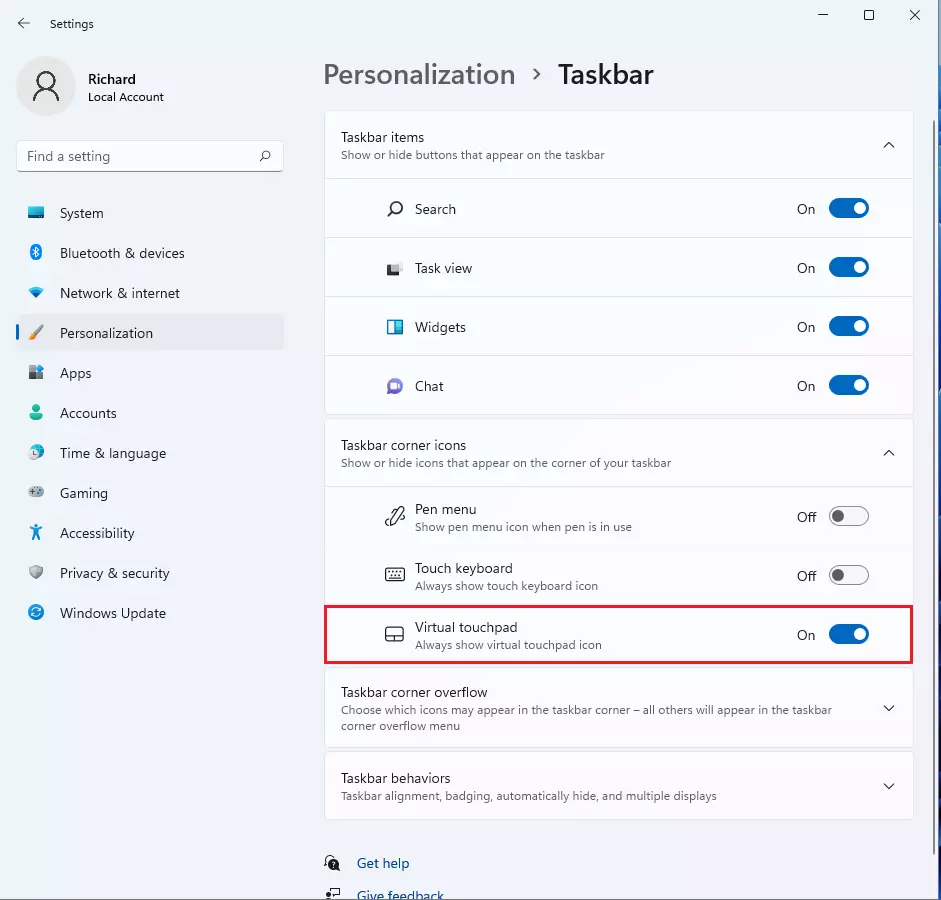
- Find the option called Virtual touchpad. Click the switch to turn it On to show the icon or Off to hide it.
Here is what the Taskbar settings look like:

And here is the toggle for Virtual touchpad:
You can now close the Settings window. The virtual touchpad icon will appear or disappear based on your choice.
How to Show or Hide the Virtual Touchpad Icon Using Registry (Advanced)
Note: Editing the Registry requires admin privileges. Be careful and consider backing up your Registry before making changes.
To Show the Virtual Touchpad Icon:
reg add "HKEY_CURRENT_USER\Software\Microsoft\Touchpad" /v TouchpadDesiredVisibility /t REG_DWORD /d 1 /fTo Hide the Virtual Touchpad Icon (default setting):
reg add "HKEY_CURRENT_USER\Software\Microsoft\Touchpad" /v TouchpadDesiredVisibility /t REG_DWORD /d 0 /fSign out and sign back in or restart your PC to see the changes.
More Information
For full details from Microsoft on enabling or disabling the virtual touchpad, visit: Enable and disable the virtual touchpad – Microsoft Support
Summary
You can easily show or hide the virtual touchpad icon on your taskbar using Settings or the Registry. The Settings method is straightforward and suitable for all users. The Registry method is for advanced users and requires caution. Choose the method that suits you best!



Leave a Reply Cancel reply