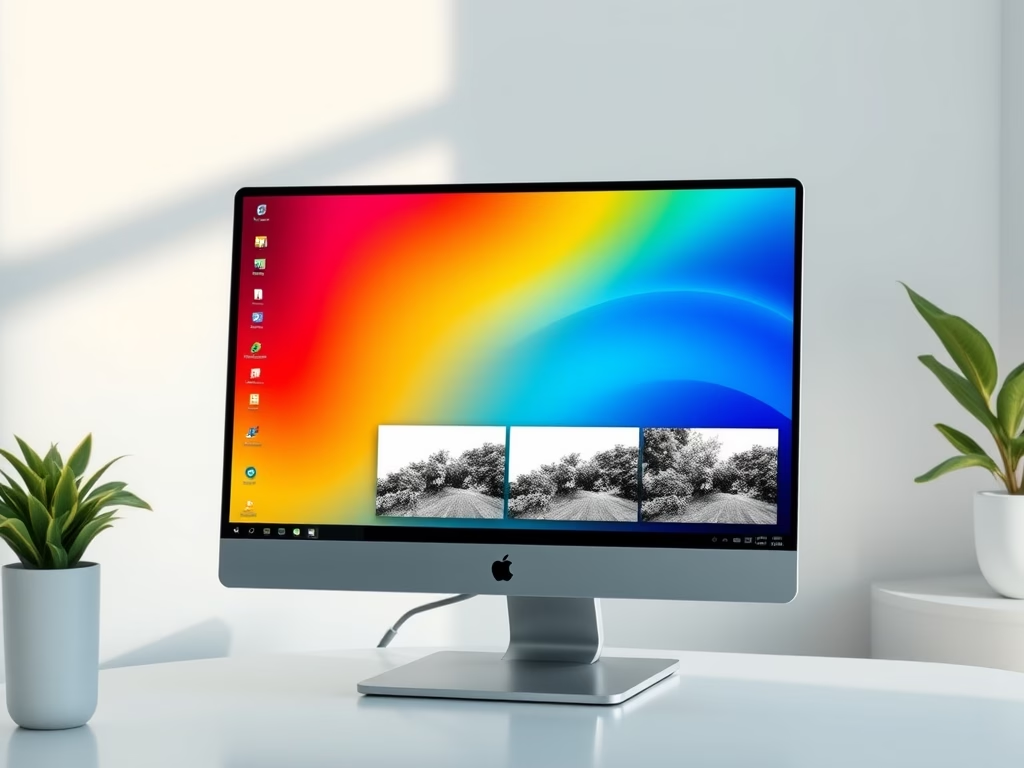
Sometimes, colors on your computer screen can be hard to see or tell apart. Windows 11 has a helpful feature called color filters that changes how colors look on your screen. This makes it easier for people who find some colors confusing or have vision problems.
What Are Color Filters?
Color filters change the colors on your screen to different styles. For example, it can turn colors into shades of gray or switch red and green colors, which helps if you have trouble seeing those colors clearly.
Windows 11 has several filters you can try, like:
- Red-Green (for different types of color blindness)
- Blue-Yellow
- Grayscale (black and white)
- Inverted colors (colors flipped like a photo negative)
How to Turn On Color Filters in Windows 11
Follow these easy steps to turn on color filters:
Open Settings: Press Windows key + I on your keyboard or click the Start button, then click Settings.
In the Settings window, click Accessibility on the left side.
Scroll down and select Color filters on the right side.
Turn on the toggle switch under Use color filters.
Choose the filter that works best for you from the list:
- Red-green (green weak, deuteranopia)
- Red-green (red weak, protanopia)
- Blue-yellow (tritanopia)
- Grayscale
- Grayscale inverted
- Inverted
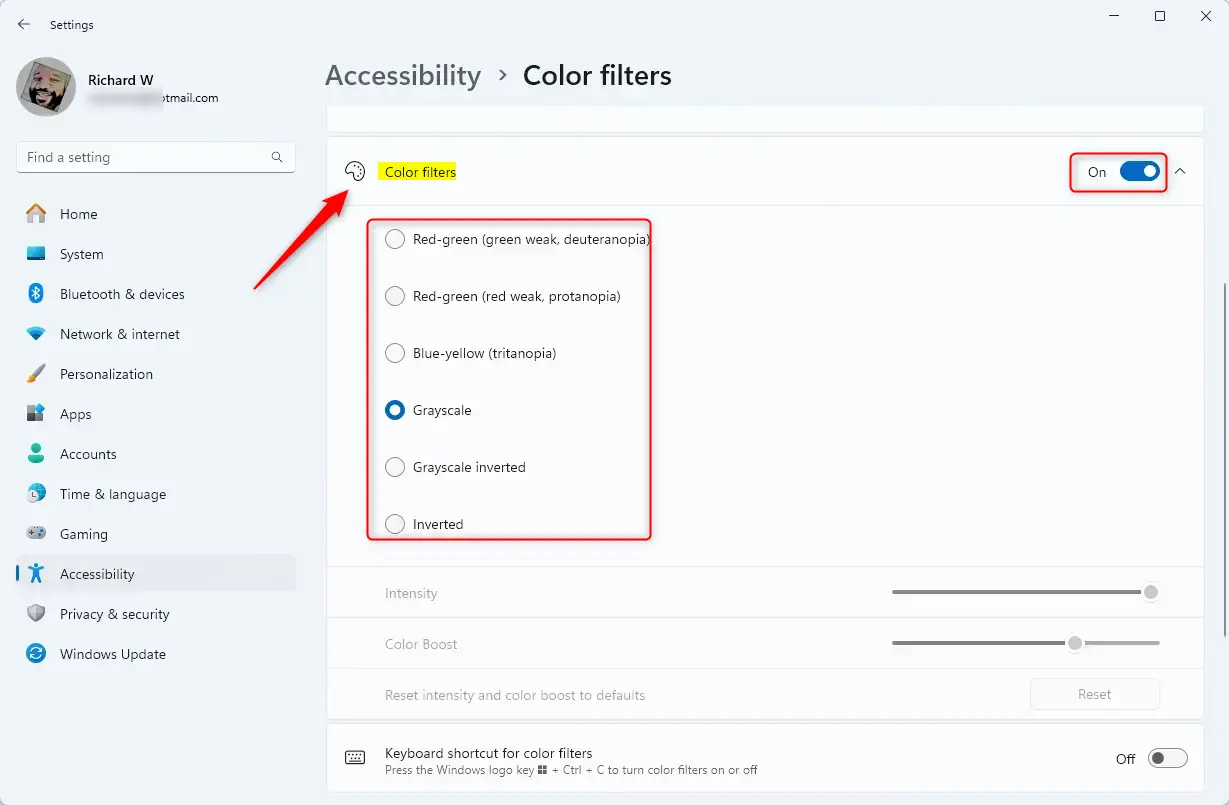
Tip: You can turn color filters on or off quickly by pressing Windows key + Ctrl + C on your keyboard.
Why Use Color Filters?
- They help people who have trouble seeing certain colors.
- They make text and images easier to see by increasing contrast.
- They can reduce eye strain for some users.
Summary
- Windows 11 includes easy-to-use color filters to help everyone see the screen better.
- You can find and turn on these filters in the Accessibility settings.
- Try different filters to see which one feels best for you.
- Use the shortcut Windows key + Ctrl + C to switch filters on or off fast.
Give it a try and see how color filters can make your screen clearer and easier on your eyes!


Leave a Reply