If your Windows 11 PC feels slow, don’t worry! Here are some easy steps to help make it faster and smoother. You’ll learn how to update Windows, change some settings, check for viruses, and more.
Older computers can slow down because of things like full storage, viruses, old software, or fancy visual effects that use a lot of power. Fixing these can help your computer run better.
Step 1: Update Windows
Updating Windows helps your computer get the latest fixes and drivers that can make it run faster.
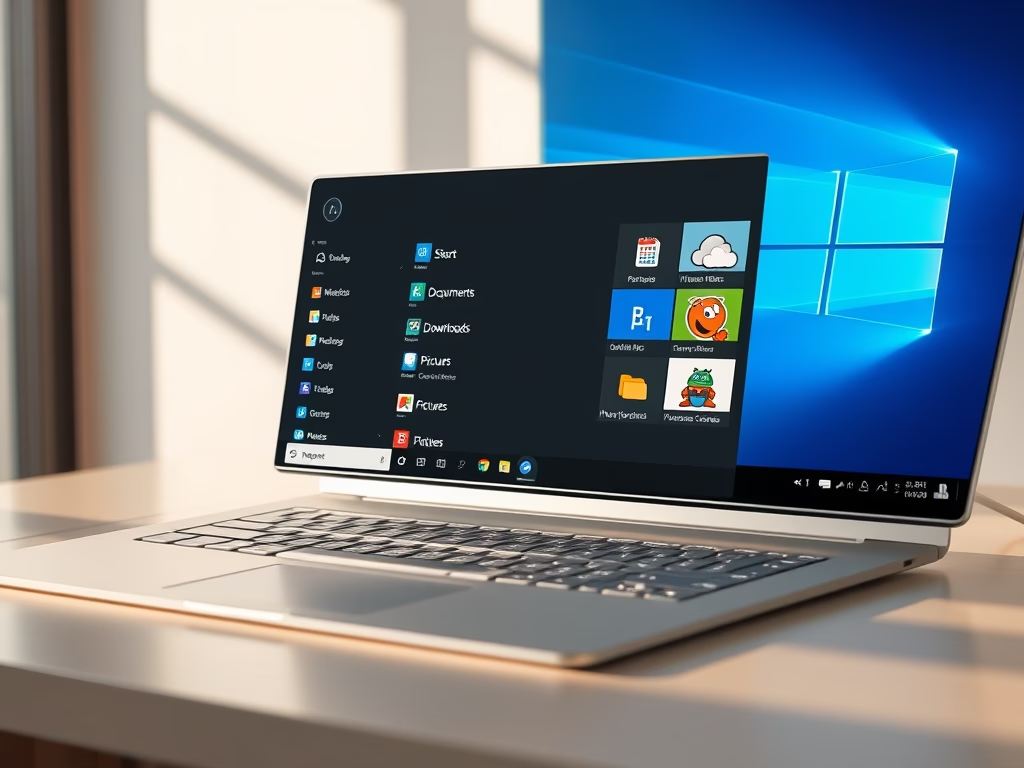
- Click the Start button (the Windows icon).
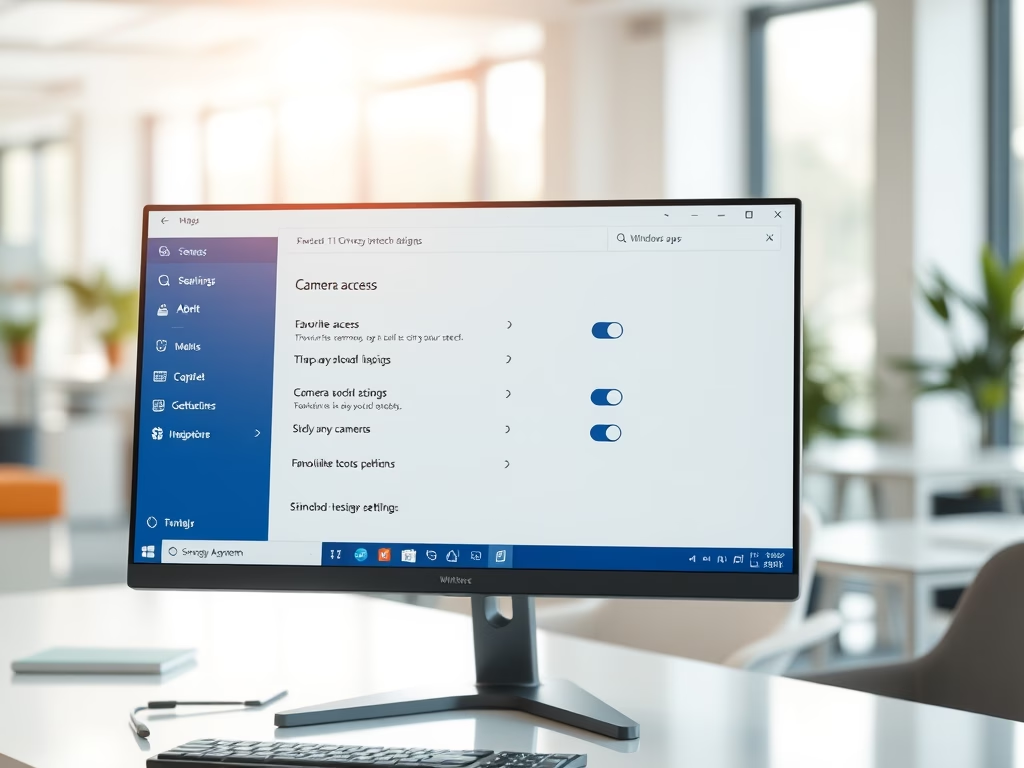
- Select Settings.
- Choose Windows Update on the left side.
- Click Check for updates.
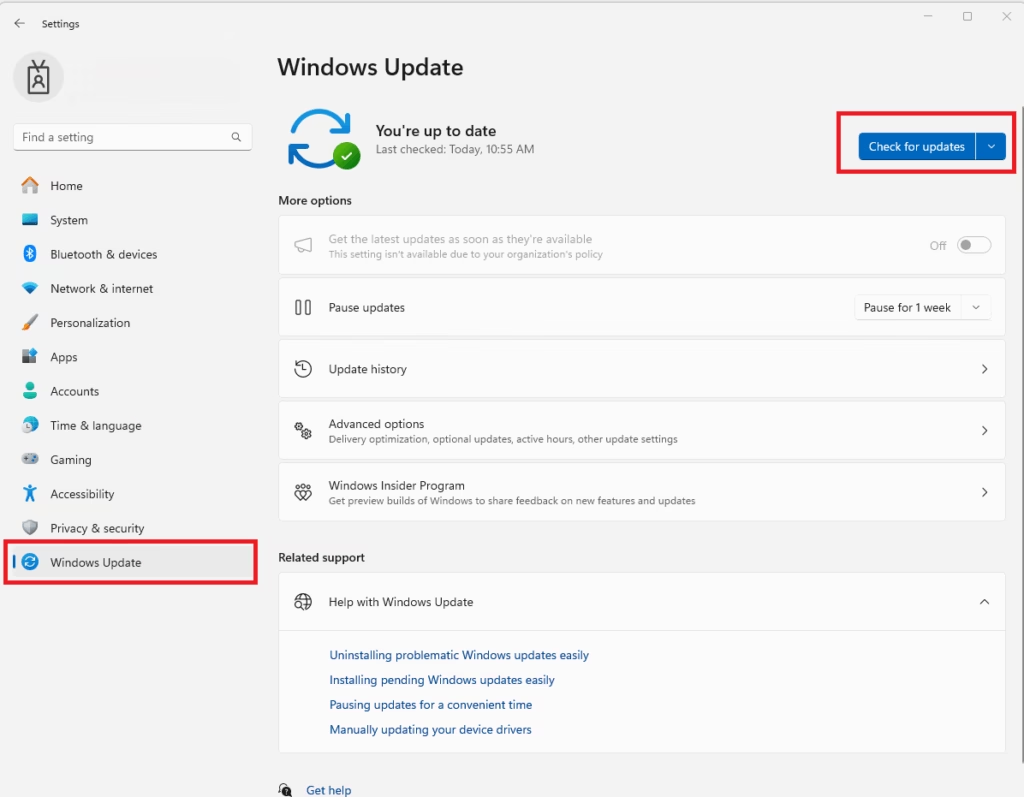
If updates are available, click Install Now. After installation, restart your PC and check if it feels faster.
Step 2: Turn Off Fancy Visual Effects
Windows 11 has cool animations and shadows, but these can slow down older PCs. You can turn them off to speed things up.
- Click the search box on the taskbar and type performance.
- Click on Adjust the appearance and performance of Windows from the list.
- In the window that opens, under the Visual Effects tab, select Adjust for best performance.
- Click Apply, then OK.
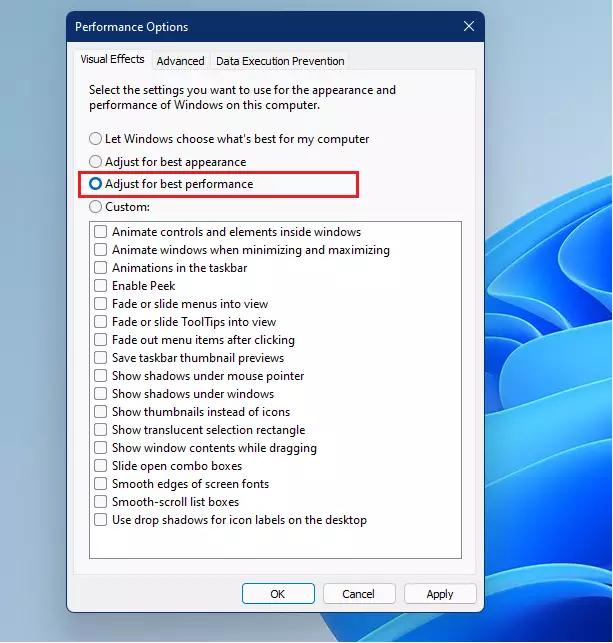
Restart your computer and see if it runs faster.
Step 3: Check for Viruses
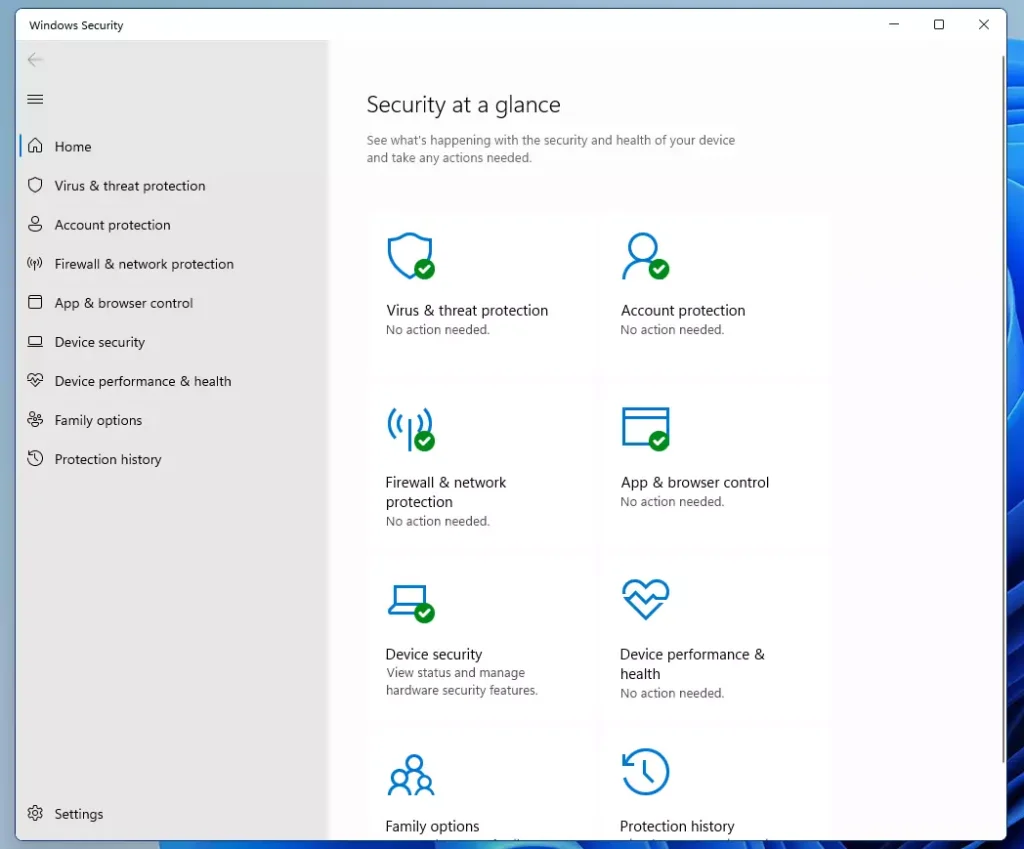
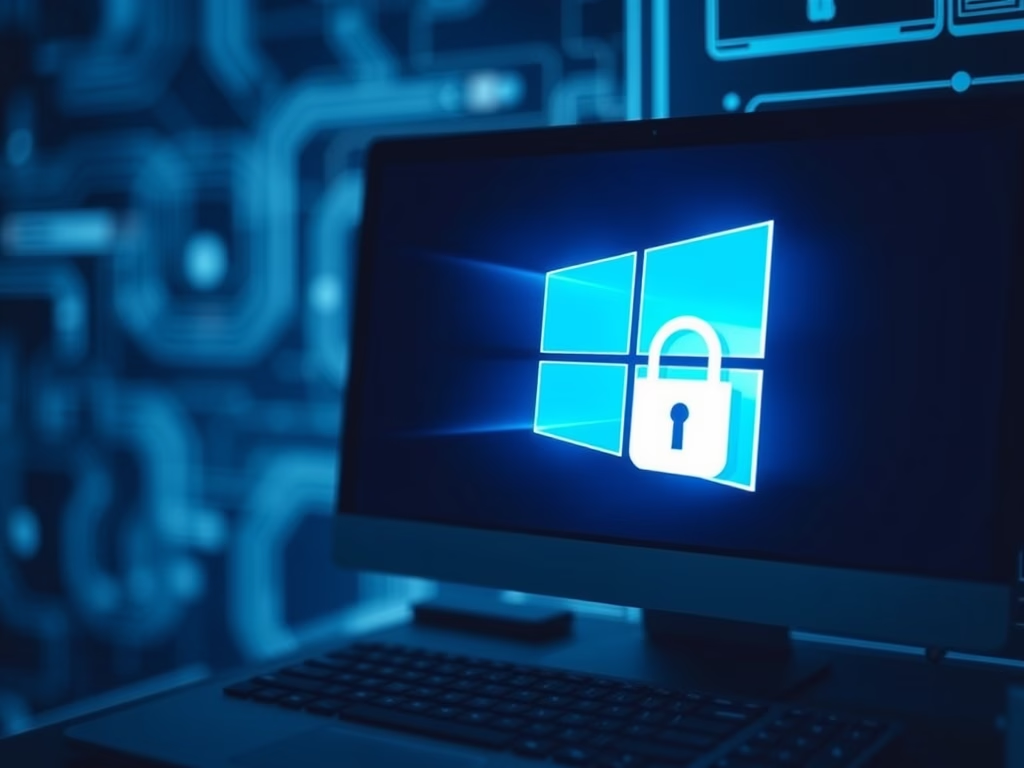
Sometimes viruses or malware can slow down your PC. Windows 11 has built-in protection that can scan and remove harmful software.
- Click Start > Settings > Privacy & Security > Windows Security.
- Click Open Windows Security.
- Select Virus & threat protection.
- Under Virus & Threat Protection Updates, click Check for updates to make sure your virus definitions are current.
- After updating, click Quick scan to scan your PC for viruses.
- Wait for the scan to finish. If threats are found, follow the instructions to remove them.
Extra Tips to Speed Up Your PC
- Free up disk space: Delete files you don’t need or move them to an external drive.
- Close programs you’re not using: Too many apps open at once can slow your PC.
- Consider hardware upgrades: Adding more RAM or switching to a faster SSD can give your PC a big boost.
Summary
To make your older Windows 11 PC run better:
- Keep Windows updated for the latest fixes.
- Turn off extra animations to save power.
- Scan regularly for viruses and malware.
- Manage your storage space.
- Think about upgrading hardware if possible.
Following these simple steps can help you enjoy a faster and smoother Windows 11 experience!
Leave a Reply Cancel reply