

This article explains how to share links and URLs with others in Microsoft Edge using popular apps like Facebook, Twitter(X), WhatsApp, etc.
Microsoft Edge is the default browser in Windows 11. However, users can switch to their preferred or favorite browser anytime. Edge is based on Chromium, similar to Google Chrome and other Chromium-based browsers today.
The most recent Windows build allows Microsoft Edge to share links and URLs with popular apps like WhatsApp, Facebook, LinkedIn, Twitter, and more directly from a Windows share window.
The Microsoft Edge sharing feature is a convenient way to quickly share links and URLs with others through popular apps like Facebook, Twitter, WhatsApp, and more. It eliminates the need to copy and paste the link into another app or browser, saving time and effort.
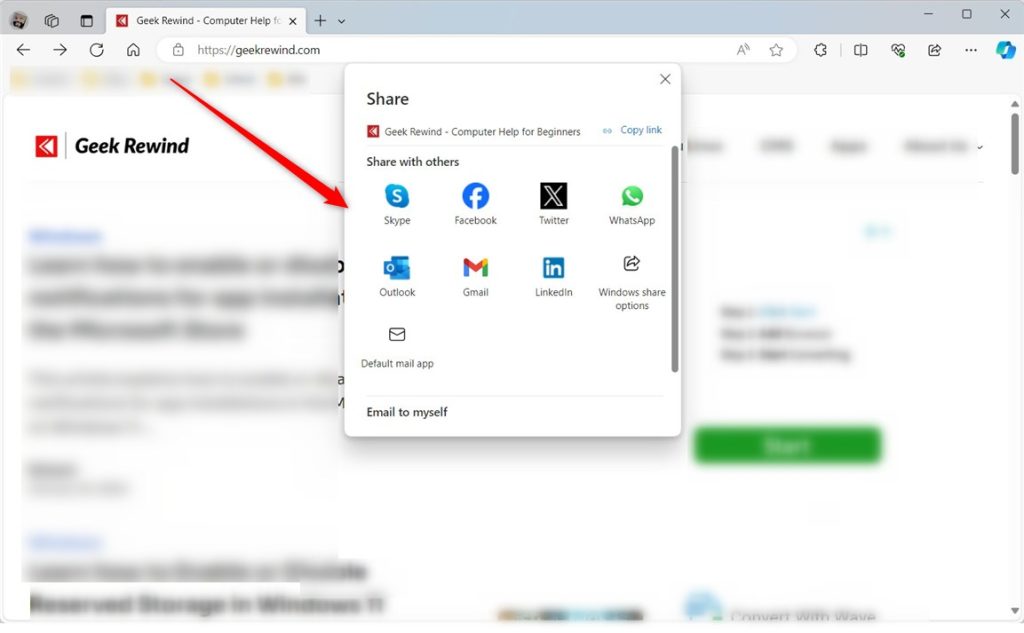
When you click the Share link button, a window will open with popular sharing services that you can select to share the link with others.
Share a link from the toolbar in Microsoft Edge
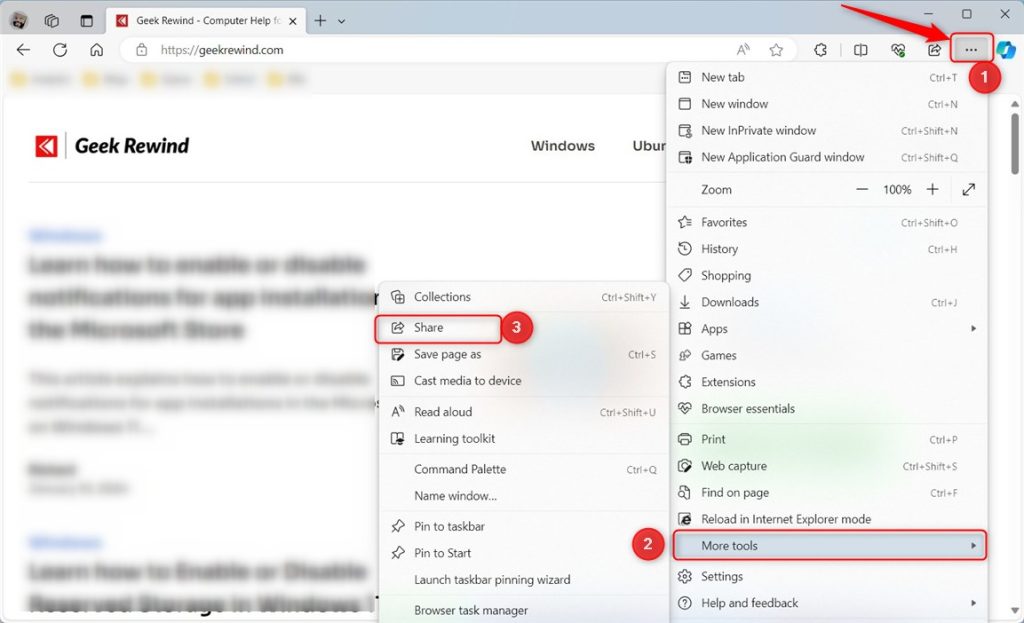
To share a link with others in the Microsoft Edge browser, click the Settings and more (Alt+F) button on the toolbar, select More tools, then Share.
A share window is invoked with services you can use to share with others.
Use the Share button on the toolbar
To share links quickly, turn on the Share button on the toolbar. The Share button can be enabled from the Appearance page in Settings.
Once enabled, click the Share button to invoke the share window.

Select a service to share the link with.
Right-clicking on a web page will also let you select the Share on the context menu.

That might be other ways to invoke the share window in Microsoft Edge. However, the steps above should get you started.
Conclusion:
- The Share feature in Microsoft Edge simplifies sharing links with popular apps
- Enable the Share button on the toolbar for quick access
- Right-clicking on a web page also provides the option to share
- Feel free to leave comments or suggestions for additional information below the article.



Leave a Reply