

This article explains how to rename files in Windows 11.
In Windows, a file can be a document, image, video, audio, program, or digital information. Files are typically organized into folders and can be accessed through Windows File Explorer. Each file has a name, which can be used to identify and locate it, and a file extension, which indicates the file type and the program that can open it.
Users can rename files in Windows to make them unique; there are many ways to do it, and for many reasons.
There are several reasons why someone might want to rename files in Windows. Here are a few common ones:
- To make the file title more descriptive
- To organize files
- To avoid naming conflicts
- To make files easier to find
When renaming files, the new name can’t contain the following characters: / : * ? ” < > |
Below are some of the methods one can use to rename a file in Windows.
Use keyboard shortcut
- Select the file you want to rename
- Press the F2 key
- Type in name in the file name field and press Enter
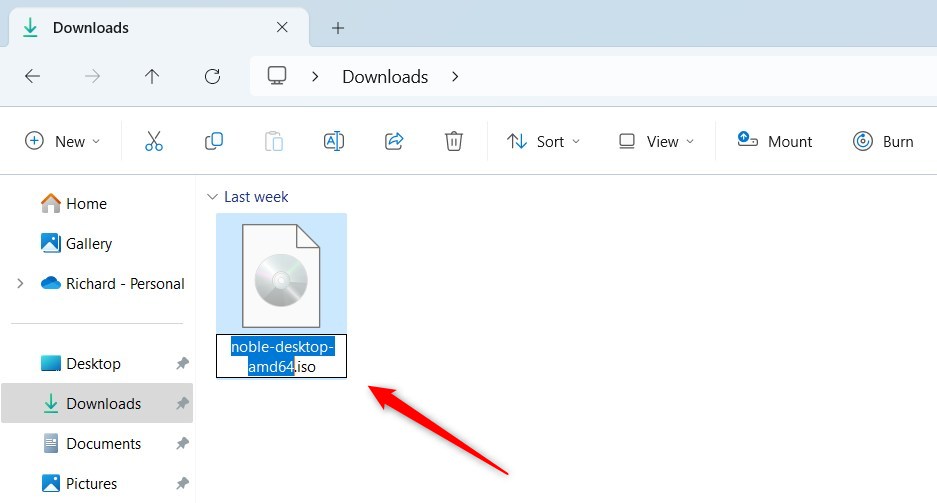
Use a single click
- Open File Explorer
- Select the file you want to rename
- Perform a single click with the mouse on the file name and type a name when highlighted
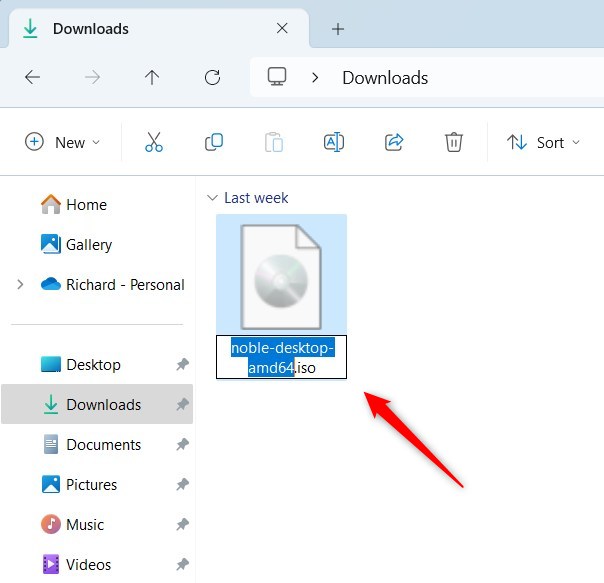
Use the File Explorer command bar
One can rename a file using the File Explorer command bar.
- Open File Explorer
- Select the file you want to rename
- Click the Rename button on the command bar
- Type a new name in the file name field and press Enter

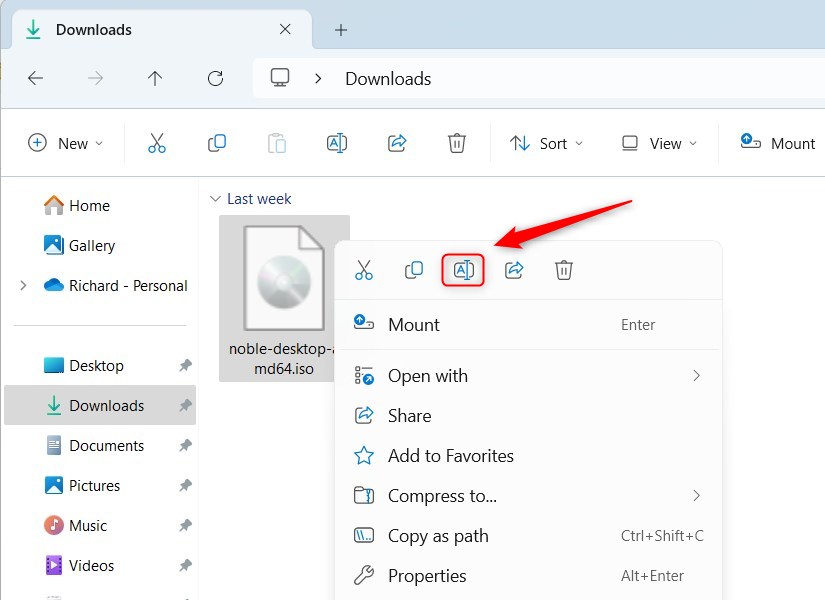
Use the File Explorer context menu
Another way to rename files is to use the context menu in File Explorer.
- Open File Explorer
- Right-click the file you want to rename
- Select the Rename button on the context menu
- Type a new name and press Enter
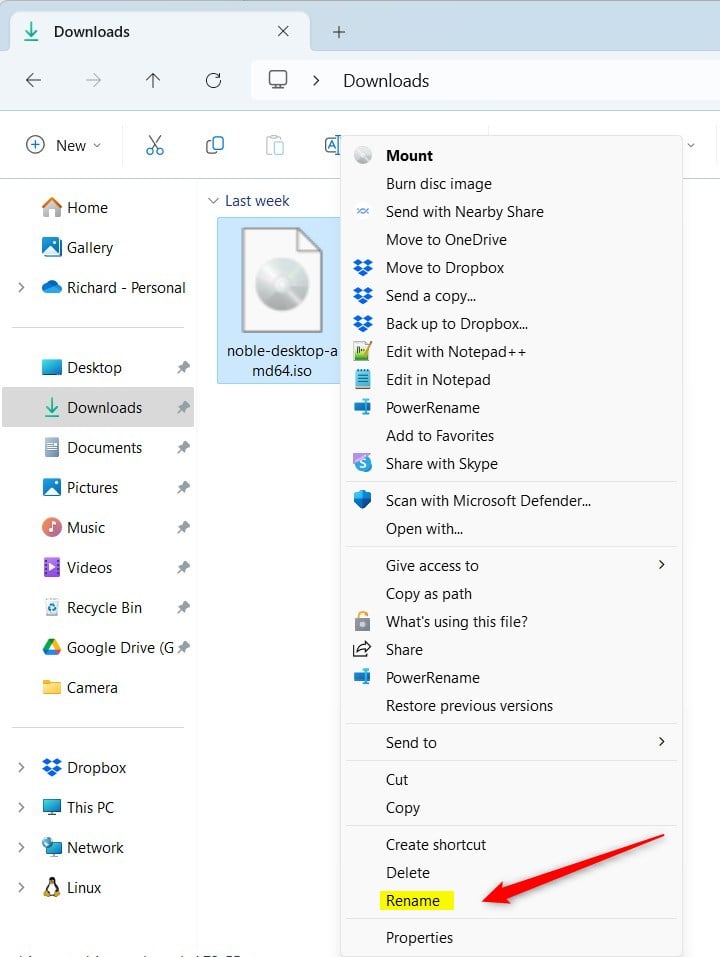
You can also select the ‘Show more options‘ on the context menu and click the ‘Rename‘ command on the full context menu.
You can bypass the ‘Show more options‘ by holding the SHIFT key on your keyboard while right-clicking the file to show the full context menu.
Use PowerShell
You might want to use Windows PowerShell to rename files.
- Open Windows Terminal and use the PowerShell tab
- Specify the full path of the file you want to rename
- Use the command format below to rename the file
Rename-Item -Path "FullPathToFile.text" -NewName "FileNewName.txt" -Force
Example:
Rename-Item -Path "C:UsersRichardDownloadsMyFile.txt" -NewName "FileNewName.txt" -Force
Use Command Prompt
If you prefer the command prompt, use the steps below.
- Open Windows Terminal with the Command Prompt tab
- Specify the full path of the file you want to rename
- Use the command format below to rename the file
ren "FullPathToMyFile.txt" "FileNewName.txt"
Example:
ren "C:UsersRichardDownloadsMyFile.txt" "FileNewName.txt"
There might be other methods that are not specified above.
That should do it!
Conclusion:
- Renaming files in Windows 11 is essential for keeping them organized and easy to locate.
- This article effectively demonstrated how to rename files using various approaches by providing keyboard shortcuts, File Explorer commands, PowerShell, and Command Prompt.
- Renaming files allows users to make file titles more descriptive, avoid naming conflicts, and improve file organization and accessibility on their Windows 11 system.


Leave a Reply Cancel reply