How to Enable or Disable Ignore Touch Input when using Pen in Windows 11

You enable or disable “Ignore touch input when I’m using my pen” in Windows 11 to prevent accidental screen touches from interfering with your pen input.
This Windows 11 setting stops your computer from registering touches from your finger or palm when it detects you’re actively using a stylus (a digital pen). It’s incredibly helpful for artists and note-takers who frequently rest their hand on the screen.
If your cursor jumps or unintended clicks happen while you draw or write, this toggle in Windows 11 is your solution. You can find it within the Pen & Windows Ink settings.
Go to Settings > Bluetooth & devices > Pen & Windows Ink > Additional pen settings. Check or uncheck the box next to “Ignore touch input when I’m using my pen” to enable or disable it. This prevents accidental touches from interfering with your pen.
Option 1Use Settings
- Open Settings by pressing
Win+I. - Click on Bluetooth & devices on the left side.
- Click on Pen & Windows Ink on the right side.
- Click on Additional pen settings to expand it.
- Check the box next to Ignore touch input when I’m using my pen to turn it on. Uncheck it to turn it off.
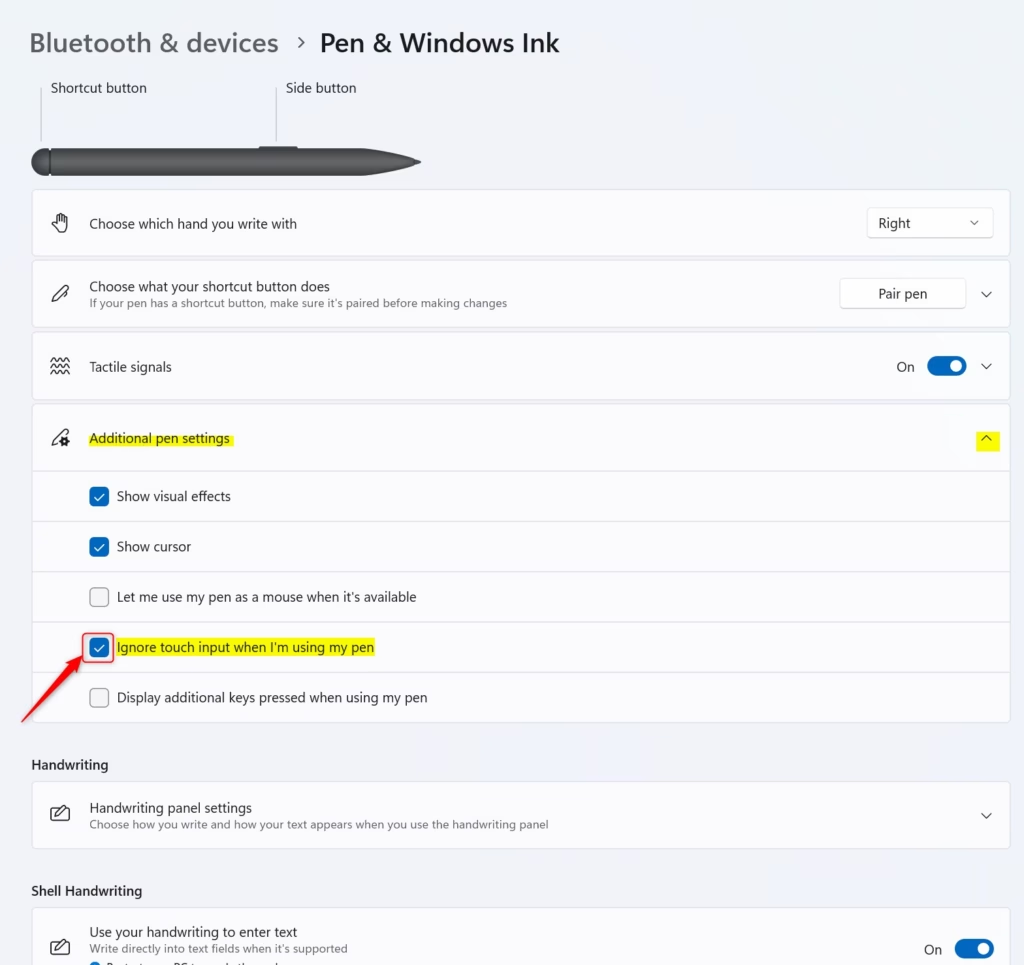
You can easily ignore touch input when using your pen in Windows 11 by using the Settings app.
Option 2Use Registry
⚠️ REQUIRES ADMIN PRIVILEGES
Open the Terminal app as administrator and run the commands below.
Enable Ignore Touch Input when using Pen
reg add "HKEY_CURRENT_USER\Software\Microsoft\Windows NT\CurrentVersion\Windows\Pen" /v PenArbitrationType /t REG_DWORD /d 1 /f
Disable Ignore Touch Input when using Pen
This is the default setting.
reg add "HKEY_CURRENT_USER\Software\Microsoft\Windows NT\CurrentVersion\Windows\Pen" /v PenArbitrationType /t REG_DWORD /d 3 /f
Summary
This guide showed you how to ignore touch input when using your pen in Windows 11 using the Settings app.
How do I disable touch input on 🪟 Windows 11?
In the Device Manager window, click the arrow next to ‘Human Interface Devices’ to expand it. Then, right-click on ‘HID-compliant touch screen’ and choose either ‘Enable device’ or ‘Disable device,’ depending on what you want to do.
How do I turn off pen input in 🪟 Windows 11?
You can enable or disable handwriting input through Settings > Pen & Windows Ink, or by using the Registry Editor, or .reg files, or PowerShell scripts.
How to disable touch when using a pen?
In this section, scroll down and find ‘Additional pen settings,’ then click on it. Next, check the box for ‘Ignore touch input when I am using my pen.’
Was this guide helpful?

About the Author
Richard
Tech Writer, IT Professional
Richard, a writer for Geek Rewind, is a tech enthusiast who loves breaking down complex IT topics into simple, easy-to-understand ideas. With years of hands-on experience in system administration and enterprise IT operations, he’s developed a knack for offering practical tips and solutions. Richard aims to make technology more accessible and actionable. He's deeply committed to the Geek Rewind community, always ready to answer questions and engage in discussions.

No comments yet — be the first to share your thoughts!