

This article explains how to list and create custom command shortcuts using Voice access Windows 11.
Voice access is a new experience that enables anyone to control their PC and send text messages using their voice. With Voice access, users can navigate the Windows interface, open applications, and execute commands, all through spoken commands.
When you launch voice access for the first time, Windows checks if your display language is supported. If so, you can continue with the setup experience.
A recent Voice access update allows users to list commands and create shortcuts for custom commands. Users can create their own commands and use them to perform actions. This is only available in English.
Creating your voice access commands in Windows can greatly improve your productivity and accessibility. By creating custom shortcuts, you can quickly execute commands and perform actions without navigating through menus or using your mouse or keyboard.
This can be particularly helpful for individuals with mobility or vision impairments or anyone who wants to streamline their workflow. Creating your commands allows you to personalize your voice access experience and tailor it to your needs.
List Voice access commands
As mentioned, users can now list and create custom command shortcuts in Voice access on Windows 11.
Here’s how to do it.
First, turn on Voice access.
Once turned on, use your mouse to click the mic button on the Voice access bar or say, “Voice access wake up,” to activate voice access.
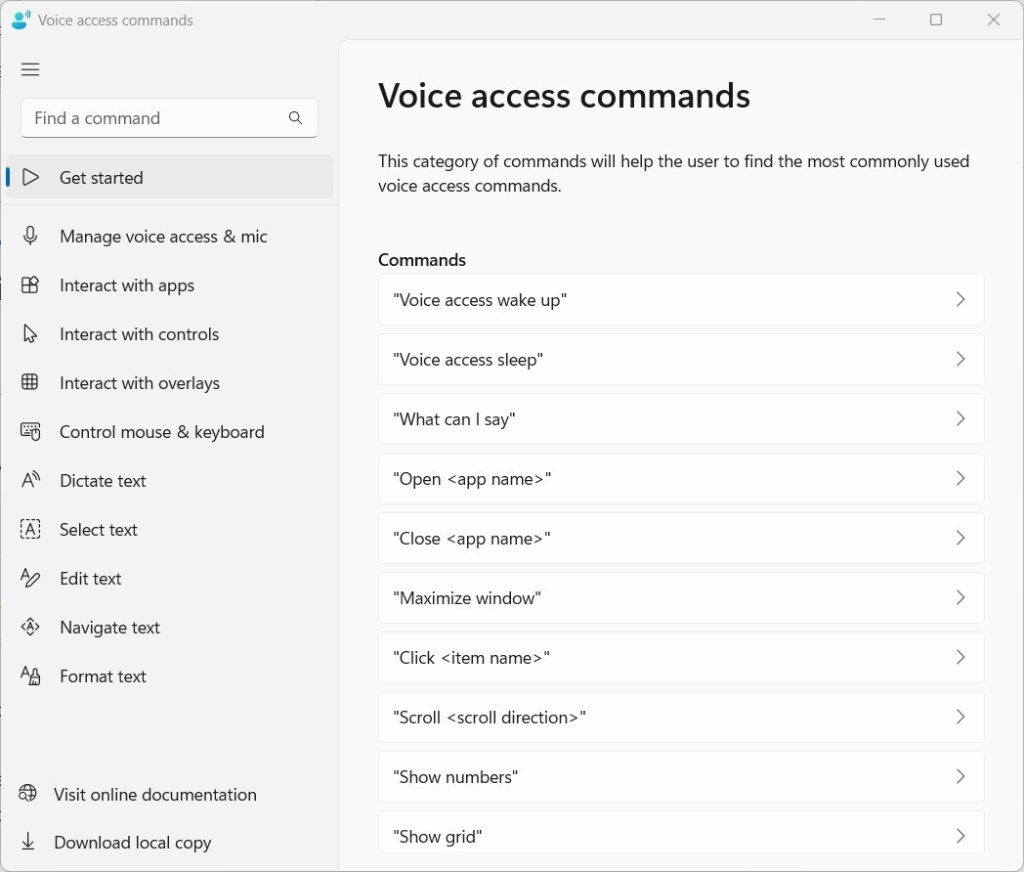
While voice access is listening, say, “What can I say.”
You will see a list of Voice access commands that you can use.
Create custom command shortcuts
If you want to create custom command shortcuts, use the steps below.
First, turn Voice access on.
Then, open the Voice access command list page using the steps above.
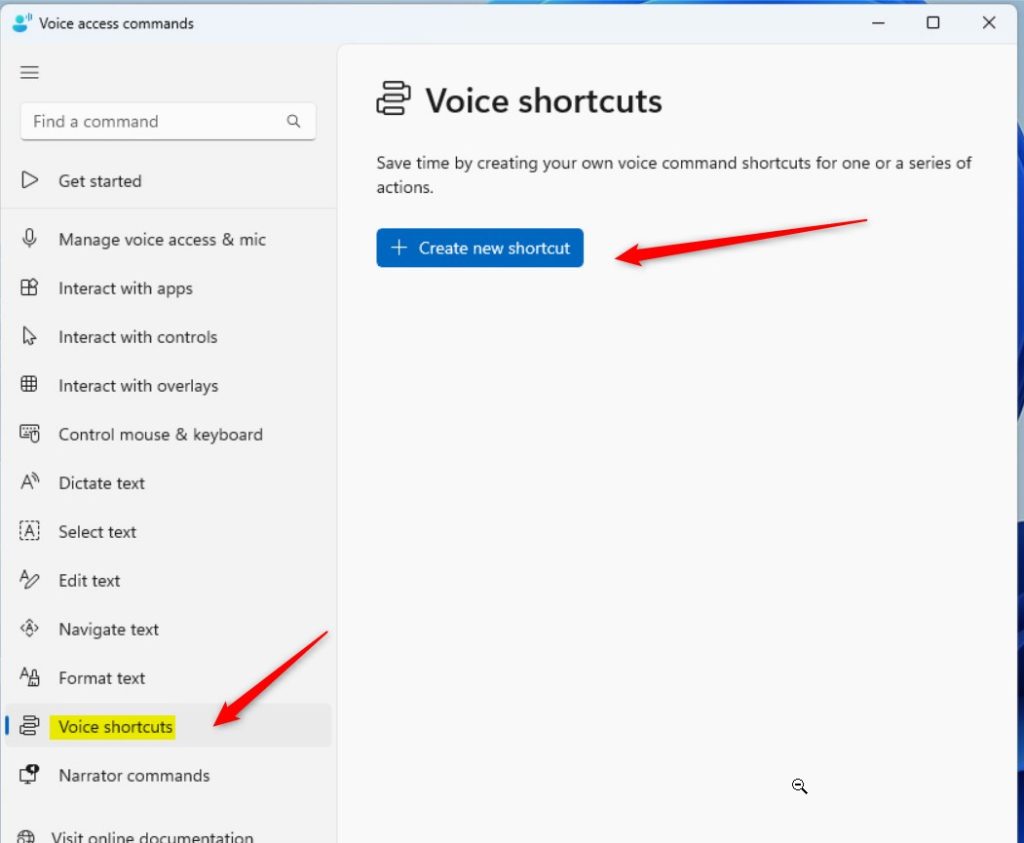
Next, click Voice Shortcuts in the left pane and select the Create New Shortcut button in the right pane.
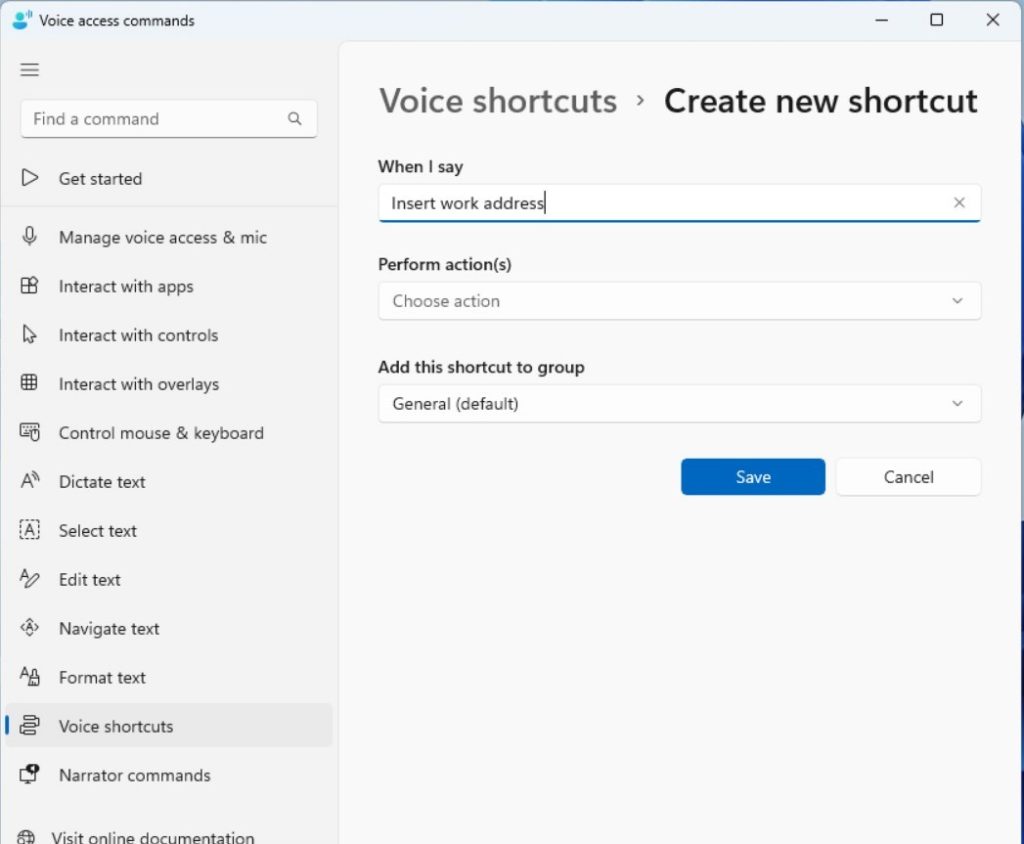
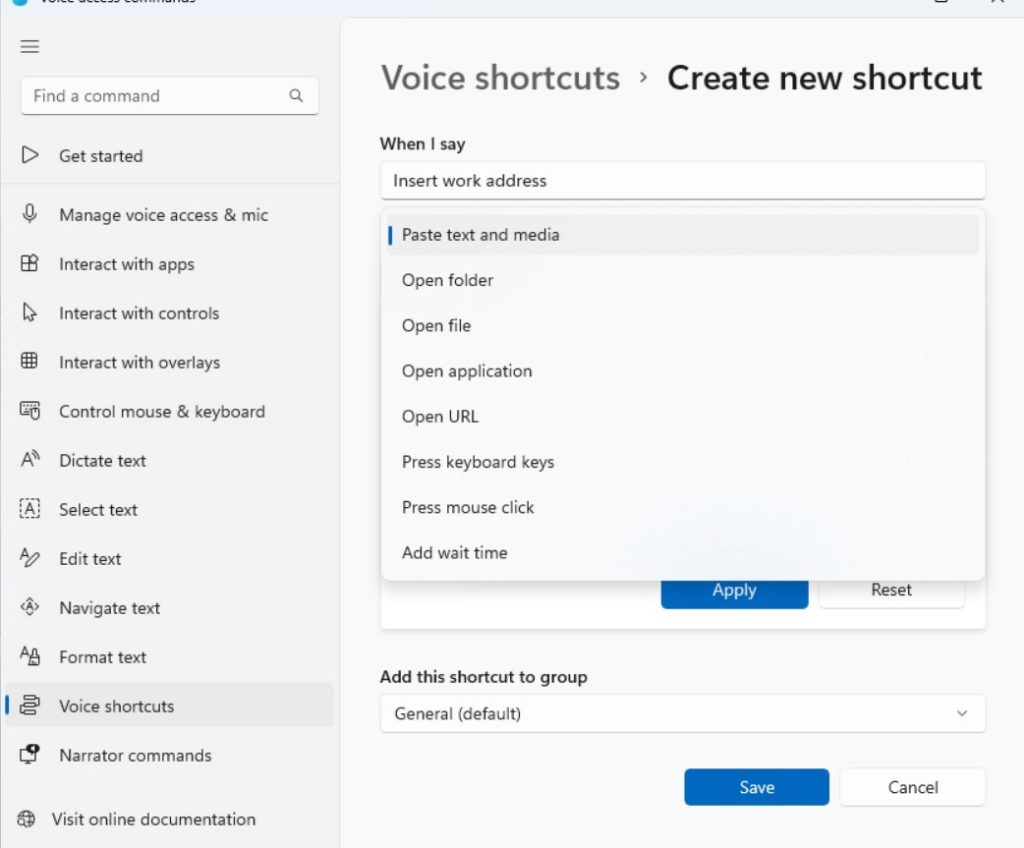
Follow the process to create custom command shortcuts to perform certain actions when you speak.
That should do it!~
Reference:
Conclusion:
- Voice access in Windows 11 empowers users to control their PC and send text messages using their voice
- The recent Voice access update allows users to list commands and create custom shortcuts for executing actions
- Custom shortcuts can greatly improve productivity and accessibility, particularly for individuals with mobility or vision impairments
- Personalizing Voice access commands allows users to tailor the experience according to their specific needs



Leave a Reply Cancel reply