

This article explains how to install sFTP client on Ubuntu Linux.
sFTP Client is a cross-platform, full-featured FTP/SFTP/FTPIS/FTPES/SSH client for managing your connections to secured sFTP hosts. It is available for iOS, Android, Linux, Windows, macOS, and Web browser clients.
For advanced sFTP connection management, including FTP (Standard File Transfer), FTPS (Implicit / Explicit File Transfer / File Transfer over TLS/SSL), SFTP (Secure File Transfer), SSH Terminal, and more, sFTP Client can help you execute and process these different connections quickly and efficiently.
Whether you’re a small or large enterprise, sFTP, the client, can help your team manage files via secure connections. These connections can happen on the desktop, mobile devices, and everywhere you have sFTP Client installed.
When you’re ready to install sFTP Client for Linux, follow the steps below:
Below are two options available for installing sFTP Client on Ubuntu desktops. You can select either one, which should be fine.
Install sFTP Client DEB Package
To install the sFTP Client using its DEB package, select it using the link below.DEB version… 64-bit should be good if your system supports it. Then, download it to your desktop.
https://www.sftpapp.com/download/linux
Download and save the file to your desktop computer, usually in your Home directory’s ~/Downloads folder. Once downloaded, go to your Downloads folder and extract the file.
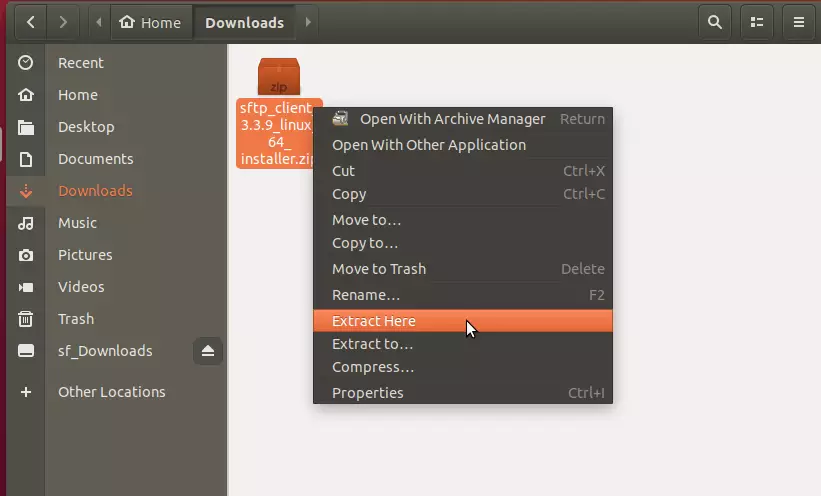
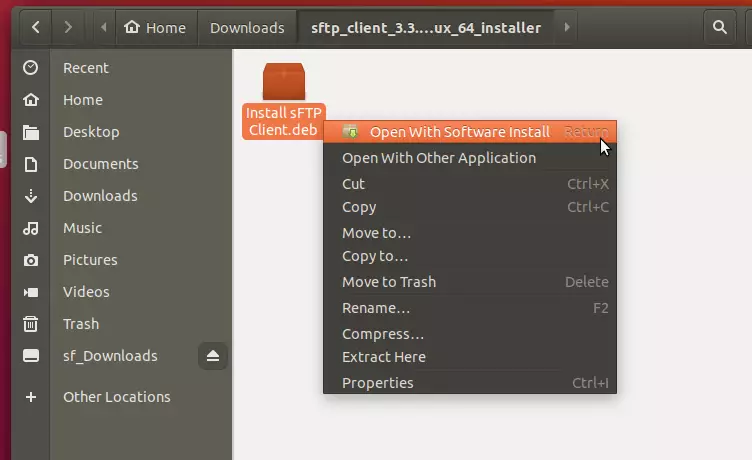
After extracting, go into the extracted folder, right-click the .deb file, and select Open With Software Install.
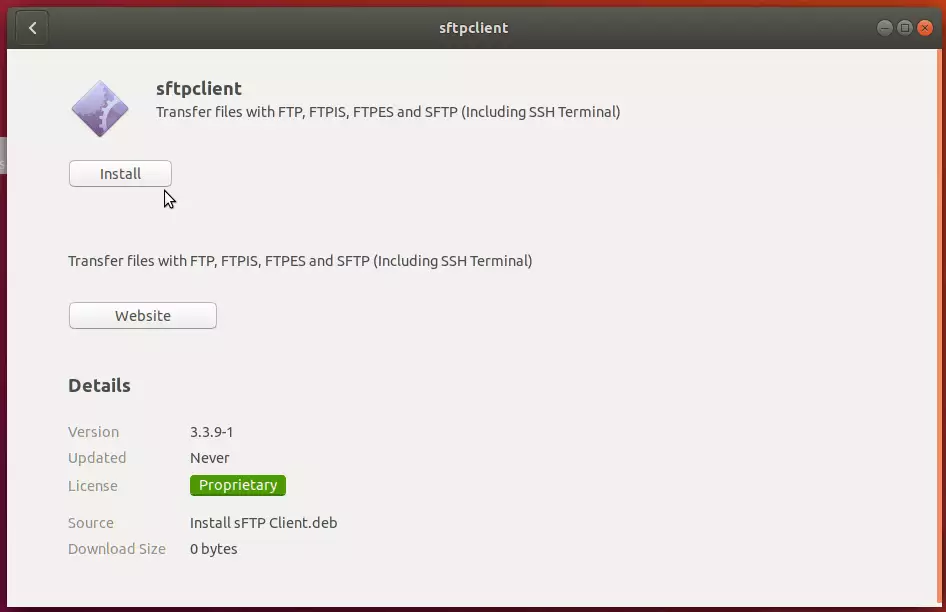
That should open the Ubuntu Software Center. Next, click the Install button to begin the installation.
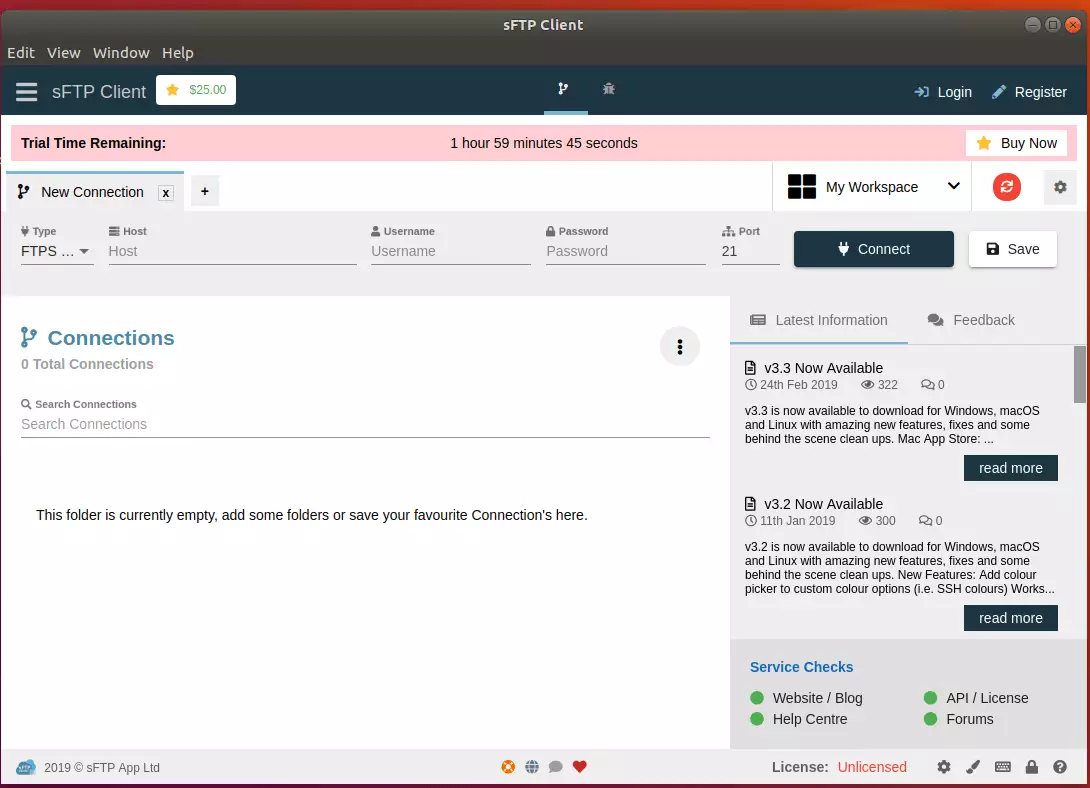
That should prompt you to type and confirm your password before the installation can continue. When you’re done, sFTP Client should be installed and ready to use. To launch it, go to the Activities Overview, search for sFTP Client, and launch it.
Install sFTP Client via Snap
sFTP Client can also be installed via Ubuntu snap package management. This might be the quickest way to install an sFTP Client.
Snaps are applications packaged with dependencies to run on all popular Linux distributions from a single build. They update automatically and roll back gracefully.
To install via Snap, run the commands below
sudo apt install snapd
sudo snap install sftpclient
That’s it!
Conclusion:
Installing sFTP Client on Ubuntu is straightforward and can significantly enhance your file transfer capabilities. Here are the key takeaways:
- Ease of Installation: You can choose between the DEB package or Snap installation methods.
- Cross-Platform Compatibility: sFTP Client is available on various operating systems, ensuring flexibility.
- Advanced Features: The client supports multiple protocols, including SFTP, FTPS, and SSH Terminal.
- User-Friendly Interface: Installation via the Ubuntu Software Center provides a guided experience.
- Security: Ensures secure file transfers suitable for both personal and enterprise use.
Now that you have sFTP Client, you can manage your files securely and efficiently!


Leave a Reply