How to Use Microsoft Family Safety to Block Copilot

You can block Microsoft Copilot for your children using Microsoft Family Safety settings.
Microsoft Family Safety is a tool that allows parents to manage and protect their children’s online experiences on Windows PCs and other devices. You can use it to control app and game access, set screen time limits, and filter web content.
By enabling specific settings within the Family Safety app, you can prevent Copilot, Microsoft’s AI assistant, from appearing or functioning on a child’s Windows 11 device. This feature is particularly useful for parents concerned about their children interacting with AI or potentially accessing inappropriate content.
Sign in to account.microsoft.com/family as the organizer, select the family member, navigate to their Windows app settings, and toggle the block option for Copilot. You can also block the copilot.microsoft.com website in browser settings for added control.
How to Use Microsoft Family Safety to Block Copilot
Microsoft Family Safety is a tool that lets you manage which apps and websites your family members can use. If you are the organizer of the family group, you can set rules. This includes blocking specific apps like Copilot. You can do this using a web browser or the Family Safety app. You need to be signed in as the family organizer to make these changes.
Method 1Blocking Copilot Using the Website
This method uses your web browser to reach your family’s settings. It’s a convenient way to see everyone’s preferences in one spot.
- Sign in to Your Microsoft Account
Open your web browser and go to account.microsoft.com/family. You will need to sign in with the Microsoft account details of the family organizer.
Tip: Make sure you are using the right account. If you have more than one Microsoft account, check which one is set as the organizer for your family group.
- Select the Family Member
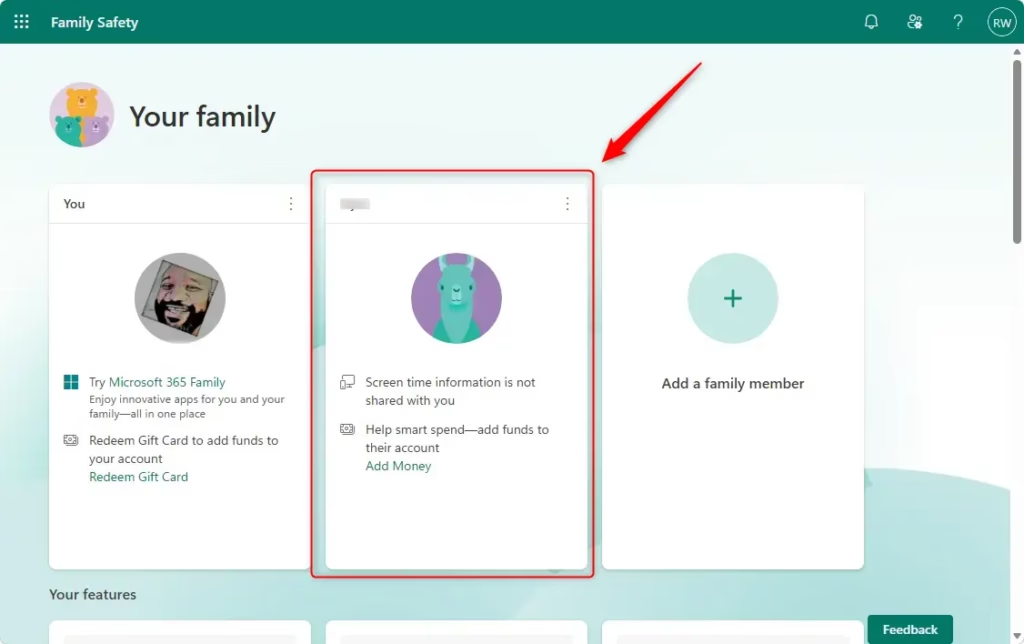
Once you are signed in, you will see a dashboard for your family group. Find the box or card for the family member whose apps you want to manage. Click on their profile to go to their specific settings.
- Go to Windows App Settings
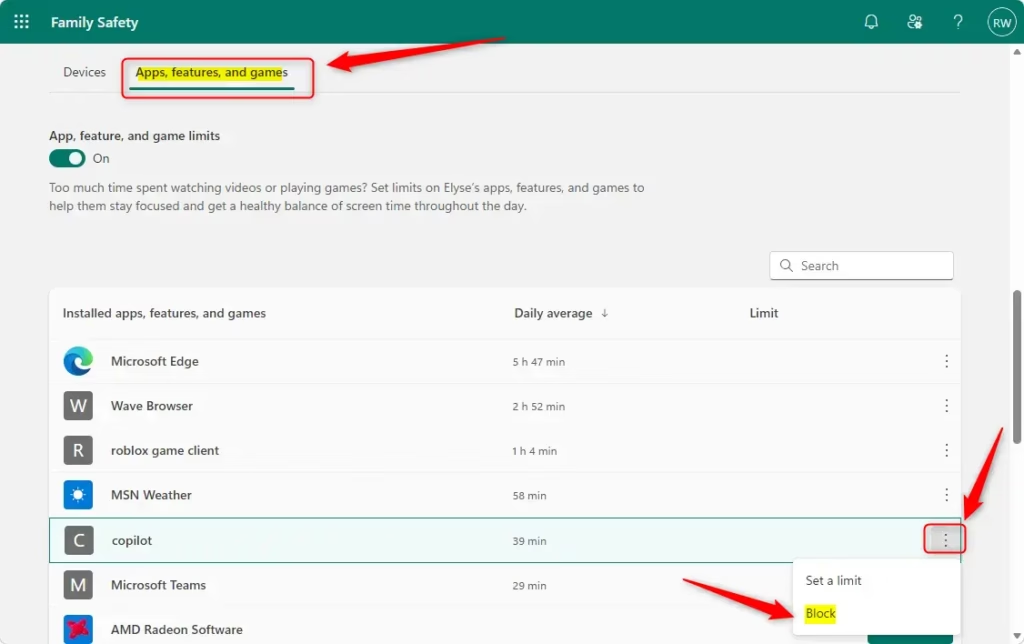
Under the family member’s name, you will see tabs like ‘Overview,’ ‘Content filters,’ and ‘App and game limits.’ Click on the ‘Windows’ tab. This section is for managing apps and games on Windows computers.
- Find and Block Copilot
Scroll down to the ‘Apps and games’ section. You will see a list of apps installed on the member’s Windows computer. Look for ‘Copilot’ in the list. If you don’t see it right away, you might need to click ‘See all apps’ if the list is short. Once you find Copilot, click the option to ‘Block app.’ This is usually a switch or a button next to the app’s name.
Warning: Blocking Copilot this way stops it from running as an app on Windows. If Copilot is part of other Microsoft services you want to keep using, this might affect those features in ways you don’t expect. You might need to test it after blocking.
- Block Other AI or Websites (Optional but Recommended)
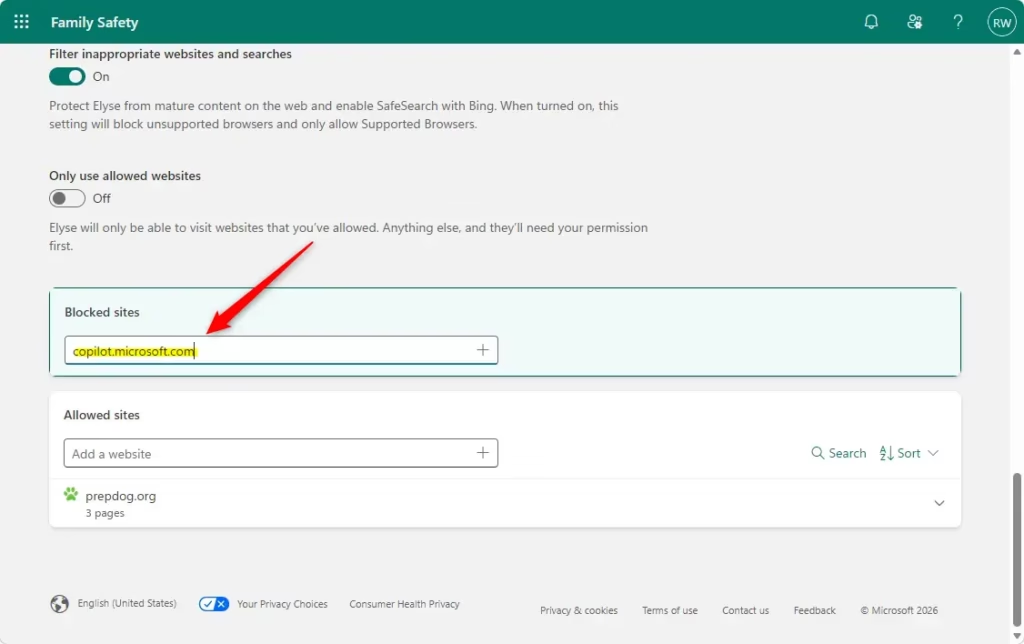
Copilot often uses online services. To block similar AI tools, you can also block specific websites. While still in the family member’s settings, click on the ‘Edge’ tab (or the browser they use most). Then, go to the ‘Blocked sites’ section. Here, you can add the web address for Copilot, which is
copilot.microsoft.com. It’s also a good idea to add other AI chat website addresses if you want to block them more completely. Some examples are:chat.openai.comclaude.aigemini.google.comhuggingface.co/chatotter.aiwww.perplexity.ai
What Happens When Done?
After you follow these steps, Copilot will be blocked for the selected family member on their Windows device. They will not be able to open or use Copilot as an application. If you also blocked the Copilot website, they won’t be able to access it through their web browser either. This helps create a more controlled online environment for them.
Reference:
https://support.microsoft.com/en-us/family-safety/block-or-unblock-apps-with-microsoft-family-safety
Summary
So, you’ve learned how to use Microsoft Family Safety to block Microsoft Copilot on a Windows computer. By signing in as the family organizer to the Microsoft Family Safety website, you can select a family member, go to their Windows app settings, and block the Copilot application. For extra control, you can also block related AI websites through the browser settings. This process lets you manage the tools your family members can access on their devices, helping create a more focused and secure computing experience.
Was this guide helpful?

About the Author
Richard
Tech Writer, IT Professional
Richard, a writer for Geek Rewind, is a tech enthusiast who loves breaking down complex IT topics into simple, easy-to-understand ideas. With years of hands-on experience in system administration and enterprise IT operations, he’s developed a knack for offering practical tips and solutions. Richard aims to make technology more accessible and actionable. He's deeply committed to the Geek Rewind community, always ready to answer questions and engage in discussions.




No comments yet — be the first to share your thoughts!