
Want to open your Google Drive files even when you don’t have internet? No problem! This guide will show you easy steps to access Google Drive files offline on your Windows 11 computer.
What is Google Drive?
Google Drive is a free service from Google where you can save your files online (in the cloud). You can also share files with others and work on documents together in real time.
Why Use Google Drive Offline?
- Work anywhere: You can open and edit your files even without internet – great for travel or places with poor connection.
- Save internet data: No need to download files again and again.
- Stay productive: Keep working without interruptions from slow or lost internet.
How to Access Google Drive Files Offline on Windows 11
Follow these simple steps to make your Google Drive files available offline:
- Open File Explorer. Click the folder icon on your taskbar or press
Windows + Eon your keyboard. - Find Google Drive. In the left sidebar of File Explorer, click on Google Drive. It may be under Quick Access or This PC.
- Choose a file or folder. Find the file or folder you want to use offline.
- Right-click the file or folder. On the menu that appears, click Show more options (if you see a short menu).
- In the full menu, go to Offline access and then click Available offline.
Done! Now you can open and edit that file even without internet. When you connect back online, Google Drive will save your changes automatically.
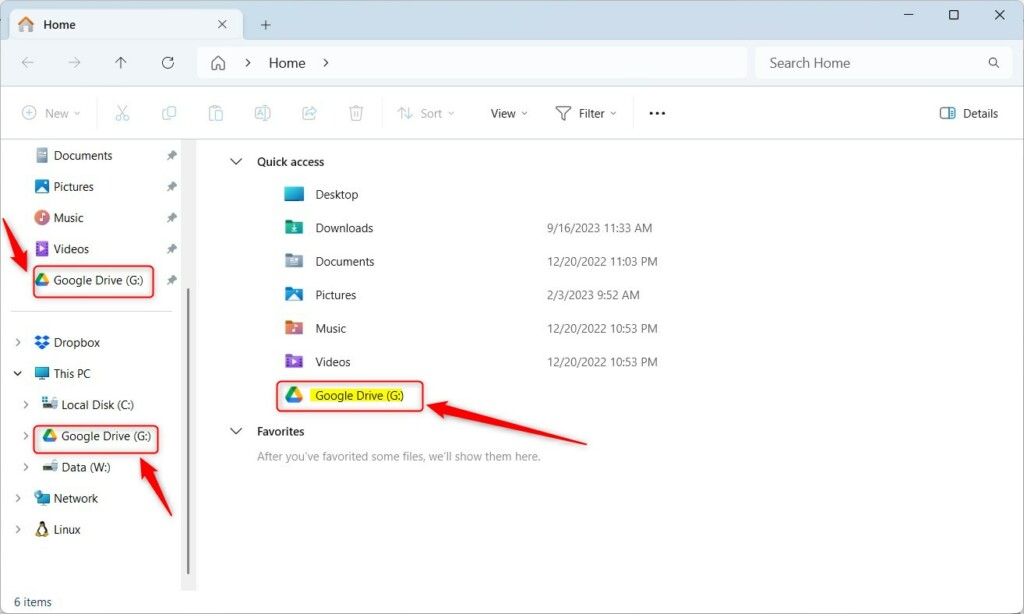
Google Drive folder inside File Explorer on Windows 11
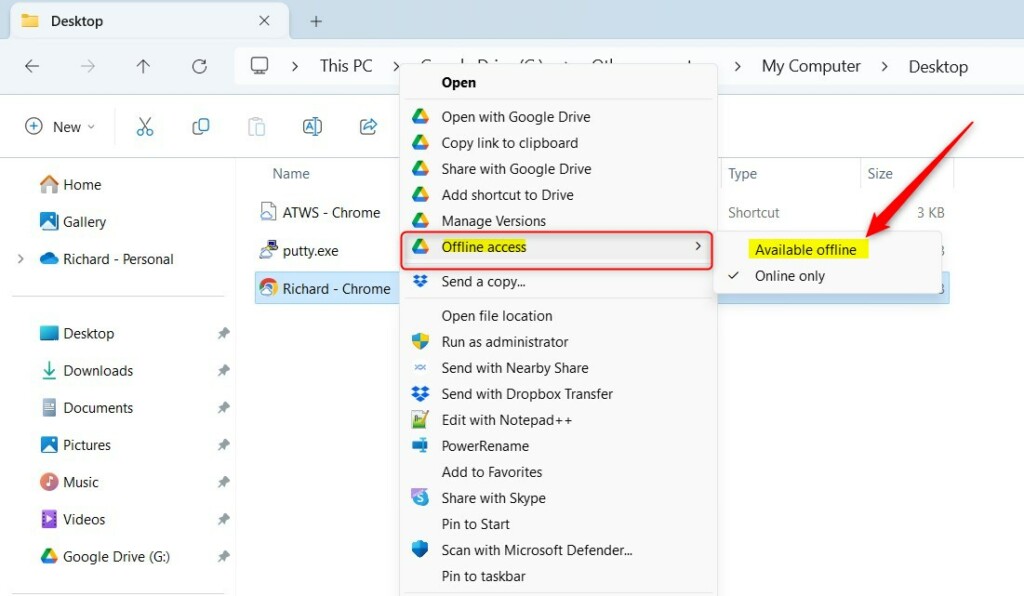
Select “Offline access” > “Available offline” from the menu
How to See Your Offline Files
If you want to check which files are saved for offline use or manage them:
- Click the Google Drive icon in your taskbar’s hidden icons area (near the clock).
- Choose Settings.
- Go to Offline files to see and manage your offline files.
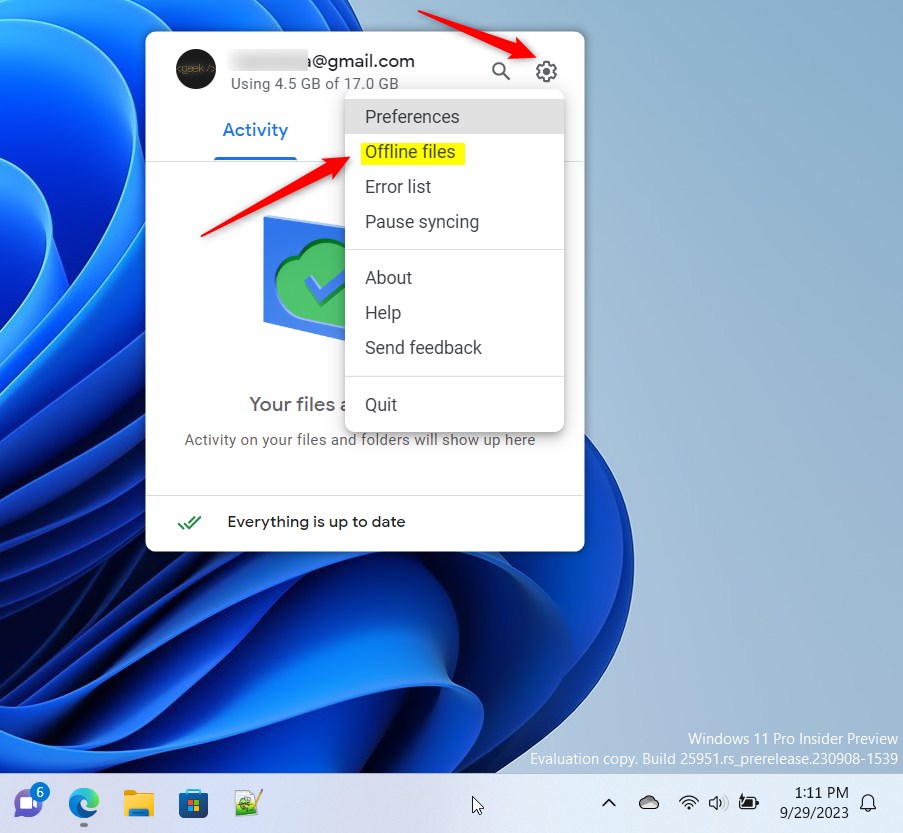
Manage your offline files from Google Drive settings
Tips to Save Space
Offline files use space on your computer’s hard drive. If you need to free up space:
- Remove offline access from files you don’t need offline anymore. Right-click the file, go to Offline access, and click Not available offline.
- Clear Google Drive’s cache in its settings.
Summary
- You can work on Google Drive files without internet by setting them to be available offline.
- This is helpful when traveling or when your internet is slow or not working.
- Changes made offline will automatically sync once you’re back online.
- Keep an eye on your storage space and remove offline files you don’t need.
Need more help? Check out Google Drive Help for more tips.



Leave a Reply Cancel reply