
Windows 11 tries to keep your computer safe and working well by automatically downloading and installing updates. These updates fix problems, improve security, and add new features.
But sometimes, an update might cause your computer to act strangely or have problems. When that happens, you might want to remove or uninstall the update to fix the issue.
Important: It’s usually best to keep your updates installed. Only uninstall updates if you’re sure they are causing problems.
How to Uninstall Windows Updates in Windows 11
Here are simple ways you can remove updates from your Windows 11 computer.
Method 1: Use the Settings App
You can uninstall updates right from the Windows Settings.
- Click the Start button (the Windows logo) at the bottom-left corner of your screen.
- Select Settings from the menu.
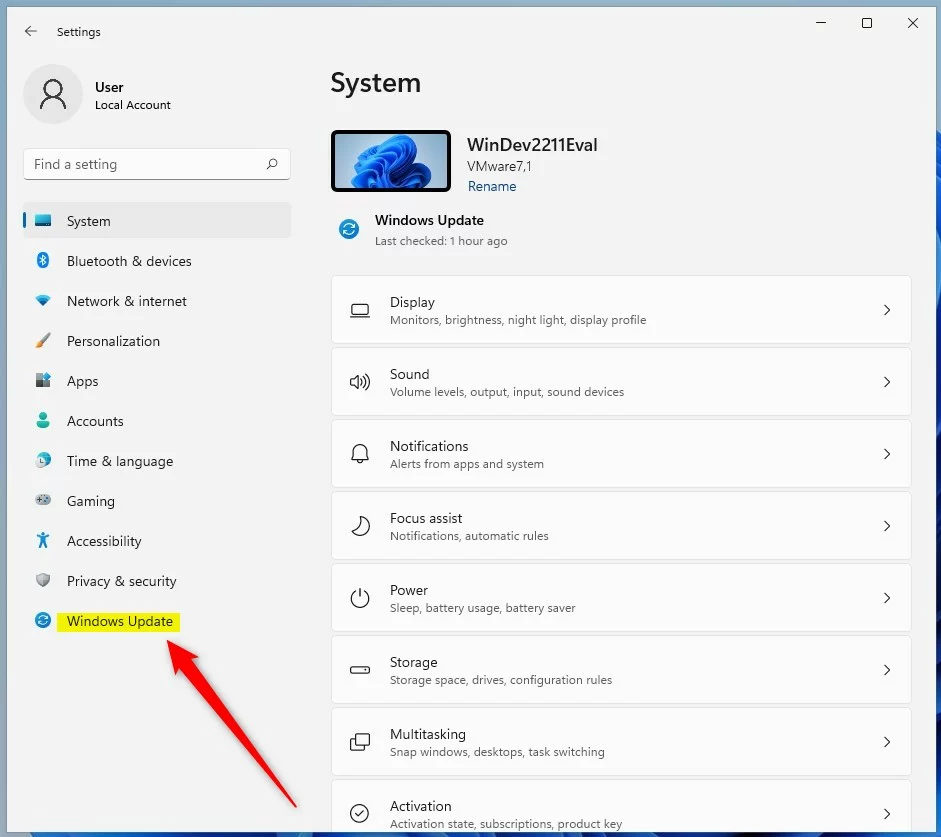
Or press Windows key + I on your keyboard to open Settings quickly. - In Settings, click Windows Update on the left side.
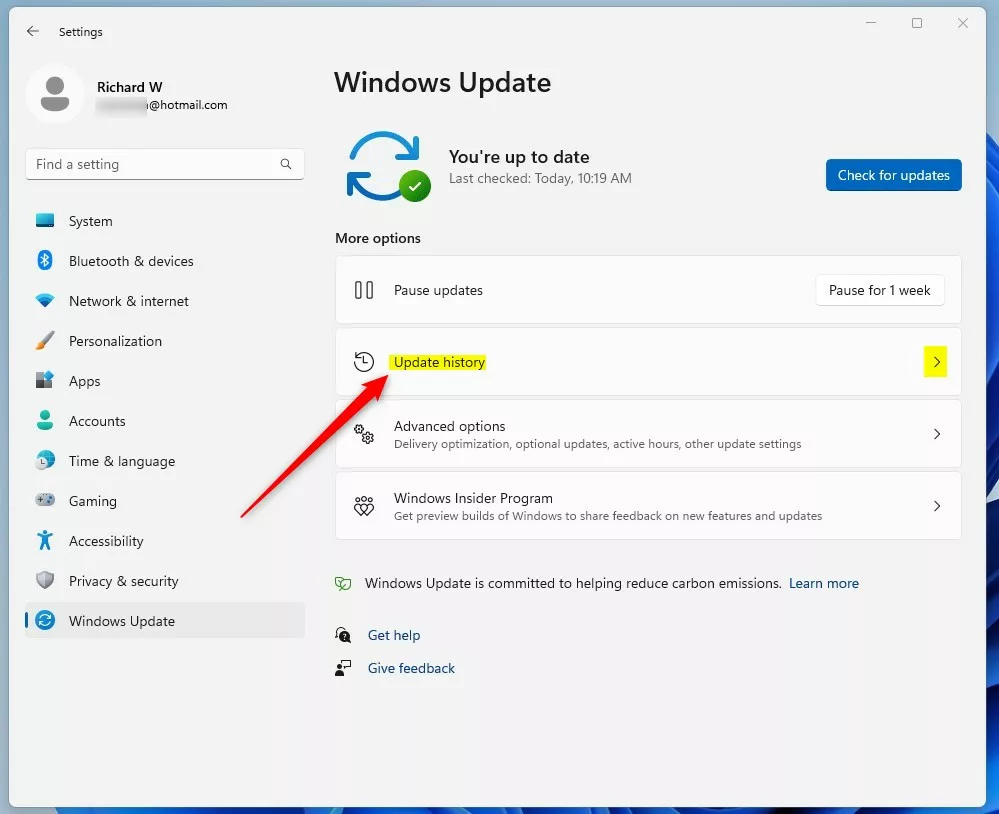
- On the right, click Update history.
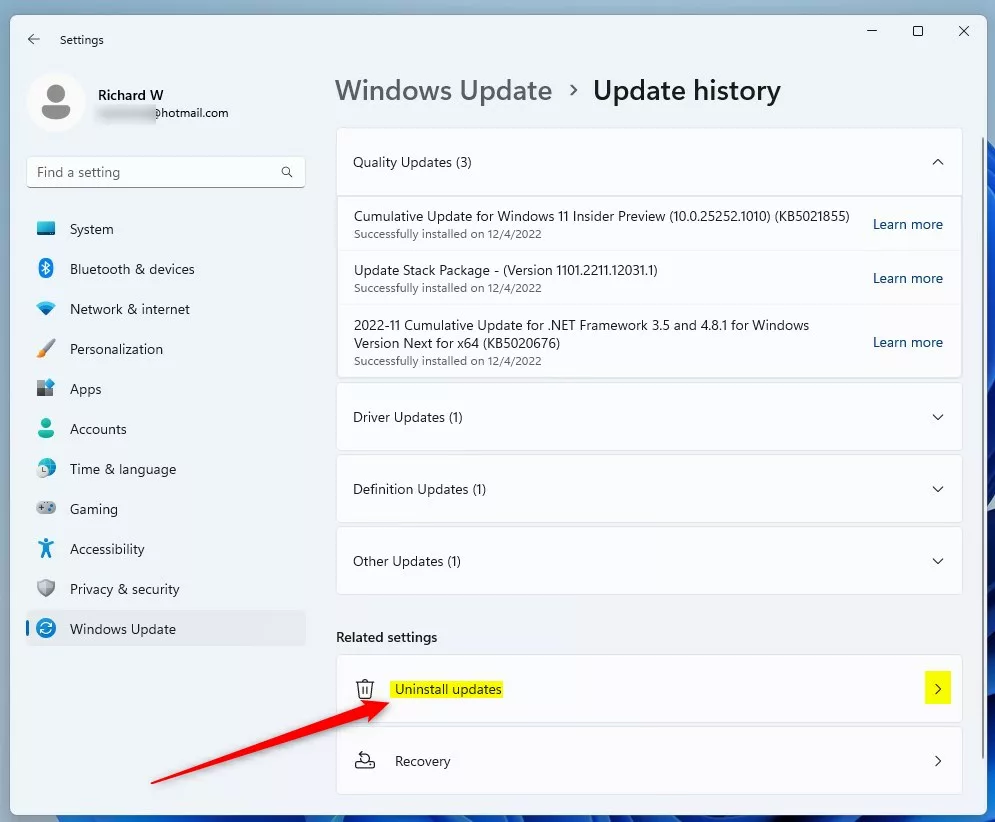
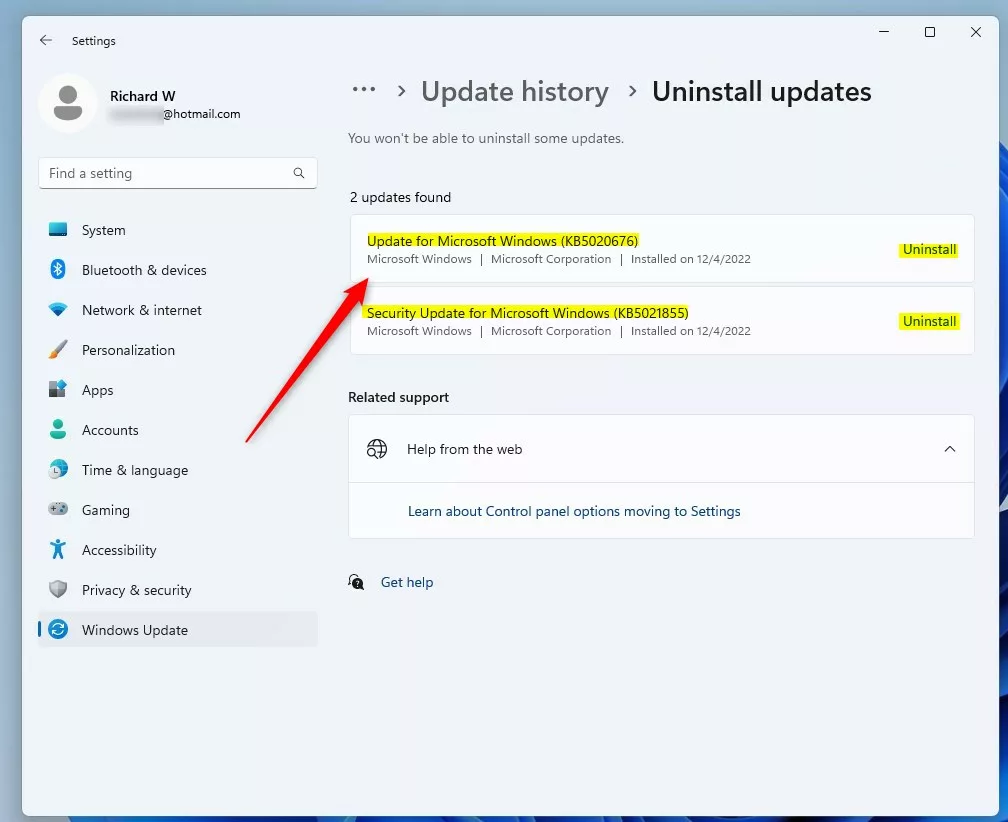
- Scroll down and click Uninstall updates under Related settings.
- You’ll see a list of recent updates. Find the one you want to remove, click it, then click the Uninstall button.
- Follow the instructions and restart your computer if asked.

Method 2: Use the Control Panel
If you prefer, you can also uninstall updates through the Control Panel.
- Open Control Panel. You can search for it in the Start menu.
- Go to Programs, then click Programs and Features.
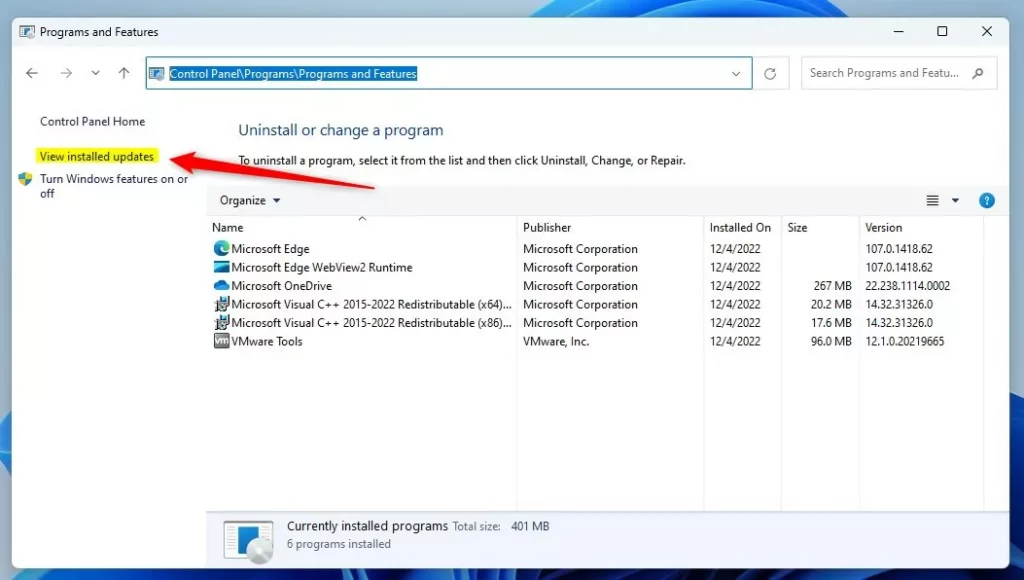
- On the left side, click View installed updates.
- You will see a list of updates. Select the one you want to remove, then click Uninstall at the top.
- Follow the instructions and restart your PC if needed.
Method 3: Use Advanced Startup (If You Can’t Log In)
If Windows won’t start properly, you can uninstall updates from the Advanced Startup menu.
- Turn off your PC completely.
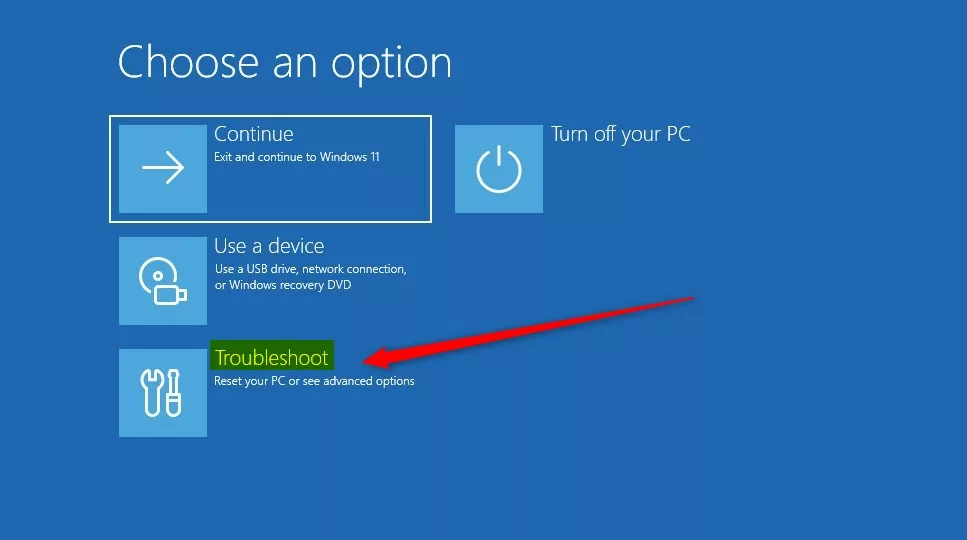
- Turn it back on and as soon as Windows starts loading, press and hold the power button to force shutdown. Repeat this 2-3 times until you see the Advanced Startup screen. (You can also use a Windows recovery USB or follow this guide: How to Boot to Advanced Startup in Windows 11.)
- On the Advanced Startup screen, click Troubleshoot.
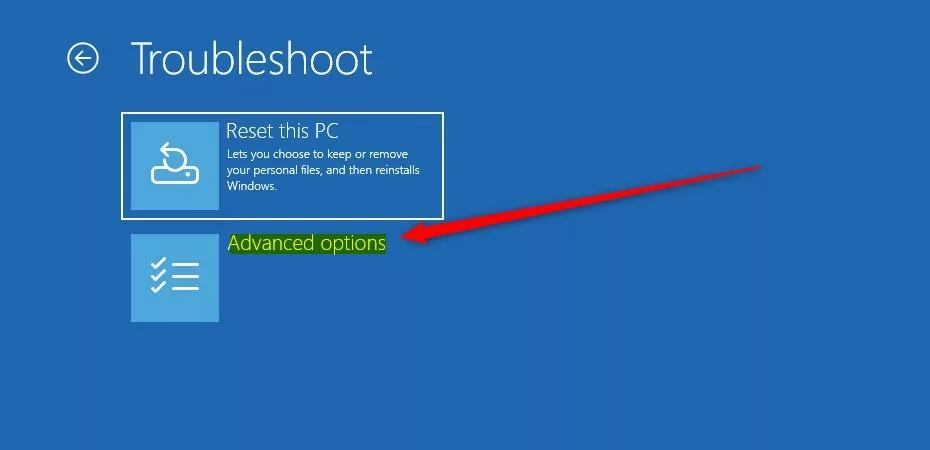
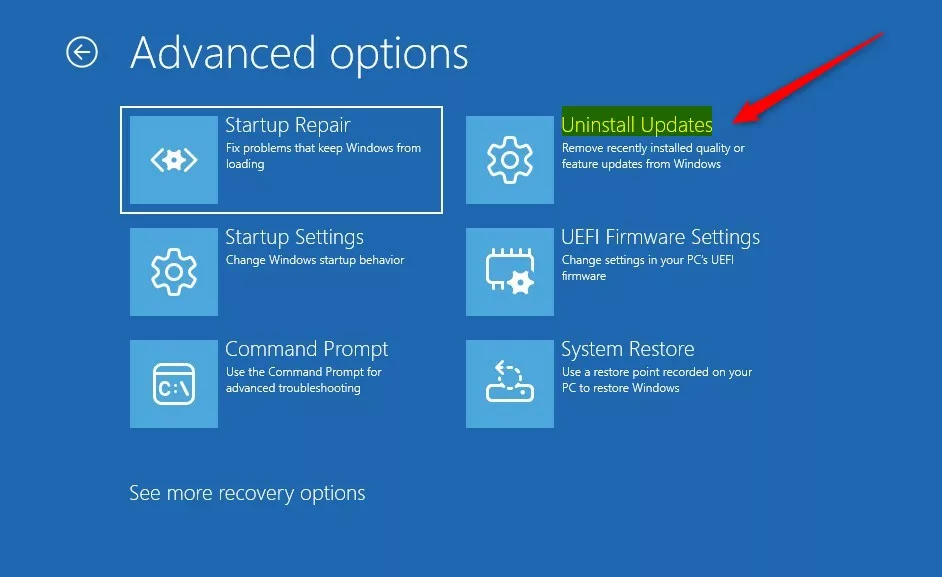
- Click Advanced options.
- Select Uninstall Updates.
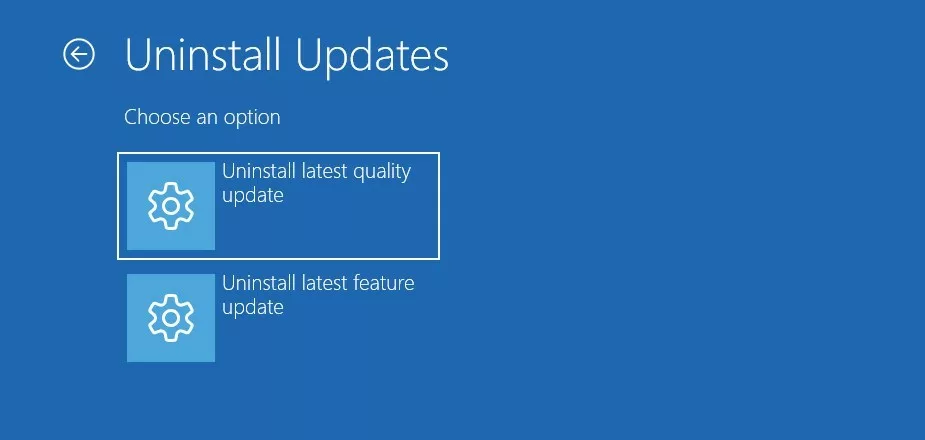
- Choose either Uninstall latest quality update or Uninstall latest feature update, depending on the update you want to remove.
- Follow the instructions and restart your PC.
What are Quality and Feature Updates?
- Feature updates are big updates that come about twice a year. They add new features and improvements.
- Quality updates are smaller, regular updates that fix bugs and security problems.
Usually, uninstalling the latest quality update is enough to fix problems.
Summary
- You can uninstall Windows updates using the Settings app, Control Panel, or Advanced Startup menu.
- Be careful when uninstalling updates — it’s best to only do this if you’re sure the update is causing trouble.
- If you’re unsure, ask someone experienced or a professional for help.
- Keep your computer backed up to avoid losing important files if something goes wrong.
Following these steps will help you fix update problems and get your Windows 11 PC working properly again.



Leave a Reply Cancel reply