
This article explains how to turn “Use high priority notifications” on or off on mobile devices in WhatsApp.
WhatsApp is a popular cross-platform messaging app that allows users to send text and voice messages, make voice and video calls, share files, and more.
One can configure many settings with the WhatsApp app in Windows, including starting the WhatsApp app at login, turning read receipts on or off, turning notifications on or off, turning automatic downloads on or off, clearing and deleting chats, and more.
On mobile devices, you can turn the fingerprint lock feature on or off, turn disappearing messages on or off, turn last seen and online status on or off, silence unknown callers, add or remove people from blocked contacts, change who can add you to groups, turn conversation tones on or off, turn Send is enter on or off, turn ringtone on or off, and more, which are unavailable on the desktop.
When you use the mobile version, you can also turn “Use high priority notifications” on or off.
“Use high priority notifications” is a feature available on mobile devices on WhatsApp that allows you to receive notifications for important messages even when your phone is in silent mode. Turning this feature on can be useful if you don’t want to miss important messages from certain contacts or groups.
However, it may also result in frequent notifications, which can be distracting. Therefore, you may want to turn this feature off if you find it too intrusive.
Turn “Use high priority notifications” on or off in WhatsApp
As mentioned above, users can turn “Use high priority notifications” on or off in WhatsApp to never miss important messages or avoid distractions.
Here’s how to do it.
First, open and launch the WhatsApp app on your mobile device.

When the app opens, click the Settings and More button (vertical dots) at the top right corner.
Then click Settings on the context menu.

On the Settings screen, select Notifications to expand it.

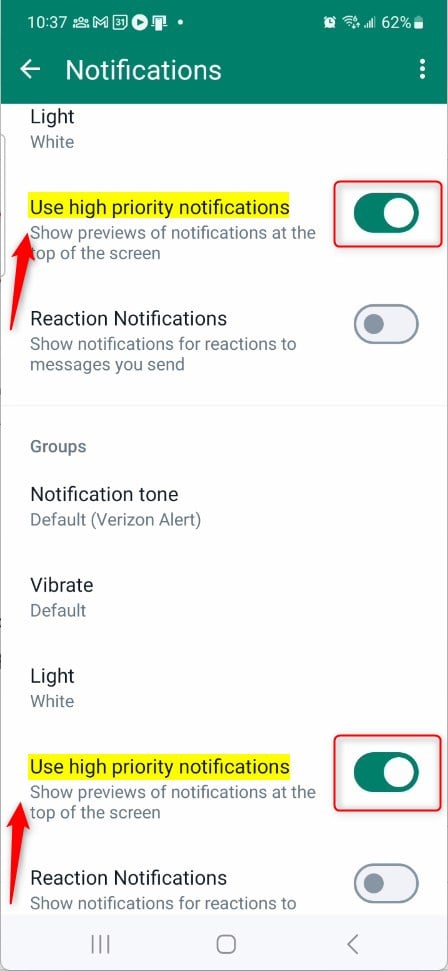
Next, select the “Use high priority notifications” tiles for both Messages and Groups on the Notifications settings page.
Then, toggle the switch button for each to the On position to show previews of notifications at the top of the screen.
To disable it, toggle the switch button for each to the Off position.
That should do it!
Conclusion:
- The tutorial demonstrated the step-by-step process of enabling or disabling “Use high priority notifications” in WhatsApp, ensuring that important messages are not missed while managing potential distractions.
- Users are encouraged to utilize the comment section for further discussion and feedback if they encounter any inaccuracies or have valuable insights to share.
Leave a Reply to Enable WhatsApp Chat Backup to Google Drive – Geek Rewind Cancel reply