How to turn Use Energy Saver Even When Connected to Power on or off in Microsoft Edge

You turn on or off the “Use Energy Saver even when connected to power” feature in Microsoft Edge to manage your PC’s power consumption while browsing.
This setting allows Microsoft Edge to actively reduce power usage by putting background tabs to sleep and limiting background activity, even when your laptop is plugged in. This helps extend battery life and can also reduce your PC’s overall power draw.
In Microsoft Edge version 100 and later, this Energy Saver mode is a key feature for optimizing performance and battery efficiency. You can control this setting to tailor how Edge manages power.
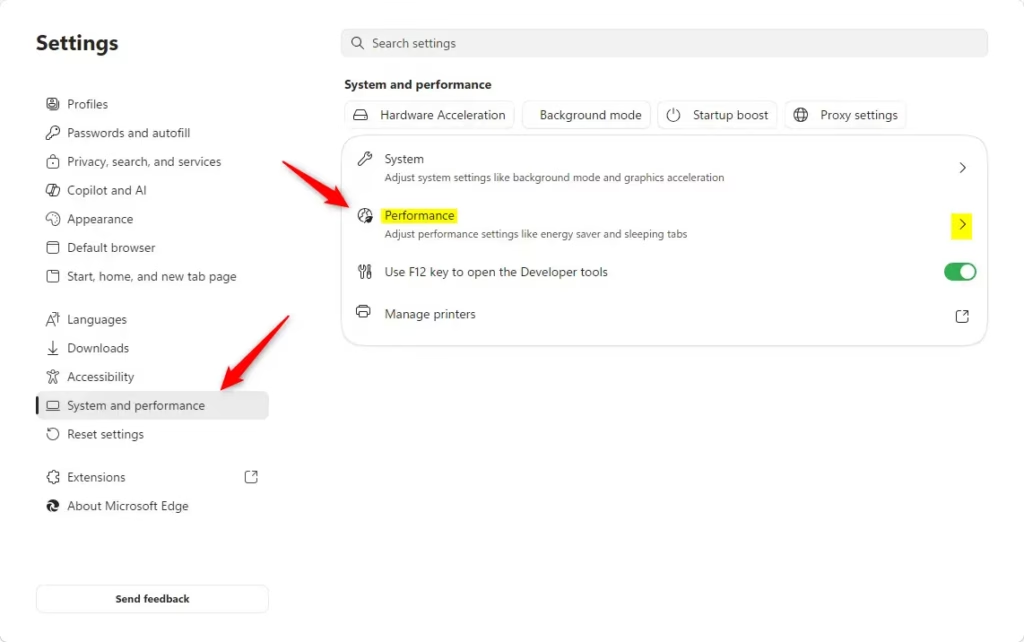
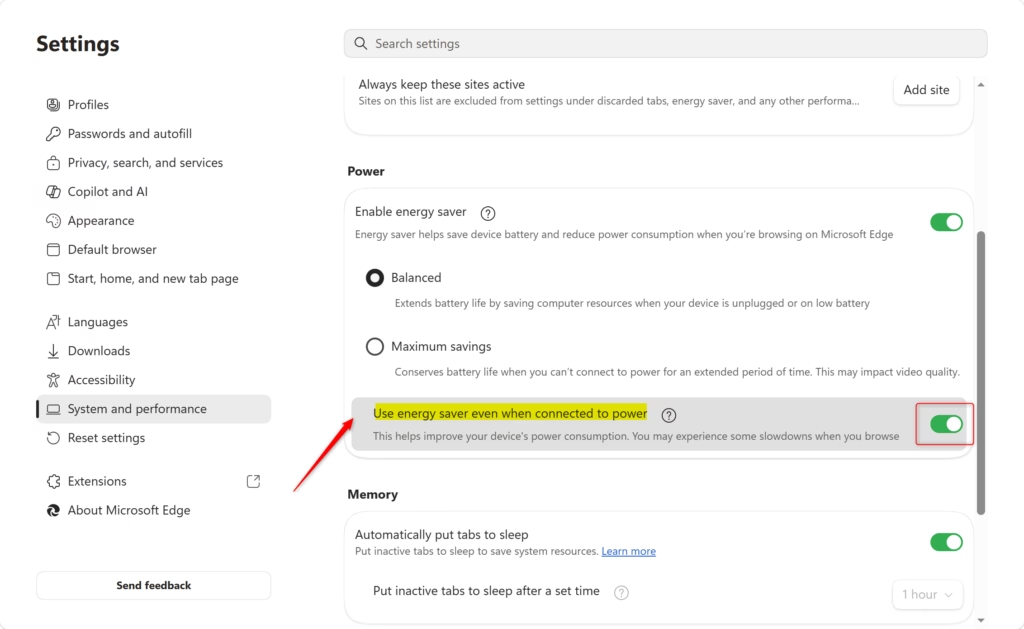
To enable Energy Saver when plugged in, open Edge Settings, navigate to System and performance, then Performance, and toggle on “Use energy saver even when connected to power.” This helps your computer run cooler and consume less electricity.
Use Energy Saver Even When Plugged In
What if you’re plugged in but still want to use Energy Saver’s power-saving tricks? Maybe you want your computer to run cooler, or perhaps you’re using a shared power outlet and want to conserve electricity.
Microsoft Edge lets you keep Energy Saver on even when your device is plugged in. This setting is handy if your computer tends to run warm, or if you want to conserve power whenever possible. It allows the browser to continue managing background tabs and other tasks to use less power.
Here is how to turn it on:
- Open Microsoft Edge Settings: Click the three dots
...in the top right corner of the browser. Then, click Settings.
Why? This opens the menu to change browser settings.
What happens? A new tab opens with all the settings for Microsoft Edge. - Go to System and performance: In the Settings tab, find and click on System and performance in the left sidebar.
Why? This section has settings for how Edge uses your computer’s resources.
What happens? The settings for system and performance appear. - Find the Energy Saver settings: Under “System and performance,” click on Performance.
Why? This shows the specific settings for Energy Saver.
What happens? You will see the options for Energy Saver. - Turn on the setting: Look for the option that says “Use energy saver even when connected to power.” Click the switch next to it to turn it On.
Why? This tells Edge to use its power-saving features even when plugged in.
What happens? The switch turns blue, showing the setting is now active. Edge will now use less power even when plugged in.
Reference:
https://support.microsoft.com/en-us/edge/learn-about-performance-features-in-microsoft-edge
Summary
By default, Microsoft Edge’s Energy Saver helps preserve your laptop’s battery when it’s not plugged in. It does this by reducing the amount of power the browser consumes. You can now choose to keep Energy Saver active even when your laptop is connected to power. This can help your computer run cooler and use less electricity. To enable this, navigate to Edge Settings, then select System and performance, followed by Performance, and finally toggle on “Use energy saver even when connected to power.”
Was this guide helpful?

About the Author
Richard
Tech Writer, IT Professional
Richard, a writer for Geek Rewind, is a tech enthusiast who loves breaking down complex IT topics into simple, easy-to-understand ideas. With years of hands-on experience in system administration and enterprise IT operations, he’s developed a knack for offering practical tips and solutions. Richard aims to make technology more accessible and actionable. He's deeply committed to the Geek Rewind community, always ready to answer questions and engage in discussions.

No comments yet — be the first to share your thoughts!