
This guide will help you easily turn on or turn off the transparency effects on your Windows 11 computer. These effects make some parts of the screen look a little see-through, adding a modern look to your desktop.
What Are Transparency Effects?
Transparency effects make parts of your Windows 11 screen, like menus and backgrounds, look a bit transparent with a soft blur. This uses cool design styles called Acrylic and Mica. You’ll see these effects on things like:
- Start menu
- Taskbar
- File Explorer windows
- Settings and Quick Settings
- Sign-in screen
Note: If you use High Contrast mode, transparency effects will be turned off automatically.
How To Turn Transparency Effects On or Off
Here are three simple ways to change the transparency effects on your Windows 11 PC.
Option 1: Using Personalization Settings
- Press Win + I on your keyboard to open Settings.
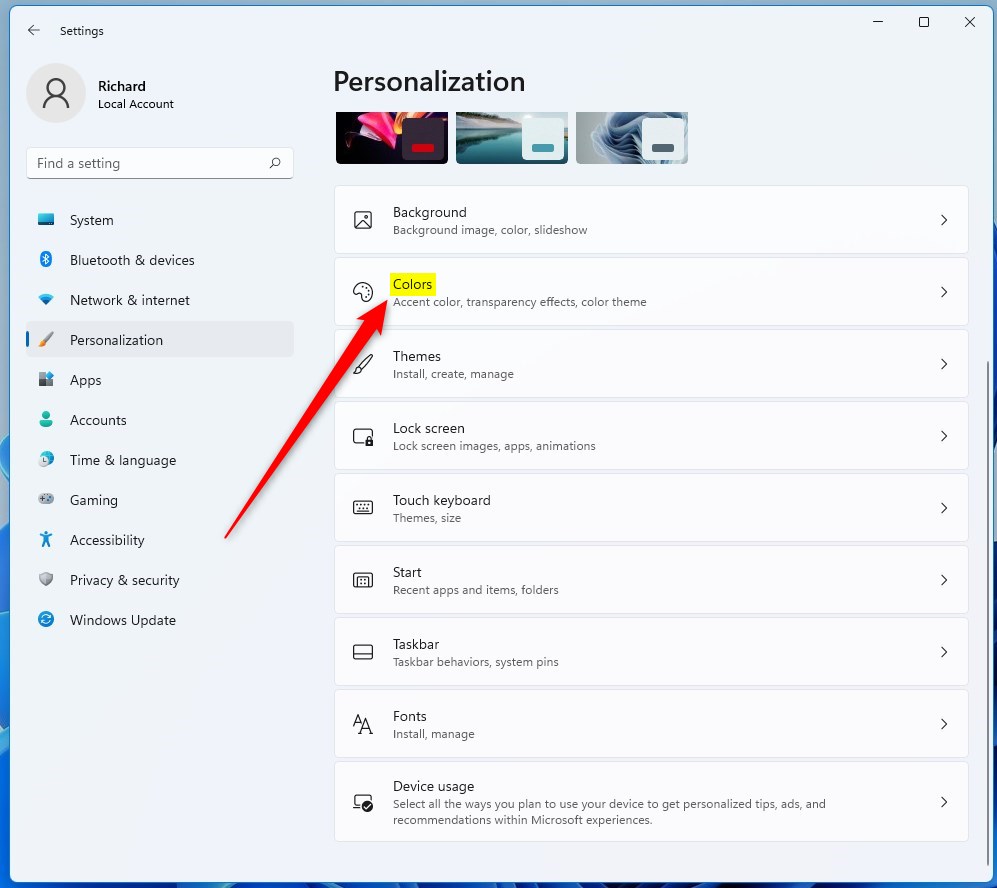
- Click on Personalization in the left menu, then click Colors on the right.
- Find the Transparency effects switch and turn it On or Off based on your preference.
- Close Settings when you’re done.
You can also open Colors settings directly by clicking this link: Open Colors Settings
Option 2: Using Accessibility Settings
- Press Win + I to open Settings.
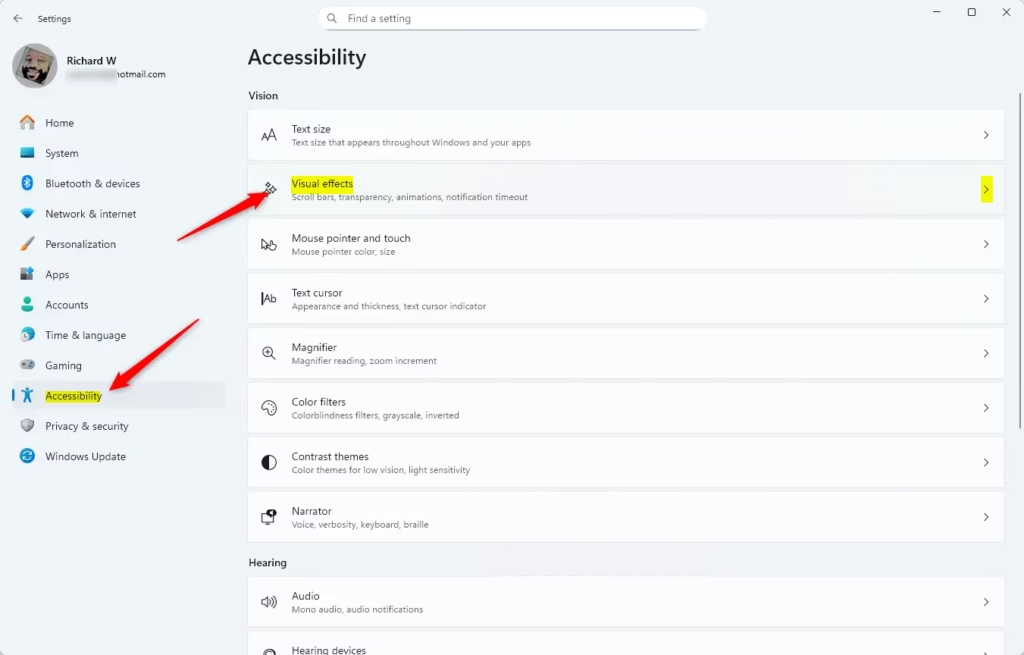
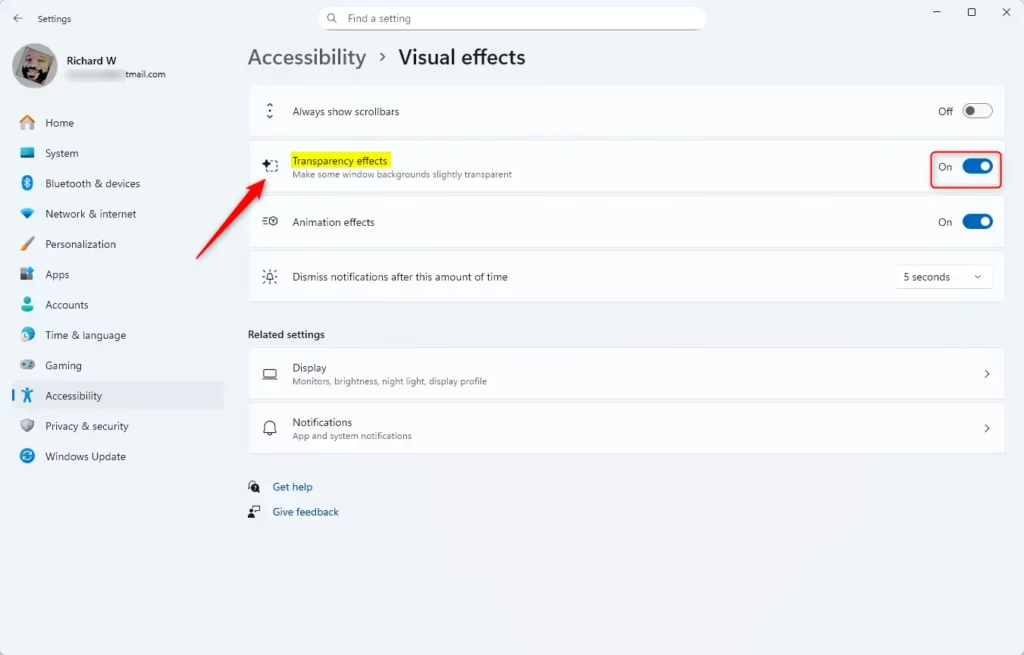
- Click Accessibility on the left side, then click Visual effects on the right.
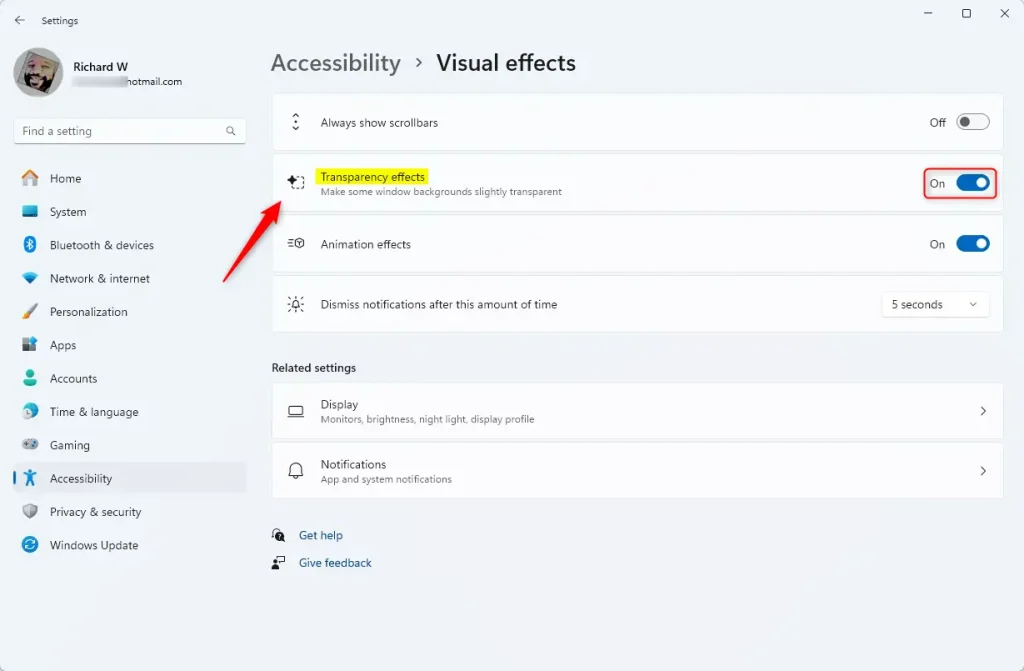
- Turn the Transparency effects switch On or Off.
- Close Settings when finished.
You can open Visual effects settings directly here: Open Visual Effects Settings
Option 3: Using the Registry Editor (Advanced)
If you feel comfortable editing system settings, you can turn transparency effects on or off by changing a small setting in the Windows Registry.
To Turn On Transparency Effects (Default):
reg add "HKEY_CURRENT_USER\Software\Microsoft\Windows\CurrentVersion\Themes\Personalize" /v EnableTransparency /t REG_DWORD /d 1 /f
To Turn Off Transparency Effects:
reg add "HKEY_CURRENT_USER\Software\Microsoft\Windows\CurrentVersion\Themes\Personalize" /v EnableTransparency /t REG_DWORD /d 0 /f
Warning: Be careful when editing the Registry. Making incorrect changes can cause problems with your PC. It’s a good idea to back up the Registry before making changes.
Summary
- Personalize your PC: Transparency effects help make your Windows 11 look modern and stylish.
- Easy to change: You can quickly turn transparency on or off through Settings or the Registry.
- Accessibility friendly: You can disable transparency if it’s hard for you to see or causes distractions.
- High Contrast mode: If you use High Contrast for better visibility, transparency effects will be turned off automatically.
If you want to learn more about the design materials Windows 11 uses, check out this official Microsoft page:
Materials used in Windows apps

Leave a Reply Cancel reply