

How to Enable or Disable WhatsApp Read Receipts

This article explains how to enable or disable the “Read receipts” feature in the WhatsApp app on mobile devices.

WhatsApp is a popular cross-platform messaging app that allows users to send text and voice messages, make voice and video calls, share files, and more.

One can configure many settings with the WhatsApp app in Windows, including starting the WhatsApp app at login and more.

Another setting users can configure is to turn “Read receipts” on or off in the app. At the time of this writing, enabling or disabling read receipts on the Windows device was impossible.

It is done in the app on your mobile device.

The Read receipts feature in WhatsApp lets you know when your message has been delivered to the recipient and when they have seen it. Turning it on can help you acknowledge that you’ve seen someone’s message and assure them that you’ll respond soon.

However, some people may find the “Read receipts” feature intrusive, and turning it off can help you maintain your privacy and avoid giving others a reason to follow up with you if you’re not ready to respond.

Turn “Read receipts” On or Off in WhatsApp

As mentioned above, WhatsApp’s “Read receipts” feature lets you know when your message has been delivered to the recipient and when they have seen it.

You may want to turn it off to maintain some level of privacy.

Here’s how to do that.

First, open the WhatsApp app on your mobile device. Then click Settings and more (vertical dots) at the top right of the screen.
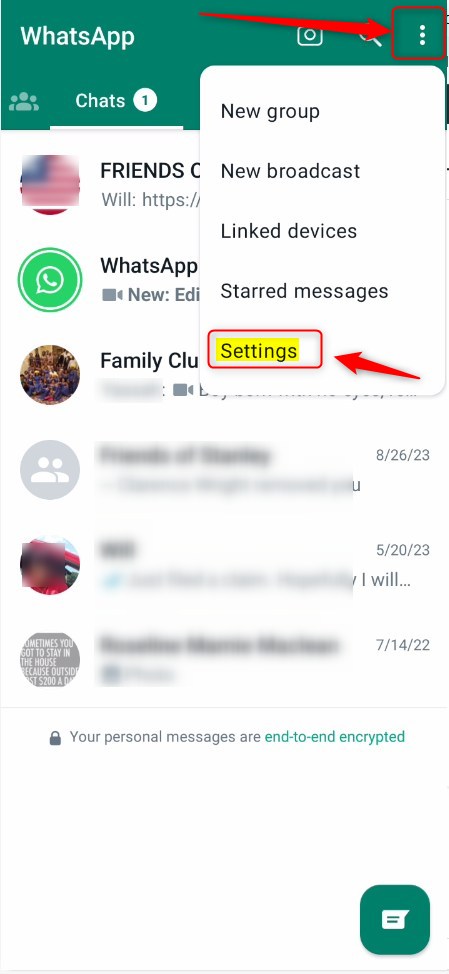
Turn on or off read receipts in WhatsApp

On the Settings page, click the Privacy section.
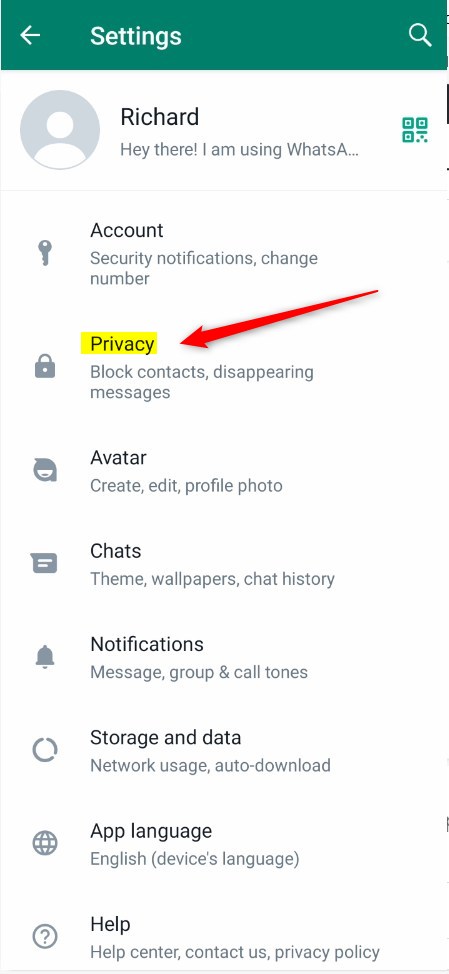
Turn on or off read receipts in WhatsApp

On the Settings -> Privacy settings pane, select the Read receipts tile. Then, toggle the switch button on the On position to enable.

To disable it, toggle the switch button back to the Off position.
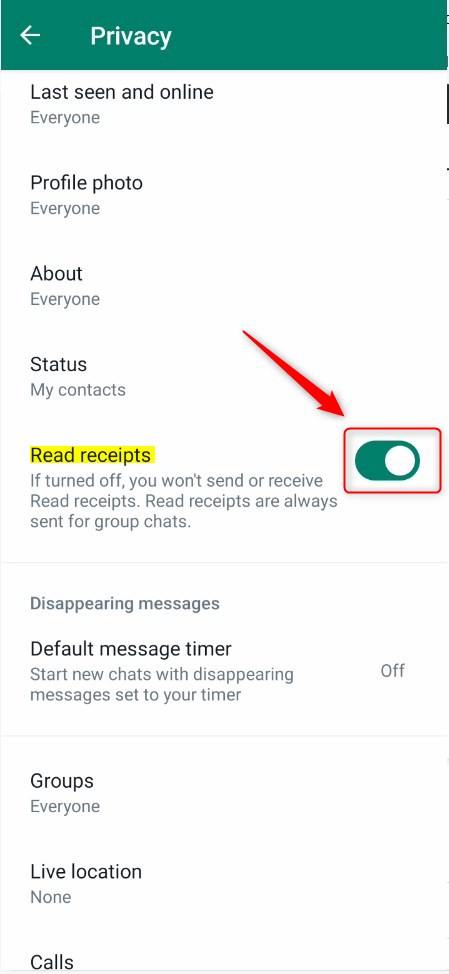
Turn on or off read receipts in WhatsApp

Exit the app when you’re done.

That should do it!

Conclusion:

  • Enabling or disabling read receipts in WhatsApp can help you manage your privacy and communication preferences.
  • By following the simple steps outlined above, you can easily control the Read Receipts feature in the WhatsApp app on your mobile device.
  • Whether it’s to acknowledge messages or maintain privacy, toggling this setting empowers users to dictate their messaging experience.


Frequently Asked Questions

How do I enable read receipts in WhatsApp?

To enable read receipts in WhatsApp, open the app on your mobile device, go to Settings, then Privacy. From there, select the Read receipts tile and toggle the switch to the On position.

Can I disable read receipts on WhatsApp?

Yes, you can disable read receipts on WhatsApp. Simply open the app, navigate to Settings, then Privacy, select Read receipts, and toggle the switch to the Off position.

What are read receipts in WhatsApp?

Read receipts in WhatsApp are indicators that show when your message has been delivered and when it has been seen by the recipient. This feature helps users know if their messages have been acknowledged.

Why would someone want to turn off read receipts?

Some users may find read receipts intrusive and prefer to maintain their privacy. Turning off this feature prevents others from knowing when they have seen a message, allowing for more control over communication.

Is it possible to manage read receipts on WhatsApp for Windows?

Currently, you cannot enable or disable read receipts on the WhatsApp app for Windows. This feature can only be managed through the mobile app on your device.

Categories:

7 responses to “How to Enable or Disable WhatsApp Read Receipts”

  1. […] many settings with the WhatsApp app in Windows, including starting the WhatsApp app at login, turning read receipts on or off, turning notifications on or off, turning automatic downloads on or off, clearing and deleting […]

  2. […] settings with the WhatsApp app in Windows, including starting the WhatsApp app at login, turning read receipts on or off, turning notifications on or off, turning automatic downloads on or off, clearing […]

  3. […] settings with the WhatsApp app in Windows, including starting the WhatsApp app at login, turning read receipts on or off, turning notifications on or off, turning automatic downloads on or off, clearing and […]

  4. […] settings with the WhatsApp app in Windows, including starting the WhatsApp app at login, turning read receipts on or off, turning notifications on or off, turning automatic downloads on or off, clearing […]

  5. […] many settings with the WhatsApp app in Windows, including starting the WhatsApp app at login, turning read receipts on or off, turning notifications on or off, turning automatic downloads on or off, clearing and deleting […]

  6. […] many settings with the WhatsApp app in Windows, including starting the WhatsApp app at login, turning read receipts on or off, turning notifications on or off, turning automatic downloads on or off, clearing and deleting […]

  7. […] many settings with the WhatsApp app in Windows, including starting the WhatsApp app at login, turning read receipts on or off, turning notifications on or off, turning automatic downloads on or off, clearing and deleting […]

Leave a Reply

Your email address will not be published. Required fields are marked *

Exit mobile version
