How to Turn On Windows Sandbox in Windows 11

Windows Sandbox is a safe place on your computer where you can try out apps or files without worrying about harming your main system. It’s like a little computer inside your computer!
This guide will show you simple steps to turn on Windows Sandbox on your Windows 11 PC.
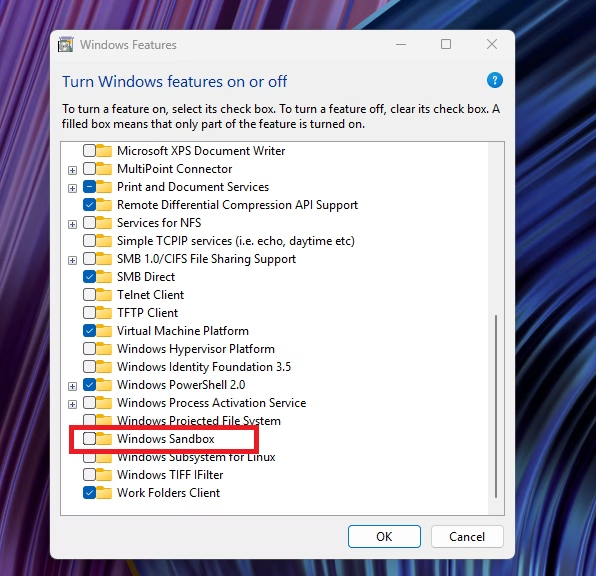
Open Windows Features by typing optionalfeatures.exe in the Run box. Check the box next to Windows Sandbox and click OK to install it. A restart may be required.
What is Windows Sandbox?
Windows Sandbox lets you run apps in a separate, temporary space. Anything you do inside the Sandbox won’t affect your main Windows system. When you close Sandbox, everything inside it is deleted.
Why use it? This is great if you want to test apps you don’t fully trust or just want to keep things safe.
What happens when done? All files and changes disappear automatically when you close it.
How to Turn On Windows Sandbox
Method 1Using Apps & Features
- Press Windows key + R on your keyboard. This opens the Run box.
- Type
optionalfeatures.exeand press Enter. - The Windows Features window will open. Scroll down and find Windows Sandbox.
- Check the box next to Windows Sandbox and click OK.
- Windows will install the feature. You might need to restart your computer.
Method 2Using Command Prompt
If you like typing commands, you can turn on Sandbox this way:
- Click the Start button, type Command Prompt.
- [Admin Required] Right-click on Command Prompt and choose Run as administrator.
- In the Command Prompt window, type this and press Enter:
dism /online /Enable-Feature /FeatureName:"Containers-DisposableClientVM" -All - After it finishes, restart your computer.

Method 3Using PowerShell
You can also use PowerShell, another tool for running commands:
- Click the Start button, type PowerShell.
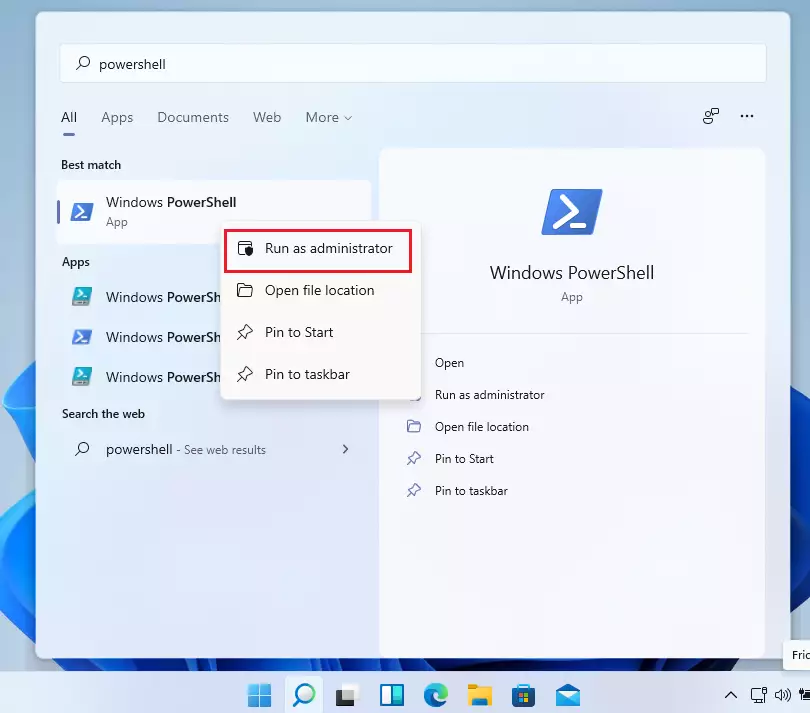
- [Admin Required] Right-click on Windows PowerShell and choose Run as administrator.
- Type this command and press Enter:
Enable-WindowsOptionalFeature -Online -FeatureName "Containers-DisposableClientVM" -All - Restart your computer when done.
How to Turn Off Windows Sandbox
If you want to turn off Sandbox later, use the same methods but run these commands instead:
Command Prompt: dism /online /Disable-Feature /FeatureName:"Containers-DisposableClientVM"
PowerShell: Disable-WindowsOptionalFeature -Online -FeatureName "Containers-DisposableClientVM" -Online
How to Use Windows Sandbox
Once Sandbox is turned on, here’s how to open and use it:
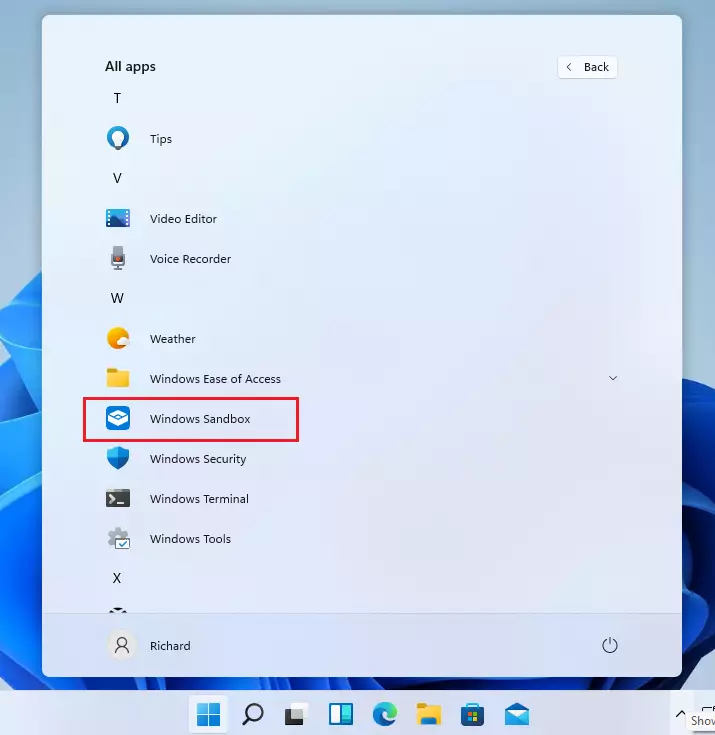
- Click the Start button and type Windows Sandbox.
- Click on the Windows Sandbox app to open it.
- A new window will open with a clean Windows desktop.
- You can copy files or apps into this window and run them safely.
- When you close Sandbox, everything inside it will be deleted automatically.
Summary
- Windows Sandbox is a safe way to try apps without risking your main computer.
- You can turn it on using Apps & Features, Command Prompt, or PowerShell.
- Don’t forget to restart your PC after turning it on or off.
- Use Sandbox to keep your computer safe from harmful software.
- If you want to learn more about Windows Sandbox, you can visit the official Microsoft guide.
How to get Windows sandbox free?
Features when you open optional. Features you'll see a huge list of features that can be enabled in Windows. And if we scroll down you'll see Windows Sandbox. I already have this enabled.
Was this guide helpful?

About the Author
Richard
Tech Writer, IT Professional
Richard, a writer for Geek Rewind, is a tech enthusiast who loves breaking down complex IT topics into simple, easy-to-understand ideas. With years of hands-on experience in system administration and enterprise IT operations, he’s developed a knack for offering practical tips and solutions. Richard aims to make technology more accessible and actionable. He's deeply committed to the Geek Rewind community, always ready to answer questions and engage in discussions.




No comments yet — be the first to share your thoughts!