
This simple guide will show you how to turn on or off Variable Refresh Rate (VRR) for your games in Windows 11.
What is Variable Refresh Rate (VRR)?
VRR is a feature that lets your monitor change how often it refreshes the screen to match the speed of the game or video. This helps make your games look smoother and reduces annoying screen flickering or tearing.
If your monitor supports VRR (like AMD FreeSync or Nvidia G-SYNC), Windows 11 can use this to improve your gaming experience.
Before You Begin
- Make sure your monitor supports VRR.
- Make sure your graphics drivers are up to date.
- If your PC or monitor doesn’t support VRR, you won’t see the option.
How to Turn VRR On or Off Using Windows Settings
Open Windows Settings:- Click the Start button, then click the Settings gear icon.
- Or, press Windows key + I on your keyboard.
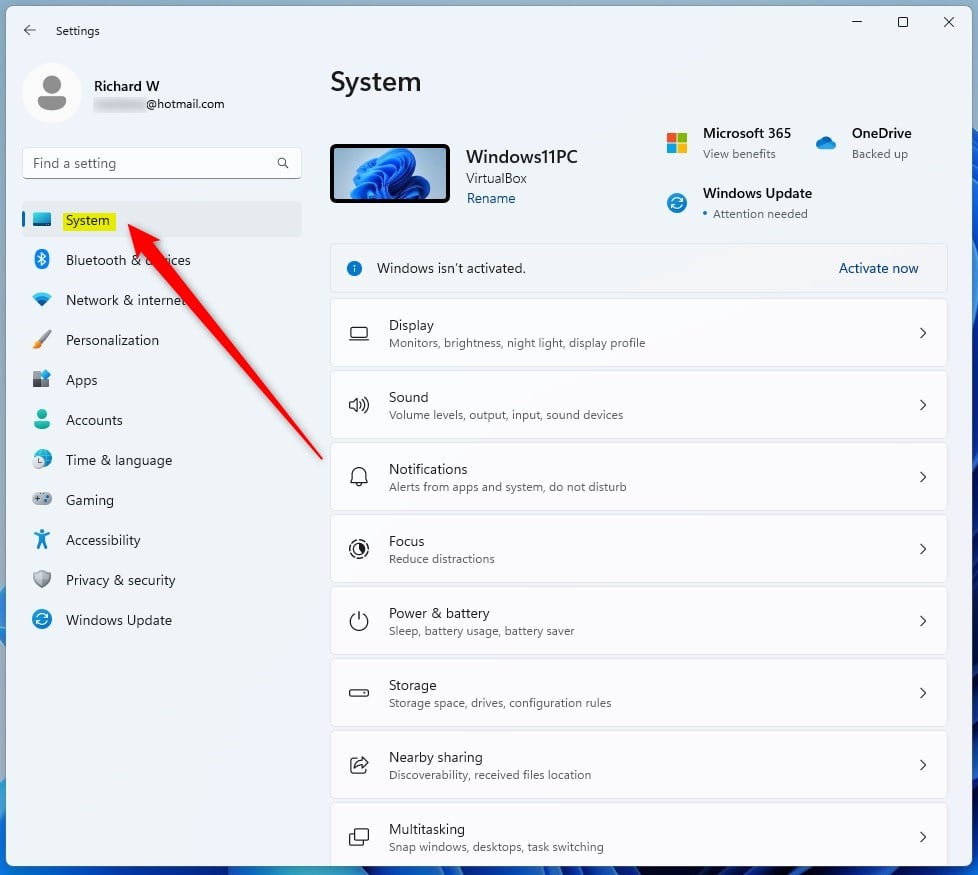
- In Settings, click on System on the left side.
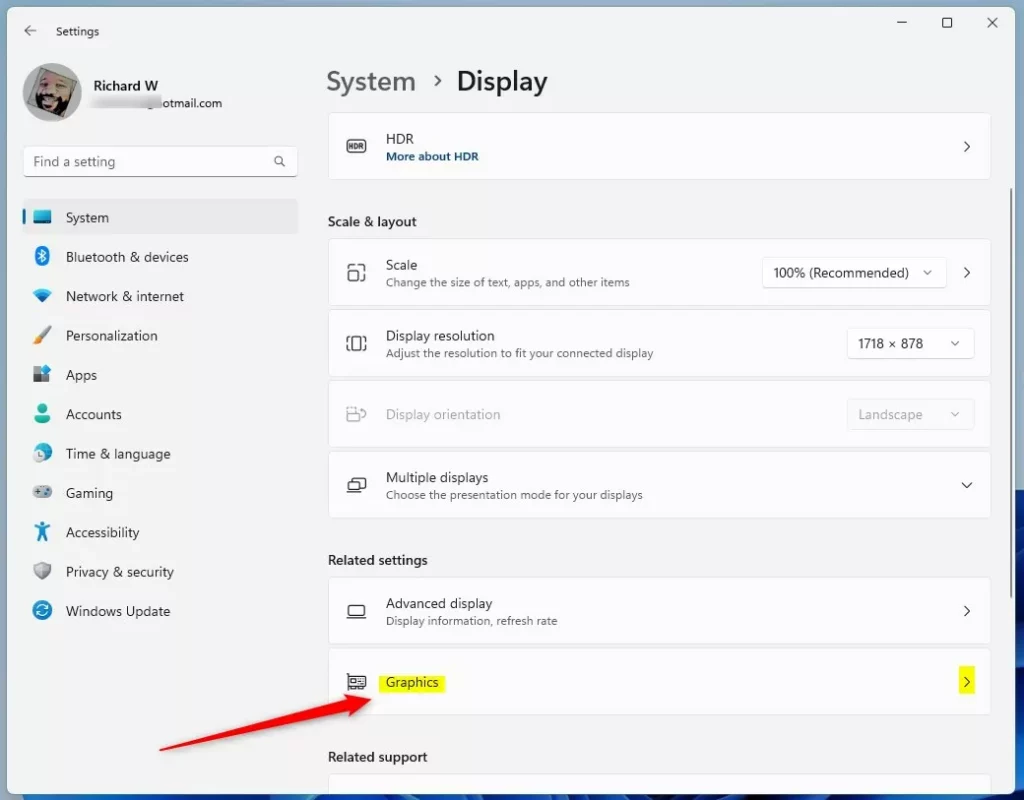
- Click on Display on the right side.

- Scroll down and find Related settings, then click on Graphics.
- Scroll down and click Advanced graphics settings.
- Find the option Variable refresh rate and switch it On to enable VRR.
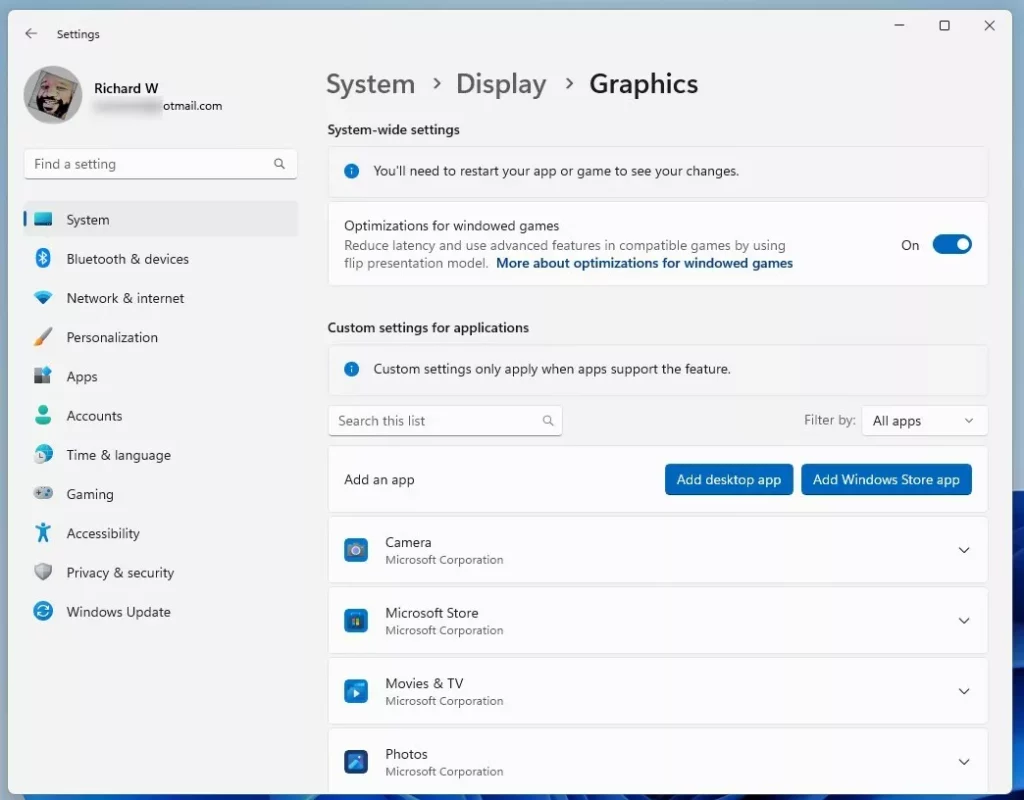
- To turn it off, just switch the toggle back to Off.
How to Turn VRR On or Off Using Registry Editor (Advanced Users)
If you are comfortable with advanced settings, you can also enable or disable VRR by changing Windows Registry settings.
- Open the Registry Editor:
- Press Windows key + R to open the Run box.
- Type
regeditand press Enter.
- Navigate to this path:
HKEY_CURRENT_USERSoftwareMicrosoftDirectXUserGpuPreferences
- If UserGpuPreferences does not exist, right-click on DirectX, select New > Key, and name it UserGpuPreferences.
- In the UserGpuPreferences folder, right-click on the right side and select New > String Value.
- Name the new string DirectXUserGlobalSettings.
- Double-click this new string and set its Value data:
- Enter
VRROptimzeEnable=1to turn VRR On. - Enter
VRROptimzeEnable=0to turn VRR Off.
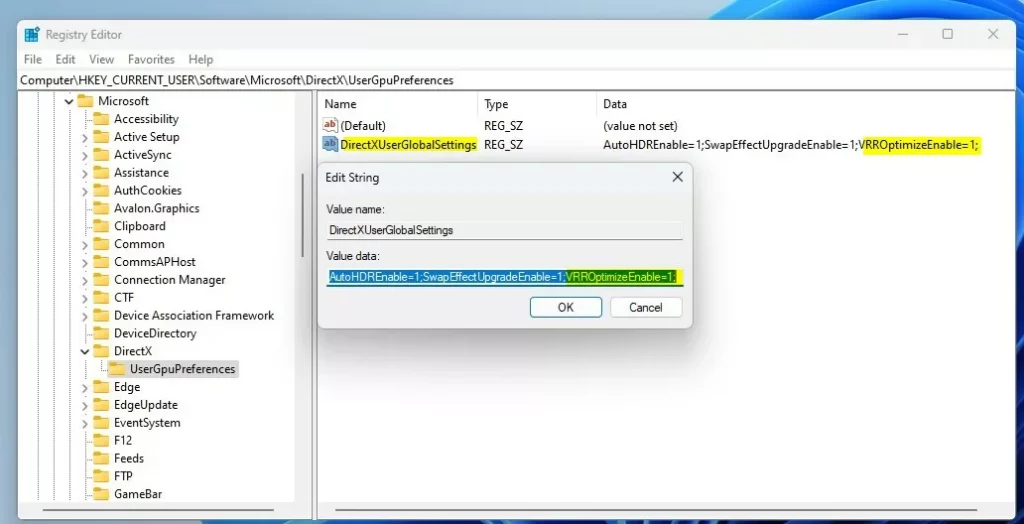
- Enter
Important: Be careful when editing the Registry. It’s a good idea to back up your registry before making changes.
Summary
- VRR helps your monitor show smoother games by matching the screen refresh rate to the game’s frame rate.
- It works best on VRR-supported monitors and with updated graphics drivers.
- You can easily turn VRR on or off in Windows 11 Settings under System > Display > Graphics > Advanced graphics settings.
- Advanced users can also use Registry Editor to enable or disable VRR.
Learn More
For official details, check out the Microsoft Dev Blog.


Leave a Reply Cancel reply