
The Microsoft Store is an app on Windows 11 that lets you find and download apps, games, and movies. Sometimes, when you look at apps or games in the Store, short videos or trailers start playing automatically. If you find this distracting or want to save internet data, you can turn off this video autoplay feature.
In this guide, you’ll learn simple steps to turn video autoplay on or off in the Microsoft Store app.
How to Turn Video Autoplay On or Off
Follow these easy steps:
- Open the Microsoft Store app on your Windows 11 PC. You can find it by clicking the Start button and typing
Microsoft Store. - Look at the top right corner of the Store window and click your profile picture (or the icon that shows your account).
- From the menu that appears, select Settings.
- In the Settings panel, find the Video autoplay option.
- Click the switch to turn it On if you want videos to play automatically, or Off if you want to stop videos from auto-playing.
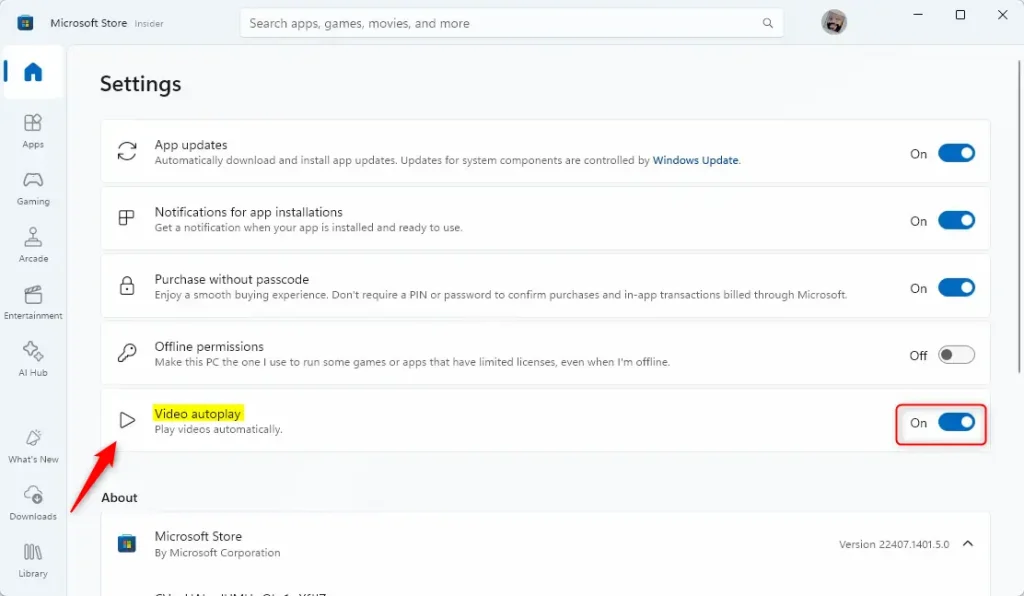
That’s it! Now the Microsoft Store will follow your choice about video autoplay.
Why Turn Off Video Autoplay?
- Save internet data: Videos can use a lot of data, especially on limited plans.
- Reduce distractions: No more surprise videos playing when you browse.
- Customize your experience: Choose what works best for you while using the Store.
If you want to learn more about the Microsoft Store app, you can visit the official Microsoft Store support page.
Summary
You can easily control video autoplay in the Microsoft Store on Windows 11. Open the app, click your profile picture, go to Settings, and toggle the Video autoplay switch on or off based on your preference. Turning it off saves data and reduces distractions while browsing.



Leave a Reply Cancel reply