How to Enable Sticky Keys in Ubuntu Linux

You enable Sticky Keys in Ubuntu Linux by accessing the Accessibility settings in your system. Sticky Keys is an accessibility feature that “sticks” modifier keys like Ctrl, Shift, and Alt, allowing you to press them one at a time instead of simultaneously.
This feature is incredibly useful if you struggle with pressing multiple keys at once for shortcuts. For instance, instead of pressing Ctrl+Shift+Esc to open Task Manager, you can press Ctrl, then Shift, then Esc individually.
This guide will show you how to activate Sticky Keys in Ubuntu 22.04 LTS and later versions, making your keyboard shortcuts more manageable.
Open Settings, navigate to Accessibility, then Typing, and toggle Sticky Keys to On. You can also enable it by pressing Shift five times. This feature holds modifier keys for you, simplifying keyboard shortcuts.
How to turn on or off sticky keys in Ubuntu Linux
You can turn on sticky keys in Ubuntu Linux using the System Settings to make keyboard shortcuts easier if you find it hard to press multiple keys at the same time.
Below is how to enable or disable it in Ubuntu Linux.
Ubuntu Linux keeps most of its settings in one central place. From system configurations to creating new users and updating, all can be done from the System Settings panel.
Alternatively, click on the System menu at the top-right corner of the top bar on your desktop.
On the System menu, select Settings, as highlighted below.

In the Settings app, click on the Accessibility tile to open the panel.

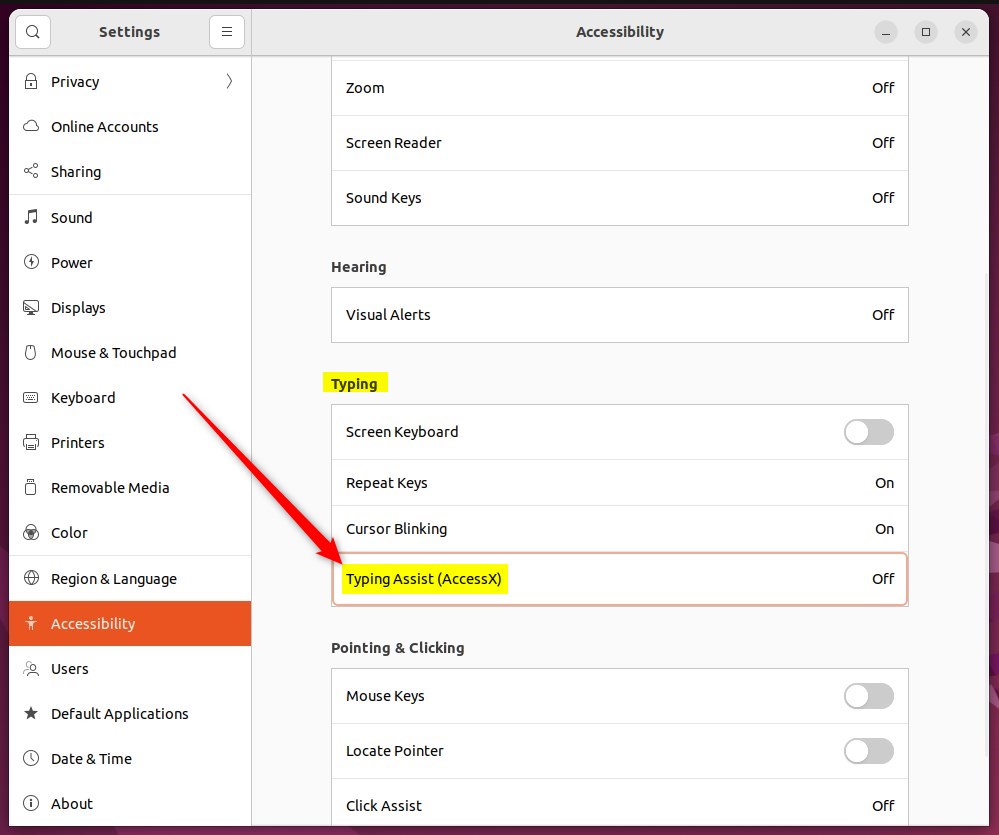
In the System Settings -> Accessibility panel, under Typing, select Typing Assist (AccessX) to expand it.
On the pop-up window, toggle the Sticky Keys switch to On.
To disable, toggle the Sticky Keys back to the Off position.
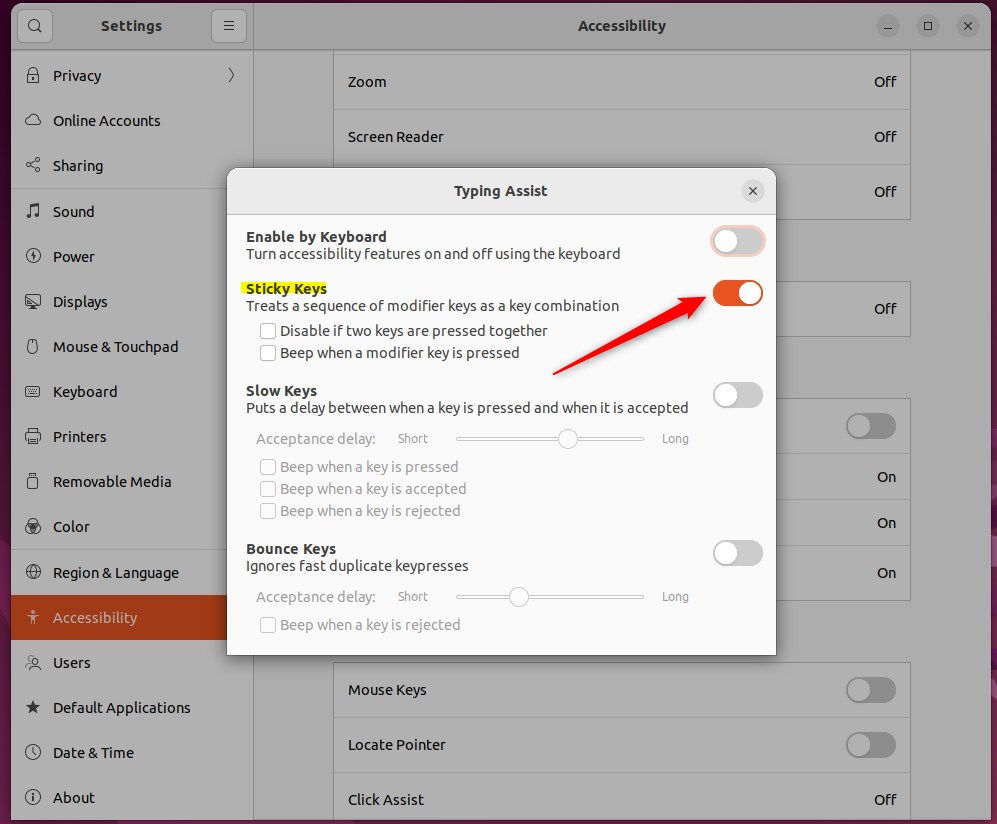
You can also toggle the Enable by Keyboard switch to turn Sticky Keys on and off from the keyboard.
When selecting this option, you can press Shift five times in a row to enable or disable Sticky Keys.
That should do it! You can close the Settings app.
Conclusion:
- Enabling sticky keys in Ubuntu Linux provides accessibility for users who may struggle with pressing multiple keys simultaneously.
- Following the described steps, users can conveniently toggle sticky keys on or off in the Accessibility settings panel.
- Enable or disable sticky keys using a keyboard shortcut adds further user convenience.
- This guide has provided a comprehensive walkthrough for managing sticky keys in Ubuntu Linux, enhancing the overall user experience.
How do I turn back on Sticky Keys?
Are Sticky Keys always on? No, you have to turn Sticky Keys on. You enable Sticky Keys feature by pressing the Shift key five times in quick succession. This will cause an icon to appear on-screen indicating that the feature is enabled.
How to permanently enable Sticky Keys?
Section. And you want to click on keyboard. And then right over here use sticky keys. It says uh press one key at a time for keyboard shortcuts.
What does Ctrl+Alt+T do in Ubuntu?
Opening the Terminal Press Ctrl+Alt+T to open a new Terminal window. This is the single most important shortcut to memorize when working in Ubuntu. You will use it constantly.
Was this guide helpful?

About the Author
Richard
Tech Writer, IT Professional
Richard, a writer for Geek Rewind, is a tech enthusiast who loves breaking down complex IT topics into simple, easy-to-understand ideas. With years of hands-on experience in system administration and enterprise IT operations, he’s developed a knack for offering practical tips and solutions. Richard aims to make technology more accessible and actionable. He's deeply committed to the Geek Rewind community, always ready to answer questions and engage in discussions.




No comments yet — be the first to share your thoughts!