How to Enable Specialized Display in Windows 11

You enable Specialized Display in Windows 11 by dedicating a monitor to a specific application, effectively removing it from your standard desktop environment.
This feature isolates a monitor, stopping Windows from managing it as a general-purpose screen. It then acts as a dedicated resource for specialized hardware or software.
You must have Windows 11 Enterprise or Pro for Workstations to access Specialized Display. This prevents Windows from interfering with exclusive application control over the monitor.
Once activated, the monitor vanishes from your regular desktop. You lose the ability to interact with it via mouse or by dragging other windows onto it.
Navigate to Settings, then System, and click Display. Under Related settings, select Advanced display. Choose the desired monitor and toggle “Remove the display from the desktop” to On. This feature requires Windows 11 Enterprise or Pro for Workstations.
Who is this for?
Specialized Display in Windows 11 is mainly for developers and power users who need direct control over display hardware, not for everyday computer tasks or gaming.
Technical Implementation and API Context
Technically, Specialized Display mode changes how Windows handles your screen by using a special part of the programming tools called the Windows.Devices.Display.Core API.
Hardware Compatibility
Specialized Display mode generally works on most monitors, but your computer’s graphics card and its drivers must support specific low-level commands.
Performance Implications
Turning on Specialized Display mode can boost performance for your main app because Windows doesn’t have to manage that screen anymore, but it means less screen space for other tasks.
Step-by-Step Guide to Enable Specialized Display
To turn on Specialized Display in Windows 11, you’ll need administrator rights and then open Settings, go to System, and then Display.
- Open Settings by pressing the Windows key + I on your keyboard.
windows 11 start menu settings updated - Click on the System tab in the left sidebar.
- Click on the Display tile on the right side of the window.
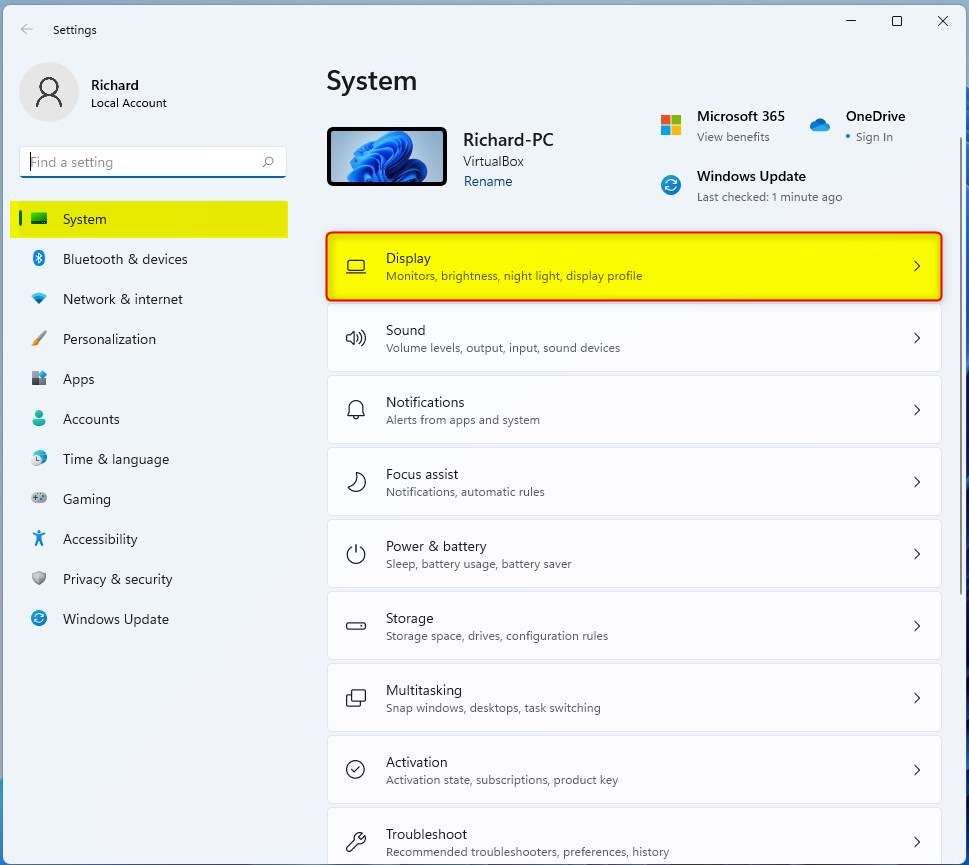
windows 11 display tile - Scroll down to the Related settings section and click on Advanced display to expand it.
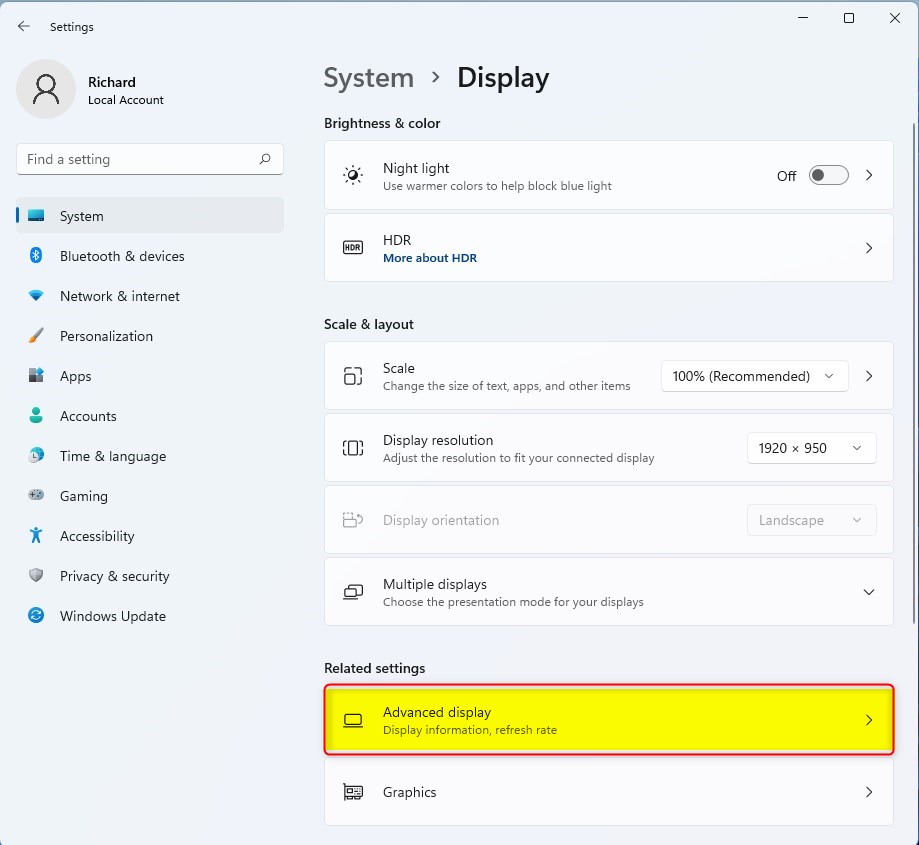
windows 11 display advanced display - Use the drop-down menu at the top to select the monitor you want to configure.
- Find the option for Remove the display from the desktop and toggle the switch to On.
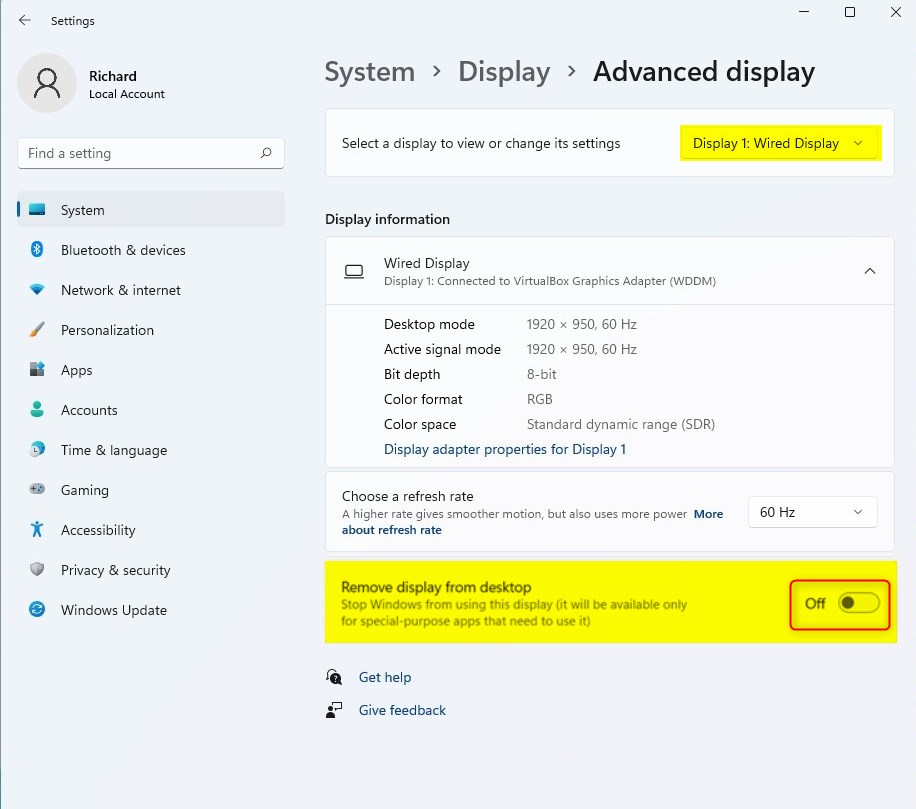
windows 11 remove display from desktop on or off
Troubleshooting and Verification
If you can’t find the Specialized Display option, first check if you have the right Windows version, like Enterprise or Pro for Workstations, as Home editions don’t support it.
Summary
Specialized Display in Windows 11 lets you dedicate a monitor to a specific app, which is useful for professionals using custom hardware in fields like medicine or simulations.
How do I check if my display supports Specialized Display mode?
You can check if your display supports Specialized Display mode by going to Settings, then System, and looking under Advanced display settings for the option.
Was this guide helpful?

About the Author
Richard
Tech Writer, IT Professional
Richard, a writer for Geek Rewind, is a tech enthusiast who loves breaking down complex IT topics into simple, easy-to-understand ideas. With years of hands-on experience in system administration and enterprise IT operations, he’s developed a knack for offering practical tips and solutions. Richard aims to make technology more accessible and actionable. He's deeply committed to the Geek Rewind community, always ready to answer questions and engage in discussions.



No comments yet — be the first to share your thoughts!