
What Is This About?
This simple guide will help you choose if you want to see ads made just for you in the Copilot app on Windows 11. You can easily turn personalized ads on or off whenever you want.
What Is Microsoft Copilot?
Microsoft Copilot is a smart assistant built into Windows 11. It helps you get things done faster. It uses your Microsoft account to save your settings and chats. This means you can use it on all your devices.
Why Control Personalized Ads?
When you sign in to Copilot with your Microsoft account, Microsoft shows ads based on what interests you. If you want, you can control whether these ads are personalized or not. You can also decide if your Copilot chat history helps make ads more relevant to you.
Note: If you are under 18 years old, Microsoft does not show you personalized ads at all.
Steps to Enable or Disable Personalized Ads in Copilot
- Open the Copilot app on your Windows 11 PC.
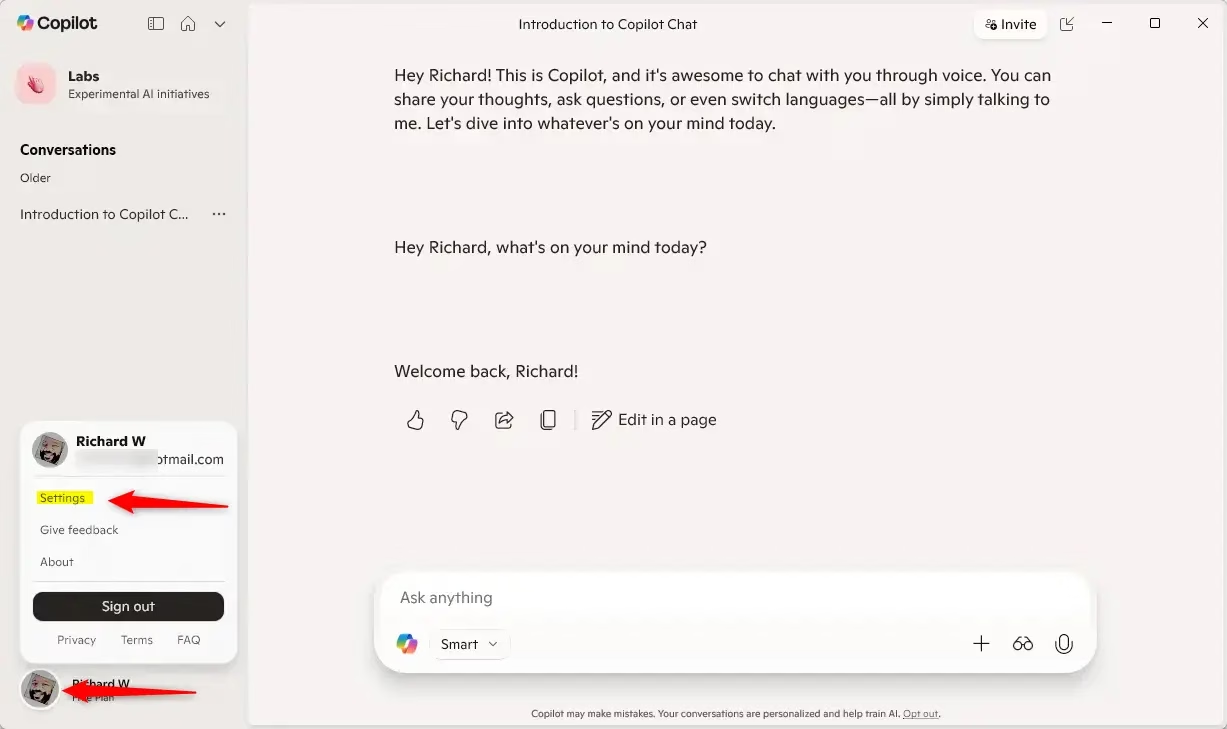
- Sign in to Copilot with your Microsoft account if you’re not already signed in. How to sign in or out of Copilot
- Make sure Copilot is in full view. Then, click the Account button on the left sidebar, and select Settings. How to open and close the sidebar
- Click on the Privacy section.

- You’ll see the option for Ad Personalization. Slide the switch to On to allow personalized ads. Slide it to Off if you want generic ads instead.
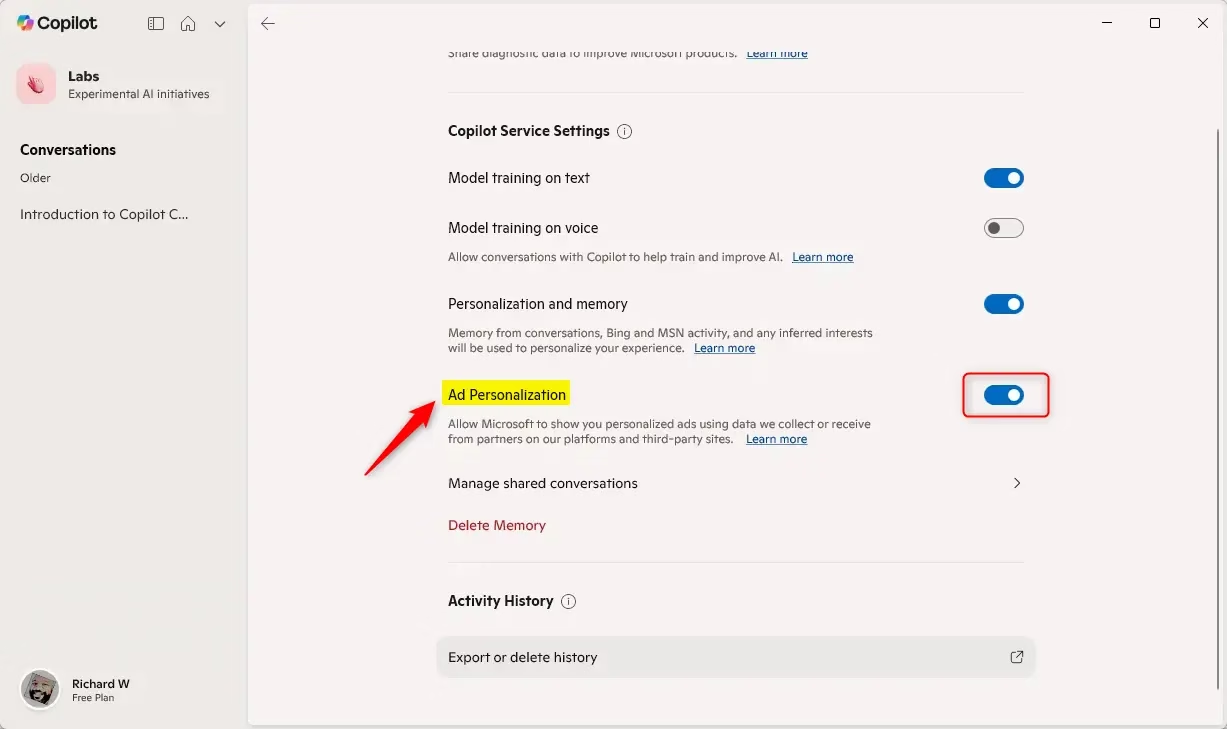
- Close the settings when you’re done. Your choice will be saved automatically.
Summary
- You control whether Microsoft shows you personalized ads in the Copilot app through your account.
- Turning on ad personalization means ads match your interests better.
- You can stop personalized ads from using your chat history if you want.
- Users under 18 won’t see personalized ads at all.
- For more info, see the official Microsoft Copilot privacy controls page.



Leave a Reply Cancel reply