How to Enable OneDrive Sync in Windows 11 Battery Saver Mode

This guide explains how to manage OneDrive file sync within battery saver mode on Windows 11.
Why OneDrive Sync Pauses in Battery Saver Mode
OneDrive sync battery saver mode pauses syncing to save your laptop’s power by limiting background app activity.
What Happens When You Disable Battery Optimization
If you disable this setting, your laptop will continue to sync files even when the battery is low. This ensures your documents are always up to date. However, your battery will drain faster because the computer must keep the network connection and processor active for background tasks.
Comparison: Battery Saver vs. Balanced Mode
| Feature | Battery Saver Mode | Balanced Mode |
|---|---|---|
| Sync Frequency | Paused or Throttled | Continuous |
| Background Apps | Restricted | Full Access |
| Power Usage | Low | Moderate/High |
How to Enable OneDrive Sync in Battery Saver Mode
You can keep OneDrive syncing files even when Windows 11’s battery saver is on by changing one simple setting in the OneDrive app.
- Click the OneDrive cloud icon in your taskbar.
- Select Help & Settings, then click Settings.
onedrive settings button - Navigate to the Sync and backup tab.
- Locate the option Automatically pause sync when this device is in battery saver mode.
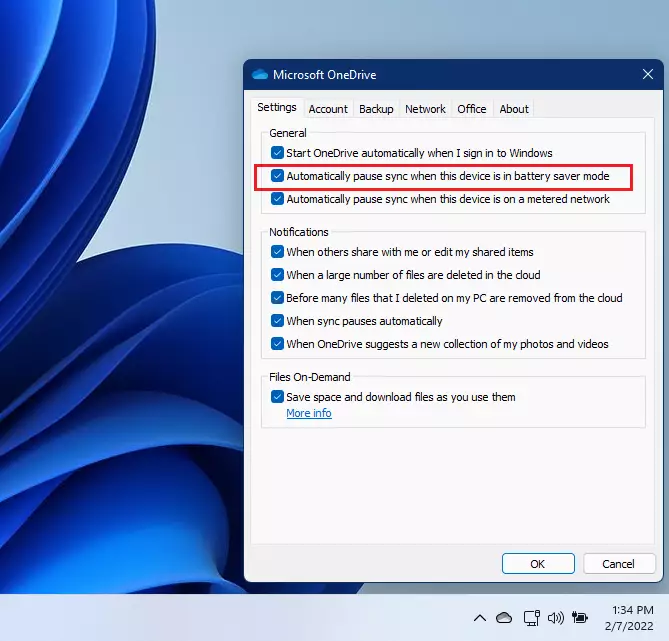
turn on onedrive file sync in battery saver mode windows 11 - Uncheck the box to allow continuous syncing.
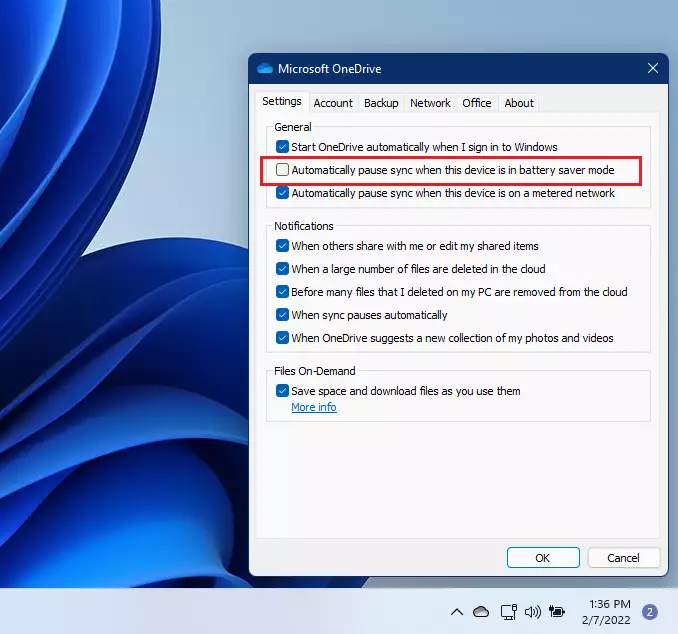
turn off onedrive file sync in battery saver mode windows 11
Advanced Troubleshooting: Registry and Group Policy
If the app settings do not work, you can force changes using advanced tools. Note: These steps require admin privileges.
Using Registry Editor
You can modify the registry to prevent power throttling for OneDrive. Open regedit and navigate to HKEY_CURRENT_USER\Software\Microsoft\OneDrive. Right-click and create a new DWORD value named DisableBatterySaverSync and set it to 1.
Using Group Policy Editor
If you are on Windows Pro, open gpedit.msc. Go to Computer Configuration\Administrative Templates\Windows Components\OneDrive. Look for policies related to power management and ensure they are set to Disabled or Not Configured to allow normal operation.
Pro Tip: Check Throttling in Task Manager
To see if your sync is currently throttled, open Task Manager (Ctrl+Shift+Esc). Go to the Details tab, right-click OneDrive.exe, and check the Power Throttling status. If it says Enabled, Windows is actively limiting the app.
Summary
The OneDrive sync battery saver setting helps save power by stopping syncs when your battery is low.
Is it safe to disable OneDrive battery optimization?
Yes, it is perfectly safe. Disabling this setting will not harm your computer or your files. It simply tells Windows to stop limiting the OneDrive sync engine when your battery is low, which may result in slightly shorter battery life during your work session.
Does OneDrive sync pause when the laptop is plugged in?
No, OneDrive does not pause syncing when your laptop is plugged into a power source. The battery saver restrictions only apply when the device is running on battery power and the Battery Saver mode is actively turned on by the user or the system.
Was this guide helpful?

About the Author
Richard
Tech Writer, IT Professional
Richard, a writer for Geek Rewind, is a tech enthusiast who loves breaking down complex IT topics into simple, easy-to-understand ideas. With years of hands-on experience in system administration and enterprise IT operations, he’s developed a knack for offering practical tips and solutions. Richard aims to make technology more accessible and actionable. He's deeply committed to the Geek Rewind community, always ready to answer questions and engage in discussions.




No comments yet — be the first to share your thoughts!