

Did you know you can share your PC’s internet with other devices? You can turn your Windows 11 computer into a mobile hotspot. It works like Wi-Fi sharing — your PC becomes a mini Wi-Fi router!
You can share internet from Wi-Fi, Ethernet (wired), or cellular data connections. But if you share cellular data, it will use your mobile data plan.
When you turn on the mobile hotspot, there’s a power saving feature you can switch on or off. Why use this? If power saving is on, the hotspot will automatically turn off after 5 minutes if no devices are connected. What happens? This helps save your battery and energy.
How to Turn Mobile Hotspot Power Saving On or Off (Using Settings)
- Press Windows + I on your keyboard to open Settings.
- Click Network & internet on the left side.
- Click Mobile hotspot on the right side.
- Find the Power saving option and turn it On or Off depending on what you want.
- Close the Settings window when you’re done.
Here’s what it looks like:
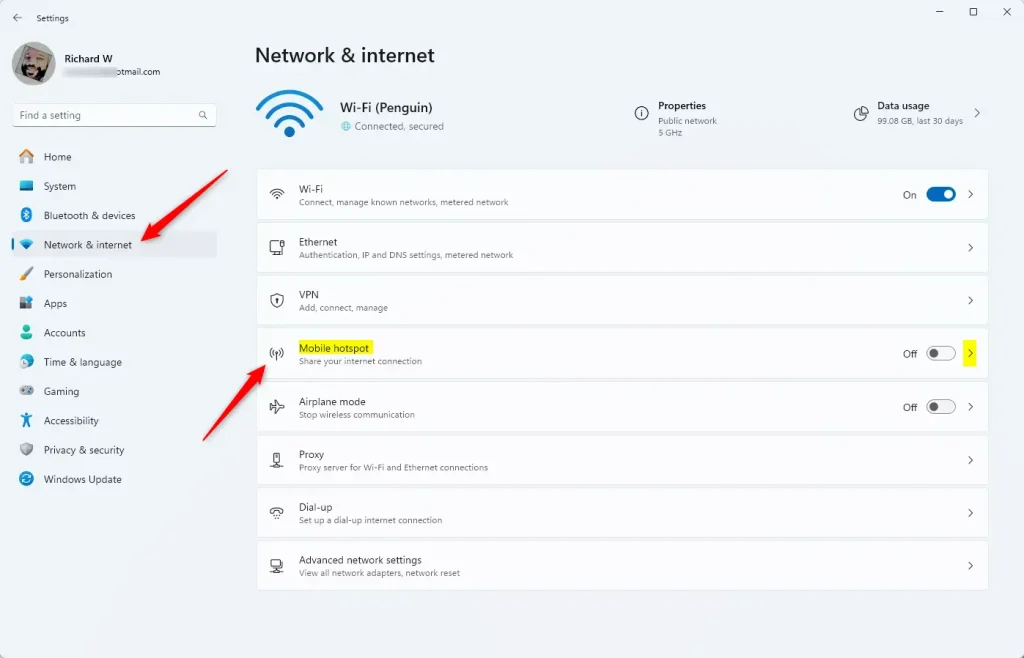
Step 3: Mobile hotspot settings in Windows 11

Step 4: Turn Power saving On or Off here
How to Turn Mobile Hotspot Power Saving On or Off (Using a BAT File)
If you are comfortable with using command files and have administrator access, you can also use a BAT file to quickly turn this feature on or off.
⚠️ Admin required: You must be signed in as an administrator to do this.
Turn ON Power Saving (default setting):
powershell -windowstyle hidden -command "Start-Process cmd -ArgumentList '/s,/c,net stop "icssvc" & REG ADD "HKLM\SYSTEM\CurrentControlSet\Services\icssvc\Settings" /V PeerlessTimeoutEnabled /T REG_DWORD /D 1 /F & net start "icssvc"' -Verb runAs"Turn OFF Power Saving:
powershell -windowstyle hidden -command "Start-Process cmd -ArgumentList '/s,/c,net stop "icssvc" & REG ADD "HKLM\SYSTEM\CurrentControlSet\Services\icssvc\Settings" /V PeerlessTimeoutEnabled /T REG_DWORD /D 0 /F & net start "icssvc"' -Verb runAs"Steps to use the BAT file:
- Open Notepad and copy the code you want (ON or OFF) into it.
- Save the file with a .bat extension, like PowerSavingOn.bat or PowerSavingOff.bat.
- ⚠️ Admin required: Right-click the saved file and choose Run as administrator.
- You will see a command window open briefly — it runs the commands and then closes automatically.
- You can delete the BAT file if you don’t need it anymore.
Summary
- Easy sharing: Mobile hotspot lets you share your internet quickly with other devices.
- Save battery: Power saving automatically turns off the hotspot when no one is connected, saving energy.
- Simple control: You can change the power saving setting in the Settings app or by running a quick script.
- Admin power: Advanced users with admin rights can use the BAT file method for faster changes.
Try these steps to set your mobile hotspot just how you like it!



Leave a Reply Cancel reply