If you use more than one screen (monitor) with your Windows 11 PC, you might notice that when you unplug a monitor, the windows open on that screen get minimized (hidden). This guide will show you how to turn this feature on or off easily.
What Does This Setting Do?
When you disconnect a monitor, Windows 11 usually minimizes any programs or windows that were on that monitor. If you turn off this feature, Windows will instead move all those windows to your main screen, so you can still see and use them.
How to Turn On or Off This Setting Using Windows Settings
- Press Windows Key + I on your keyboard to open Settings.
- On the left side, click System.
- On the right, click Display.
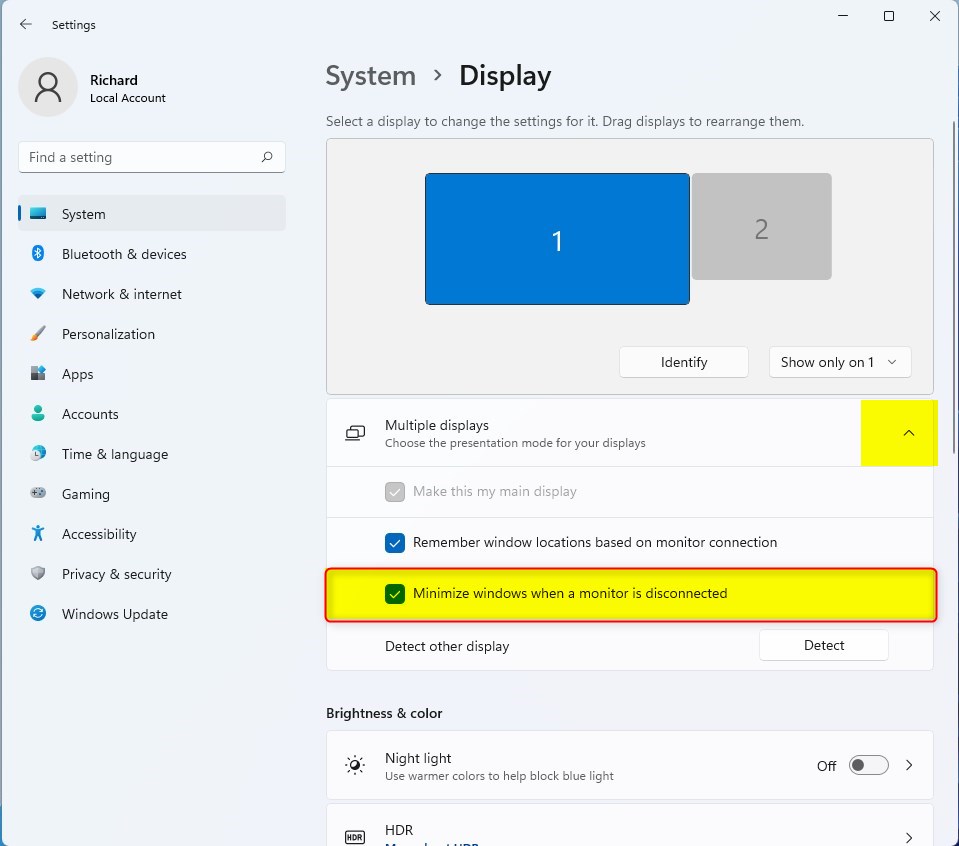
- Scroll down and click on Multiple displays to expand the options.
- Find the option called Minimize windows when a monitor is disconnected.
- Check the box to turn it on (this is the default), or uncheck it to turn it off.
Here is what it looks like in Settings:

Click here to open Display Settings directly
How to Turn On or Off This Setting Using the Registry (for Advanced Users)
Warning: Editing the Registry can cause problems if done incorrectly. Make sure to follow the steps carefully or ask someone for help.
To Turn ON Minimize Windows (Default Setting):
reg add "HKEY_CURRENT_USER\Control Panel\Desktop" /v MonitorRemovalRecalcBehavior /t REG_DWORD /d 0 /f
To Turn OFF Minimize Windows (Keep Windows on Main Screen):
reg add "HKEY_CURRENT_USER\Control Panel\Desktop" /v MonitorRemovalRecalcBehavior /t REG_DWORD /d 1 /f
If you want to apply these changes, you can create a text file with the above code and save it with a .reg extension, then double-click the file to add it to your Registry.
Summary
- You can control what happens to your open windows when a monitor is unplugged.
- The default is to minimize windows on the disconnected monitor.
- Turning off this feature will move those windows to your main display automatically.
- You can change this setting easily in Windows Settings or by editing the Registry if you know how.
Try changing this setting to see which behavior you like best for your work or play!
Leave a Reply Cancel reply