
This tutorial will show you how to turn on or off HDR video streaming for your account in Windows 11.
What is HDR Video?
HDR content offers better brightness and color capabilities compared to traditional content (sometimes called standard dynamic range [SDR] content). Traditional content typically shows details in a bright part of a scene or a darker part of a scene but not in both parts at the same time. For example, if the shot focuses on a bright window in the scene, details in the shadow are lost.
HDR can show a wider range of colors and light with more details in between the extremes. Colors are more vivid and unique in HDR content. Additionally, bright parts of a scene are brighter while dark parts can be darker, and you don’t lose any details.
What You Need
You will be able to play streaming high dynamic range (HDR) video when your Windows PC has a display that’s optimized for HDR video and you have HDR video streaming turned on.
Important Things to Know
Display compatibility: Not all displays are optimized for HDR video. If you have two displays and move the HDR video onto a display that’s not optimized for HDR video, you’ll get the appropriate standard dynamic range (SDR) video stream as soon as new content starts to play (for example, a new TV episode). If you want to get it sooner than that, restart your video app and start playing the video on the HDR display you plan to watch it on.
Battery saver mode: If you want the best HDR video experience even when battery saver is turned on, then turn off Lower screen brightness when using battery saver. For the best HDR video experience, Windows needs to be able to set your display to the maximum brightness level.
Battery power: Because playing HDR video uses more battery power, you won’t get HDR video by default if you’re on battery. To change this, select Settings > Display > HDR or Use HDR. Select Battery options, then select the Allow streaming HDR video on battery check box or the Allow HDR games, videos, and apps on battery check box.
Full screen required: You won’t get HDR video if the video app isn’t open full screen.
How to Turn On or Off HDR Video Streaming
- Open Settings by pressing
Win+I. - Click on System on the left side, and then click on Display on the right side.
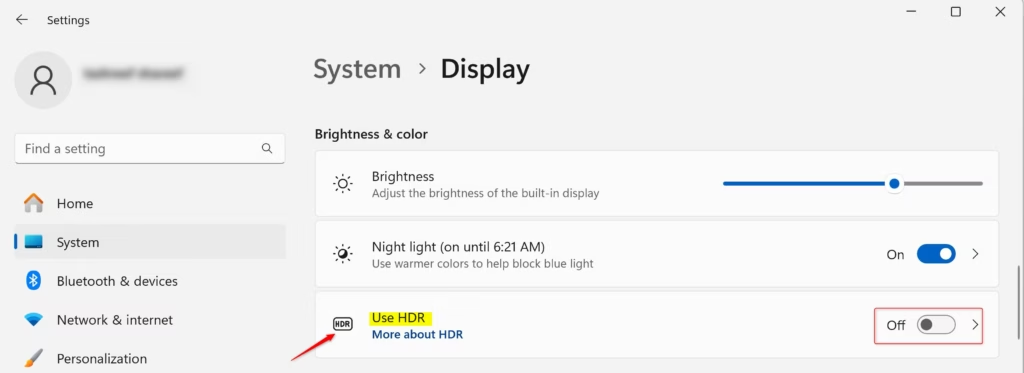
- Click on HDR or Use HDR on the right side.
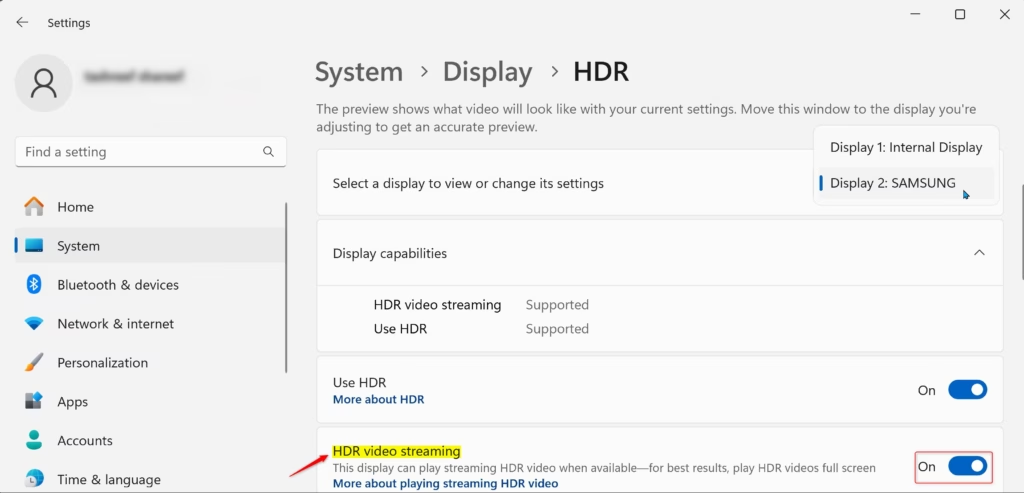
- If you have multiple displays connected to your PC, choose the HDR-capable display you want to apply this to in the Select a display to view or change its settings drop-down menu.
- Turn On (default) or Off HDR video streaming (if available) for what you want.
- You can now close Settings if you like.
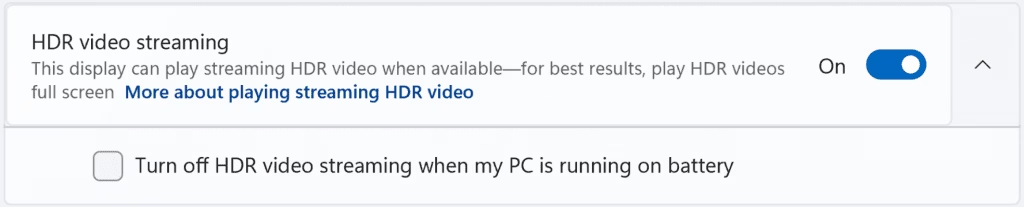
Note: Starting with Windows 11 build 25346 in the Canary Channel, it’s now easier to configure the state of HDR when running on battery.
Summary
HDR video streaming gives you better colors and brightness in videos compared to standard video. To use it on Windows 11, you need an HDR-capable display and the feature turned on in your Settings. Open Settings, go to System > Display > HDR, and turn it on for your display. Keep in mind that HDR uses more battery power and works best when your video app is full screen. If you have multiple displays, make sure you select the one that supports HDR.


Leave a Reply Cancel reply