How to Enable HDR Video on Windows 11 Battery

This guide explains how to manage high dynamic range (HDR) video settings on Windows 11 laptops while using battery power.
Why: HDR (High Dynamic Range) video makes colors look brighter and more vivid. However, it uses a lot of power. Windows often turns it off automatically when you unplug your laptop to help your battery last longer.
What happens when done: Your laptop will continue to show high-quality HDR video even when you are not plugged into a power outlet.
If you want to learn more, check out our previous post on how to turn On or Off Auto HDR in Windows.
How to enable or disable HDR video on battery
You can change these settings in the Windows Settings menu. Note that some system-level changes may require admin privileges.
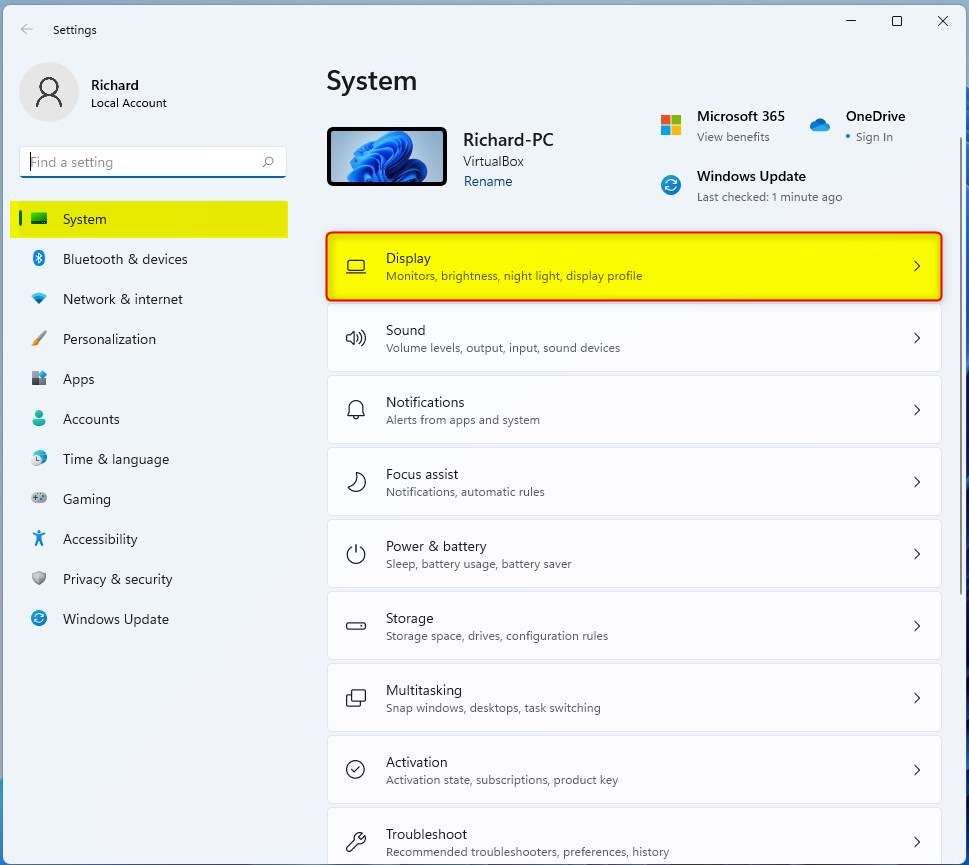
- Open Settings by pressing the Windows key + I on your keyboard, or by clicking Start and selecting the Settings icon.

- In the Settings menu, click on Display on the right side of the window.
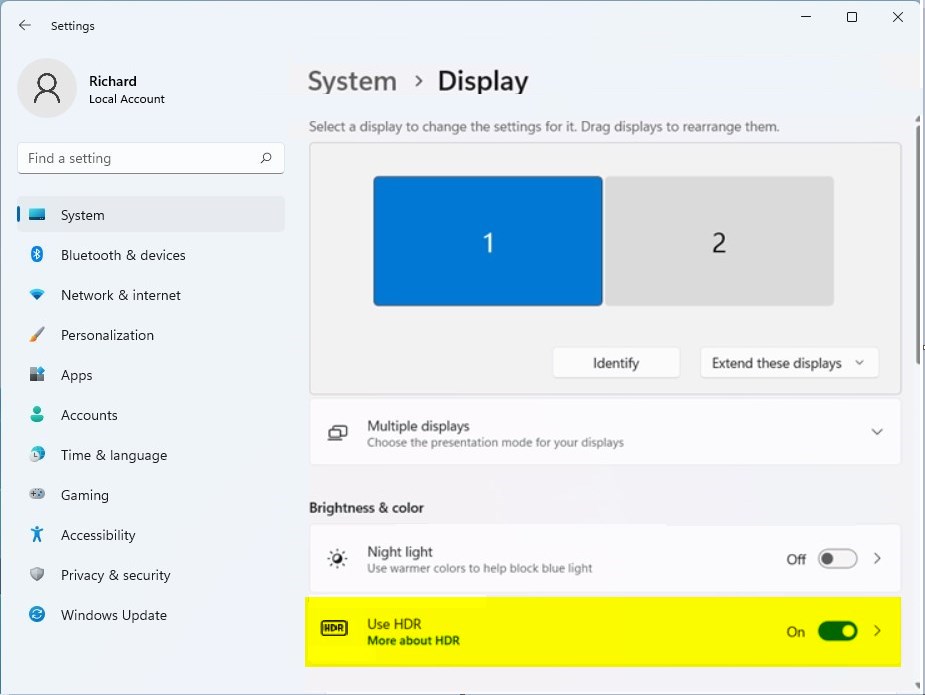
- Under the Brightness & color section, click the HDR tile to open more options.
- Select the display you want to change.
- Look for the Battery options section.
- Check the box for Allow HDR games, videos, and apps on the battery or Allow streaming HDR video on the battery.
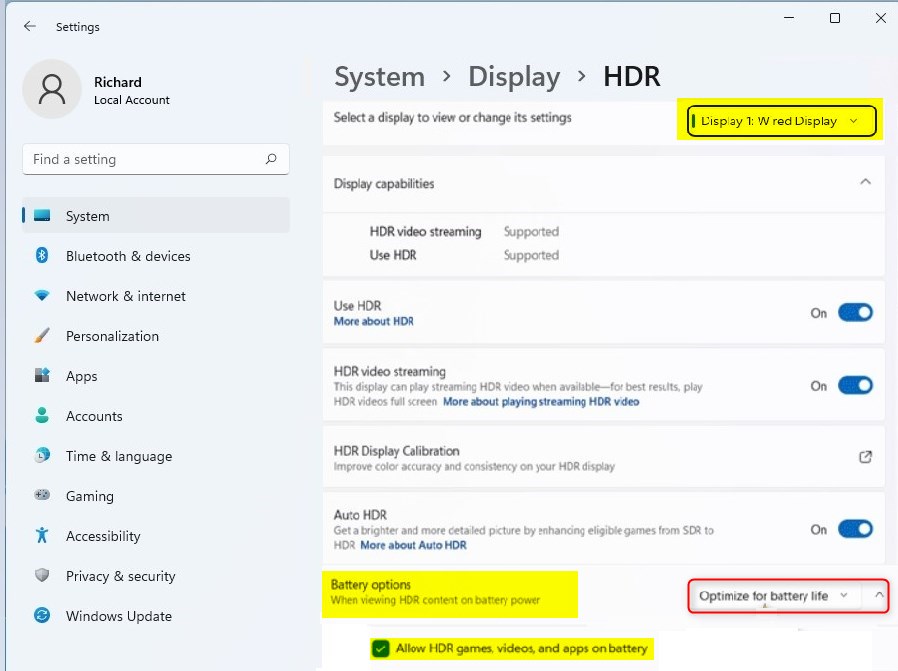
Once you check these boxes, your HDR settings will remain active even when you unplug your charger.
Summary
Enabling HDR on battery power improves video quality but drains your battery faster. By adjusting these settings in the Windows Display menu, you gain full control over when HDR is active, allowing you to choose between a better viewing experience or longer battery life.
Was this guide helpful?



Leave a Reply Cancel reply