

This tutorial shows you how to turn on or off hardware-accelerated GPU scheduling in Windows 11.
Why Does This Matter?
Hardware-accelerated GPU scheduling helps your graphics card work more efficiently. It reduces delays and makes your videos and games look smoother.
What You Need
Your graphics card must support hardware acceleration. Your graphics driver must also be version WDDM 2.7 or newer.
You need to be signed in as an administrator to make these changes.
References
- Hardware Accelerated GPU Scheduling – DirectX Developer Blog — Introduction to Hardware Accelerated GPU Scheduling. This explains how Windows improved the GPU scheduler in the Windows Display Driver Model (WDDM).
- Navigating the Redesigned Graphics Settings page – DirectX Developer Blog — The graphics page in Windows 11 settings lets you adjust GPU preference, Auto HDR, and game optimizations. The new design matches Windows 11’s updated look.
Option One: Using Settings
Turn On or Off Hardware Accelerated GPU Scheduling in Settings
- Open Settings by pressing Win+I.
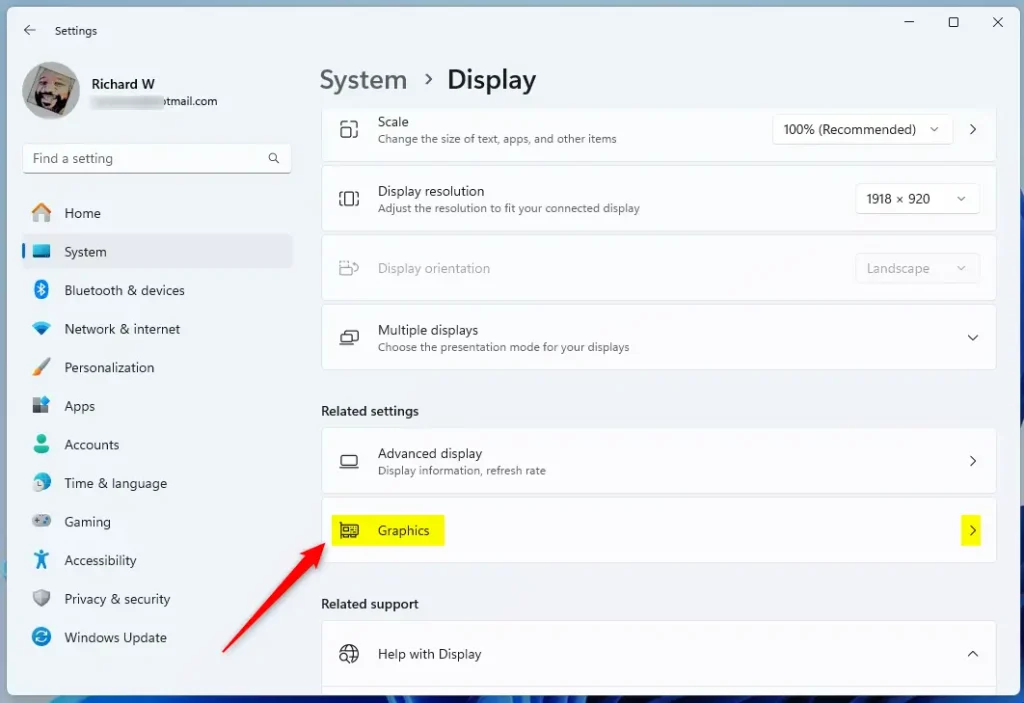
- Click System on the left side. Then click Display on the right side. (See screenshot below)
- Click Graphics on the right side. (See screenshot below)
Open Graphics settings - Click the Change default graphics settings link. (See screenshot below)
Note: This link will no longer be available starting with Windows 11 build 25281.
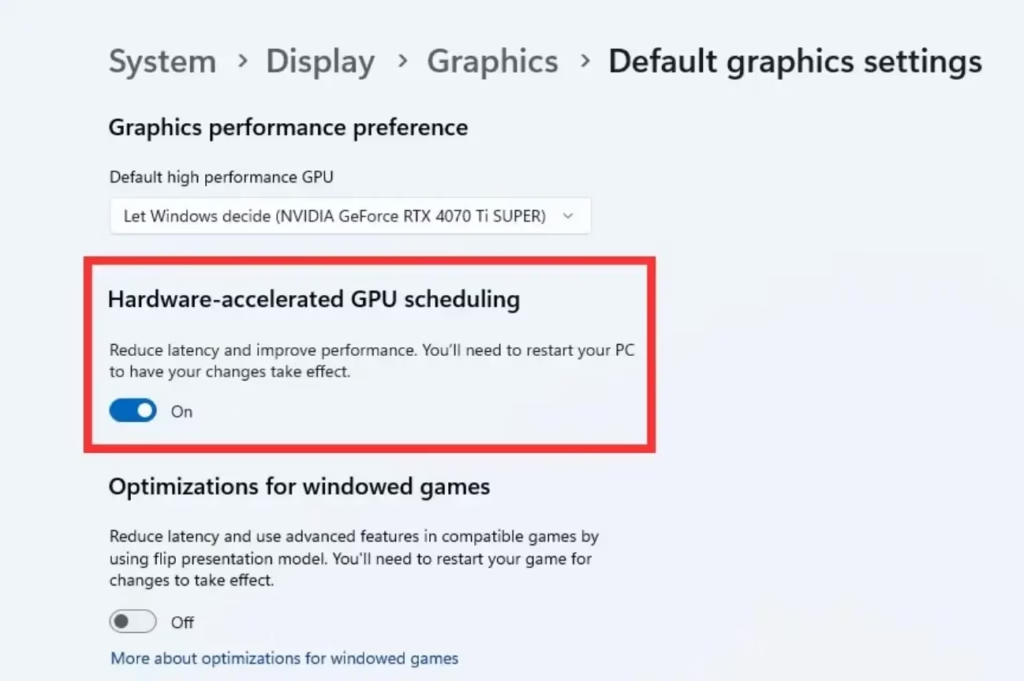
- Turn On or Off (default) Hardware-accelerated GPU scheduling based on what you want. (See screenshots below)
If you don’t see a Hardware-accelerated GPU scheduling option, your device doesn’t support it.
- ⚠️ Requires Admin: Restart your computer to apply the changes.
Option Two: Using Registry Editor
Turn On or Off Hardware Accelerated GPU Scheduling Using Registry
⚠️ Requires Admin: Open the Terminal app as administrator and run the commands below.
To Turn On Hardware Accelerated GPU Scheduling
reg add "HKLM\SYSTEM\CurrentControlSet\Control\GraphicsDrivers" /v HwSchMode /t REG_DWORD /d 2 /f
To Turn Off Hardware Accelerated GPU Scheduling
This is the default setting.
reg add "HKLM\SYSTEM\CurrentControlSet\Control\GraphicsDrivers" /v HwSchMode /t REG_DWORD /d 1 /f
Summary
Hardware-accelerated GPU scheduling makes your graphics card more efficient by reducing delays and improving performance. You need an advanced graphics card and updated drivers to use this feature. You can turn this setting on or off in two ways: through Settings or through Registry Editor. After making changes, restart your computer. If you don’t see the option in Settings, your device doesn’t support this feature.
Leave a Reply Cancel reply